AI providers cap how fast you can consume their APIs — measured in tokens per minute and requests per minute. When you exceed that cap, the provider rejects the request and Maverick shows a rate limit error. These seven strategies address the most common causes, from quick configuration tweaks to structural changes that scale with your team.
1. Lower the Max Output Token Count on Your Model Record
The Max Output Token setting on an AI model record caps how long the AI's reply can be. Many providers set defaults of 4,000 tokens or more. For routine scheduling updates and short questions, a response rarely needs to be that long. Reducing the cap to 1,000–2,000 tokens trims the output portion of every request, freeing up tokens-per-minute budget without affecting the quality of typical replies.
2. Assign a Separate API Key to Each Employee
When multiple team members share a single API key, every prompt any one of them sends draws from the same per-minute quota bucket. If three people send prompts in the same minute, they consume three times as much of the shared limit. Assigning each employee their own API key in Maverick gives each person an independent quota — one person's heavy use does not reduce what anyone else has available.
3. Space Out Batch Requests
If you are sending several AI prompts in quick succession — updating multiple projects or running a series of follow-up questions — introduce a brief pause between requests. Waiting 15–30 seconds between heavy prompts gives the 60-second window time to partially reset, keeping you well below the tokens-per-minute ceiling. A small amount of pacing eliminates most burst-related rate limit errors.
4. Choose a Provider or Tier With Higher Limits
If you regularly hit your tokens-per-minute cap, the simplest structural fix is to use a provider or account tier with a higher limit. Groq's free tier offers unusually high tokens-per-minute on popular open models including Llama and Mistral. Paid tiers at any major provider — OpenAI, Anthropic, Google Gemini — scale up significantly once you build a spending history with them.
5. Switch High-Volume Users to Ollama
Ollama runs AI models locally on your own hardware with no rate limits at all. There are no API keys, no per-minute quotas, and no 429 errors. For team members who send many or complex prompts, Ollama eliminates the quota variable entirely. The tradeoff is that inference speed depends on local hardware rather than a cloud provider's optimized infrastructure — but for users who hit rate limits consistently, that tradeoff is usually worth it.
6. Keep Your Conversation Context Concise
Every message in a chat session is typically included in the context sent to the model on each subsequent request. A long conversation thread inflates the input token count of every new prompt, even if the question itself is short. Starting a fresh chat session when you move to a new topic — rather than continuing a growing thread — resets the context load and keeps input tokens per request low.
7. Use AI Context Exclusion Flags to Trim the Project Data
Maverick's AI model settings include exclusion flags that control which categories of project data are packaged into the context for each AI request. Removing fields that are irrelevant to your current task directly reduces input tokens on large projects. The available flags are:
- Include full resource pool — adds all resources to the context, not just those assigned to tasks; useful when asking about staffing availability
- Exclude resource assignments — omits user and resource names assigned to tasks
- Exclude successor links — omits task-to-task dependency relationships
- Exclude subproject list — omits the subproject hierarchy
- Exclude descriptions — omits project and task description text
- Exclude progress fields — omits percent complete and completion status
- Exclude task schedule dates — omits task start date, finish date, and duration
- Exclude task status — omits the status field from individual tasks
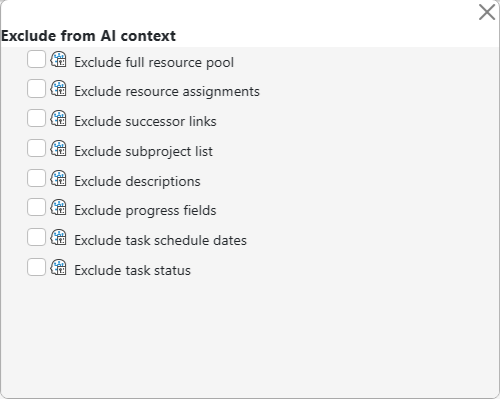
Each flag is independent. Enabling even two or three on a large project can remove hundreds of input tokens per request — meaningful headroom when your team is approaching the per-minute limit.