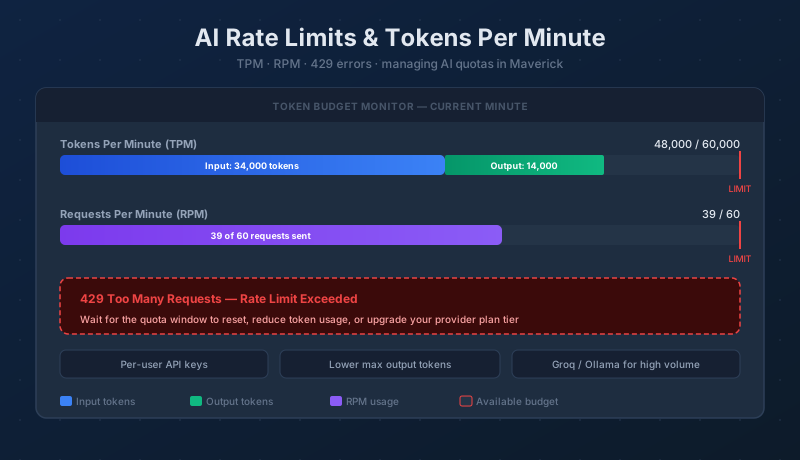
When you connect Maverick to an AI provider, you're borrowing time on someone else's infrastructure. To ensure fair access for every customer, providers enforce rate limits — caps on how quickly you can consume their API. Understanding those limits explains why AI chat occasionally returns an error, and it gives you the practical tools to avoid hitting the ceiling.
What Are AI Rate Limits?
A rate limit is a restriction your AI provider applies to the speed at which you can use their API. It is not a cap on total lifetime usage — it resets every minute. Once the window resets, your full quota is restored and requests proceed normally.
Providers impose rate limits for three reasons:
- Infrastructure stability — no single customer can flood the API and degrade service for everyone else
- Fair resource distribution — all paying customers get consistent, predictable access
- Cost control for free tiers — providers can offer generous free access by placing tighter limits on speed rather than total volume
Rate limits apply even when you have paid credits remaining. Running out of rate limit capacity is different from running out of money — you can have plenty of prepaid tokens in your account and still receive a rate limit error if you send requests too quickly.
What Is a Token?
A token is the unit AI providers use to measure text. Tokens are not the same as words — they are chunks of characters that the model processes. As a rough rule of thumb, 1,000 tokens is approximately 750 words in English. A typical sentence is 10–20 tokens. A detailed project description might be 300–500 tokens.
Every AI interaction involves two types of tokens:
- Input tokens — the text you send to the model. This includes your message, any system prompt configured on the model record, and any conversation history from the current session that Maverick sends as context.
- Output tokens — the text the model generates in its response. Output tokens are typically more expensive to produce than input tokens, and some providers price them at a higher rate per thousand.
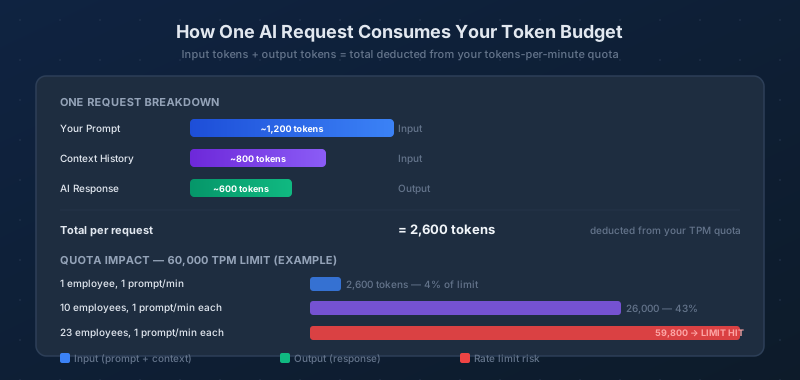
Both input and output tokens are counted together toward your rate limit quota. A request that sends 1,200 input tokens and receives 600 output tokens consumes 1,800 tokens from your per-minute budget.
Tokens Per Minute (TPM) and Requests Per Minute (RPM)
Most providers enforce two simultaneous limits:
- Tokens Per Minute (TPM) — the total number of tokens, input plus output, your API key can consume in a 60-second window. If you send many short requests or a few very long ones, you might exhaust this budget before the minute is up.
- Requests Per Minute (RPM) — the number of individual API calls your key can make in a 60-second window, regardless of how many tokens each call uses. Even if you have TPM remaining, exceeding the RPM limit will block new requests.
Both limits apply at the same time. Whichever you hit first is the one that stops your next request. Most teams using Maverick hit the TPM limit before the RPM limit, because AI project management prompts — with their full project context — tend to be token-heavy.
What Happens When You Hit a Rate Limit in Maverick?
When your API key's rate limit is exhausted, the provider returns an HTTP 429 Too Many Requests error. Maverick surfaces this in the AI chat panel as an error message indicating that the request could not be completed. The AI's response is not partial — the entire request is rejected.
The fix is straightforward: wait for the 60-second window to reset, then try again. You do not need to restart Maverick or reconfigure anything. The limit resets automatically, and the next request proceeds normally.
Rate limit errors are most common in these situations:
- A large team shares a single API key and several people send prompts within the same minute
- A prompt is sent against a long project with many tasks, producing a large context that consumes many input tokens
- A user sends several follow-up prompts in rapid succession during a complex scheduling session
- A free-tier API key is in use, which carries the tightest per-minute limits
How Rate Limits Vary by Provider
Each provider sets its own limits, and those limits scale with your usage tier. The following are approximate values for common providers as of early 2026 — always check the provider's current documentation for the exact figures that apply to your account.
- OpenAI — Free tier and Tier 1 accounts have modest limits (often 30,000–90,000 TPM depending on the model). Limits increase significantly as you spend more with the provider over time, reaching millions of TPM at higher tiers.
- Anthropic — Similar tiered structure. Free API access has tight limits; paid accounts start with 40,000–100,000 TPM and scale up with usage history.
- Google Gemini — Free tier is notably generous for certain Gemini models, with higher TPM than comparable free tiers at other providers. Paid tiers scale into the millions.
- Groq — Offers high free-tier rate limits compared to other providers. Groq hosts Llama, Mistral, and other open models at very low cost and has built high throughput into its architecture. A good choice for teams that frequently hit rate limits on other providers.
- Ollama (local) — No rate limits. Ollama runs models on your own hardware. The only throughput ceiling is your CPU or GPU. There are no API keys, no quotas, and no per-minute restrictions — though inference speed depends entirely on local hardware.
For a step-by-step guide to signing up for any of these providers and getting your API key into Maverick, see:
How to Sign Up for an AI Provider
Seven Ways to Stay Within Your Rate Limits
Rate limit errors are inconvenient but avoidable. These seven strategies address the most common causes:
- Lower the Max Output Token count on your model record. The Max Output Token setting on an AI model record caps the length of the AI's response. Reducing it from the default (which may be 4,000+ tokens) to a value appropriate for your typical prompts — 1,000–2,000 tokens for routine updates — reduces the output portion of every request. Fewer output tokens means more headroom within your TPM budget.
- Assign separate API keys to each employee. When multiple team members share one API key, their requests compete for the same per-minute quota. Each person sending a prompt in the same 60-second window chips away at the shared limit. Assigning individual API keys spreads the load — each key has its own independent quota, so one user's activity does not consume another's budget.
- Space out batch requests. If you are sending several prompts in quick succession — for example, updating multiple projects one after another — introduce a brief pause between requests. Waiting 15–30 seconds between heavy prompts gives the minute window time to partially reset and keeps you well below the TPM ceiling.
- Choose a provider or tier with higher limits. If you regularly hit your TPM limit, the cleanest solution is to use a provider or account tier with a higher ceiling. Groq's free tier offers unusually high limits; paid tiers at any major provider scale up significantly once you establish a spending history with them.
- Switch high-volume users to Ollama. For team members who frequently send many or complex prompts, Ollama eliminates rate limits entirely. Running a local model requires server or workstation hardware capable of inference, but it removes the quota variable completely for your heaviest users.
- Keep conversation context concise. Every message in a chat session is typically included in the context sent to the model, so a long conversation history increases the input token count of every subsequent request. Starting a fresh chat session for a new topic — rather than continuing a long thread — reduces the context load per request.
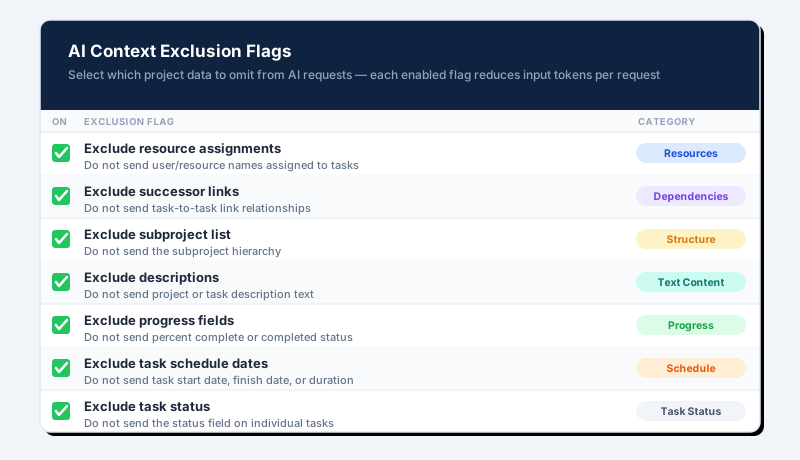
- Use AI context exclusion flags to reduce the project data sent with each request. Maverick's AI model settings include a set of exclusion flags that control which categories of project data are packaged into the context for each AI request. Removing data fields that are not relevant to your current task — resource names, dependency links, description text, progress fields, or schedule dates — can significantly reduce input tokens on large projects. Each flag is independent, so you can tailor the exclusions to your current use case without affecting other fields.
Use Exclusion Flags to Trim the Project Context
Every AI request in Maverick packages a snapshot of your project — task names, dates, assignments, dependencies, descriptions, and more — into the context sent to the model. On a large project, this context can be several thousand input tokens before you type a single word. Exclusion flags let you remove entire categories of that data from every request that uses a given AI model, cutting input tokens without changing how you write prompts.
Exclusion flags are configured on the AI model record and apply to all requests made using that model. Each flag is independent; enable any combination that suits your current task:
- Include full resource pool — By default, only resources assigned to tasks appear in the context. Enabling this flag expands the resource list to include your entire pool — all employees, equipment, and materials — useful when asking about staffing availability or understaffed tasks across the project.
- Exclude resource assignments — Removes user and resource names assigned to tasks. Useful when asking about the schedule or critical path, where staffing is not relevant to the question.
- Exclude successor links — Removes task-to-task dependency relationships. Useful when asking about resource usage or descriptions, where the network schedule is not needed.
- Exclude subproject list — Removes the subproject hierarchy. Useful for flat projects or when working within a single phase and the broader project tree is not relevant.
- Exclude descriptions — Removes project and task description text. Useful when descriptions contain long narrative content that is not needed for scheduling or resource questions.
- Exclude progress fields — Removes percent complete and completion status. Useful when planning future work and historical progress data would only add noise.
- Exclude task schedule dates — Removes task start date, finish date, and duration from the context. Useful when asking about resource assignments or descriptions without needing calendar data.
- Exclude task status — Removes the status field from individual tasks. A lightweight trim useful when task status is redundant with other context already included in your prompt.
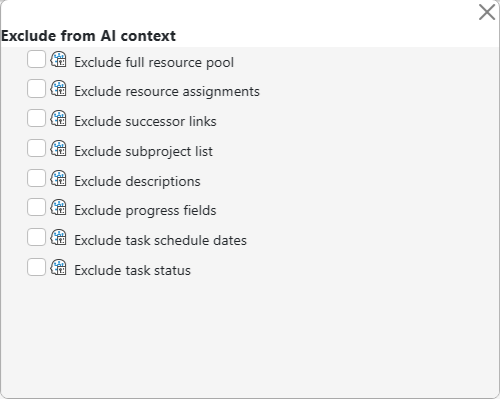
Flags can be combined freely. On a large project with extensive description text and many resources, enabling just Exclude descriptions and Exclude resource assignments can remove hundreds of input tokens per request — meaningful headroom when your team is approaching the TPM ceiling.
Per-Employee API Keys Distribute the Quota Load
The most effective structural solution to team-wide rate limit issues is assigning each employee their own AI provider and API key in Maverick. When one key serves the whole team, a busy minute for any one person reduces the available quota for everyone else. Under per-employee assignment, each person's requests draw from their own independent quota bucket.
Maverick supports assigning AI providers and models at the individual resource level, the workgroup level, or both. A department can share a default provider configured at the workgroup level, while individual employees who need higher limits or a different model can override that default with their own account. This layered approach lets you start with a simple shared setup and add per-user keys only where rate limit pressure actually appears.
For a full walkthrough of how to set up per-employee AI assignments in Maverick, see: