Scheduling
Task Link Relationships
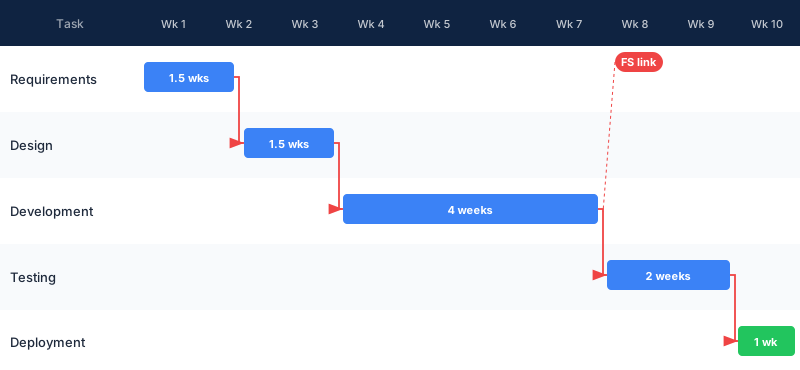
Task links are the dependencies between tasks — the rules that say "this work cannot start (or finish) until that work starts (or finishes)." They are what turns a collection of task bars into a working schedule model that adjusts automatically when plans change.
Try It FreeWhat Are Task Link Relationships?
A task link is a constraint between two tasks — a predecessor and a successor — that defines which end of one task is tied to which end of the other.
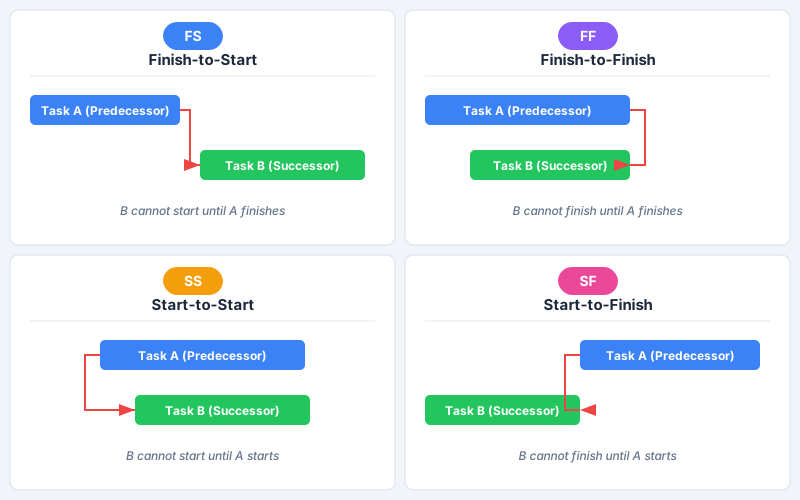
Every task link in Maverick connects a predecessor (the controlling task) to a successor (the dependent task). The link type determines exactly what event on the predecessor must occur before the successor can proceed — and Maverick enforces that constraint when calculating the schedule.
There are four link types, named for the two ends they connect: Finish-to-Start (FS), Finish-to-Finish (FF), Start-to-Start (SS), and Start-to-Finish (SF). The vast majority of project schedules use FS almost exclusively — but all four have real-world uses that the right schedule needs to model correctly.
When tasks are linked, Maverick recalculates affected dates automatically whenever a predecessor changes. Move the finish date of a predecessor forward by a week, and every downstream successor shifts forward with it — no manual adjustments needed. This automatic propagation is what makes a linked schedule far more reliable than one where dates are typed in by hand.
The Four Link Types
Each link type constrains a different combination of start and finish events between the predecessor and successor tasks.
FS — Finish-to-Start
The successor cannot start until the predecessor finishes. This is by far the most common link type — it models any workflow where one step must be fully complete before the next can begin.
The logic is sequential and intuitive: you can't frame the walls until the foundation is poured, you can't deploy the software until testing passes, and you can't sign the contract until legal review is done. FS captures all of these "finish one thing, start the next" relationships.
When you add a FS link, Maverick sets the successor's start date to the predecessor's finish date (adjusted for lag if any). If the predecessor slips, the successor's start — and everything chained after it — slips by the same amount.
FF — Finish-to-Finish
The successor cannot finish until the predecessor finishes. Both tasks can run in parallel — the successor may have started earlier — but it cannot wrap up before the predecessor does.
FF is used when two parallel workstreams must converge at the same endpoint. Writing user documentation must finish when the feature development it describes finishes. Defect resolution must close out when the testing sprint closes out. Commissioning an asset must complete when the final installation task completes.
The visual signature of FF in a Gantt chart is two bars that end at the same point, with an arrow connecting their right edges. The successor's finish date is pulled forward or pushed back whenever the predecessor's finish date changes.
SS — Start-to-Start
The successor cannot start until the predecessor starts. Both tasks begin together (or the successor begins shortly after), and they can run in parallel all the way to their respective finish dates — which can differ.
SS links appear wherever two activities are interdependent from the beginning. Training new hires can start once onboarding begins. Data cleaning can start once data collection begins — you don't need the full dataset to start tidying the early records. Survey distribution and response tracking begin together. In construction, multiple trades that must work in concert often share SS links so that one cannot start without the others being underway.
If lag is added to an SS link, it creates a fixed delay between the predecessor's start and the earliest the successor may start — useful when the second task needs a running start from the first before it's useful to begin.
SF — Start-to-Finish
The successor cannot finish until the predecessor starts. This is the least common link type and the most counterintuitive — it models situations where an old activity cannot close out until a new activity begins.
The clearest real-world example is a shift handover: the outgoing shift (the successor) cannot officially end until the incoming shift (the predecessor) has started. Another common use is contract transitions: the old vendor's contract cannot be terminated until the new vendor's contract is activated. In both cases, the "ending" task depends on the "beginning" of the replacement task.
Because SF reverses the typical time direction of a dependency, it is worth using deliberately and documenting clearly — a successor that visually precedes its predecessor on the Gantt chart can be confusing without context.
How Links Affect Dates
Linked tasks do not have independent schedules. When a predecessor's dates change, Maverick recalculates the dates of every affected successor — automatically and immediately.
When a Predecessor Slips
If a predecessor finishes later than planned, every successor constrained by that predecessor shifts forward in time by the same amount. That shift then cascades to the successors' successors, and so on down the dependency chain. A one-week slip in an early task can move the project end date by a week — or more, if it compresses parallel work. Maverick handles this recalculation automatically so the schedule always reflects the current state of the project rather than the original plan.
When a Predecessor Recovers
If a predecessor finishes earlier than planned — through added resources, recovered scope, or a windfall — successors whose dates were calculated from that predecessor can shift earlier too. This is how schedule recovery works: compressing a bottleneck task earlier in the chain creates slack for every dependent task downstream. Maverick will recalculate and tighten successor dates if the task's "Calculate Start Date" setting allows it, rather than leaving gaps in the schedule that look like padding.
Fixed Dates vs. Linked Dates
Not every task date should be driven by its predecessor. Some tasks have fixed deadlines — a regulatory submission, a trade show, a board meeting — that cannot shift regardless of what happens upstream. Maverick lets you set a task's "Calculate Start Date" or "Calculate Finish Date" method to manual, anchoring those dates in place. A fixed-date task still has a predecessor link for visibility, but its schedule is protected. Maverick will flag the conflict if the predecessor slips past the fixed date rather than silently overwriting it.
Link Lines in the Gantt Chart
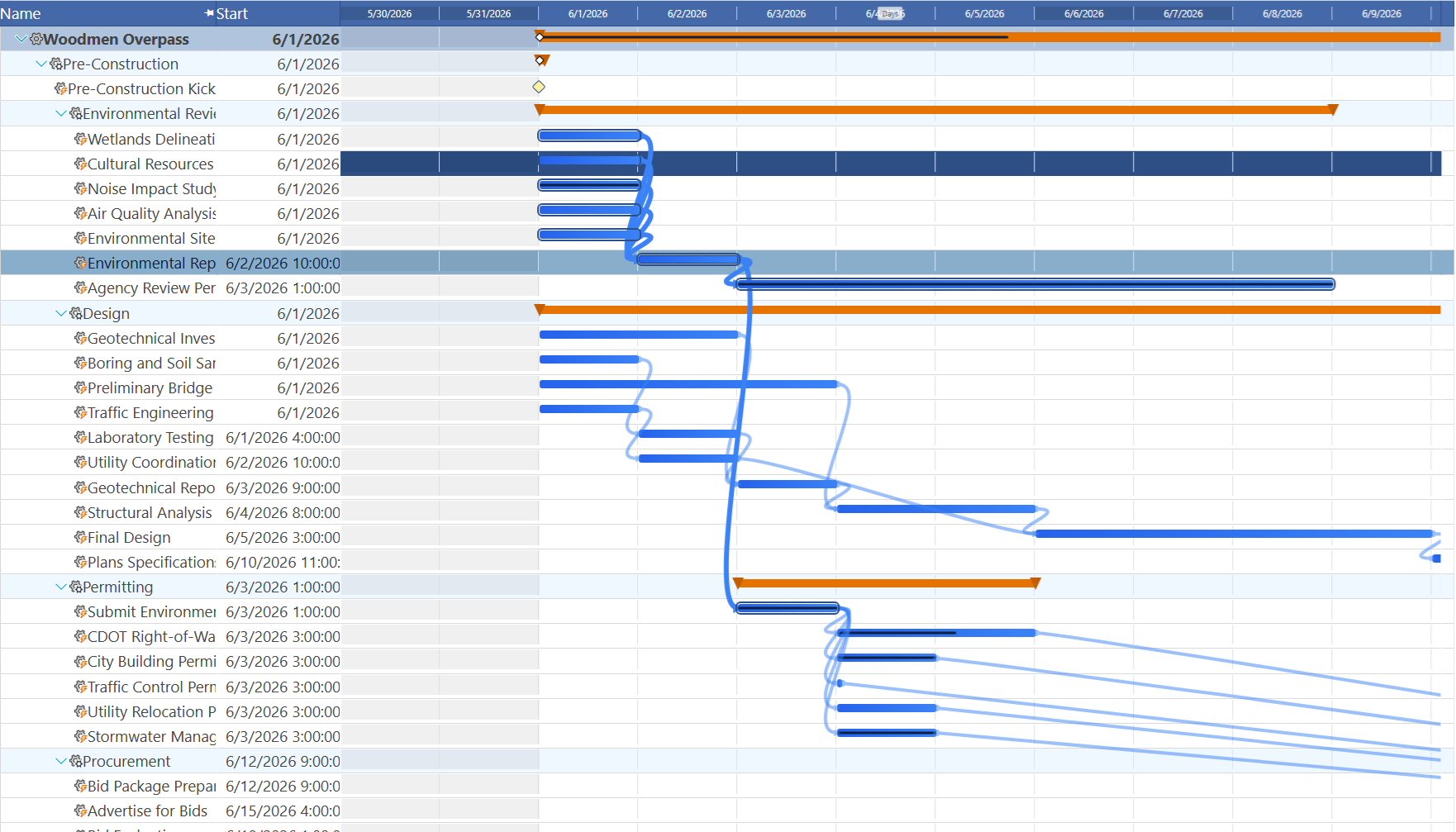
Maverick draws dependency arrows on the Gantt chart, giving you a visual map of every constraint in the schedule at a glance.
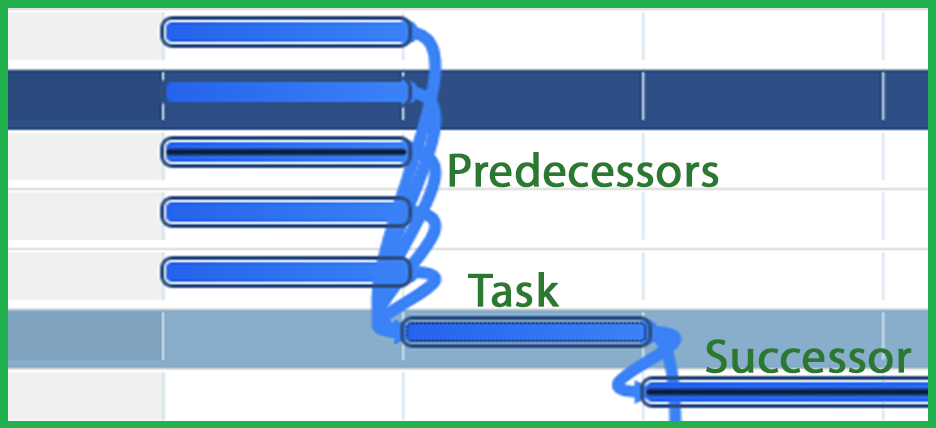
Hovering over any task bar in the Gantt highlights that task's predecessors and successors so the dependency chain snaps into focus. The link lines connecting the hovered task to its neighbors brighten, making it easy to trace the relationship path through a dense schedule without losing your place.
Arrow Direction and Attachment Points
Each arrow starts at the end of the predecessor that triggers the constraint and terminates at the end of the successor that is constrained. For FS links, the arrow leaves the right edge of the predecessor bar and arrives at the left edge of the successor bar — visually tracing the "finish triggers start" relationship. For FF links, the arrow connects both right edges. For SS, both left edges. For SF, the arrow leaves the predecessor's left edge and arrives at the successor's right edge.
The arrow's direction and attachment point make it immediately clear — without reading any properties — what kind of dependency is in place. Once you can read a Gantt dependency arrow, you can quickly audit whether a schedule's logic matches the project's actual work sequence.
Reading the Gantt for Schedule Risks
Dependency arrows make schedule risks visible. A task bar that starts exactly where its predecessor's arrow arrives has zero slack — any slip in the predecessor hits the successor directly. A task bar that starts well to the right of where its predecessor's arrow arrives has float — it can absorb some predecessor delay without moving its own finish date.
Zoom out on a complex Gantt and you can trace the longest unbroken chain of FS arrows from the project start to the project end — that chain is the critical path, and every task on it must finish on time for the project to finish on time. Tasks off the critical path have float and are lower scheduling risk.
A closer look at the hover state shows the hovered task's predecessor and successor bars highlighted alongside it, with the connecting link lines clearly visible between them.
Lag and Lead Time
A plain task link says the constraint takes effect exactly when the predecessor event occurs. Lag and lead let you add a time offset to that moment — pushing the constraint forward or pulling it back.
Lag — Delay After the Constraint
Lag is a positive time offset added to a link. It delays the point at which the successor is allowed to proceed past the predecessor event. A FS link with a 2-day lag means the successor cannot start until 2 days after the predecessor finishes — useful for mandatory wait times, curing periods, review windows, or regulatory cooling-off requirements.
Examples: concrete must cure for 48 hours before forming can be stripped (FS + 2-day lag); a regulatory notice must be filed 10 business days before an action can take effect (FS + 10-day lag); a software deployment must remain in a canary environment for 24 hours before a full rollout begins.
Lag is additive: a 3-week development task with a 2-day FS lag before testing means testing starts 2 days after development finishes, not the same day.
Lead — Overlap Before the Constraint
Lead is a negative offset — it allows the successor to begin before the predecessor event has actually occurred. A FS link with a 3-day lead means the successor can start 3 days before the predecessor finishes, creating deliberate overlap between the two tasks.
Lead is used when tasks have a natural overlap that is safe and efficient: a construction crew can begin interior rough-in while the exterior is still being finished, as long as those areas don't conflict. A marketing team can begin preparing launch materials while the product is in its final testing sprint. Using lead compresses the schedule without removing the dependency — it just acknowledges that some work can run in parallel at the margins.
Use lead carefully. If the predecessor does not finish as planned, the successor work done during the overlap period may need to be reworked or extended.
The Critical Path
Link relationships do more than connect pairs of tasks — together they create a network from which the project's critical path emerges.
What Is the Critical Path?
The critical path is the longest chain of linked tasks from the project start to the project end — the sequence of work whose total duration determines when the project can finish. Every task on the critical path must finish exactly on schedule for the project to finish on time. A one-day delay to any critical path task moves the project end date by one day.
The critical path emerges from the dependency network automatically. You don't define it explicitly — it is calculated from the task durations, start and finish dates, and the links between them. Add a new dependency, extend a task duration, or compress a previously critical task, and the critical path may shift to a different chain of tasks.
Maverick highlights the critical path visually in the Gantt chart, making it easy to see at a glance which tasks carry the most schedule risk and deserve the most attention.
Float — Slack in Non-Critical Tasks
Tasks that are not on the critical path have float (sometimes called slack) — a buffer of time they can slip before they start affecting the project end date. A task with 5 days of float can finish up to 5 days late without moving any downstream milestone.
Float is created by the structure of the dependency network: when two parallel paths through the schedule have different total durations, the shorter path has float equal to the difference. The longer path is the critical path — it has zero float.
Understanding float lets project managers make informed decisions under pressure. When resources are constrained, you can shift effort from a task with 10 days of float to a zero-float task on the critical path without delaying the project — as long as the float task doesn't slip past its buffer. Maverick's task grid and Gantt chart both expose float values so managers can prioritize intelligently rather than treating every task as equally urgent.
Task links are set using the Predecessors and Successors properties on each task record. For a full reference of every task field — including how predecessor and successor lists are formatted and what other scheduling properties interact with links — see: