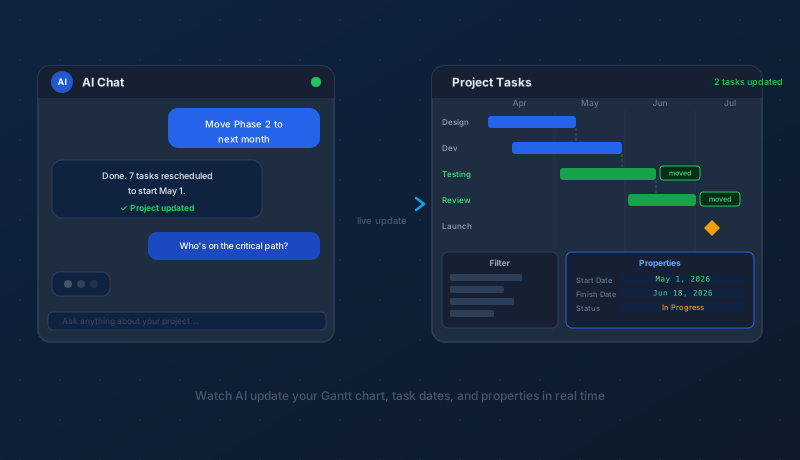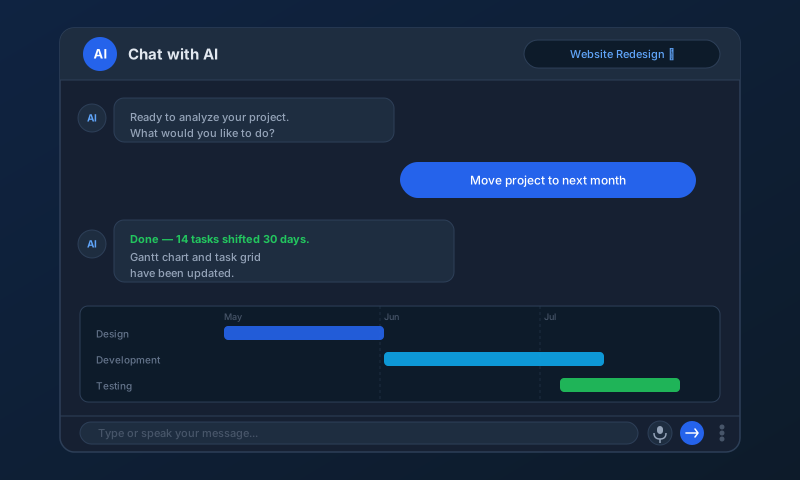
AI is a genuinely transformative tool for project management. It can reschedule a hundred tasks in seconds, spot over-allocated resources at a glance, and generate a polished status report from a single sentence. But it is not infallible. Like any capable colleague working at speed, it occasionally gets things wrong — and in project management, a wrong date or a misidentified task can ripple through an entire schedule.
This guide is not a reason to distrust AI. It's a reason to work with it thoughtfully. Understanding how AI makes mistakes, and where to look for them, makes you a significantly more effective user.
What Is an AI Hallucination?
The term hallucination refers to a specific failure mode in large language models: the AI generates a response that is confidently stated but factually wrong or internally inconsistent. It's not that the AI is lying — it has no concept of truth or falsehood. It is, at a fundamental level, a system that predicts which sequence of words is most likely to follow the words it has already produced. Most of the time, that process produces accurate, useful output. Occasionally, it produces plausible-sounding nonsense.
In everyday use, hallucinations in project management tend to look like:
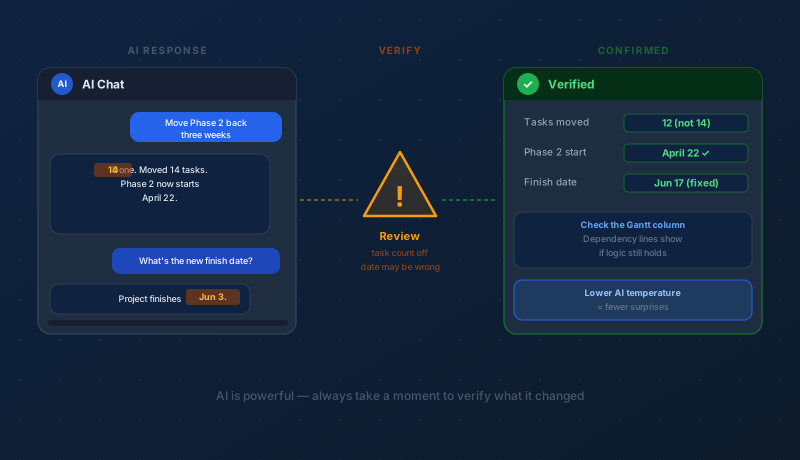
- Reporting that it moved 14 tasks when it actually moved 12
- Calculating a finish date that doesn't account for weekends or non-working days
- Referencing a task by a name that doesn't quite exist in the project
- Inventing a dependency between two tasks that have no relationship
- Summarizing resource allocation with a number that doesn't match the data
These errors rarely appear randomly. They tend to cluster around certain conditions — ambiguous prompts, complex multi-step changes, and requests that require precise arithmetic.
Why Do Mistakes Happen in Project Management?
Project data has characteristics that make it particularly demanding for AI:
Dates are unforgiving. Date arithmetic sounds simple — "add three weeks" — but real project schedules involve working calendars, resource availability windows, holidays, and dependency constraints. An AI model that handles most date calculations correctly can still miss a calendar exception that shifts a finish date by a day or a week.
Task names are often similar. Projects frequently have tasks like "Review — Phase 1," "Review — Phase 2," and "Final Review." When you ask the AI to update "the review task," it has to infer which one you mean. When the inference is wrong, the change lands on the wrong task.
Scope is hard to bound precisely. A prompt like "update the testing phase" is open to interpretation. The AI decides what counts as the testing phase, which tasks belong to it, and what "update" means. Each of those decisions is a point where the AI's interpretation can diverge from yours.
Large changes amplify small errors. When the AI touches dozens of tasks at once, a small systematic error — like miscounting by two, or applying the wrong duration formula — compounds across every affected task. The bigger the change, the more important it is to verify.
The Mistakes Most Likely to Catch You Off Guard
Based on how AI models interact with structured project data, these are the failure patterns worth watching for most carefully:
Scope Creep
You ask the AI to move one phase. It moves the phase and also adjusts a downstream milestone, reassigns a resource, and closes a task that was in progress — because those changes seemed logically connected. The AI reasoned its way to a broader change than you intended. This isn't malicious; it's the AI trying to be helpful. But helpful can quickly become surprising when you have strict scope boundaries.
Off-by-One Date Errors
Calendar edge cases trip up AI models regularly. A task that spans a weekend, a month-end boundary, or a holiday period may land on the wrong date. Always spot-check the first and last dates in a rescheduled range — those are where edge-case errors concentrate.
Confident but Inaccurate Counts
When AI reports "I moved 9 tasks" or "there are 4 over-allocated resources," those numbers deserve a sanity check. Count them yourself in the task grid or resource view. AI can be confidently wrong about quantities, especially when it has to count across a complex, filtered dataset.
Name Confusion
Similar task or resource names are the most reliable source of AI errors in project data. If your project has both a "Design Review" and a "Design Review — Final," an ambiguous prompt may update the wrong one. Use exact names in your prompts whenever the stakes are high.
Invented Relationships
Ask the AI "what depends on the API integration task?" and it should return the actual dependencies in your data. Occasionally, it will describe a dependency that doesn't exist — a logical-sounding relationship it inferred from task names rather than from the actual link data. The Gantt column's dependency lines are your ground truth; the AI's description of them is not.
How to Write Prompts That Reduce Errors
Prompt quality is the single most effective lever you have over AI accuracy. The same underlying model can produce dramatically different results depending on how a request is phrased.
Name Things Exactly
Rather than "the testing phase," say "the phase named 'Phase 3 — QA Testing.'" Rather than "Sarah's tasks," say "tasks assigned to Sarah Mitchell." Exact names eliminate the ambiguity the AI has to resolve by guessing.
State What Should Not Change
This is underused and highly effective. If you're rescheduling a phase but want resource assignments to stay put, say so: "Move all tasks in Phase 2 back by three weeks. Do not change any resource assignments or task durations." Explicit constraints give the AI no room to improvise.
One Significant Change at a Time
Compound prompts — "reschedule Phase 2, add a milestone at the end, and reassign the design tasks to the new contractor" — ask the AI to execute three separate operations. Each introduces its own failure surface. Break complex changes into separate prompts and verify each one before moving to the next.
Ask AI to Confirm What It Did
After a change, follow up with: "What exactly did you just change? List each task you modified and what you changed." This forces the AI to account for its own actions and often surfaces discrepancies between what it reported doing and what it actually did.
The AI Temperature Setting
Maverick lets you configure the temperature for each AI model in Tools > AI Providers. Temperature is one of the most practical controls you have over AI behavior, and it's worth understanding.
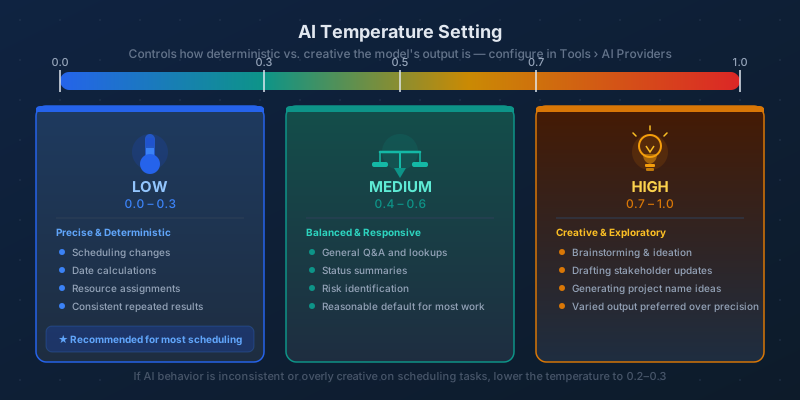
Temperature controls how deterministic or exploratory the model's output is. Think of it as a dial between "literal" and "creative":
- Low temperature (0.0–0.3) — the model chooses the most probable, conservative response. It follows your instructions closely, makes fewer interpretive leaps, and produces consistent results when you run the same prompt twice. Best for scheduling changes, date calculations, and any task where accuracy matters more than creativity.
- Medium temperature (0.4–0.6) — a balance. The model is responsive and helpful without becoming unpredictable. A reasonable default for most project management work.
- High temperature (0.7–1.0) — the model is more varied and exploratory in its responses. Useful for generating project name ideas, drafting stakeholder communications, or brainstorming risk mitigation strategies — situations where you want options, not precision.
If you've been experiencing unexpected or inconsistent AI behavior, lowering the temperature is the first thing to try. A temperature of 0.2 or 0.3 for scheduling tasks often eliminates the kind of creative interpretation that leads to scope creep and off-target changes.
How to Catch Mistakes After the Fact
Good verification habits take less time than fixing errors discovered later. After any significant AI change, run through this quick sequence:
Check the Gantt Column First
The Gantt column in the Project Tasks view is your fastest diagnostic tool. Scan the dependency lines — if a predecessor bar now ends after its successor bar starts, something went wrong with the dates. A crossing or backward-pointing dependency line is a clear visual flag that needs investigation.
Spot-Check the Properties Panel
Click the first and last tasks in any range the AI touched. The Properties panel shows start date, finish date, duration, assigned resources, and dependency relationships. Compare the values against what you expected. If the first and last tasks are correct, the middle ones usually are too — but if either endpoint is off, check the full range.
Ask AI to Summarize Its Changes
Type: "Summarize every change you just made to this project." A well-formed summary will list modified tasks, old and new values, and any secondary changes it made as a consequence. Read the list carefully — it often reveals a change you didn't expect and might not have noticed in the task grid.
Use the Filter Panel to Focus
If the AI touched a specific phase or resource, filter the task grid to show only those rows. Reviewing 12 tasks is faster and more reliable than scanning 150. The Filter panel makes it easy to isolate exactly the tasks the AI should have affected.
When to Trust and When to Verify
Not every AI interaction warrants a full review. Here's a practical breakdown:
- Questions and lookups — "What tasks are overdue?" or "Who is assigned to the most tasks?" — are low-risk. The AI is reading data, not changing it. A wrong answer is inconvenient, not damaging.
- Single-task changes — renaming one task, changing one date, adding one resource — are easy to verify in seconds and carry low consequence even if wrong.
- Phase-level reschedules — moving or restructuring a group of tasks — should always be followed by a Gantt check. These changes touch dependency logic and are where date errors compound.
- Cost and billing data — any change involving rates, budgets, or cost calculations deserves manual verification. AI arithmetic on financial data can be subtly wrong in ways that don't trigger obvious visual cues.
- Bulk operations — "reassign all Phase 3 tasks to the new team" — are highest risk. Always ask AI to confirm the count and list the affected tasks before you consider the change complete.
The Right Way to Think About AI
The most productive mental model for AI in project management is this: a highly capable colleague working at extraordinary speed, who occasionally gets things wrong and needs a second pair of eyes.
You wouldn't hand a complex scheduling change to a colleague and walk away without checking the result. The same instinct applies to AI — not because the AI is unreliable, but because anything that moves fast and works at scale can amplify errors just as easily as it amplifies correct results. A quick review after each significant change is not a sign of distrust. It's just good practice.
Used with appropriate verification habits, Maverick's AI chat is one of the most powerful tools available for project management. The teams that get the most out of it are the ones who stay engaged — directing, reviewing, and refining — rather than delegating and disengaging.
See It for Yourself
The best way to build confidence with AI in project management is to use it on real projects. Start a free cloud trial of Maverick Project Scheduler and explore the AI chat, Gantt view, and resource allocation tools with your own data.
Access the Free Cloud Trial