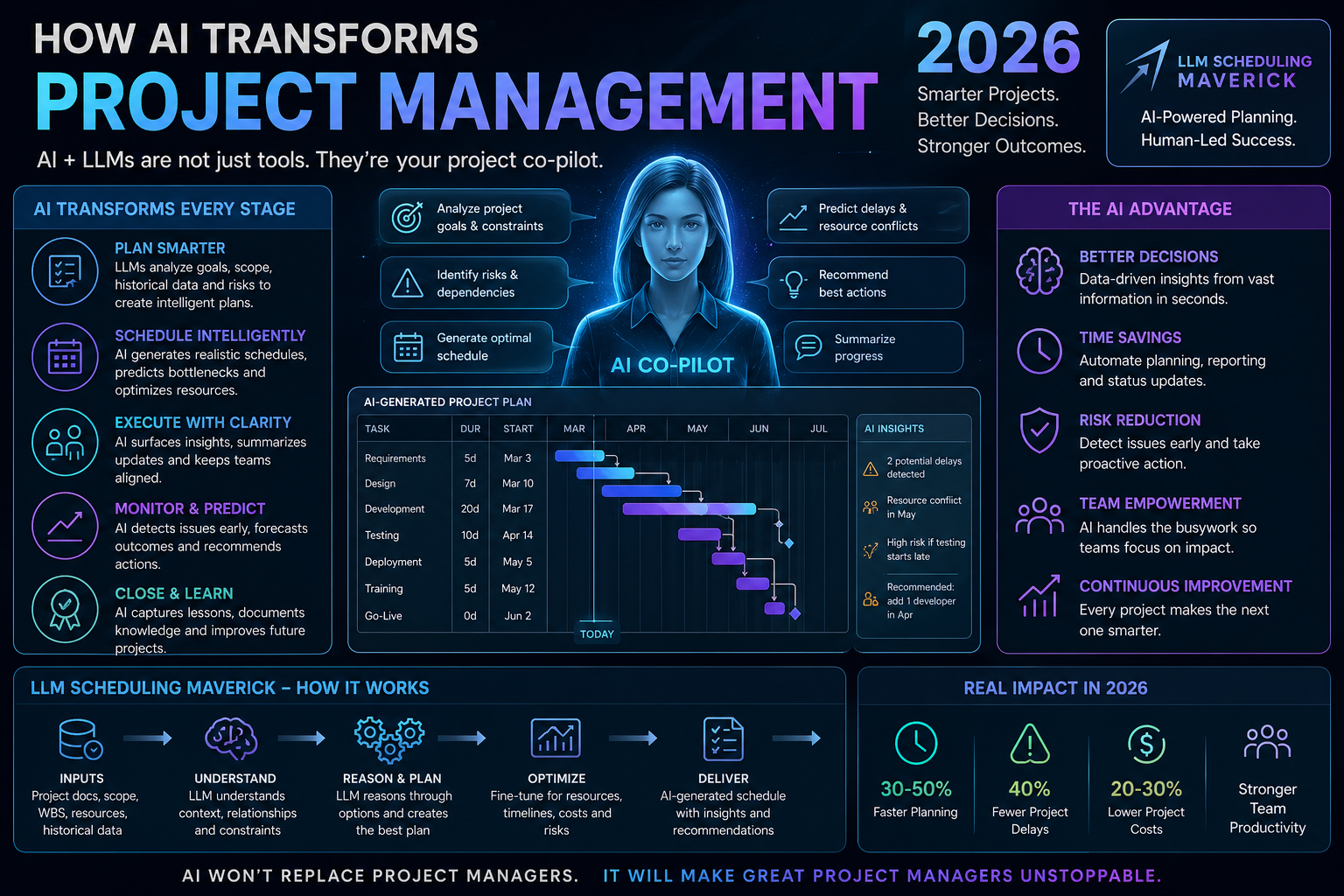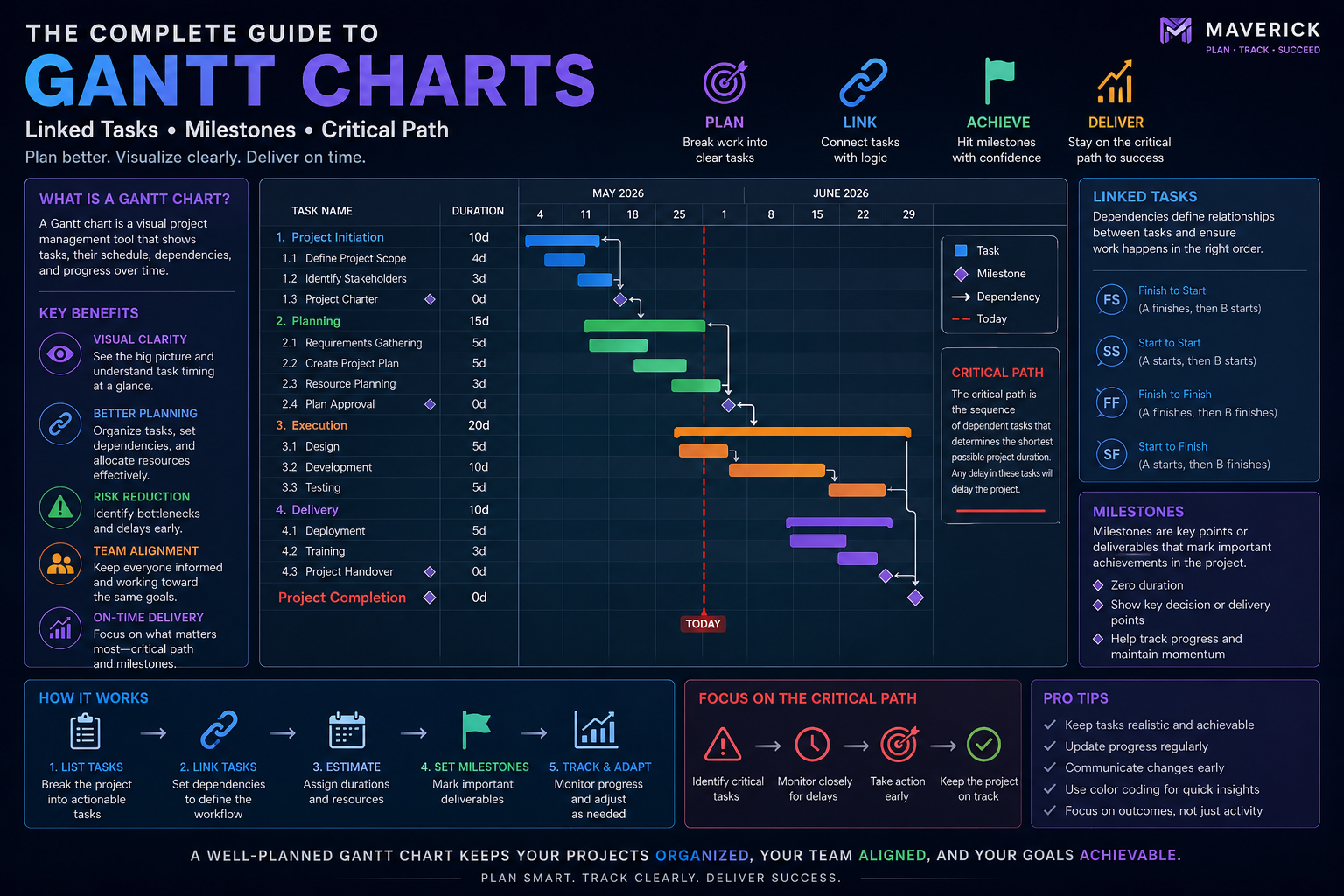
Managing a project used to mean opening forms, editing fields, clicking Save, and repeating. Maverick Project Scheduler takes a different approach: instead of navigating menus, you talk to your project. The AI chat window lets you describe what you want in plain language and watch the schedule update in real time.
Whether you want to shift every task by a month, find your critical path, assign a resource, or get a stakeholder-ready summary — it all starts with a message.
Opening the AI Chat
To open the AI chat, go to View > Chat with AI. The chat panel opens alongside your current view — Gantt chart, task grid, calendar, or any other page — so you keep full visibility of your project while you interact with the AI.
The panel stays open as you navigate between views. You can switch from the Gantt to the task grid, ask the AI a question, and see the answer reflected in whichever view you're looking at.
Selecting a Project
Once the AI chat is open, select any project from a grid, calendar, Gantt view, or any other page in the application. The AI immediately recognizes the active project and is ready to analyze or update it.
You're not locked into one project per session. Switch to a different project at any time by clicking on it in the UI — the AI context switches automatically. One chat session can span as many projects as you need.
Controlling What AI Can Modify
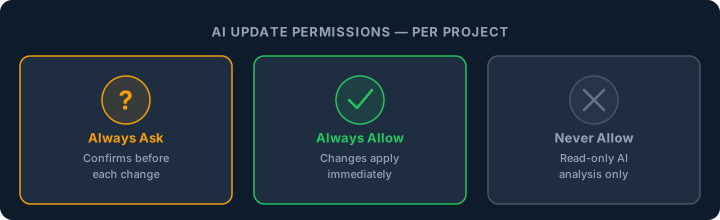
Before the AI can change anything, it checks the permission level you've configured for that project. You have three options:
- Always Ask Before Updating — The AI describes the changes it plans to make and asks for your confirmation before applying them. Best for sensitive, client-facing, or high-stakes projects where you want to review every change.
- Always Allow Updating — The AI applies changes immediately after you request them, with no confirmation step. Best for active projects where you're moving fast and trust the AI's interpretation.
- Never Allow Updating — The AI operates in read-only mode. It can analyze your project, answer questions, and generate summaries — but cannot make any changes. Best for archived, locked, or shared-view projects.
These settings are configured per project, giving you fine-grained control across your entire portfolio. A client-facing project might be set to Always Ask while an internal planning project runs on Always Allow.
The Chat Interface
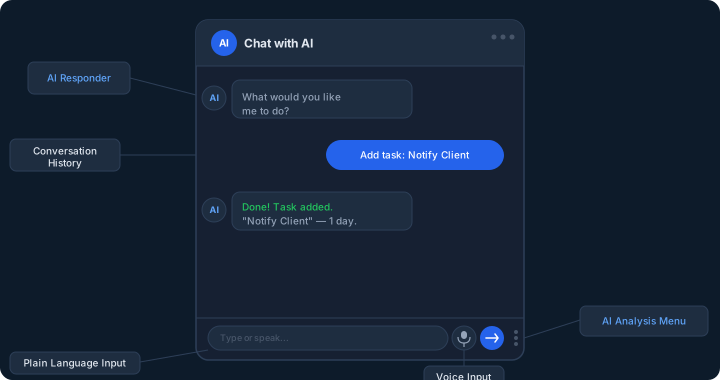
If you've ever used a messaging app on your phone, the AI chat will feel familiar. Maverick's interface is deliberately modeled on mobile messaging:
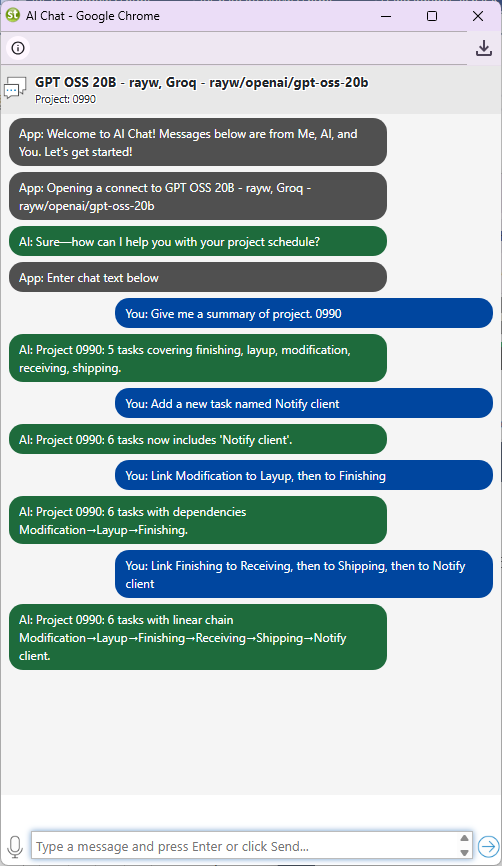
- Conversation history — your messages appear on the right in blue speech bubbles; AI responses appear on the left. The full history of your session is visible as you scroll up.
- Text entry box — type your request in plain language at the bottom of the panel. No command syntax, no special formatting — just describe what you want.
- Microphone button — speak your message instead of typing. Your speech is converted to text and sent to the AI. Useful when you're reviewing a Gantt chart and want your hands free.
- Send button — tap or click to submit your message. The AI processes your request and responds, usually within seconds.
After the AI responds, your project updates immediately. There's no page refresh and no manual save — the task grid and Gantt chart reflect the changes as soon as the AI applies them.
What You Can Ask the AI
The AI understands a wide range of project management requests. You don't need to learn commands or use specific wording — describe what you want the way you'd explain it to a colleague. Some examples:
- "Move this project to next month" — shifts all task dates forward by 30 days
- "Add a new task named Notify Client" — creates the task in the current project with a suggested default duration
- "Tell me the critical path to completion" — identifies the sequence of tasks with zero float, and explains which ones are driving the finish date
- "Link this task to that task" — creates a Finish-to-Start dependency between the two selected tasks
- "Assign [resource name] to [task name]" — adds a resource assignment to the specified task at their default utilization
- "Which resources are over-allocated this week?" — returns a plain-language list of overloaded team members and the tasks causing the conflict
- "Which resources are under-utilized?" — identifies team members with available capacity so you can balance the workload
- "What tasks are past due?" — lists overdue tasks with due dates and assignees
- "Set the duration of the Design Phase to 10 days" — updates a specific task property without opening the task form
- "Add a milestone named Beta Launch" — inserts a zero-duration milestone task at the current project position
- "Summarize the project status" — generates a plain-English health summary covering schedule, resources, and key risks
The AI doesn't require formal syntax. If your request is ambiguous, it will ask a clarifying question rather than guess incorrectly. The more specific you are, the faster the result.
Watching Your Schedule Update in Real Time
Once the AI interprets your request — and receives your confirmation if the project requires it — it applies the changes directly to your schedule. You'll see:
- Task rows in the grid update with new dates, durations, or assignments
- Gantt bars shift, resize, or relink visually
- Resource allocations recalculate to reflect the new assignments
- Predecessor and successor links adjust to maintain relationship integrity
This makes the AI chat feel less like using a tool and more like having a capable project coordinator sitting next to you — one who never gets tired of making changes.
Switching Between Projects
The AI chat session is fully context-aware. To work on a different project, simply click on it in the grid, calendar, or any other view. The AI immediately recognizes the new active project and you can continue the conversation in the same panel.
You don't need to reset the chat, close and reopen the panel, or start a new session. The conversation history from your previous project remains visible as you scroll up, so you have a record of every change made during the session.
AI Analysis Menu Options
The AI chat panel includes a menu icon with deeper analysis options that go beyond single-message requests:
- Display AI Short Summary — a one-paragraph overview of the project covering current status, key upcoming dates, and flagged risks. Ready to paste into a status email.
- Display AI Detailed Summary — a comprehensive breakdown by phase, resource utilization, schedule health, and milestone status. Useful for project reviews and stakeholder briefings.
- Display AI Full JSON Response — the complete raw AI output in JSON format. Intended for developers and advanced users who want to inspect the underlying AI response or integrate it with other systems.
- Show AI Message List — the full conversation history for the current session, including every request and every AI response. Useful for auditing AI decisions or documenting the change history for a project.
These options transform the AI chat from a simple command interface into a full-featured project analysis tool. You can generate a detailed project summary in seconds — without writing a single word of the report yourself.
Try AI Chat in Your Next Project
Maverick Project Scheduler's AI chat is included in every plan at no extra cost. Access the full platform — including AI scheduling, natural language updates, and real-time Gantt chart sync — free in the cloud trial environment.
Access the Free Cloud Trial