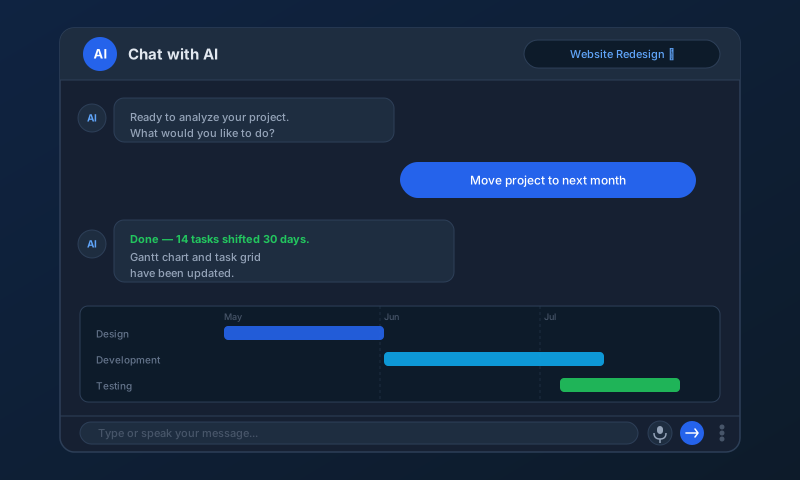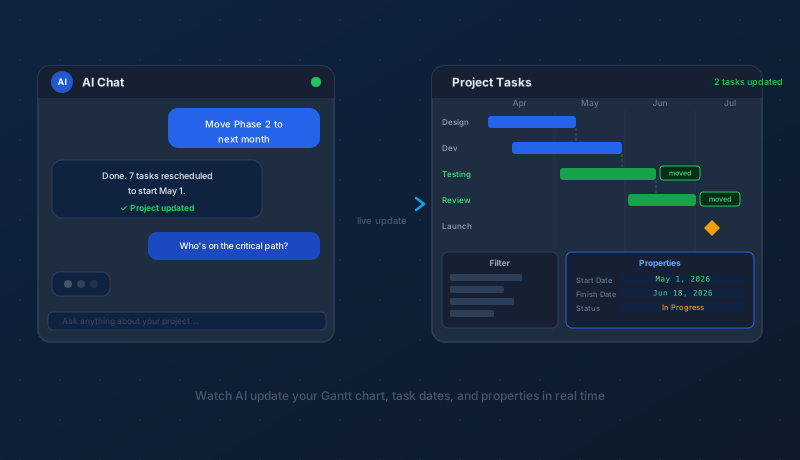
The first time AI updates your project schedule, it can feel almost startling — you type a sentence and task dates shift, resources are reassigned, or entire phases move. Knowing where to look, how to ask, and what to watch for makes the experience far more productive and a lot less surprising.
Haven't Tried AI Chat Yet?
If you haven't opened Maverick's AI chat feature before, it's worth spending ten minutes with it before reading further. The chat panel lets you talk to your project in plain language — asking questions, requesting changes, and getting summaries without navigating a single menu or form.
Chat with AI to Analyze and Update Your Projects
New to AI? A Few Things to Know First
What Is an AI Prompt?
A prompt is simply the message you type to the AI. It can be a question, a command, a request for a summary, or a what-if scenario. The AI reads your prompt, reasons about what you're asking, and responds — either with an answer or by making changes to your project. There's no special syntax to learn. Plain, conversational language works fine.
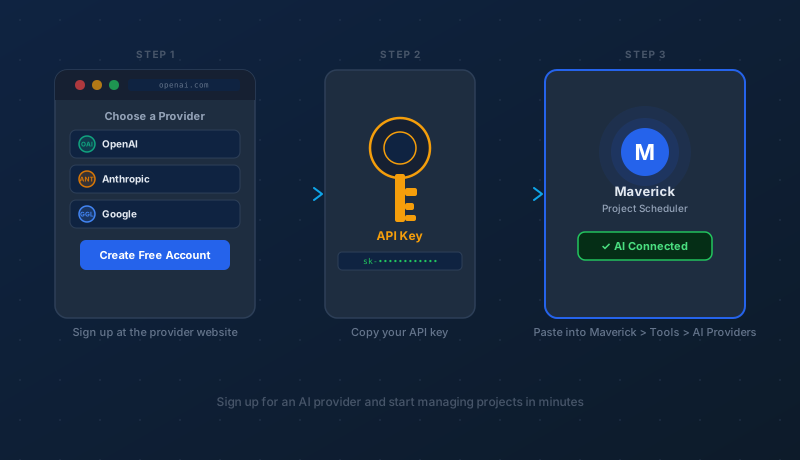
If you're still setting up your AI provider and haven't connected one yet, this guide will get you started:
What Are AI Providers and Models?
Start With Questions, Not Commands
When you're new to AI chat, begin by asking rather than directing. Questions like "What tasks are overdue?" or "Which resources are over-allocated this week?" let you see how the AI reads your project data — and build confidence in its understanding — before you send it instructions that modify anything.
Once you're comfortable with how it interprets your project, try a few simple updates:
- "Rename the task called 'Initial Draft' to 'Content Review'" — a safe, targeted change with a clear, verifiable result
- "Change the start date of the Beta Launch milestone to June 15" — moves one specific task and nothing else
- "Add a new milestone task named 'Project Complete' at the end of Phase 3" — creates a new item without touching existing tasks
These small, specific requests give you a feel for how AI handles changes and what the updates look like in your project views.
Your Data Stays Private
A common concern when connecting project data to an AI service: will this information end up on the web? The answer is no. Maverick sends your project context to the AI provider only when you actively send a message in the chat panel. The provider uses it to respond to your request and does not store it for training or make it publicly accessible. Your project data is private to you and your team.
How Specific Should Your Prompts Be?
This is one of the most practical questions in day-to-day AI use, and the honest answer is: it depends on the risk of the change.
General prompts work remarkably well. The AI is perceptive enough to infer meaning from context. "Push everything in Phase 2 back two weeks" will correctly identify Phase 2 tasks, calculate new dates, and preserve relative task dependencies — without you needing to list every task by name. For familiar, lower-stakes requests, brevity is fine.
Specific prompts protect you from surprises. The more sweeping a potential change is, the more precise your instruction should be. Consider the difference:
- Vague: "Reschedule the project" — the AI might move the entire project, change durations, reassign resources, or all three
- Specific: "Move the project start date to May 1 and shift all task dates forward proportionally, keeping durations and assignments the same" — the AI has clear boundaries and no ambiguity about what to preserve
A good rule of thumb: the larger the scope of a potential change, the more specific your prompt should be.
AI Can Make Mistakes
AI models are powerful, but they are not infallible. Hallucinations — the term for when an AI confidently produces something incorrect or invented — can happen in project management just as in other domains. The model might misidentify a task, calculate dates incorrectly, or make a change you didn't intend.
Specific prompts significantly reduce this risk. When the AI has a narrow, unambiguous instruction, there's little room for creative misinterpretation. When the instruction is broad or unclear, the model fills in gaps with its best guess — and those guesses can sometimes miss the mark.
AI Temperature
Maverick lets you adjust the AI temperature setting for each model in your AI Providers configuration. Temperature controls how creative — or how literal — the model's responses are:
- Lower temperature (closer to 0) — the model sticks closely to the most probable, conservative interpretation of your request. Better for precise scheduling tasks where you want predictable, repeatable results.
- Higher temperature (closer to 1) — the model is more exploratory and varied in its responses. More useful for generating ideas, brainstorming project structures, or drafting status narratives.
For most project management work — date changes, resource assignments, task creation — a lower temperature setting produces more reliable results.
Where to Watch the Updates
When AI makes a change to your project, it takes effect immediately in Maverick's data. The best places to observe what changed are the Project Tasks page, the Gantt column, and the Properties panel.
The Project Tasks Page
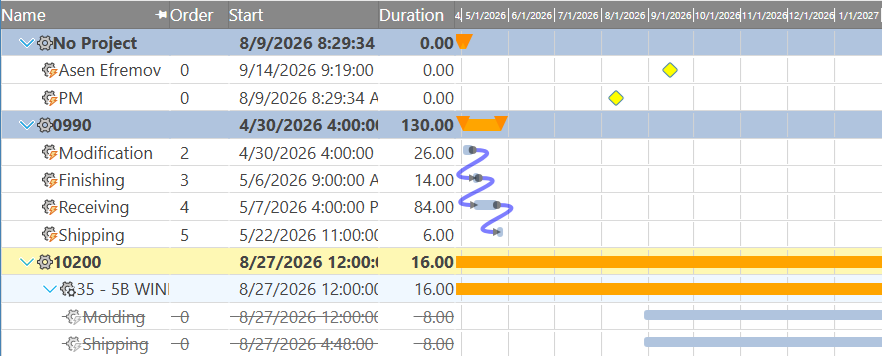
This is the central view for working with AI-updated projects. To get there:
- Start at the Home page in Maverick
- Click the Project Tasks icon — you'll see either the last project you had open, or a list of all projects if none was active
- Click a project to open it in the task grid
The task grid shows every task as a row, with columns for all key properties. After an AI update, scroll through the grid to confirm changes landed where you expected.
The Gantt Column
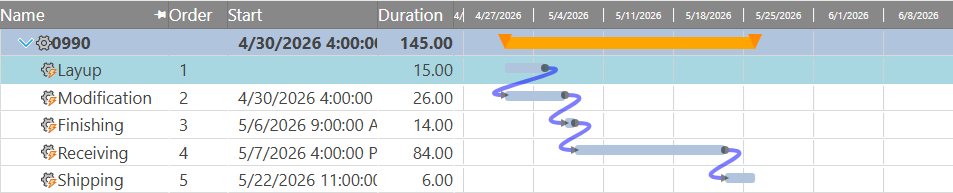
The Gantt column is your best tool for visualizing what AI changed in the schedule. It displays a horizontal bar for every task, sized and positioned to represent the task's duration and timing. When tasks are linked by dependencies, the Gantt draws connecting lines between them — making it immediately obvious whether the logic of your schedule still holds after an update.
After any AI rescheduling request, open the Gantt column and scan the dependency lines. If a predecessor now ends after its successor starts, you'll see it clearly as a crossing or backward link. The Gantt makes anomalies visible at a glance in a way that a flat grid of dates cannot.
The Filter Panel
The Filter panel lets you narrow the task grid to just the rows you care about — a specific phase, resource, date range, or status. After an AI update that touches a large number of tasks, filtering to only the affected phase or resource is a fast way to review the changes without scanning every row.
The Properties Panel
Click any task in the grid and the Properties panel opens on the right, showing every field on that task — start date, finish date, assigned resources, dependencies, cost, status, and more. This is the most detailed view of what AI changed on a specific task. If something looks off, the Properties panel shows you exactly which values were set and lets you correct them manually without re-prompting the AI.
The Resource Allocation View
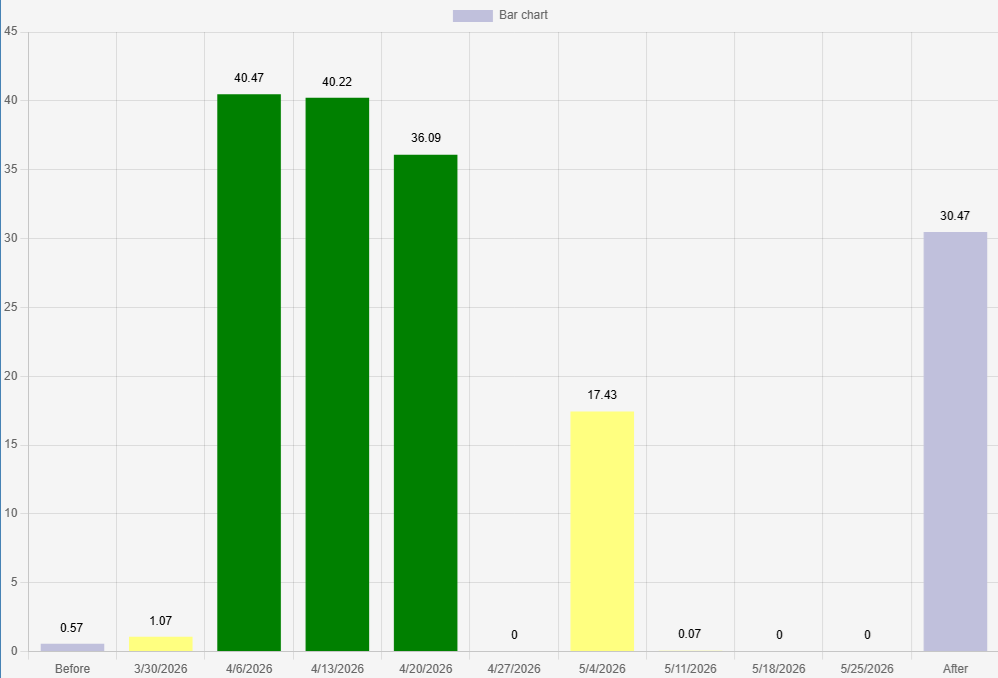
Beyond the task grid, the Resource Allocation window gives you a time-based picture of how AI changes affected your team's workload.
The view displays a bar chart where each vertical bar represents the hours or effort allocated to a resource for a given period. Human team members, machines, and equipment all appear in the chart, stacked or grouped so you can see utilization at a glance. If an AI rescheduling creates a spike of over-allocation in a particular week — several resources assigned to too much work at once — the bar chart will show it clearly as bars that exceed the allocation threshold.
Use the built-in filters to adjust the time scale (day, week, month, quarter), focus on a specific resource group, or compare planned versus actual allocation. After any significant AI-driven schedule change, a quick check of the Resource Allocation view confirms that your team's capacity hasn't been accidentally overloaded.
See AI Project Management in Action
Maverick Project Scheduler's full AI feature set — including AI chat, Gantt visualization, resource allocation, and multi-provider model support — is available in every plan. Start a free cloud trial and see how it changes the way your team manages projects.
Access the Free Cloud Trial