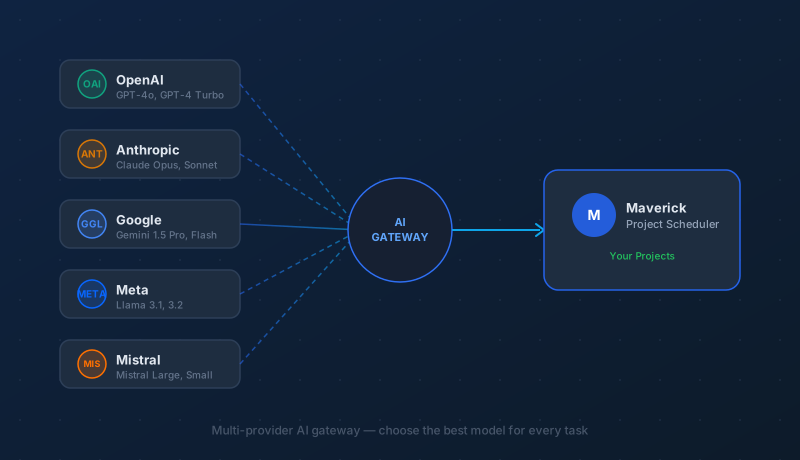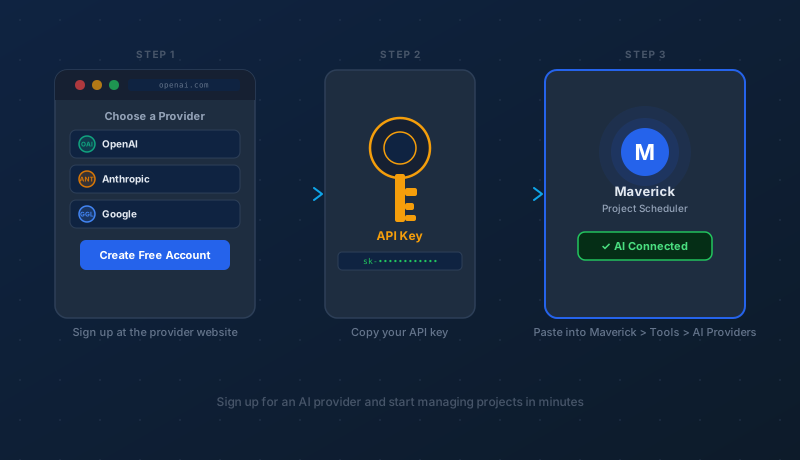
Maverick Project Scheduler connects directly to the world's leading AI services, letting you manage projects through plain conversation. Getting started takes three steps: choose a provider, create a free account, and paste your API key into Maverick. This guide walks you through each step.
First — What Exactly Is an AI Provider and Model?
An AI provider is a company that builds and hosts large language models (LLMs) — the AI systems that understand and generate natural language. An AI model is the specific product they offer, like GPT-4o or Claude Sonnet. An API key is the private credential that connects Maverick to your account with that provider.
If you want the full picture on how providers, models, and API keys fit together before diving in, start here:
What Are AI Providers and Models?
Which AI Provider Should I Choose?
All the major providers work well with Maverick, and you're not locked in — you can add multiple providers and switch between them at any time. Here's a quick overview to help you decide where to start:
- OpenAI — the most widely used provider, with the GPT-4o and GPT-4 Turbo models. Excellent general-purpose performance and a generous free credit allowance for new accounts. A great first choice if you're unsure where to begin.
- Anthropic — makers of the Claude family. Known for strong reasoning, detailed analysis, and reliable instruction-following. Claude Sonnet hits an excellent balance of capability and cost for project management tasks.
- Google — the Gemini series offers very large context windows (useful for big projects) and competitive pricing. Gemini 1.5 Flash is among the fastest and most affordable options available.
- Mistral — a European provider with efficient models and strong price-to-performance. Mistral Small is one of the most cost-effective options for routine project queries.
- Meta (via hosting providers) — Meta's open-weight Llama models can be accessed through hosting services like Groq, Together AI, or Fireworks AI. Costs are typically very low, and some providers offer free tiers.
You don't need to commit to just one. Many teams run OpenAI or Anthropic for complex analysis and a faster, cheaper model for routine queries.
Which AI Model Should I Choose?
Within each provider, you'll find models at different capability and cost tiers. The right choice depends on how you plan to use AI in your projects:
- For complex scheduling, analysis, and multi-step reasoning — choose a flagship model: GPT-4o, Claude Opus, or Gemini 1.5 Pro. These handle nuanced instructions, long project timelines, and detailed reports with the highest accuracy.
- For everyday queries and quick updates — a mid-tier model is faster and far more economical: GPT-4o mini, Claude Sonnet, or Gemini Flash. These are the workhorses for day-to-day project management.
- For high-volume or budget-conscious use — smaller models like Mistral Small or Llama 3.1 8B (via Groq) handle simple lookups and status queries at a fraction of the cost.
The AI model landscape evolves quickly — new releases often outperform older flagship models at lower cost. When in doubt, check each provider's website for their current recommended model for chat and instruction-following tasks.
Which Providers Are Best for AI Project Management?
For project management specifically — rescheduling tasks, analyzing resource allocation, generating status reports, and answering questions about your project data — the following models consistently perform well:
- Claude Sonnet (Anthropic) — excels at following multi-step instructions precisely, which is exactly what you need when telling AI to rearrange a schedule or calculate a critical path. Highly recommended as a primary model.
- GPT-4o (OpenAI) — strong all-rounder with excellent instruction-following and fast response times. A reliable default choice, especially if you already have an OpenAI account from using ChatGPT.
- Gemini 1.5 Pro (Google) — the large context window makes it well-suited for projects with hundreds of tasks or complex dependency chains where the full project context needs to be considered at once.
Maverick lets each team member use a different AI model, so you can mix and match based on role or preference — no need to settle on a single provider for your entire team.
Where Do I Sign Up?
Each provider has its own sign-up page. Creating an account is free, and most providers give you starter credits so you can try AI without entering a payment method right away:
- OpenAI — platform.openai.com — free credits on sign-up; pay-as-you-go after that
- Anthropic — console.anthropic.com — free credits on sign-up; usage-based billing
- Google AI — aistudio.google.com — free tier available with generous daily limits; paid access through Google Cloud
- Mistral — console.mistral.ai — free trial credits on sign-up
- Groq — console.groq.com — free tier with high rate limits; hosts Llama, Mistral, and other open models at very low cost
- Together AI — api.together.xyz — free credits on sign-up; hosts a wide range of open-weight models
- Fireworks AI — fireworks.ai — free credits on sign-up; specializes in fast inference for open models
If you want to start without spending anything, Google AI Studio and Groq are the most generous free options. Both allow meaningful usage before hitting any limits.
What to Expect After Signing Up
Once your account is created, you'll land in the provider's developer console or dashboard. Here's what the process looks like across most providers:
- Verify your email — most providers require email confirmation before you can generate an API key.
- Set up billing (optional) — you can usually skip this at first if you're using free credits. You'll need to add a payment method once your free tier is exhausted. Charges are usage-based and typically a few cents per conversation.
- Navigate to API keys — look for a section called "API Keys," "Credentials," or similar in the left sidebar or account settings. The exact location varies by provider but is usually easy to find.
- Create a new key — click "Create API key" or similar. Give it a name like "Maverick" so you remember what it's for.
- Copy your key immediately — most providers show the full key only once. Copy it now and keep it somewhere safe before closing the dialog. Treat it like a password — anyone who has it can use your account.
How to Add Your API Key to Maverick
With your API key copied, open Maverick and follow these steps:
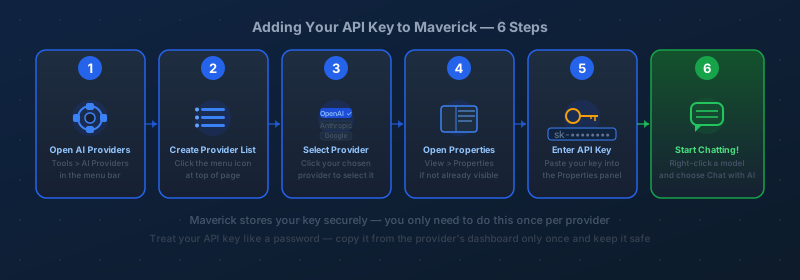
- Open AI Providers — choose Tools > AI Providers from the menu bar. This opens the AI Providers page, which shows all providers and models you've configured.
- Create your provider list — click the small menu icon at the top of the AI Providers page and choose the option to create or populate the list of providers. This sets up the standard provider entries so you can pick from them.
- Select your provider — click the provider you want to configure (for example, OpenAI or Anthropic) to select it.
- Open the Properties panel — if the Properties panel isn't already visible on the right side of the screen, choose View > Properties to show it.
- Enter your API key — find the API Key field in the Properties panel and paste in the key you copied from the provider's website.
- Start chatting — right-click on any AI model listed under your new provider and choose Chat with AI. Or choose View > Chat with AI from any project view and select a model from the dropdown.
That's it. Maverick stores your key securely on your account and uses it automatically for every conversation with that provider going forward.
Now Start Managing Projects With AI
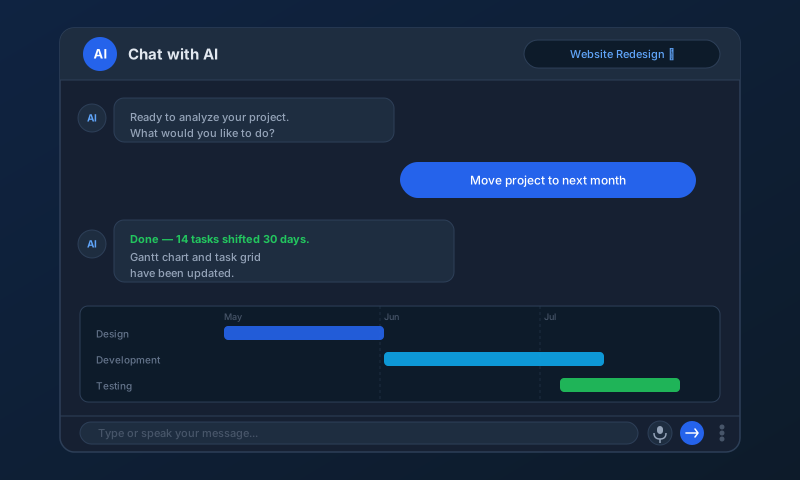
With your provider connected, open any project and start a conversation. You can ask Maverick's AI to move tasks, add resources, find the critical path, generate status reports, reschedule the entire project, or answer any question about your project data — all in plain language.
For a complete walkthrough of everything you can do in the AI chat:
Chat with AI to Analyze and Update Your Projects
Ready to Try It?
Maverick Project Scheduler's full AI feature set is available in every plan. Sign up for a free cloud trial, connect your preferred AI provider, and start managing projects in plain language — no forms or menus required.
Access the Free Cloud Trial