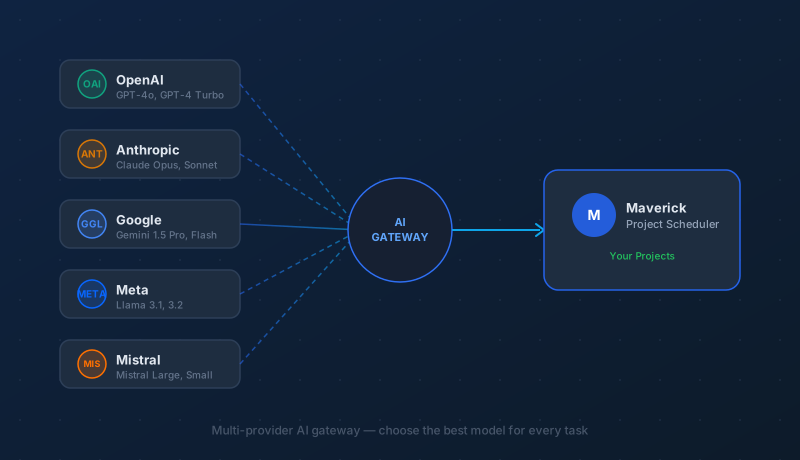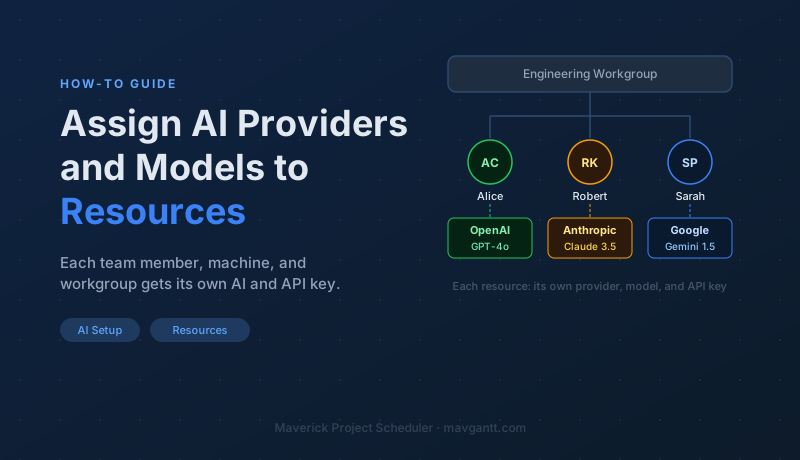
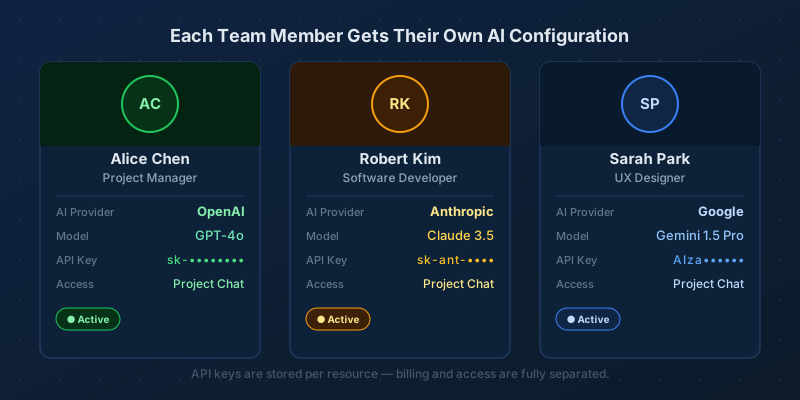
Maverick doesn't force your whole team onto a single AI service. Every resource in the system — employees, machine resources, and entire workgroups — can be assigned its own AI provider, model, and API key. Alice can use OpenAI's GPT-4o, Robert can use Anthropic's Claude, and Sarah can use Google Gemini, all working inside the same project at the same time. No global setting overrides their individual configuration.
This guide explains who benefits from per-resource AI assignment, how to set it up step by step, and why giving each person their own key matters more than it might first appear.
Every Resource Can Have Its Own AI
Employees — The Primary Use Case

Human resources are the people on your team: employees, contractors, and freelancers who log into Maverick, view project schedules, and interact with the AI chat directly. Assigning an AI provider to an employee means that when they open the AI chat, their requests go to their personal provider using their personal API key — not a shared account that everyone draws from.
This matters for a few reasons. Different roles often benefit from different models: a project manager analyzing a sprawling 200-task schedule might want a model with a large context window and strong reasoning; a field technician checking their assignments for the day is fine with a faster, lighter model. Letting each employee choose their own provider means you're not forcing a one-size-fits-all compromise on everyone.
Machine Resources — Automated AI Without Human Prompts

Machine resources — equipment, tools, and physical assets tracked in Maverick — can also be assigned an AI provider. This is a more advanced configuration, and it unlocks a different use case: automated project updates driven by AI scripts rather than human prompts.
When a machine resource has an AI provider assigned, Maverick can run automated workflows where the AI reads project data, makes decisions, and updates the schedule — all without anyone typing a prompt. Think of a manufacturing resource that monitors task completion signals from your shop floor system and automatically closes tasks and adjusts downstream dates. The AI acts as the operator, not the user.
If your team is just getting started with AI in Maverick, focus on employees first. Machine-resource AI automation is a power feature worth exploring once the basics are running smoothly.
Workgroups — One Assignment, Everyone Benefits
Rather than assigning an AI provider to each employee one at a time, you can assign it at the workgroup level. Every resource inside that workgroup — including resources in nested sub-workgroups — automatically inherits the workgroup's AI configuration.
This is the most efficient starting point for most teams. Create a top-level "Company" or "All Staff" workgroup, assign your preferred AI provider and model there, and every employee gets AI access immediately. You can always override the workgroup assignment on individual resources later to give specific team members a different provider or model.
How to Assign an AI Provider and Model
The assignment lives on the resource record itself, inside a Properties panel. Here's how to get there:
Step 1 — Open the Users Page
From the Maverick home screen, click the Users icon. The Users page opens in a new tab — you'll see it appear in the tab bar at the top of the screen. This page lists all human resources, machine resources, and workgroups in your organization's resource hierarchy.
Step 2 — Select the Resource or Workgroup

Click the employee, machine resource, or workgroup you want to configure. If you want to give your entire team AI access in one step, click the top-level workgroup — the one that contains all your other workgroups and resources. Everything nested inside it will inherit the configuration you set.
Not sure where to start? The top-level workgroup assignment is the safest default. You can refine individual resources later once everyone has baseline access.
Step 3 — Open the Properties Panel
With the resource or workgroup selected, look for the Properties panel on the right side of the screen. If you don't see it, go to View > Properties to open it. The Properties panel shows every configurable field for the selected item.
Step 4 — Assign the AI Provider
Scroll down in the Properties panel until you reach the AI section. You'll see two key fields:
- AI Provider — click this field and select one of the providers you've already configured in Maverick (OpenAI, Anthropic, Google, Mistral, and others). If the dropdown is empty, see the section below on setting up providers first.
- AI Model — after selecting a provider, this field shows the models available under that provider. Click it to choose the specific model this resource will use.
The change saves automatically. The resource now has its own AI configuration, separate from any global or workgroup-level setting (unless you set the assignment at the workgroup level, in which case it applies to all resources inside).
Haven't Set Up AI in Maverick Yet?
Before you can assign an AI provider to a resource, the provider has to exist in Maverick's system. This is a one-time admin task. You'll need administrator rights and permission to modify users to proceed.
- Go to Tools > AI Providers. The AI Providers page opens in a new tab.
- Click the menu icon to create the top-level list of providers and models. Maverick will populate the page with a standard set of options covering cloud-based services, free tiers, and locally installed models.
- For any provider you want to use, enter the API key. This is the key your organization will use for any resource that doesn't have its own individual key — think of it as the fallback.
- Once providers are configured, go back to the Users page and begin assigning them to resources or workgroups.
Maverick supports cloud-based AI services (OpenAI, Anthropic, Google, Mistral, and others), models with free tiers, and locally installed models for organizations that need to keep data on-premises. The provider list is not fixed — new models and providers can be added as they become available.
For a full walkthrough of the provider setup process, see:
How to Sign Up for an AI Provider
Ready to Chat?
Once a resource has an AI provider assigned, using the AI chat is straightforward. Here's the sequence from configuration to first result:
-
Open the AI chat — go to View > Chat with AI to open the chat panel in Maverick.
Chat with AI to Analyze and Update Your Projects -
Choose a project — select the project you want the AI to work with. The AI's context window loads your project data so it can answer questions and make changes.
What to Expect When AI Updates Your Project -
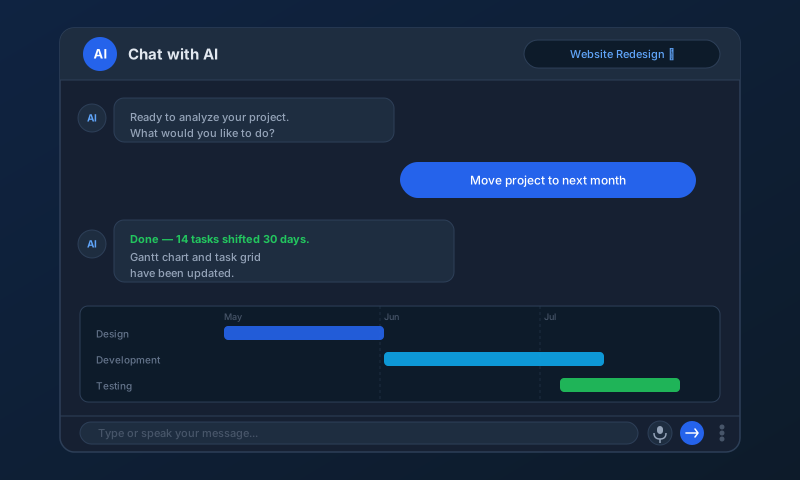
Enter a prompt and press Enter — ask the AI a question, request a schedule change, or ask it to find a resource conflict. The response appears in the chat, and any schedule changes are applied to your project in real time.
How to Prompt AI for Best Results
Why Give Each Employee Their Own AI Provider?
If you're new to AI in project management, per-resource assignment might seem like unnecessary complexity. Why not just pick one provider and call it done? Here's why the granular approach pays off as your team grows:
Different Roles Demand Different AI Capabilities
A project executive running a portfolio of 30 projects who needs deep reasoning about dependencies and risks is using AI very differently than a field technician who wants to know which task they're on next. The best model for one role — powerful, expensive, context-hungry — would be overkill and cost-prohibitive for the other. Per-resource assignment lets you match the tool to the job without compromise.
API Keys Keep Billing Transparent
When everyone shares a single API key, all AI usage rolls up into one undifferentiated bill. You can't tell how much the engineering team spent versus the project management office. Individual API keys — even if they all go to the same provider — let you attribute costs to specific employees or teams, making AI spend as trackable as any other resource cost in your project budget.
Offboarding Is Immediate
When an employee leaves your organization, you disable or delete their Maverick resource record. If their AI access was tied to a personal API key, that key can be revoked at the provider level too — instantly cutting off any remaining access, without affecting any other user's configuration. With a shared key, revoking it disrupts everyone.
Compliance and Data Residency
Some teams have regulatory requirements about which AI providers they're allowed to use, or where data is processed. Per-resource assignment lets you route sensitive work — finance, legal, HR — through a provider that meets your compliance requirements, while less sensitive work uses a faster or cheaper model. One policy doesn't have to fit all data.
Put AI to Work on Your Projects
Start a free cloud trial, set up your first AI provider, and assign it to your workgroup. Then open the AI chat on a live project and ask it to find a resource conflict or summarize the schedule. From first configuration to first useful answer takes about ten minutes.
Access the Free Cloud Trial