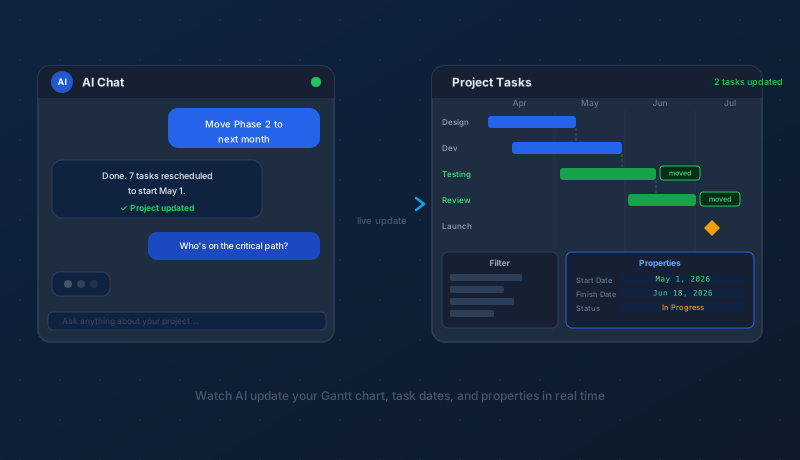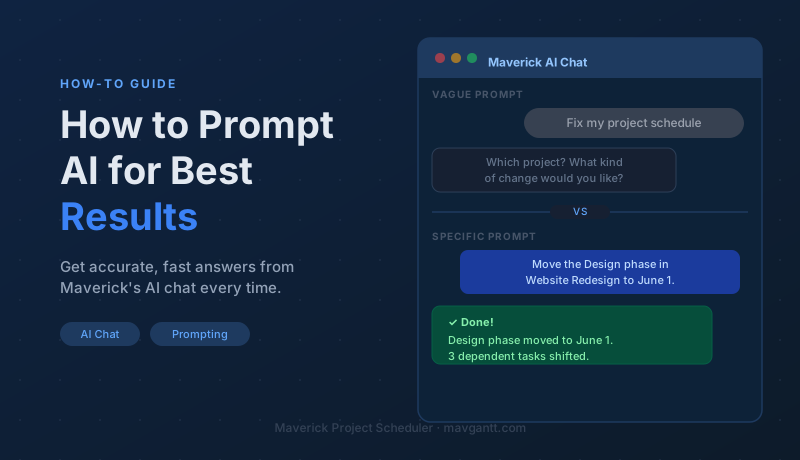
Maverick's AI chat can move tasks, reassign resources, find schedule conflicts, calculate the critical path, and give you plain-language summaries of your project's health — all from a single typed request. But the AI can only work with what you give it. A vague prompt produces a cautious, hedged response. A clear, specific prompt produces an accurate result on the first try, with no back-and-forth.
This guide walks through the techniques that separate prompts that work from prompts that stall — with real examples you can copy, adapt, and build on from day one.
Why Prompts Matter More Than You'd Expect
It's tempting to treat an AI like a search engine — toss in a few keywords and hope for the best. That approach works reasonably well for finding information, but it falls apart when you're asking an AI to take action on a complex, structured system like a project schedule.
Your project might contain dozens of tasks, multiple phases, several resources, and interdependencies that span weeks. When you ask "fix the schedule," the AI doesn't know which project you mean, what's wrong with it, or what "fixed" looks like to you. It has to ask. And every clarification round costs you time.
A well-formed prompt closes that gap before it opens. You tell the AI exactly what to do, to what, and with what constraints — and it does it. No negotiation.
The Anatomy of a Good Prompt
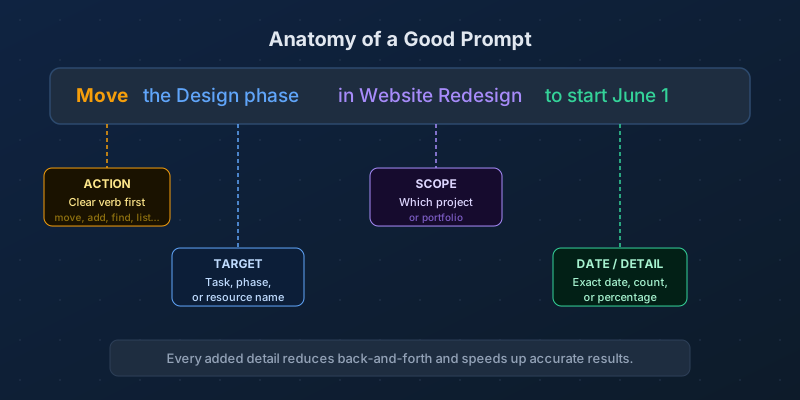
Almost every effective AI prompt in Maverick shares four components, though you won't always need all four:
- Action — a clear verb that tells the AI what operation to perform: move, add, remove, assign, find, list, summarize, calculate
- Target — the specific task, phase, resource, or milestone the action applies to, named exactly as it appears in your project
- Scope — the project or portfolio the action belongs to, so there's no ambiguity when you have multiple active projects with similar names
- Date or Detail — a specific date, duration, percentage, or other quantifier that pins down exactly what you want, rather than leaving it to interpretation
Not every prompt needs all four. "What is the critical path?" is a valid analysis prompt with no target, scope, or detail — as long as you're currently viewing the project you mean. But whenever a request involves taking action or naming something specific, the more of these components you include, the better.
Lead with an Action Word
The single biggest improvement most people can make to their prompts is starting with a verb. Verbs tell the AI immediately what category of work you need — analysis, modification, assignment, or reporting — before it reads anything else.
Here are the most useful action words in the project management context, and what each one signals:
- Move — shift a task, phase, or milestone to a new start date or position in the schedule
- Extend / Shorten — change the duration of a task by a specific amount
- Add — create a new task, resource, dependency, or milestone
- Remove / Delete — take something out of the schedule or resource list
- Assign — connect a resource to a task, with an optional allocation percentage or hours
- Find / List — surface tasks, resources, or conditions that match a criterion (overdue, unassigned, over-allocated)
- Summarize — produce a plain-language overview of a project, phase, or resource's current status
- Calculate — compute something: total cost, remaining hours, slack time, or resource utilization percentage
- Show — display the properties or current state of a specific task or resource
Leading with a verb also helps you think more precisely about what you actually want. If you're unsure whether to use move or extend, that uncertainty is worth resolving before you send the prompt — because the two words mean different things, and the AI will act accordingly.
Name the Exact Target
Your AI chat shares your project data, but it doesn't share your mental model. "The design task" and "Design Review" and "UX Design Sprint" are all different tasks — and if your project has more than one with a similar name, a vague reference will force the AI to ask which one you mean.
Use the exact name as it appears in your task list. If a task is named "Phase 2 — Structural Analysis," don't call it "the analysis task." Precision here is free — it just takes a moment of checking — and it eliminates an entire category of misunderstanding.
The same applies to resources. "Alice" might work when you only have one Alice on the project, but "Alice Chen" is unambiguous. If you're working across multiple projects or portfolios, include the project name too: "Alice Chen in the Alpha Launch project."
Be Specific About Dates and Numbers
Relative dates — "next week," "in two weeks," "by end of month" — feel natural when you're talking to a colleague, but they introduce ambiguity for an AI. The AI doesn't know what day it is unless you tell it, what your fiscal calendar looks like, or how you define "end of month" when a project is mid-sprint.
Wherever possible, use absolute dates:
- "Move the kickoff meeting to May 12, 2026" — unambiguous
- "Extend the testing phase by 5 business days" — unambiguous, assuming your project calendar is set up in Maverick
- "Set the deadline for Deliverable 3 to June 30, 2026" — unambiguous
The same precision applies to resource allocations and percentages. "Increase Alice's allocation" tells the AI nothing useful. "Increase Alice Chen's allocation on Design Review from 50% to 75%" gives it everything it needs to make the change correctly.
Separate Analysis from Changes
One of the most common prompt mistakes is mixing a question with an instruction in the same message. "What's the critical path and make it shorter" is two different requests — the AI may answer one or the other, or attempt both with unpredictable results.
Treat analysis and modification as separate conversations:
- Ask first — "What is the critical path for Website Redesign? Which tasks have the most float?"
- Review the answer — understand what the AI found before you decide what to change
- Act second — "Move Task 7 and Task 8 to run in parallel, starting the same day."
This order matters because the AI's analysis might reveal something you didn't expect — a bottleneck you didn't know was there, a resource already at capacity, or a dependency that prevents the change you had in mind. Acting on information beats acting on assumptions.
Build on the Conversation
The AI chat maintains context within a session. You don't have to re-explain the project name, phase, or resource in every follow-up message — the AI remembers what you were discussing. Use this to your advantage by building instructions in layers.
A typical productive session might look like this:
- "List all tasks in Alpha Launch that are currently unassigned."
- "Assign the first three to Robert Kim at 80% allocation."
- "Check if Robert Kim is over-allocated this month."
- "Reduce his allocation on Task 4 to 50% to bring him into range."
Each message builds on the previous one. You don't have to name the project four times or re-specify Robert Kim's department. The conversation carries that context forward automatically, letting you work iteratively rather than writing one massive, perfectly-formed super-prompt.
One practical tip: if you move to a very different topic — switching from one project to another, or from scheduling to resource analysis — it's worth explicitly stating the new context. "Switching to the Q3 Compliance project now — what tasks are due this week?" This prevents the AI from accidentally applying the previous context to the new request.
Weak Prompts vs. Strong Prompts
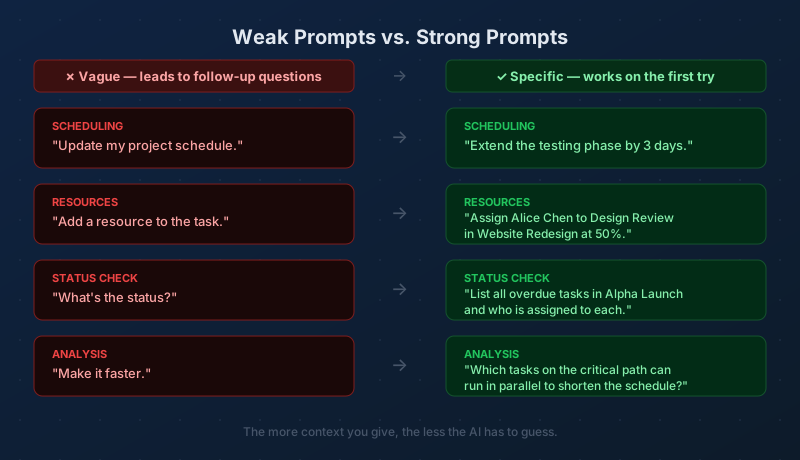
The difference between a weak prompt and a strong one usually comes down to two things: specificity and context. Weak prompts describe a category of problem. Strong prompts describe the exact problem, exactly where it is, and exactly what a good outcome looks like.
It's worth noting that "weak" doesn't mean wrong. If you genuinely don't know which task needs updating, starting with "List all tasks in Phase 2 that have no assigned resource" is a perfectly good first prompt — it's not vague, it's exploratory. The prompts that cause problems are the ones that assume the AI already knows what you know, without telling it.
When the AI Misunderstands
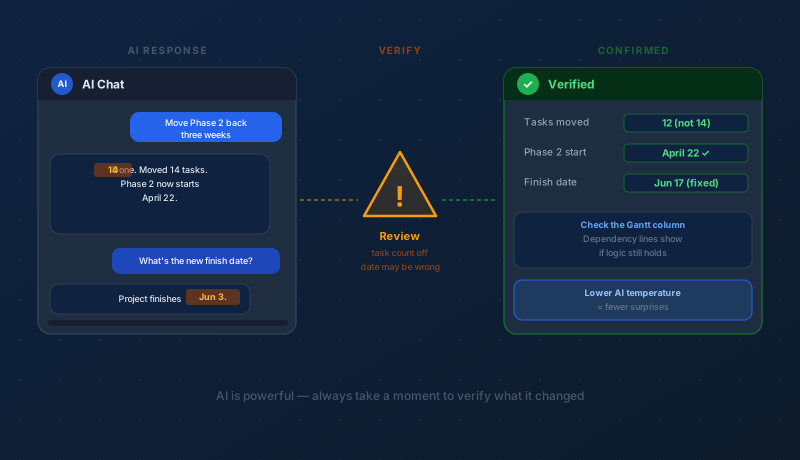
Even well-formed prompts occasionally produce unexpected results. The AI might misidentify a task, apply a change to the wrong resource, or interpret an instruction more literally than you intended. This is normal — and it's exactly why Maverick shows you every change the AI makes before it's finalized.
When you get an unexpected result, the most efficient response is a targeted correction, not a complete restart. Tell the AI specifically what it got wrong:
- Instead of "That's wrong, try again" — say "You moved Task 3, but I meant Task 4 — Design Review, not Design Brief."
- Instead of "No, not like that" — say "The dates are right but the resource should be Alice Chen, not the whole design workgroup."
Targeted corrections preserve the parts that were correct and fix only what wasn't. They also teach you something: if the AI misunderstood your original prompt, the correction shows you the gap — a name that was ambiguous, a scope that wasn't specified, a date that had two possible interpretations. You can close those gaps in your next prompt.
Prompt Templates to Get You Started
If you're new to AI chat in Maverick, here are ready-to-use prompt patterns you can adapt to your own projects. Replace the bracketed parts with your actual names and dates:
- Schedule change: "Move [phase or task name] in [project name] to start on [date]."
- Duration change: "Extend [task name] by [N] days and shift all dependent tasks."
- Resource assignment: "Assign [resource name] to [task name] at [percentage]% allocation."
- Overdue check: "List all tasks in [project name] that are past their due date."
- Unassigned tasks: "Which tasks in [project name] have no assigned resource?"
- Critical path: "What is the critical path for [project name]?"
- Cost summary: "What is the total estimated cost of [phase or project name] based on current assignments?"
- Conflict check: "Is [resource name] over-allocated at any point in [month and year]?"
- Status summary: "Give me a two-paragraph summary of where [project name] stands today."
- Parallel tasks: "Which tasks in [phase name] could run in parallel to compress the schedule?"
These aren't rigid scripts — they're starting points. Once you see how the AI responds to a well-formed prompt, you'll naturally develop your own shorthand for the types of questions and changes you make most often.
Put These Techniques into Practice
Start a free cloud trial and open the AI chat in your first live project. Run a status summary, try a schedule change, and see how the AI handles a resource conflict. You'll know within ten minutes whether a technique from this guide works for your workflow — and what to refine.
Access the Free Cloud Trial