What Is the Microsoft Project XML Format?
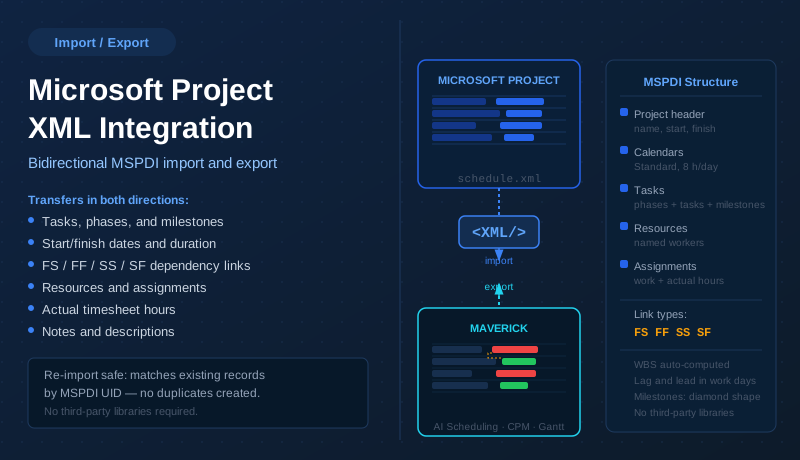
Microsoft Project's native XML format is called MSPDI — Microsoft Project Data Interchange. It is the standard XML schema Microsoft uses when you choose File > Save As and select the XML format in MS Project. The same format is produced by Project Server and any third-party tool that wants to exchange schedules with Microsoft Project.
Maverick reads and writes MSPDI directly using .NET's built-in System.Xml library. No third-party conversion libraries are required, and the integration works identically in both the Windows desktop application and the Maverick cloud web interface.
The exchange is fully bidirectional. You can import an XML schedule created in Microsoft Project into an existing Maverick project or let Maverick create a new project automatically from the file. You can also export any Maverick project to an MSPDI XML file that Microsoft Project opens natively — with all task types, dependency links, resource assignments, and actual timesheet hours included.
Importing from Microsoft Project
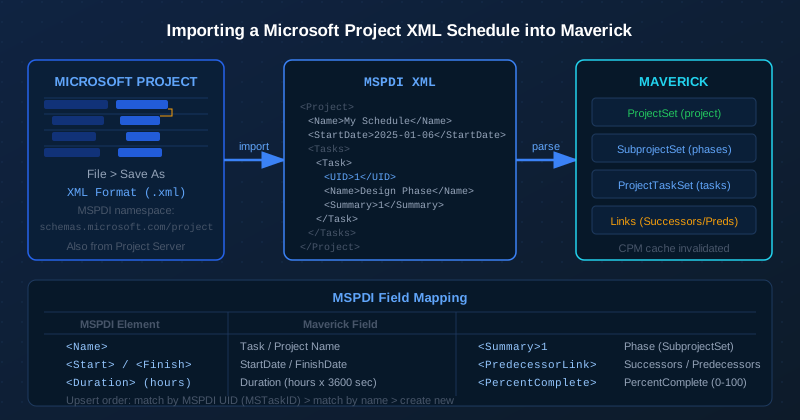
To prepare an XML file for import, open your project in Microsoft Project and choose File > Save As, then select XML Format (.xml) as the file type. The resulting file follows the MSPDI schema and can be imported into Maverick immediately.
Maverick's import layer accepts the XML in three ways, giving you flexibility depending on where the file comes from:
- ImportFromFile — reads the XML directly from a file path on disk. Use this from the Windows desktop application when you have the .xml file saved locally.
- ImportFromBytes — accepts the XML as a UTF-8 byte array. Use this when streaming an uploaded file through the web interface without saving it to disk first.
- ImportFromXml — accepts the XML as a string. Use this when the XML has already been read or generated in memory. The other two methods delegate here internally.
When you supply an existing Maverick project GUID, the import updates that project's header fields and tasks. When you supply an empty string for the project ID, Maverick creates a brand-new project from the MSPDI <Name> element and returns its GUID.
Re-import safety
Importing the same XML file a second time does not create duplicates. The importer uses a three-step lookup for each task it encounters:
- Match by MSPDI UID — the integer
<UID>stored in the database asMSTaskIDfrom the first import. This is the fastest and most reliable match. - Match by task name within the same project — catches tasks that were created in Maverick manually before the first import, which have no stored MSPDI UID yet.
- Create a new record if neither lookup finds a match.
All three paths converge on the same field-update logic, so a first-time import and a re-import of the same file produce identical results. After the import completes, the critical path cache is invalidated so that CPM recalculates on the next access with the updated schedule data.
What Gets Imported: Field Mapping
The table below shows every MSPDI element that Maverick reads and the database field it maps to. Summary tasks (where <Summary> is 1) become phases in the Maverick subproject hierarchy. Non-summary tasks — including milestones with zero duration — become project task records.
| MSPDI Element | Maverick Record Type | Maverick Field |
|---|---|---|
<Name> (project) |
ProjectSet | Name |
<StartDate> / <FinishDate> |
ProjectSet | StartDate / FinishDate |
<Comments> |
ProjectSet | Description |
<Task> with <Summary>1 |
SubprojectSet | Name, StartDate, FinishDate, Level, Order |
<Task> with <Summary>0 |
ProjectTaskSet | Name, StartDate, FinishDate, DueDate |
<Duration> (ISO 8601 hours) |
ProjectTaskSet | Duration (hours × 3,600 = seconds) |
<PercentComplete> |
ProjectTaskSet | PercentComplete |
<Notes> |
ProjectTaskSet / SubprojectSet | Description |
<UID> |
ProjectTaskSet / SubprojectSet | MSTaskID (re-import match key) |
<PredecessorLink> |
ProjectTaskSet | Predecessors / Successors |
Duration values arrive in ISO 8601 format — for example, PT8H30M0S means 8 hours and 30 minutes. Maverick converts this to seconds (hours × 3,600) before storing it in the database. The DueDate field is set to match FinishDate so tasks appear correctly in due-date calendar and list views.
Parent phases are resolved from the MSPDI <OutlineLevel> sequence: MSPDI does not carry an explicit parent pointer, so Maverick infers the parent–child relationship by walking the ordered task list and tracking the most-recently-seen task at each outline level. A summary task's MSPDI UID is stored so all its child tasks can be parented to it correctly in Maverick's phase hierarchy.
Exporting from Maverick
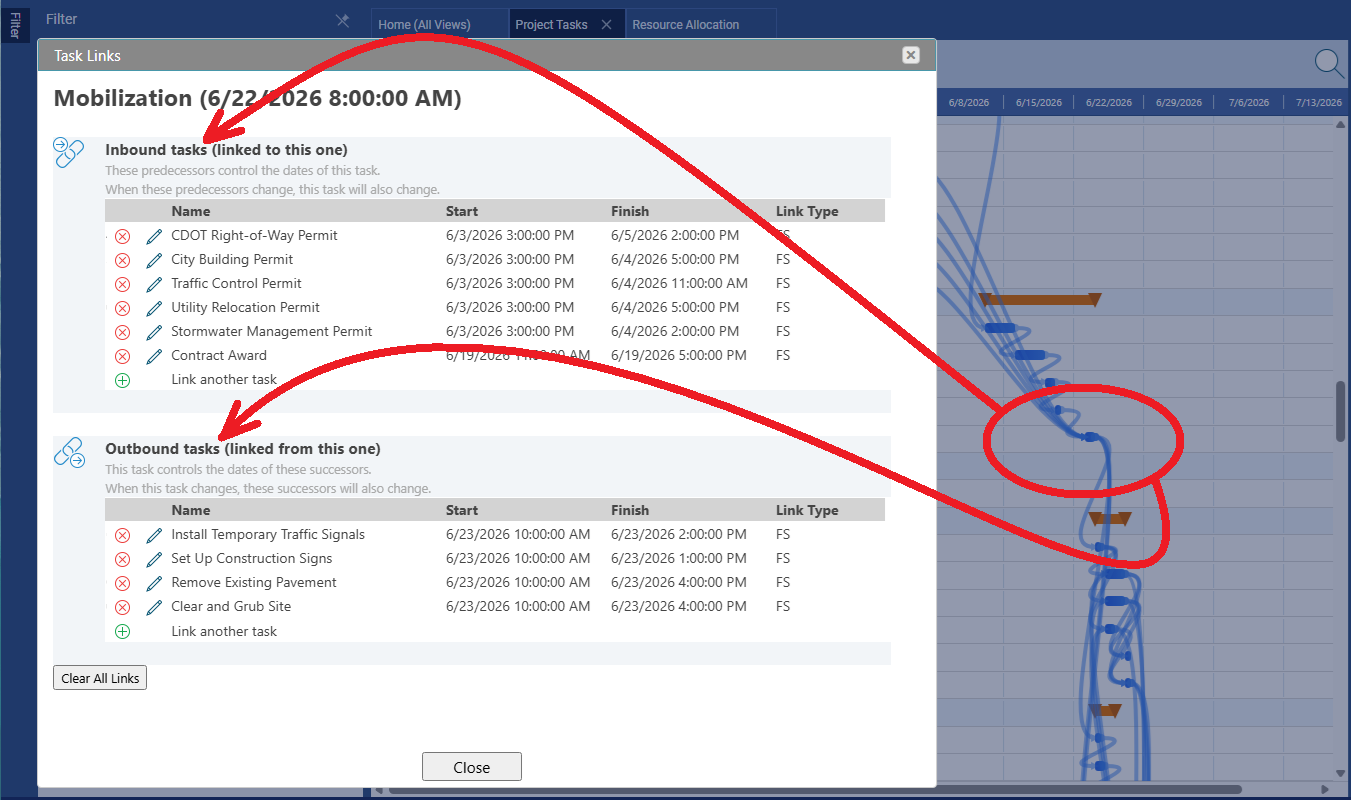
Maverick generates a complete MSPDI XML document that Microsoft Project opens without modification. The output is structured in five sections, in the order the MSPDI schema requires:
1. Project Header
The project name, start date, finish date, and notes are written first. The header also includes the work-time assumptions that control how Microsoft Project interprets all duration and lag values in the file: 480 minutes per day (8-hour work day), 2,400 minutes per week (5-day week), and 20 days per month.
2. Calendars
MSPDI requires at least one calendar element — Microsoft Project will reject a file that omits this section. Maverick emits a single Standard calendar. If you need custom working-time exceptions (company holidays, part-time schedules), those can be added after import inside Microsoft Project.
3. Tasks
Every task is emitted in display order with its outline level, WBS number, start, finish, duration, and percent complete. WBS numbers are computed automatically from the outline level sequence — you do not need to supply them. Milestone tasks omit the <Duration> and <Work> elements, which causes Microsoft Project to render them as diamond markers instead of bars. Each dependent task includes its <PredecessorLink> children with the link type code and lag value. A mandatory UID-0 project summary task is emitted first, as required by the MSPDI schema.
4. Resources
Each named worker registered via AddResource becomes a <Resource> element with a unique integer UID and a display name. A mandatory UID-0 null-resource placeholder is always emitted first. Resources are typed as work resources (<Type>1</Type>), which is the correct classification for named employees in Microsoft Project.
5. Assignments
Each task-to-resource assignment carries the task UID, resource UID, allocation units (1.0 = 100%, 0.5 = 50%), and planned work hours. If a resource has actual timesheet hours logged against a task, those are emitted as <TimephasedData Type="2"> children — one element per day — representing timephased actual work. Microsoft Project displays these in the Resource Usage view's timephased grid. If a worker logged actual hours against a task but was not on the planned assignment list, Maverick creates an implicit assignment with units set to 0 (tracking-only) so the timephased data has a valid parent element.
Task Link Types and Lag
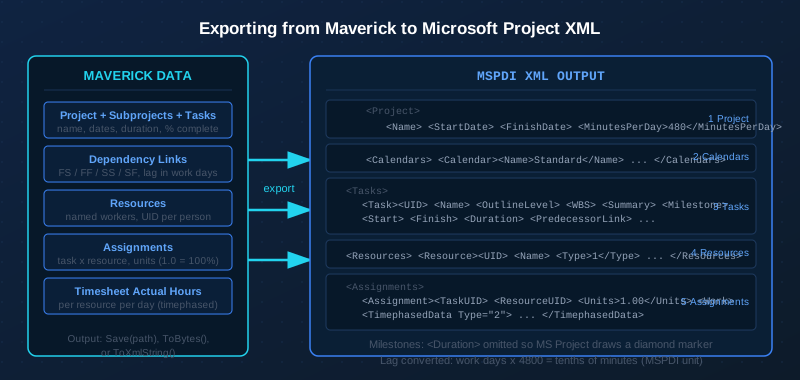
All four MSPDI dependency types are preserved in both directions — import and export. Maverick stores them internally using the same four-letter codes and converts to and from the integer codes that MSPDI uses in the <PredecessorLink><Type> element:
- FS — Finish-to-Start (MSPDI code 1): the successor cannot start until the predecessor finishes. This is the most common dependency type and the default when no type is specified.
- FF — Finish-to-Finish (MSPDI code 0): the successor cannot finish until the predecessor finishes. Used when two tasks must complete together.
- SS — Start-to-Start (MSPDI code 3): the successor cannot start until the predecessor starts. Used when two tasks must begin together or within a fixed offset.
- SF — Start-to-Finish (MSPDI code 2): the successor cannot finish until the predecessor starts. Rarely used in practice but fully supported.
Links are stored in Maverick's database as comma-separated strings in the Predecessors and Successors fields of each task. Plain FS links with zero lag are stored as bare GUIDs. All other type and lag combinations use the bracket notation: GUID[SS+2] or GUID[FF-1.5]. This format is shared with the CPM calculator and the AI chat context builder, so imported links participate immediately in critical path analysis and AI scheduling sessions.
Lag and lead values
MSPDI stores lag as tenths of minutes regardless of how it is displayed to users. One work day equals 8 hours, or 480 minutes, or 4,800 tenths of minutes. Maverick converts in both directions:
- Import:
LinkLag tenths ÷ 4,800 = lag in work days - Export:
lag days × 8 × 60 × 10 = LinkLag tenths
Positive values represent a lag — a gap between predecessor and successor. Negative values represent a lead — the successor starts or finishes before the predecessor, creating an overlap. Both are preserved through import and export without rounding loss.
All predecessor and successor links are written in a single database update per task at the end of the import, rather than being applied one at a time. This approach avoids the cascading date recalculations that individual link writes trigger. After all links are stored, the critical path cache is invalidated so CPM recalculates fresh on the next access.
Resources, Assignments, and Actual Hours
On export, every named worker in the project becomes a <Resource> element with a unique integer UID. Resource names are deduplicated case-insensitively — two assignments to "Alice Smith" and "alice smith" produce a single resource record. The UID assignment follows insertion order, so UIDs remain stable across repeated exports of the same project.
Each task-to-resource pairing becomes an <Assignment> element. The allocation fraction is expressed as a decimal: 1.0 for a full-time assignment, 0.5 for half-time. Planned work hours for the assignment are derived as task.DurationHours × units — the same relationship Microsoft Project uses when you assign a work resource to a task.
Actual timesheet hours are emitted as timephased data inside each assignment. Each day that a resource logged time against a task produces one <TimephasedData Type="2"> element, bracketing the standard 8:00–17:00 work day for that calendar date. The total actual work across all days is also written to the <ActualWork> field on the assignment. Microsoft Project's Resource Usage and Task Usage views use this data to show how actual work is distributed over time.
If you need to export only a subset of tasks, you can call AddTask selectively — any tasks not added to the export instance simply will not appear in the file. The same applies to resources and assignments: only items you explicitly register are included. This allows you to generate a filtered snapshot — for example, all tasks assigned to a specific team — without modifying the underlying project data.
Export Results
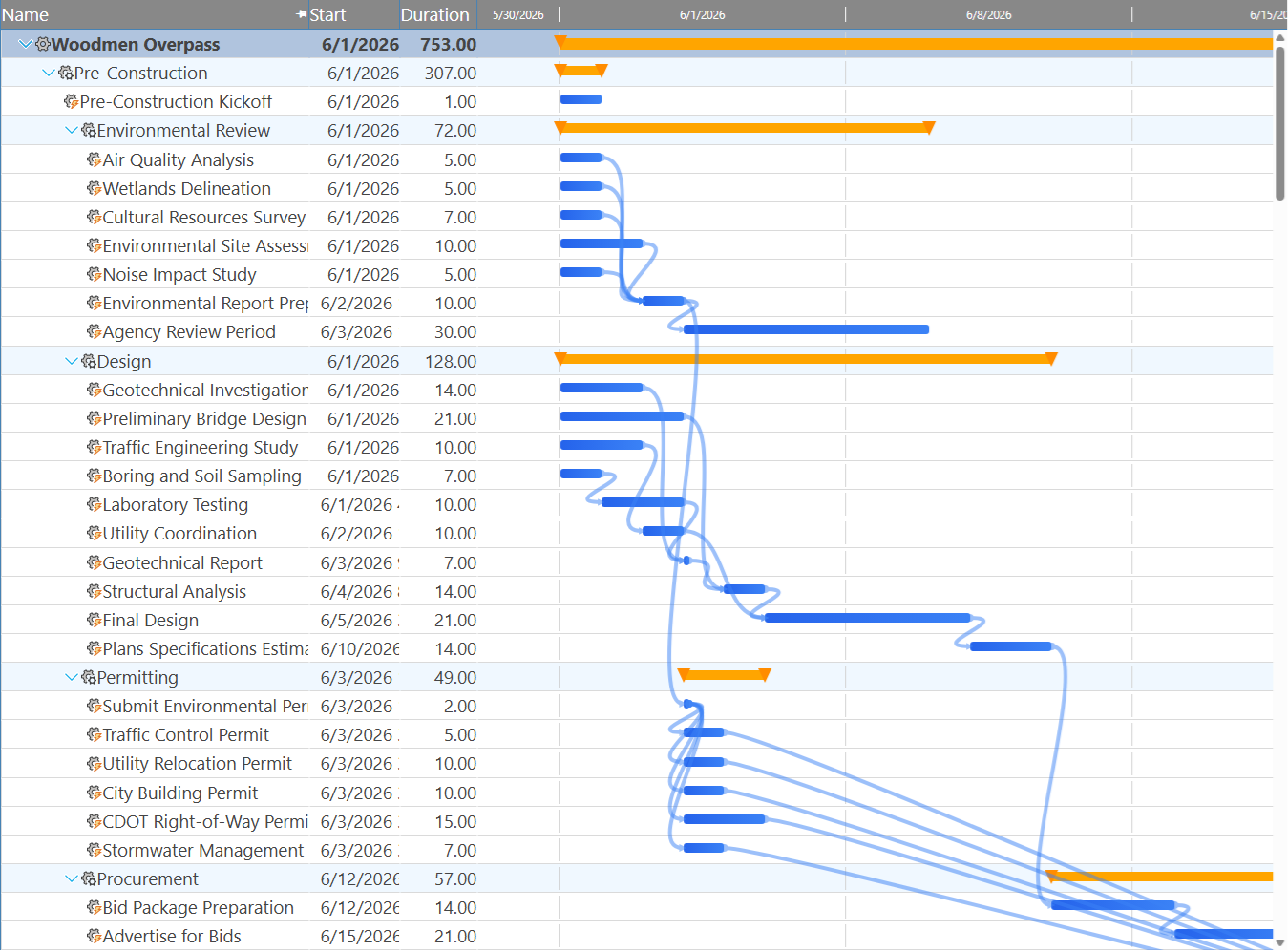
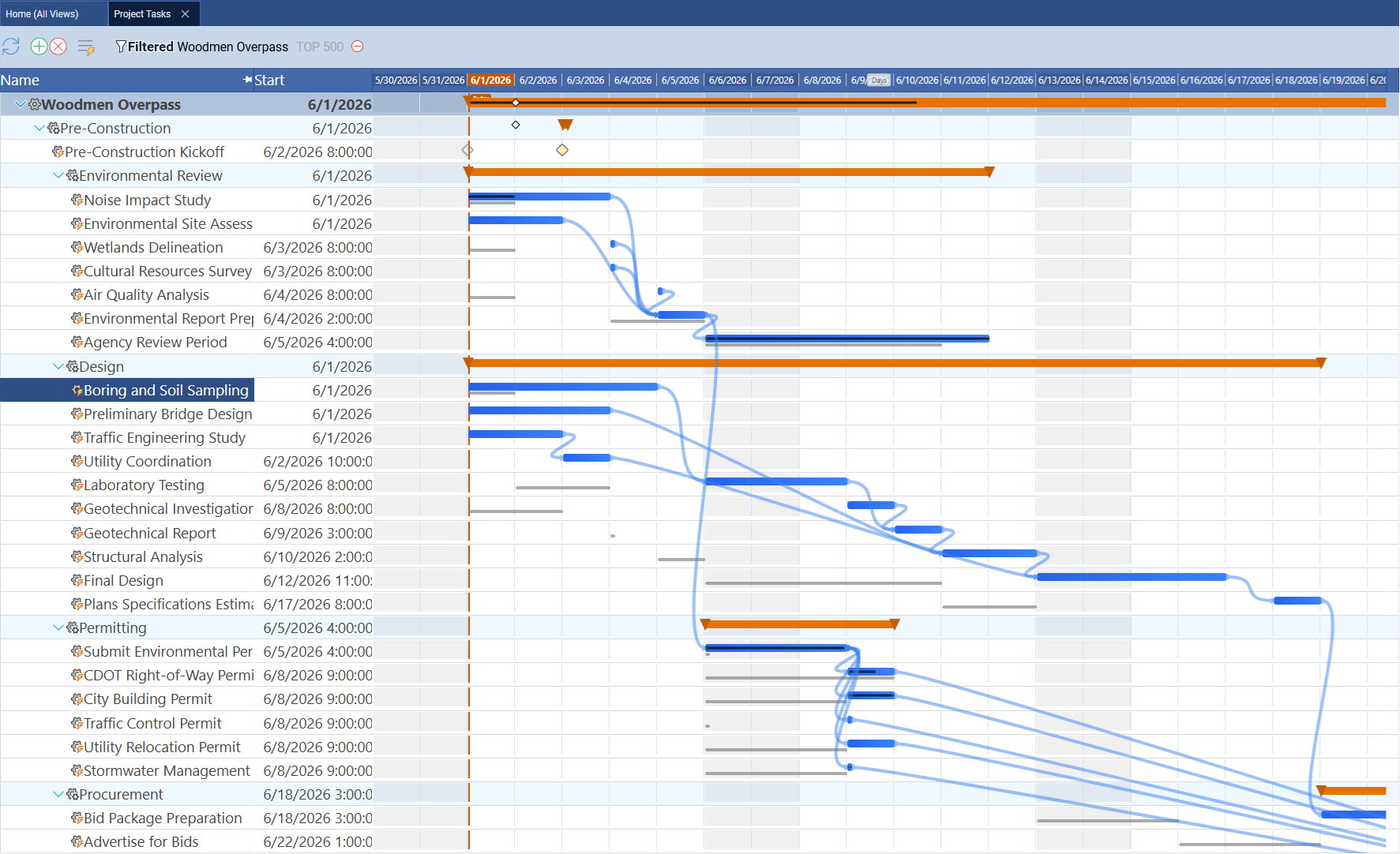
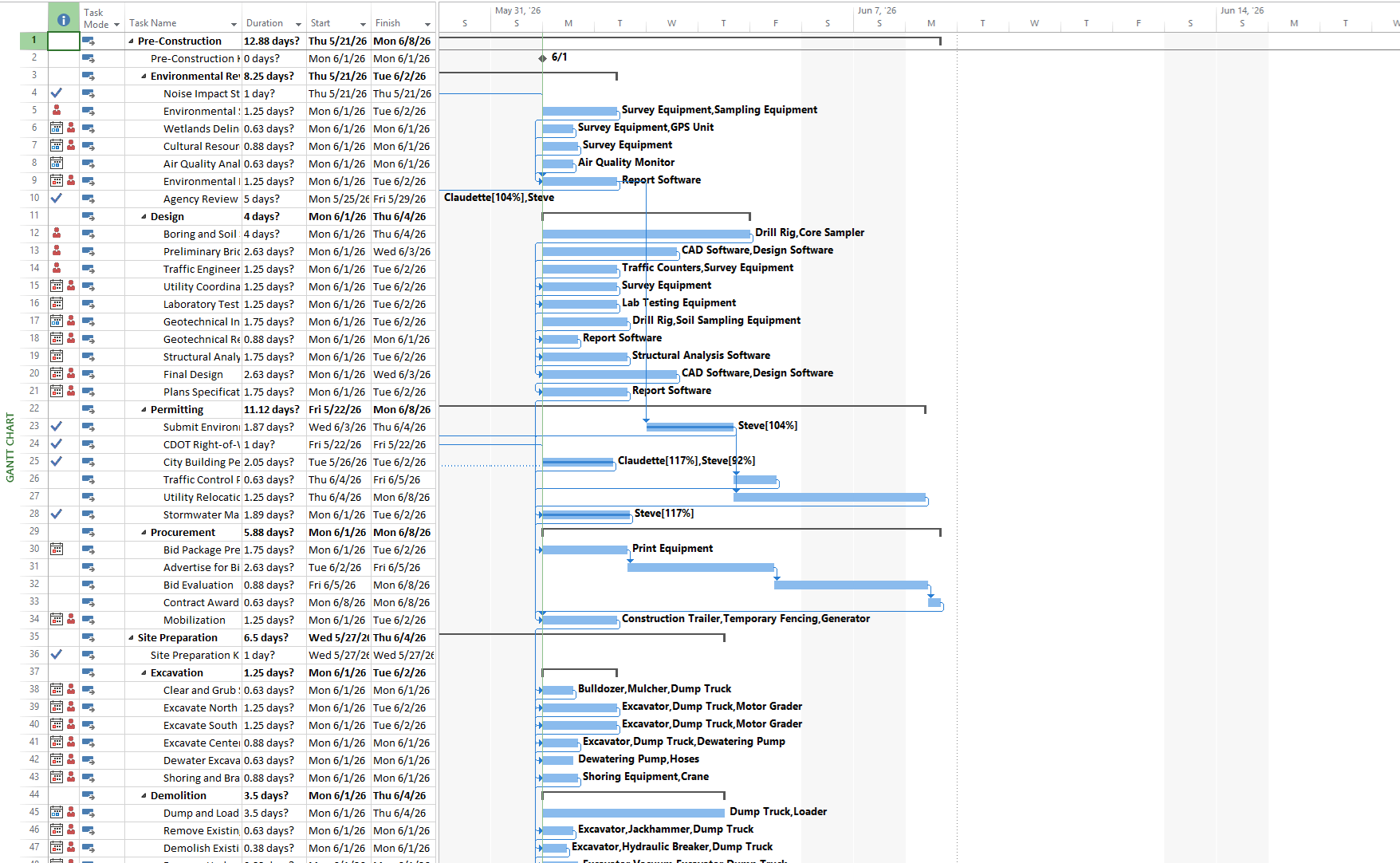
The screenshots below show the same schedule before and after an XML export. The left image shows a Maverick project with tasks and Gantt chart. The right shows the same schedule after importing the exported XML into Microsoft Project — tasks, phases, dependency links, and dates all carry across intact.
Maverick — before export
Microsoft Project — after XML import