Resource Properties
Every Resource Property, Explained
Maverick tracks every detail on each human resource, machine, and material — from login credentials and billing rates to AI provider preferences and skills — so you can assign the right resource to the right task every time.
Try It FreeIdentity & Classification
These properties establish who or what a resource is, how it is identified across the system, and what kind of resource it represents.
Name
The username used to identify a human resource, machine, or material throughout Maverick. The name appears in task assignments, timesheets, the resource allocation chart, and all reports. For human resources it is typically a login-style identifier; for machines and materials it is a descriptive label that makes the resource immediately recognizable when managers are assigning work or reviewing capacity.
Full Name
An alternate display name used in client-facing reports, invoices, and formal documentation. While the Name field serves as the system identifier, Full Name lets the record display a proper formal name — first and last — wherever a professional presentation is required. This distinction is especially useful for resources whose usernames are abbreviations, email addresses, or employee IDs that would look unprofessional on a report sent to a client.
Employee ID
An alternate identifier for the human resource or machine, typically matching a number from a payroll system, HR database, or asset register. Storing the employee ID in Maverick creates a reliable cross-reference between project management data and external systems — making it straightforward to reconcile timesheet hours with payroll records or to look up a resource in an HR system without manually matching names.
Resource Type
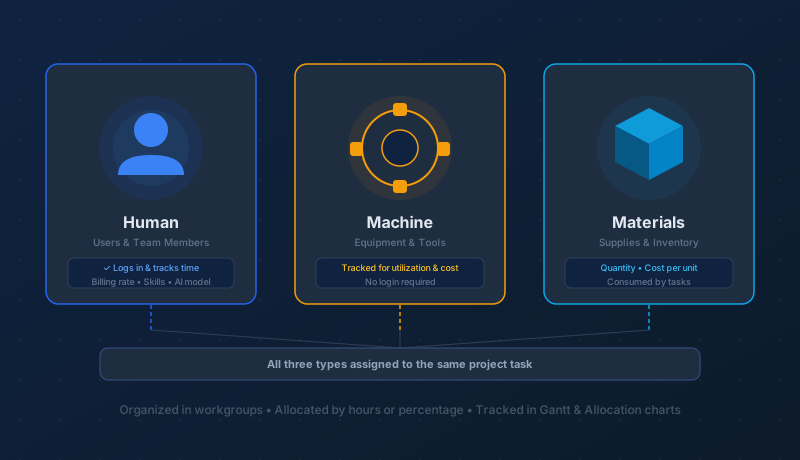
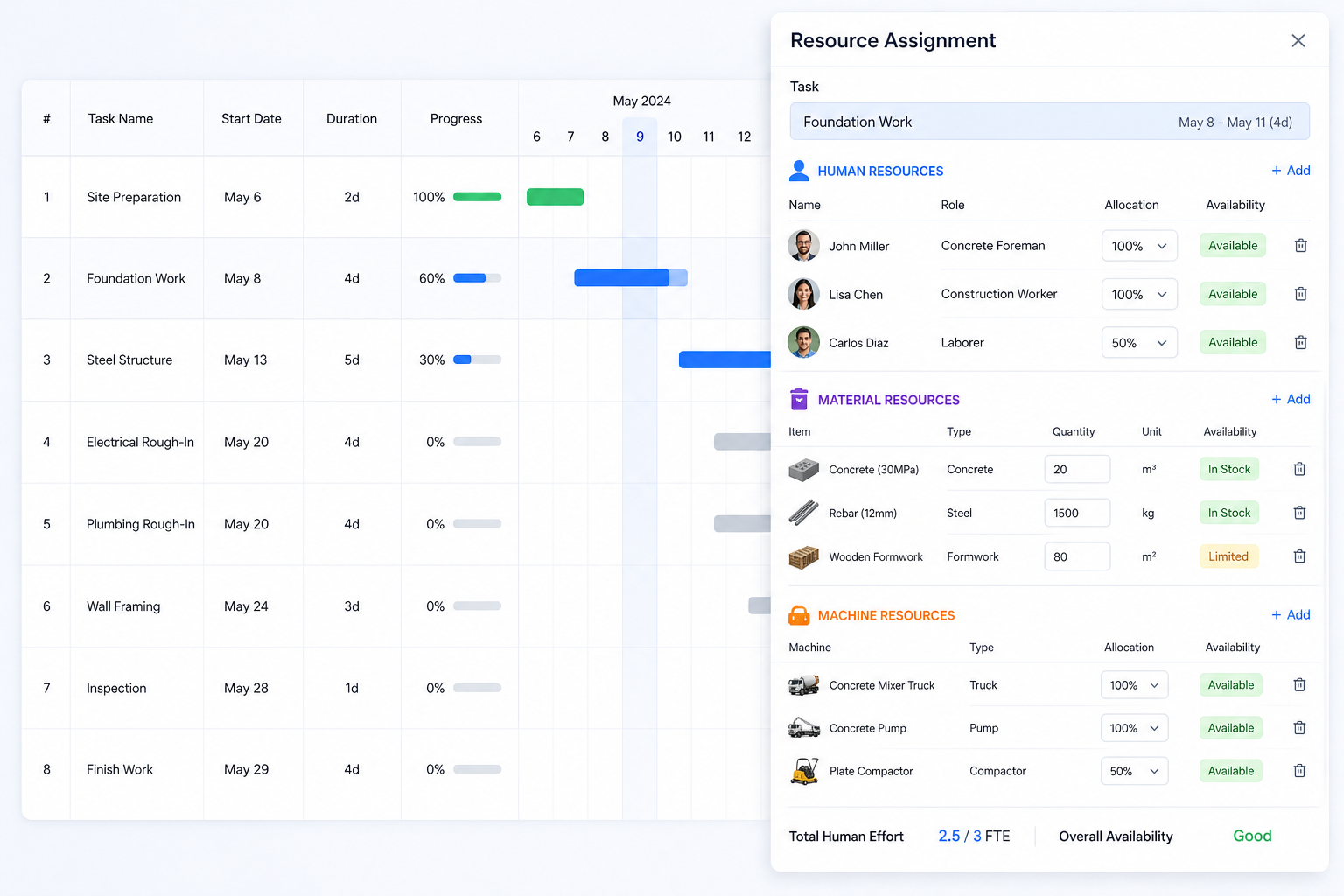
Classifies the resource as a human resource, machine, or material. This distinction drives fundamentally different behavior throughout Maverick — human resources log time, receive email notifications, and require authentication; machines track utilization hours; materials track consumption quantities and costs. Correctly classifying each resource ensures that scheduling, cost calculations, and reporting treat each type appropriately rather than applying human-resource logic to equipment.
Contractor
Indicates whether this human resource is an independent contractor or a salaried employee. The distinction matters for cost accounting, compliance, and reporting — contractors are often billed and paid differently from employees, may have different overtime rules, and may need to be reported separately for tax and regulatory purposes. Flagging contractors in Maverick lets finance filter timesheet data and cost reports to see contractor spend independently from payroll costs.
Role
A user-defined role label for the resource — such as Senior Engineer, Designer, Welder, or Project Lead. Roles serve two purposes: they give managers a human-readable classification for filtering and reporting, and they are matched against task skill requirements during AI-driven resource leveling. When a task requires a specific role and no specific person is assigned, Maverick finds the best-available resource whose role qualifies them for the work.
Access & Security
Security properties control whether a resource can log in, what level of authority they carry, and how their identity is verified.
Active
Marks whether this resource is currently active and available for assignment to projects and tasks. Deactivating a resource — when an employee leaves, a machine is retired, or a material is no longer stocked — removes them from assignment lists and timesheet views without deleting their historical data. Past hours, costs, and project contributions remain fully intact for reporting, auditing, and payroll reconciliation.
Can Log In
Controls whether this resource has the ability to log into the Maverick system. Not every resource needs login access — machines and materials never log in, and some human resources may be tracked for scheduling and cost purposes without needing their own credentials. Disabling login for resources that should not have access reduces the attack surface and prevents accidental time entries from accounts that should be read-only from a management perspective.
Administrative Rights
Grants the resource full administrative authority to create, edit, and delete projects, tasks, other resources, clients, and system configuration. Administrative rights should be reserved for project management staff and system administrators — granting them broadly increases the risk of accidental or unauthorized changes to project data. Most team members need only the ability to log time and view their assignments, not to modify the underlying project structure.
Authenticate
Defines how Maverick verifies the resource's identity at login — options typically include local username and password, Windows Active Directory single sign-on, or other identity provider integration. Choosing the right authentication method balances security with convenience: SSO integration reduces password fatigue and centralizes credential management, while local authentication is simpler to configure for small teams or external contractors who are not part of the corporate directory.
Password
The login password for resources using local authentication. Maverick stores passwords securely and never exposes them in plain text. Administrators can reset passwords when resources are locked out, and password policies can require minimum length and complexity. For organizations using Active Directory or SSO authentication, this field is managed by the external identity provider rather than Maverick, keeping credential management centralized in the corporate security infrastructure.
Permissions & Notifications
These properties determine precisely what each resource can see and do within Maverick, and what system events trigger an email to them.
User Rights
A configurable list of specific rights that determine what this resource can see and do in the application — such as the ability to view cost data, approve timesheets, edit task properties, run reports, or manage other users. User rights provide fine-grained control beyond the binary of admin versus non-admin. A team lead might have rights to edit tasks but not see salary rates; a finance reviewer might see all cost data but not modify schedules.
Email Notifications
A configurable list of system events that trigger an automated email to this resource — such as being assigned to a new task, a task's due date approaching, a timesheet being approved or rejected, or a project status changing. Tailoring notifications per resource prevents inbox overload for people who only need to know about their own assignments, while ensuring project managers and executives receive the broader alerts relevant to their oversight role.
Permission to View Data
A list of workgroups and individual users whose project data, timesheets, and cost records this resource is allowed to see. Data visibility is independent of administrative rights — a resource can have permission to view another team's data for reporting purposes without having the ability to edit it. This property is essential for matrix organizations where project managers need cross-team visibility but should not be able to alter work they do not own.
Organization
Organizational properties place each resource within the team structure and provide the contact details needed to communicate with them.
Parent Group
The workgroup or team this resource belongs to within the organizational hierarchy. Workgroups can be nested — a developer might belong to the Front-End team, which belongs to Engineering, which belongs to the Technology division. This hierarchy drives permission inheritance, resource filtering, and department-level rollups. When a project is assigned to a workgroup, all resources in that group become available for task assignment without individually listing each person.
Department
A higher-level organizational classification that abstracts the workgroup or division this resource belongs to. Department is used in portfolio-level reporting to aggregate costs, hours, and utilization by organizational unit without drilling into individual workgroup hierarchies. Finance can pull all hours by department, HR can review utilization trends across departments, and executives can compare departmental project load at a glance.
Manager
The resource's direct manager within the organization. Recording the management relationship in Maverick enables manager-specific workflows — a manager can approve or reject their reports' timesheets, receive notifications when their team members are over-allocated, and view a dashboard filtered to just the resources they are responsible for. The management chain also informs escalation paths when project issues need to be elevated.
The email address Maverick uses to send notifications, alerts, timesheet reminders, and system messages to this resource. A correct email address is foundational to the notification system — without it, the resource is invisible to automated communication and must be reached through other means. For machines and materials, the email field may point to a team inbox or maintenance coordinator rather than a personal address.
Preferences & Locale
Locale and preference properties ensure that Maverick presents dates, times, and numbers in the format each resource expects, wherever in the world they are working.
First Day of Week
Sets which day begins the work week for this resource — Monday by default, but configurable to Sunday or any other day to match local convention or organizational policy. This setting affects how weekly timesheet periods are displayed and calculated, how calendar views are rendered, and how weekly hour totals are aggregated in reports. For global teams spanning multiple regions, per-resource configuration prevents the disorientation of seeing the wrong week boundaries in a daily-use tool.
Time Zone
The time zone in which this resource operates. Time zone affects when scheduled events, deadline notifications, and timer entries are recorded and displayed. For distributed teams spanning multiple continents, accurate time zone assignment ensures that a 9 AM task start in Tokyo and a 9 AM task start in Chicago are both recorded correctly in UTC and displayed correctly in each person's local time — eliminating the confusion of off-by-hours timestamps in shared project timelines.
Language Code
The locale and language setting for this resource, which controls the display of date formats, number formats, currency symbols, and UI text. A resource in Germany expects dates as DD.MM.YYYY and commas as decimal separators; a resource in the United States expects MM/DD/YYYY and periods. Setting the language code correctly prevents misread dates and misinterpreted numbers — errors that are easy to make and potentially costly in project scheduling and financial reporting.
Rounding
Configures rules for automatically rounding time entries when they are saved. Common rounding rules include rounding to the nearest 6, 15, or 30 minutes, or always rounding up to the next quarter hour. Rounding rules standardize timesheet data across the team, eliminating the inconsistency of some resources logging 1:07 and others logging 1:15 for essentially the same work. They also ensure that billing calculations use predictable, policy-compliant increments.
Special Options
Additional features or behaviors unlocked for this resource using special access codes. Special options allow Maverick to be extended for edge cases and power users without exposing the configuration to the general user population. Examples might include access to beta features, extended API permissions, or custom integrations that are not part of the standard user experience. The code-based unlock mechanism keeps these options controlled and auditable.
Rates & AI Settings
These properties define the financial cost of each resource and which AI provider and model Maverick uses when that resource works with AI-powered features.
Client Rate
The hourly rate used to compute client-facing project and task costs for this resource. When the project's billing method is set to "By user rates," Maverick multiplies every hour this resource logs by their client rate to calculate billable revenue. Different resources can carry different client rates on the same project — a senior architect and a junior technician bill at different prices — ensuring that invoices accurately reflect the value of the work delivered.
Salary Rate
The hourly rate used to compute internal labor costs for this resource. Maverick multiplies hours logged by the salary rate to calculate the cost of employing this person or operating this machine on a given task or project. Tracking salary rate at the resource level rather than using a flat organizational average gives finance a precise cost-to-complete figure and enables accurate margin analysis when client rates and salary costs are compared side by side.
AI Provider
The default AI service provider this resource uses when analyzing and updating projects with natural language — options include OpenAI, Anthropic, Google Gemini, Azure OpenAI, and other supported providers. Different team members or organizations may have access to different AI services based on licensing, data residency requirements, or performance preferences. Assigning a provider per resource ensures that each person's AI interactions are routed to the service they are authorized and configured to use.
AI Model
The specific AI model under the chosen provider that this resource uses for project analysis and natural language updates — such as GPT-4o or o3 from OpenAI, Claude Opus or Sonnet from Anthropic, or Gemini 1.5 Pro from Google. Model selection lets power users opt into more capable or more cost-efficient models based on the complexity of their work. A project manager running detailed schedule analysis may prefer a high-capability model, while a team member logging simple status updates may use a faster, lighter one.
Activity & Hours
Activity properties give managers an at-a-glance view of what each resource is currently doing and how many hours they have logged across different time periods.
Timer Running
A live indicator showing whether this resource currently has an active timer running. For human resources, a running timer confirms they are actively tracking time on a task right now. For machines, it indicates the equipment is in active use and accumulating utilization hours. Managers can view timer status across the entire team at a glance — useful for verifying that critical work is actively being performed and for ensuring timers are not accidentally left running overnight or over weekends.
Hours (Today / This Week / This Month)
A quick summary of hours logged by this resource across three rolling windows — today, the current week, and the current month. These snapshot figures appear in grids and dashboards without requiring a report to be run, giving managers an immediate read on utilization. A resource showing zero hours today and this week may be under-utilized, on leave, or working on unlisted tasks — a quick glance is enough to know when further investigation is warranted.
Actual Work
The total cumulative number of hours logged by this resource across all projects and tasks for dashboard and grid display. Actual work gives an all-time or period-filtered view of the resource's contribution to the organization's project portfolio — how productive they have been, which projects consumed the most of their time, and how their utilization compares to peers. It is the starting point for any resource-level performance or capacity analysis.
Actual Expenses
The total cost of materials, supplies, or out-of-pocket expenditures logged by this resource to date. Tracking expenses at the resource level makes it easy to identify which team members are incurring material costs and whether those costs are within expectations. For contractors who bill for both time and expenses, this figure rolls directly into the total cost of the resource and feeds project-level expense reporting without requiring a separate expense management system.
Skills & Customization
These properties capture what a resource is capable of and provide flexible fields for any additional data your organization needs to track.
Skills
The skills and competencies this resource possesses — such as Structural Engineering, Python Development, CNC Operation, or Welding Certification. Skills are matched against the skill requirements defined on project tasks when Maverick performs AI-driven resource leveling. Rather than assigning a specific person to every task, managers can specify the skills a task requires and let Maverick find the best qualified available resource automatically, reducing scheduling bottlenecks and ensuring work goes to people who can actually do it.
Text 1
A freeform text field available for any purpose your organization defines — certifications held, physical location, shift assignment, equipment serial number, vendor contact, or any custom attribute that does not fit a structured field. Text fields can be read by scripts running against the resource record, enabling conditional logic based on values you control. The field is fully filterable and reportable, making it a first-class data point despite its freeform nature.
Text 2
A second independent freeform text field for capturing a different category of custom information alongside Text 1. Having multiple text fields means you can tag each resource with more than one custom attribute simultaneously without mixing unrelated data — for example, Text 1 for security clearance level and Text 2 for physical site location. Both fields are independently searchable, filterable, and available for script access.
Text 3
A third freeform text field providing additional flexibility for organizations with complex resource classification needs. Three independent text fields give HR, operations, and finance teams the room to capture custom metadata specific to their processes without requiring schema changes or custom development. All three fields travel with the resource record through every view, report, and export in the system.
Attachments
Images, documents, contracts, certifications, and other files attached directly to the resource record. Common attachments include a profile photo, a signed employment or contractor agreement, safety certifications, equipment maintenance records, or insurance certificates for contracted workers. Storing these documents on the resource record keeps them co-located with scheduling and billing data — no separate HR system or file share needed to answer the question "do we have a current certification on file for this person?"