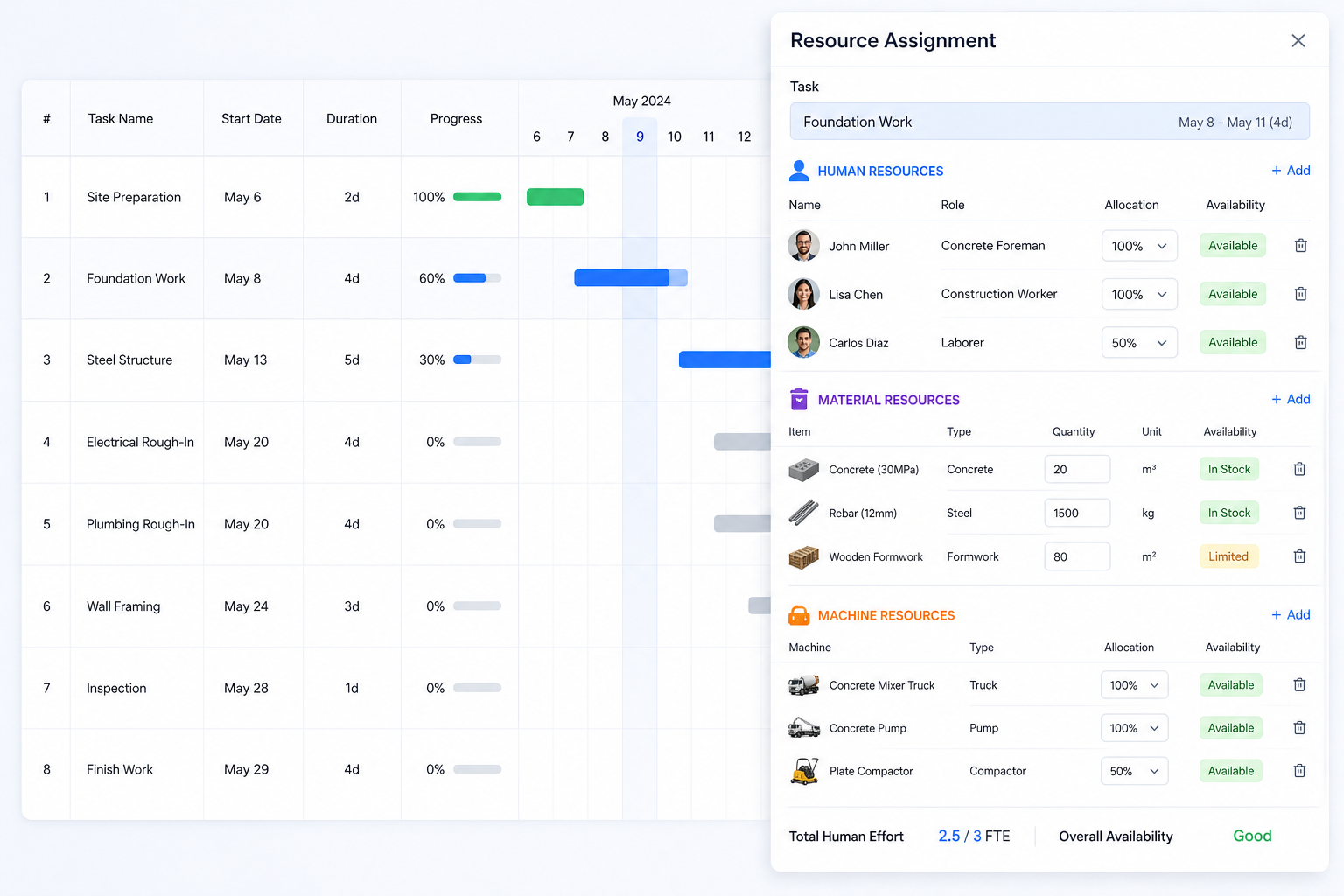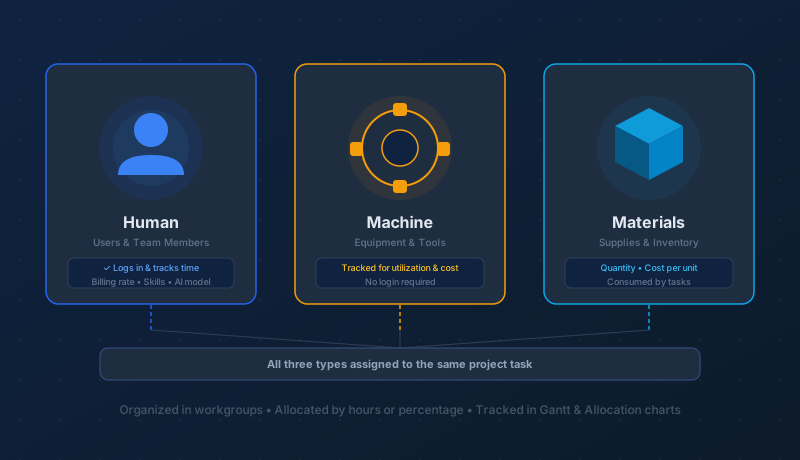
Every project runs on three things: people, equipment, and supplies. Maverick Project Scheduler models all three as first-class resources — each with its own properties, allocation tracking, and visibility in Gantt charts, bar charts, and calendars. Understanding the three types and how they interact is the foundation of accurate project planning in Maverick.
The Three Resource Types
Human Resources

Human resources are the people on your team — employees, contractors, freelancers, and any other individual who performs work on a project. In Maverick, human resources are often referred to as users because they typically have login credentials and can access the system directly.
Each human resource has a rich set of properties: billing rate, cost rate, weekly capacity, AI provider preferences, access rights, and a list of skills. They can view and update the projects they've been assigned to, log actual hours worked, and interact with the AI chat using their own configured AI model.
Human resources direct the work. When a human is assigned to a task, they are responsible for its completion — whether that means doing it themselves, coordinating a team, or overseeing a machine that performs the physical labor.
Machine Resources

Machine resources represent equipment, tools, and any physical asset that performs work or incurs cost on a project. CNC mills, 3D printers, laser cutters, vehicles, servers, cranes — anything that has a utilization rate and a cost per hour belongs here.
Unlike human resources, machines don't log in. They don't have user accounts or access rights. But they are tracked with the same precision: allocated to tasks by hours or percentage, monitored for over- and under-utilization, and visible in the same allocation charts and Gantt views as your human team members.
Machines perform the work. Assigning a machine to a task means that physical asset is reserved and in use for the duration of that assignment — unavailable for other tasks during that window.
Material Resources

Material resources are the consumables, raw materials, and supplies that a project needs. Steel sheet, concrete, circuit boards, packaging, software licenses — anything purchased or consumed in the course of completing a task belongs in this category.
Where human and machine resources are tracked by time, materials are tracked by quantity and cost per unit. Assigning materials to a task tells Maverick how much of that resource the task will consume, letting you roll up accurate material costs across phases, projects, and portfolios.
Materials are needed for the work. They don't have availability windows the way people and machines do, but they do have quantities — and running out of a critical material mid-project is every bit as disruptive as an over-allocated engineer.
Organizing Resources with Workgroups

Resources in Maverick don't float in a flat list. They live inside workgroups — a hierarchical structure you define to mirror your organization's actual shape.
Workgroups can be nested within other workgroups to any depth. A top-level "Engineering" workgroup might contain a "Mechanical Design" workgroup and a "Software Development" workgroup, each of which contains its own mix of human resources, machines, and materials. That structure can reflect a single department, a whole company, or an enterprise spanning multiple sites and divisions.
The workgroup hierarchy serves several practical purposes:
- Clarity — browsing for the right resource is faster when resources are organized by team or function rather than listed alphabetically across all types
- Filtering — Gantt charts, allocation bar charts, and task calendars can all be filtered to show only the resources in a specific workgroup
- Reporting — utilization and cost data can be rolled up to the workgroup level, giving managers a department-level view without needing to aggregate individual resources manually
- Access control — access rights can be set at the workgroup level, so team members only see the projects and resources relevant to their group
Assigning Resources to Tasks
Any resource — human, machine, or material — can be assigned to any project task. A single task can have multiple resources of multiple types assigned simultaneously: a machinist (human) operating a lathe (machine) using steel bar stock (material) to complete a turning operation is a perfectly natural assignment in Maverick.
For human and machine resources, you choose how to express the assignment:
- Percentage of time — "Alice is 50% allocated to this task" means she's spending half her working hours on it. This is useful when team members are splitting time across multiple concurrent tasks.
- Specific hours — "This task requires 24 machine-hours from the CNC mill" pins the allocation to an absolute quantity rather than a proportion of availability.
Once a resource is assigned to a task, Maverick marks them as allocated for the duration of that assignment. An allocated resource is not free — they're committed to that task between its start and finish dates. This is how Maverick prevents inadvertent double-booking and how the allocation charts know to flag over-utilization.
Resource Allocation Bar Charts
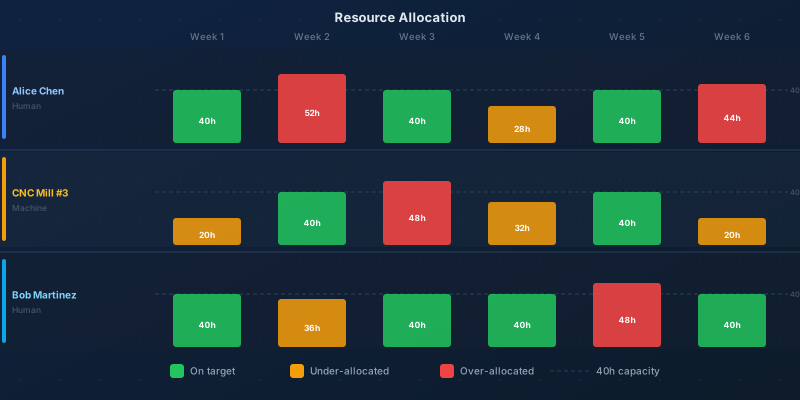
The Resource Allocation view is Maverick's dedicated window for understanding whether your resources are loaded correctly. It presents a bar chart where each bar represents the hours a resource is allocated for a given time period.
The bars are color-coded to make utilization problems immediately visible:
- Green — the resource is correctly allocated: busy enough to be productive, not overloaded
- Yellow — the resource is under-allocated: available capacity is going unused, which may indicate an opportunity to take on more work or signal a schedule gap
- Red — the resource is over-allocated: more hours are assigned than the resource can deliver in that period, which will either cause delays or require the schedule to be adjusted
The time scale is adjustable — zoom into a single week to spot a crunch, or pull back to a quarterly view to see the shape of the whole project. You can also filter the chart by workgroup, resource type, or individual resource to focus on exactly the subset you need to review.
Viewing Assignments in the Project Tasks Grid
The Project Tasks grid presents assignments as text within task rows. Each task row shows which resources are assigned to it — human names, machine identifiers, and material descriptions — along with the allocation percentage or hours. This gives you a dense, scannable overview of who and what is committed to each piece of work.
The grid also captures actual work performed: as human resources log time against tasks, the actual hours accumulate in the task record alongside the planned allocation. Comparing planned versus actual at the task level is one of the earliest indicators of whether a project is running as scheduled or beginning to slip.
Gantt Chart Resource View
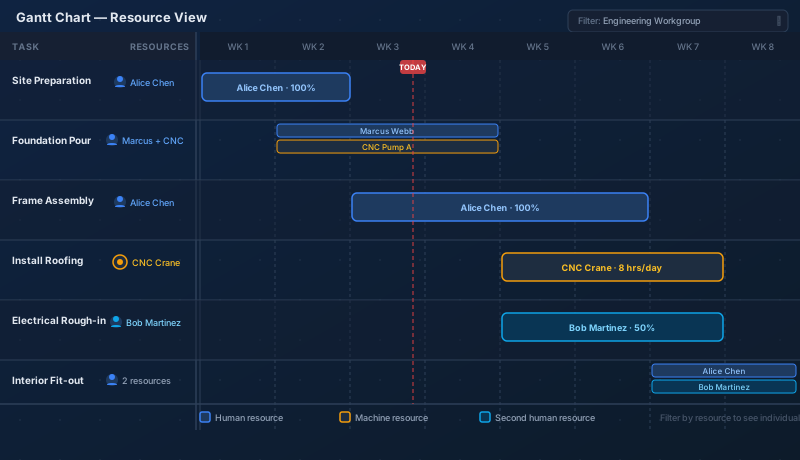
The Gantt column in the Project Tasks view adds a graphical dimension to resource assignments. Each task's horizontal bar can be labeled with the assigned resource, giving you a timeline view of who is doing what and when — at a glance, across the full schedule.
This view is particularly useful for spotting resource conflicts that aren't obvious in the task grid: two back-to-back tasks assigned to the same person, a machine with no gap between assignments, or a phase that requires a skill no available resource in that period possesses.
Like the allocation bar chart, the Gantt view can be filtered by resource, workgroup, or resource type. Filter to a single machinist and you see only the tasks on their plate, in sequence, with their duration and timing — effectively their personal project timeline.
Project Tasks Calendar
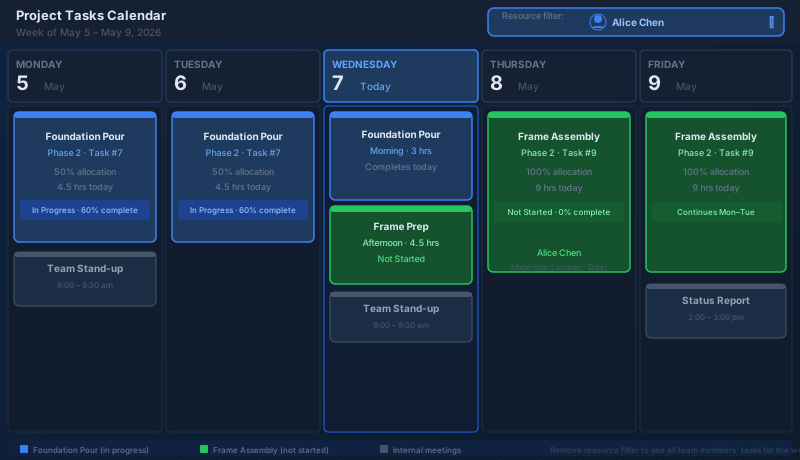
The Project Tasks Calendar presents tasks in a traditional calendar layout, filtered by resource. Select a specific human resource and the calendar shows their task assignments day by day — a familiar format that works well for communicating individual schedules, preparing for one-on-ones, or sending a team member their upcoming workload in a format they can read without learning Maverick.
Remove the resource filter and the calendar shows all tasks across all resources, which gives a busy but comprehensive picture of what the entire project team is working on during any given week or month.
Skills and Automatic Assignment
Every human resource in Maverick can be tagged with a list of skills, entered as comma-separated values. Skills might include job roles, certifications, technical competencies, or any other attribute that describes what kind of work that person can do: "Python, SQL, data modeling" or "PMP, risk management, stakeholder communication" or "TIG welding, 4130 steel, aerospace tolerances."
Project tasks can carry matching skill requirements in the same format. When Maverick sees a task that requires specific skills, it can automatically scan the resource pool for available people whose skill lists satisfy the requirement and assign the best match — factoring in both skills and current allocation levels to avoid assigning an already-overloaded resource.
This automatic assignment capability pays off most on large projects where dozens of tasks need to be staffed against a pool of resources with varied specializations. Rather than manually matching requirements to availability across a hundred rows, you describe what each task needs, let Maverick do the matching, and review the result in the allocation charts.
For a complete reference of every field available on a resource record — billing rates, AI provider settings, access rights, and more — see:
Every Resource Property, Explained
Put Your Whole Team in One Place
Start a free cloud trial and build out your resource hierarchy — add your team members, equipment, and materials, organize them in workgroups, and assign them to your first project. See utilization, Gantt assignments, and allocation charts all come together in one view.
Access the Free Cloud Trial