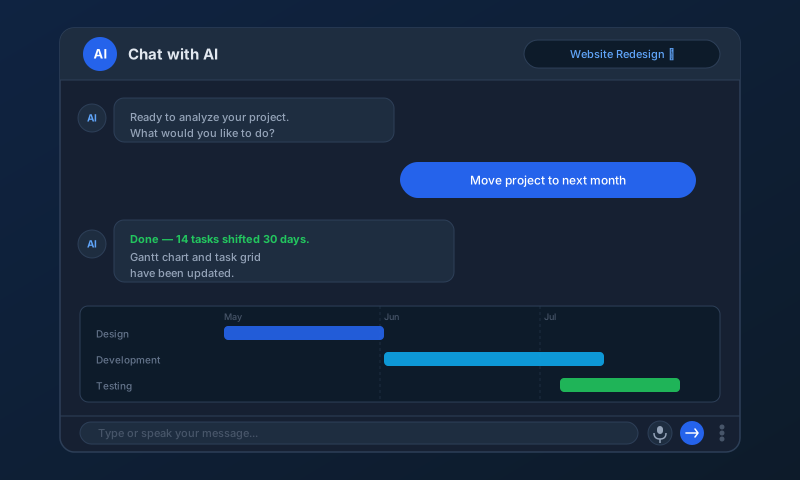
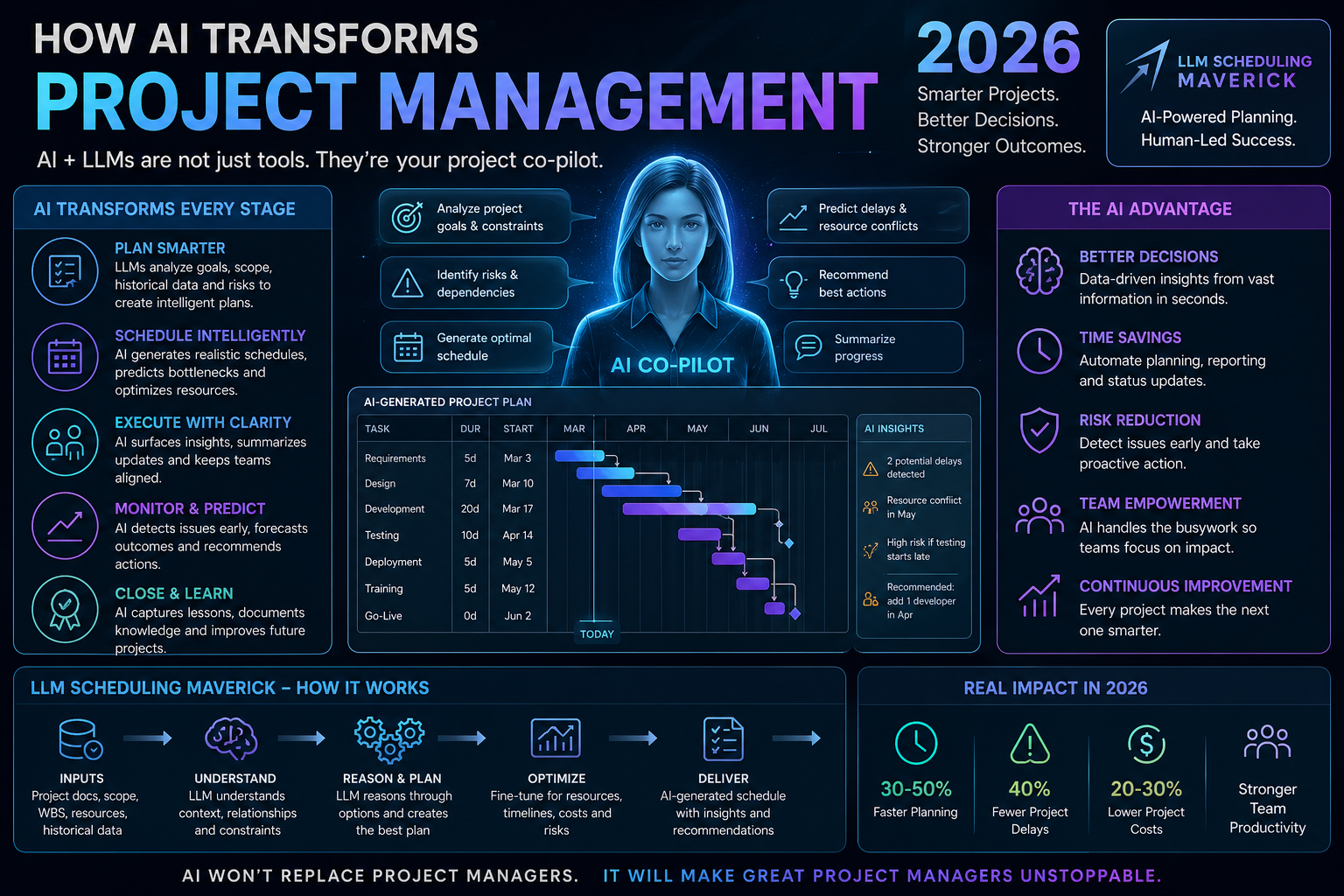
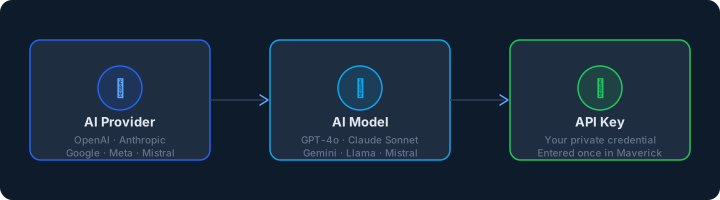
Maverick Project Scheduler connects to leading AI services so you can manage your projects using plain language. Before you set one up, it helps to understand three terms: AI provider, AI model, and API key. They're simpler than they sound.
What Exactly Is an AI Provider?
An AI provider is a company that builds and operates large-scale AI services. They train the underlying models, run the infrastructure, and offer access through an API — a standard interface that lets software like Maverick send requests and receive responses.
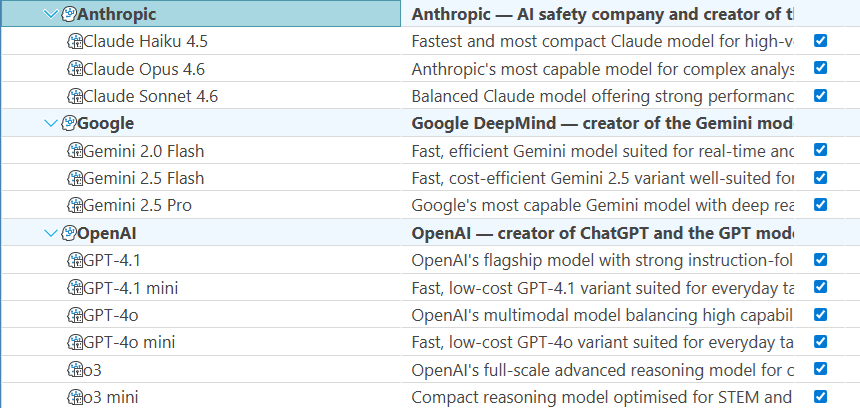
Popular AI providers include:
- OpenAI — the company behind ChatGPT and the GPT series of models
- Anthropic — makers of the Claude family of models, known for safety-focused design
- Google — offers the Gemini series through Google AI and Vertex AI
- Meta — releases the open-weight Llama models, available through many hosting providers
- Mistral — a European AI company with efficient, high-performing open and commercial models
- Cohere — focused on enterprise use cases with Command and other business-oriented models
Each provider has its own pricing, strengths, and model lineup. Maverick supports multiple providers simultaneously, so you can use the best model for each task or team.
What Is an AI Model?
An AI model is the specific software system trained to understand language and generate responses. Think of the provider as the company and the model as the individual product they sell. One provider typically offers several models at different capability and cost tiers.
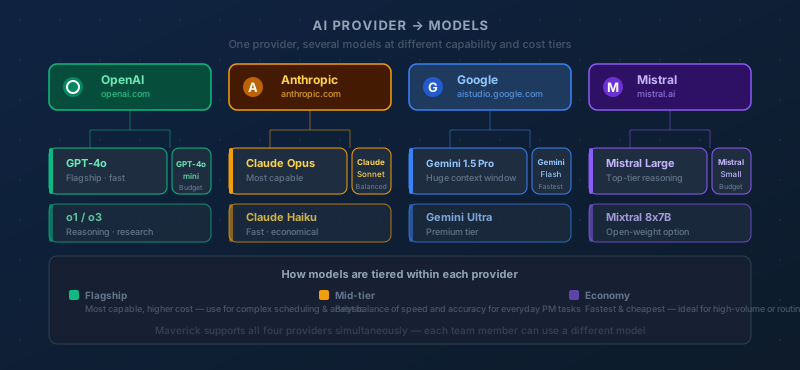
Examples of popular models as of early 2026:
- GPT-4o and GPT-4 Turbo (OpenAI) — fast, highly capable general-purpose models
- Claude Opus and Claude Sonnet (Anthropic) — strong at reasoning, analysis, and long documents
- Gemini 1.5 Pro and Gemini Flash (Google) — large context windows with competitive pricing
- Llama 3.1 and Llama 3.2 (Meta) — open-weight models you can run yourself or through a hosting provider
- Mistral Large and Mistral Small (Mistral) — efficient models with a strong price-to-performance ratio
The AI model landscape changes rapidly — new models are released and older ones are retired frequently. The specific models listed here will likely be superseded by newer versions. When in doubt, check the provider's website for their current recommended model.
What Is an API Key?
An API key is a private credential — like a password — that proves to the AI provider that you have an account and authorizes them to charge your account for usage. You get one from the provider's website when you sign up.
In Maverick, you enter your API key once in the AI Providers settings. From that point on, Maverick uses it automatically whenever you chat with that provider's models. You never need to enter it again, and it's stored securely on your account.
Keep your API key private. Anyone who has it can use your account and incur charges on your behalf.
How Can I Sign Up for AI?
Each provider has its own sign-up process. In general:
- Visit the provider's website (openai.com, anthropic.com, ai.google.dev, etc.)
- Create a free account
- Add a payment method — most providers charge based on usage (tokens processed), not a flat monthly fee
- Navigate to the API keys section of your account and generate a new key
- Copy that key and paste it into Maverick's AI Providers settings
Most providers offer a free tier or free credits to get started, so you can try AI in Maverick without spending anything right away.
How Can AI Models Help With Project Management?
AI models understand plain language, which means you can describe what you want done instead of navigating forms and menus. In a project management context, that translates to real productivity gains:
- Instant schedule changes — "Move the entire project to next month" shifts every task date in one step
- Resource analysis — "Which team members are over-allocated this week?" returns a clear answer without running a separate report
- Status summaries — "Summarize the project status" generates a stakeholder-ready overview in seconds
- Task creation — "Add a milestone named Beta Launch at the end of Phase 2" creates the task with a single message
- Critical path analysis — "What's on the critical path to completion?" identifies the tasks driving your finish date
For a full walkthrough of what you can do with Maverick's AI chat, see:
Chat with AI to Analyze and Update Your Projects
How Does Maverick Use AI Models?
Maverick connects to your chosen AI provider through its API. When you type a message in the AI chat panel, Maverick sends your request — along with context about the current project — to the model. The model interprets the request and returns a structured response. Maverick then applies any changes to your project data and displays the results in real time.
You can configure multiple providers and models in Maverick. Each resource on your team can also be assigned a preferred AI model, so different team members can use different AI services within the same project.
No project data is stored by Maverick for AI training purposes. Your project information is only sent to the AI provider when you actively use the chat feature.
How to Get Started With an AI Model in Maverick
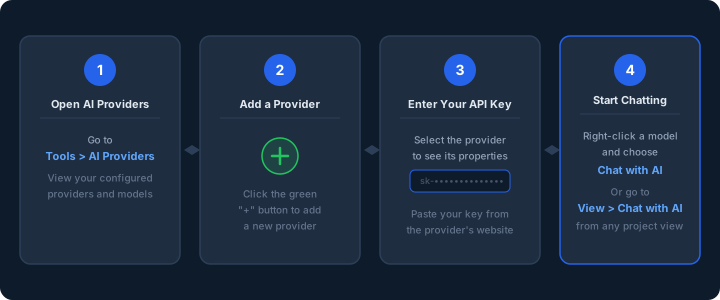
Setting up your first AI provider in Maverick takes just a few minutes:
- Open AI Providers — go to Tools > AI Providers. This shows the full list of providers and models you've configured.
- Add a provider — click the green "+" button at the top of the AI Providers page to create a new provider entry. Alternatively, click the menu button at the top of the page for additional options.
- Select your provider — click the new provider entry to see its properties in the right panel. Find the API Key field and paste in the key you generated from the provider's website.
- Start chatting — right-click on one of the models listed under your new provider and choose Chat with AI. Or navigate to View > Chat with AI from any project view and select a model from the dropdown.
Examples of What to Say to the AI
Once your provider is connected, open a project and start a conversation. Here are some requests to try:
- "What tasks are overdue?" — get a list of late tasks with their assignees and due dates
- "Move this project's start date to next Monday" — reschedule the entire project with one message
- "Create a new project called Website Redesign with a 3-month timeline" — let the AI scaffold a new project for you
- "Who has the most availability this week?" — identify team members with open capacity
- "Add a task called Security Review before the final deployment" — insert a task at a specific point in your schedule
- "Give me a one-paragraph status update I can paste into an email" — generate a professional summary on demand
- "What's the finish date if I remove the QA phase?" — ask what-if questions to explore schedule scenarios
The AI handles the interpretation and the updates — you just describe what you need.
Try AI-Powered Project Management Free
Maverick Project Scheduler's AI features are included in every plan. Connect your preferred AI provider and start managing projects in plain language — no forms or menus required. Get full access in the free cloud trial.
Access the Free Cloud Trial