What Is the Microsoft Office Integration?
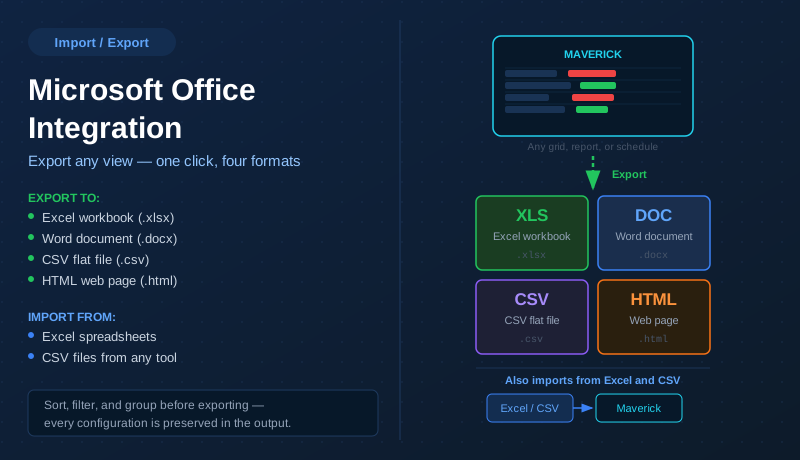
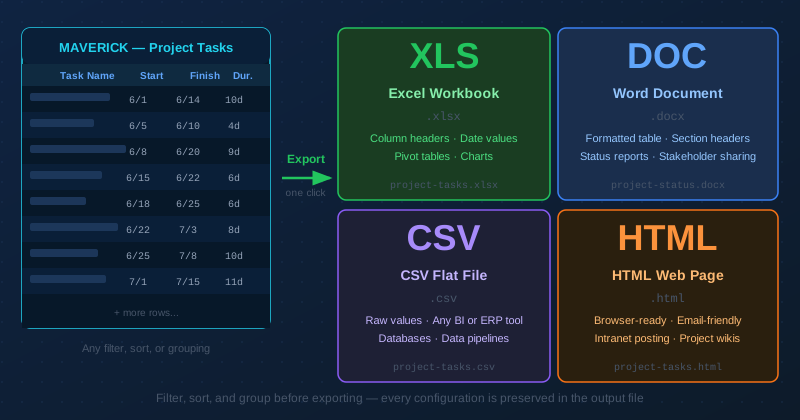
Maverick can export any grid, report, or schedule to four file formats with a single click: Excel workbook, Word document, CSV flat file, and HTML web page. The export captures the current view exactly as it appears on screen — the same columns, the same sort order, and the same filter and grouping settings you have applied. No separate configuration is needed, and no third-party tools are required.
This is not a background job. Maverick generates the export file synchronously and your browser downloads it immediately. The export works identically in the Maverick cloud web interface and in the Windows desktop application. Whether you are pulling a task list for a weekly status meeting or feeding project data into a reporting pipeline, the same one-click workflow applies.
In the opposite direction, Maverick imports project task data from Excel spreadsheets and CSV files. This makes it easy to migrate existing plans from spreadsheet-based tools, or to accept task lists generated by ERP systems, procurement platforms, and construction management software that can produce a flat-file schedule.
How to Export from Maverick
Export is available from two places in the Maverick interface. Right-clicking any row in a project tasks grid opens a context menu that includes the export options. You can also find the same options in the File menu in the Maverick application ribbon. Both paths open the same set of format choices shown below.
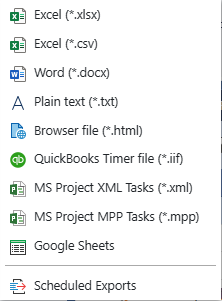
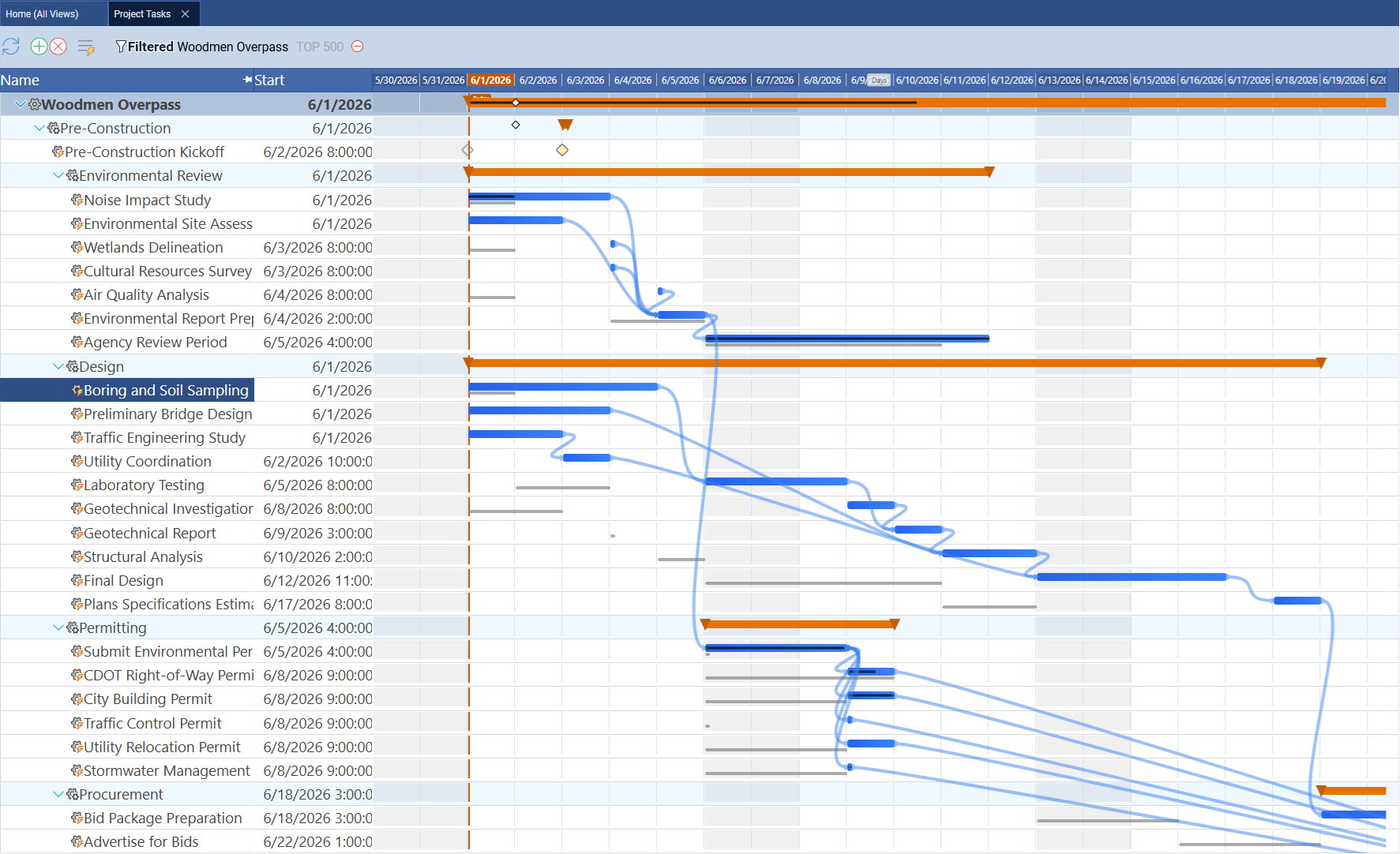
Before you export, configure the view to match the output you want. Apply a filter to include only the tasks that belong in the report — for example, only tasks assigned to a specific resource, or only tasks due this month. Set a sort order that makes sense for your audience. Add grouping by phase, resource, or status if the recipient needs subtotalled sections. Column visibility also controls the output: only columns that are visible in the current view are included in the export. Once the view looks exactly right, choose your format and the file downloads immediately.
Excel Export
The Excel export produces a standard .xlsx workbook. The first row contains column headers that match the field names visible in the Maverick grid. Each subsequent row is a task record. Dates are written as Excel date serial values rather than plain text strings, which means Excel formulas, pivot tables, and charts read them correctly without any conversion step.
Because the export reflects the current column set, you can remove columns you do not need before exporting. A resource manager pulling a workload report might show only the task name, assigned resource, duration, and percent complete. A project sponsor receiving a milestone summary might see only the milestone name and finish date. Each export is shaped by the view, not by a fixed template.
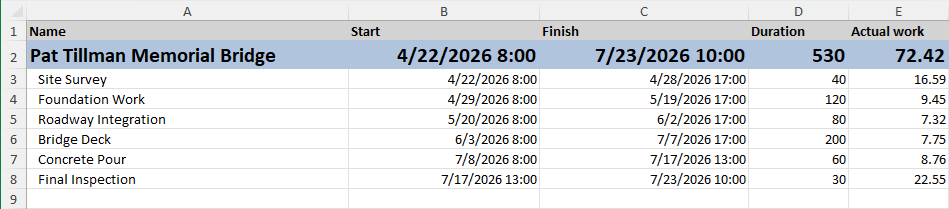
Project managers use the Excel export to build custom status dashboards, produce pivot charts showing schedule progress, and share data with stakeholders who need to do their own analysis outside of Maverick. The actual work column — when included in the visible grid — carries timesheet-logged hours directly into the workbook, so you can compare planned duration against actual effort in Excel without re-entering a single number.
Word Export
The Word export produces a .docx file containing a formatted table. Column headers appear in a styled header row. Each task occupies its own row in the table. If you have grouped the view by phase or resource in Maverick, those group headings appear as section breaks within the Word document, making the output read like a structured report rather than a raw data dump.
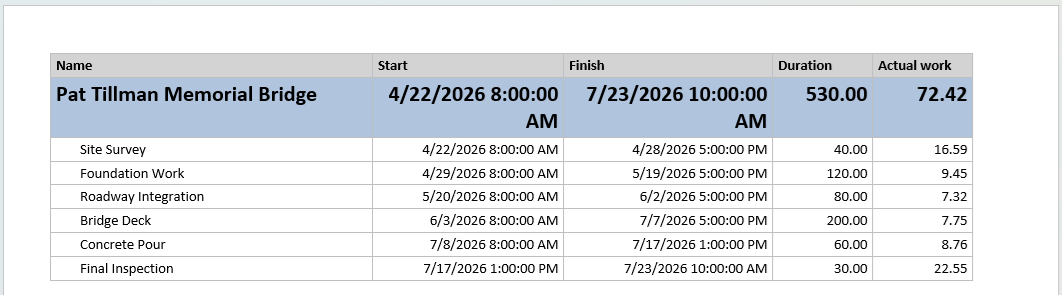
The Word export is most useful when project data needs to appear inside a document that will be further edited — for example, a weekly status report that combines a task table with narrative commentary, or a project closeout document that embeds a final task list alongside lessons learned. Project coordinators export the task table from Maverick, paste it into the status report template, and send it without any manual data re-entry.
Because Word files are editable, stakeholders who receive the exported document can annotate individual task rows, add comments, or merge the table into a larger document. This workflow is common in organizations where Microsoft Word is the standard format for executive communications and project governance deliverables.
HTML and CSV Export
The HTML export produces a web page containing the task table. The file opens directly in any browser and requires no software other than a web browser to view. Project managers attach HTML exports to email, post them to project intranets, or embed them in Confluence pages and SharePoint sites. The table structure mirrors the Maverick grid exactly — one row per task, with column headers at the top and group headings preserved as section labels.

The CSV export produces a plain-text comma-separated file readable by any spreadsheet application, database, or data pipeline. Use it when you need to feed Maverick project data into a business intelligence tool, a custom reporting system, an ERP, or any platform that accepts flat files as input. Unlike the Excel export, CSV output contains no formatting or formulas — only the raw field values separated by commas. This makes CSV the most portable and durable format when the destination system does not support Excel directly.
Choosing between formats
- Excel (.xlsx): Use when the recipient will analyze the data, build charts, or run pivot tables. Dates parse correctly and formula columns work.
- Word (.docx): Use when the task table will be embedded in a larger document or combined with narrative text. Best for governance reports and deliverable documents.
- HTML (.html): Use when the output will be viewed in a browser, attached to email, or posted to an intranet or wiki page. No software installation required to open.
- CSV (.csv): Use when feeding data into another system, database, or BI tool that consumes flat files. Maximum compatibility across platforms.
Importing from Excel and CSV
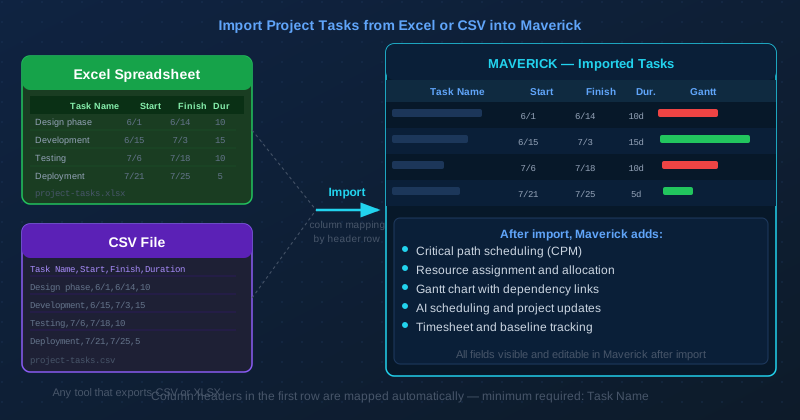
To import project tasks into Maverick, prepare a spreadsheet or CSV file with column headers in the first row. The header names must match Maverick's task field names — the same names documented in the project task properties reference. Maverick reads the header row and maps each column to a task field automatically by name. The minimum required column is the task name. You can also include start date, finish date, duration, percent complete, and resource name — any combination of these that your source file contains will be brought across.
The import is available from the File menu and from the project toolbar. Select the source file, confirm the field mapping if prompted, and Maverick creates a task record for each non-header row. If you are importing into an existing project, Maverick adds the new tasks below the current task list. If you are starting fresh, you can import directly into a new empty project.
Useful import scenarios
- Migrating from Excel: If your team currently tracks project tasks in a spreadsheet, export that spreadsheet to CSV and import it into Maverick. Once inside Maverick, the tasks are available for dependency linking, critical path analysis, and resource assignment.
- Loading from an ERP or procurement system: Many ERP and construction management platforms can generate a task list as a CSV export. Feed that file into Maverick to give the project team a Gantt view and resource allocation layer without re-entering data.
- Updating from an external planner: If a subcontractor or external team manages their own schedule in Excel, they can send you an updated spreadsheet. Import it to refresh the corresponding tasks in Maverick without touching the rest of the project.
- Round-tripping with the CSV export: Export a task list from Maverick to CSV, modify it in Excel, and import the updated version back. This workflow supports offline editing in environments where direct Maverick access is not available.
After import, all tasks behave exactly like tasks created manually in Maverick. You can assign resources, draw dependency links, run the critical path calculator, take a baseline snapshot, and open an AI chat session to analyze and update the schedule. The imported data is not treated differently from native Maverick data in any scheduling calculation.