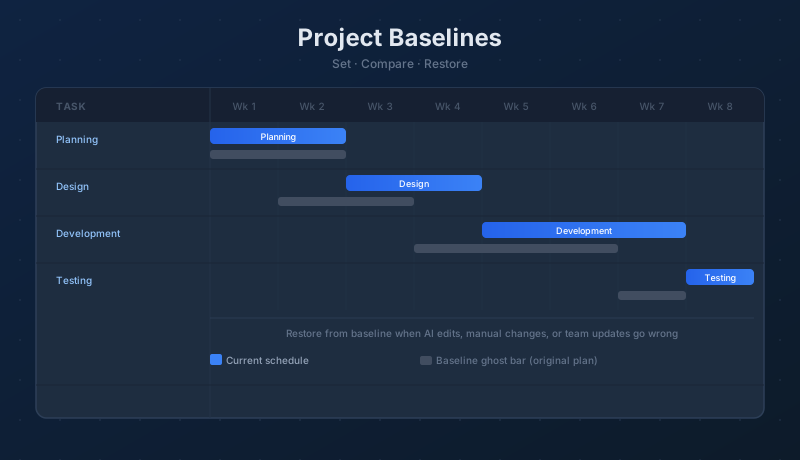
A baseline is a snapshot of your project schedule taken at a fixed point in time — typically the moment your plan is approved and before work begins. Once set, the baseline preserves the original planned dates, duration, cost, and progress values for every task. As the project evolves and dates shift, the baseline stays put. The gap between where tasks were planned and where they actually stand becomes immediately visible in the Gantt chart as gray ghost bars.
What Is a Project Baseline?
A project baseline records the planned start and finish date of every task at a specific moment — the original plan. It is not a forecast or a running estimate; it is a locked snapshot. Whether a task is delayed by a week or accelerated by three days, the baseline does not move. It is your permanent reference point for the life of the project.
Baselines let you answer the most important question in project management: are we ahead of schedule, on schedule, or behind? Without a baseline, every current schedule looks correct by definition — there is nothing to compare it against. With a baseline, every deviation is visible. A task that has drifted two weeks past its original finish date shows that drift clearly, without requiring anyone to remember what the original plan said.
When you set a baseline, Maverick locks seven fields on each task record:
- Baseline Start — the task's planned start date
- Baseline Finish — the task's planned finish date
- Baseline Duration — the planned duration in working hours
- Baseline Cost (Client) — the planned client-facing cost at the time of the snapshot
- Baseline Cost (Salary) — the planned internal labor cost at the time of the snapshot
- Baseline Percent Complete — the completion percentage at the time the baseline was set; typically 0% for a plan captured before work begins
- Baseline Total Float — the amount of schedule flexibility the task had when the baseline was set
Two audit fields are also recorded: BaselineSetDate captures the date and time the baseline was set, and BaselineSetBy identifies the user who set it. Both appear in the task properties panel, making it easy to confirm when the reference plan was captured and who authorized it.
None of these stored values change when the task's live dates move. Setting or clearing a baseline does not touch any current task values. Restoring does — it copies the seven baseline field values back over the corresponding live fields, which is a deliberate reset operation.
Baseline Ghost Bars in the Gantt Chart
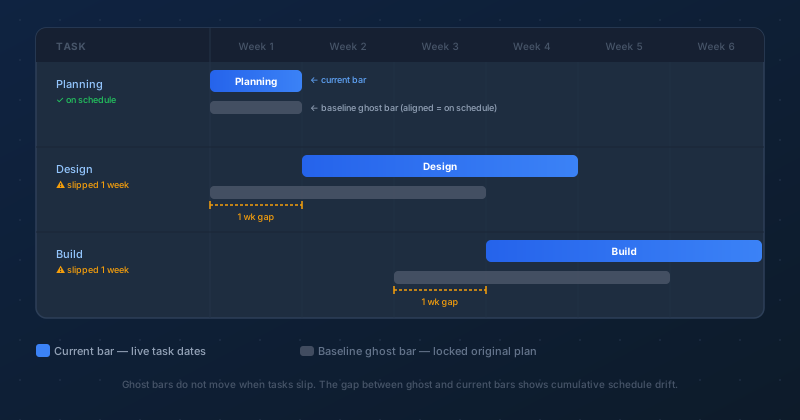
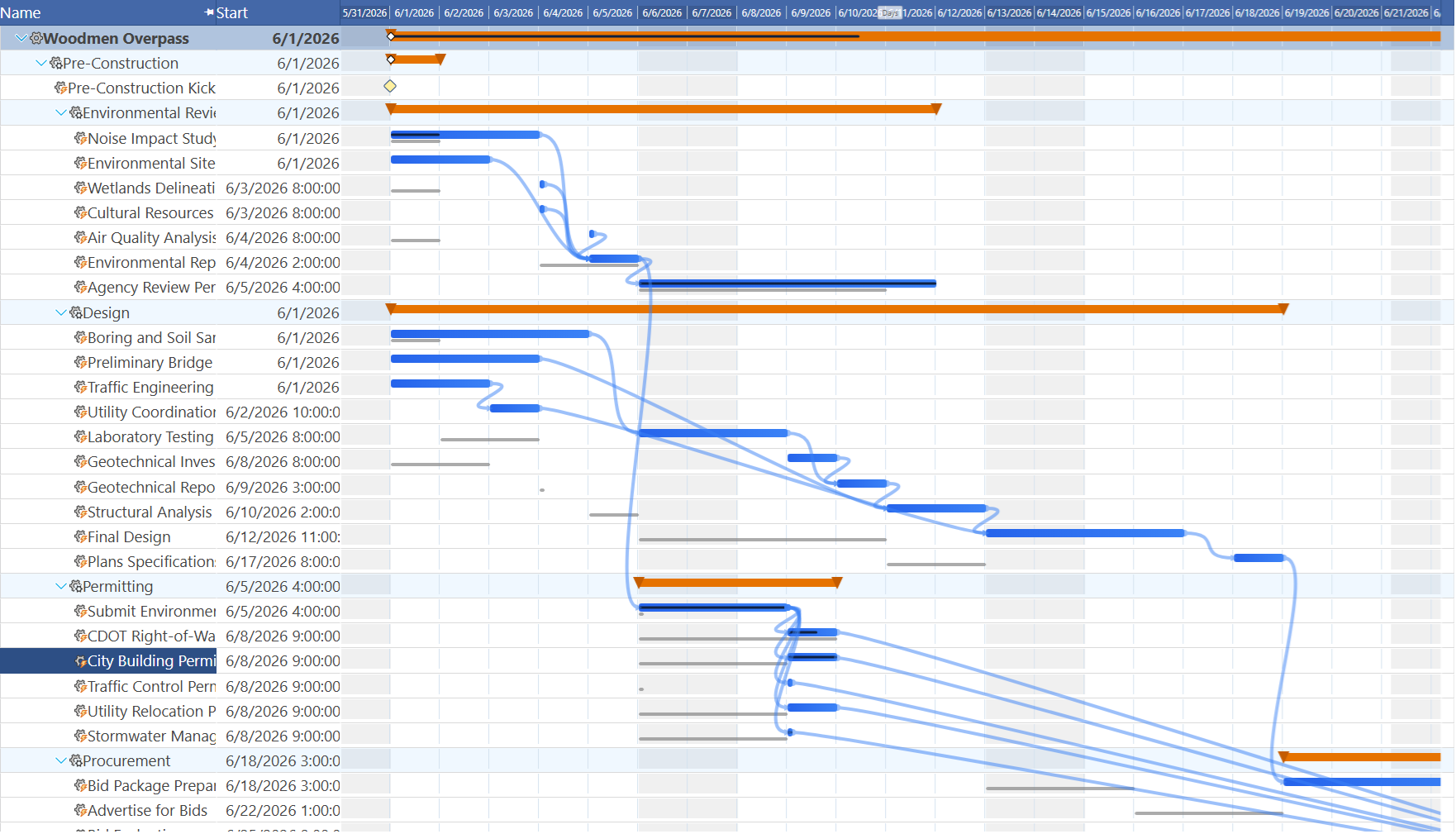
When a baseline is set on a task, Maverick draws a thin gray bar alongside the task's normal Gantt bar in the same row. These are called ghost bars — a visual echo of where the task originally lived in the timeline.
Ghost bars are intentionally narrow and muted. They sit just below the main task bar in the same Gantt row, drawn in gray, so they do not obscure the current schedule or compete visually with dependency arrows and critical path colors. They are reference marks, not active schedule elements.
Reading the ghost bars is straightforward:
- Ghost bar aligns with the current bar — the task is on schedule; dates have not changed since the baseline was set
- Ghost bar is to the left of the current bar — the task has slipped; the horizontal gap represents the delay in calendar time
- Ghost bar is to the right of the current bar — the task was moved earlier than originally planned
On long projects with many tasks, the cumulative picture is telling. Ghost bars clustering to the left of every current bar — each one shifted right — give an instant view of schedule drift across the entire project, without having to read a single date field. To scan for that pattern across a schedule too long to fit on one screen, turn on the Gantt mini-map and drag its viewport window through the project to spot-check drift phase by phase without losing your scroll position — see Stacking Frozen Rows for pairing it with a team-workload strip as well.
Project Management Gantt Charts
Setting a Baseline
You can set a baseline at two scopes in Maverick:
- Project-level baseline — sets the baseline for every task in the project simultaneously. Right-click the project in the project list and choose Set Baseline, or open the project's properties panel and use the Baseline section. This captures a complete snapshot of the entire schedule in a single step and is the most common approach when a plan has been fully reviewed and approved.
- Task-level baseline — sets the baseline on one or more individual tasks. Select the tasks in the project grid, then right-click and choose Set Baseline. Use this when only part of the plan is finalized — for example, when the design phase is locked but development tasks are still being estimated, or when a specific deliverable has been approved ahead of the rest of the project.
The right time to set a baseline is after your plan has been reviewed and approved, before work begins. A baseline set on a plan that is still changing will capture a moving target and will be of little comparative value later.
Once the baseline is set, ghost bars appear immediately in the Gantt chart. At that moment, the current dates and baseline dates are identical for every baselined task, so the ghost bars sit perfectly aligned beneath the current bars. They will only separate as dates change.
Clearing a Baseline
Clearing a baseline removes the stored baseline dates from tasks and makes the ghost bars disappear from the Gantt chart.
- Project-level clear — removes baseline dates from every task in the project. Use this when a major re-plan has made the original baseline obsolete — after a formal change order, a scope change that fundamentally restructures the schedule, or when resetting for a new project phase under a revised plan.
- Task-level clear — removes the baseline from individual selected tasks only. The rest of the project's baseline remains intact. Use this when specific tasks have been re-baselined by agreement but the overall schedule reference still applies to the rest of the work.
Clearing a baseline does not change any current task dates. It only removes the reference point. If you later want ghost bars back, you will need to set the baseline again — which will capture the current dates at that point in time, not the original ones.
Restoring from a Baseline
Restoring from a baseline copies all seven baseline field values — start date, finish date, duration, client cost, salary cost, percent complete, and total float — back to the task's live fields, overwriting them. The task returns to exactly the state it was in when the baseline was set.
There are three common reasons you might restore:
AI Chat Made Changes You'd Prefer to Undo
AI chat in Maverick can update multiple task dates in a single conversation turn, rescheduling large portions of a project based on a single prompt. When the result is not what you intended — the AI moved the wrong tasks, the prompt was ambiguous, or the cascading changes produced an unexpected schedule — restoring from the baseline rolls every affected task back to the original plan. You do not need to remember which tasks were changed or by how much. A project-level restore snaps the entire schedule back to the baseline state in one step.
Manual Gantt Chart Edits with Unexpected Results
Dragging task bars, adjusting durations, or changing dependencies can cascade through a linked schedule in ways that are difficult to predict. One moved task can shift its successors, compress float on the critical path, or push the project finish date out further than intended. If manual changes have put the schedule in an unexpected state, a task-level restore targets only the affected tasks — resetting them to their baseline dates without disturbing the rest of the plan.
Another User Made Changes You Want to Revert
In multi-user projects, a team member may have updated task dates — correctly from their perspective, but not from yours. A task-level restore lets you revert specific tasks to the baseline dates without undoing every other change that user may have also made. You can be surgical: restore the tasks that need to go back while keeping other updates in place.
Project-Level vs. Task-Level Restore
The scope of the restore operation determines how broadly dates are reset:
- Project-level restore — resets all tasks back to their baseline dates simultaneously. Use this for broad reversals when a sequence of AI prompts, a bulk manual edit, or a widespread set of changes has pushed the whole schedule off course and you want to return to the known-good baseline state.
- Task-level restore — resets only the selected task or tasks. Use this for targeted corrections when you want to undo changes on specific tasks while preserving everything else in its current state. Select one or more tasks in the project grid, right-click, and choose Restore from Baseline.
In both cases, only tasks that have a baseline set can be restored. Tasks without a baseline are unaffected by the restore operation.
Set a Baseline Before the First Task Starts
Set the baseline the moment your plan is approved and you will have a reliable comparison point for every update — AI-assisted or manual — for the life of the project. Start a free cloud trial and try it on your own schedule.
Access the Free Cloud Trial