Every project schedule is ultimately a set of commitments: this person, this machine, and these materials are allocated to this task from this date to that date. Maverick Project Scheduler makes those commitments explicit — tracking three types of resources, organizing them in workgroups, giving each one a precise availability schedule, and then visualizing the results in color-coded bar charts the moment you make an assignment. This guide walks through every piece of that system, from the first click to reading the allocation results.
The Three Resource Types
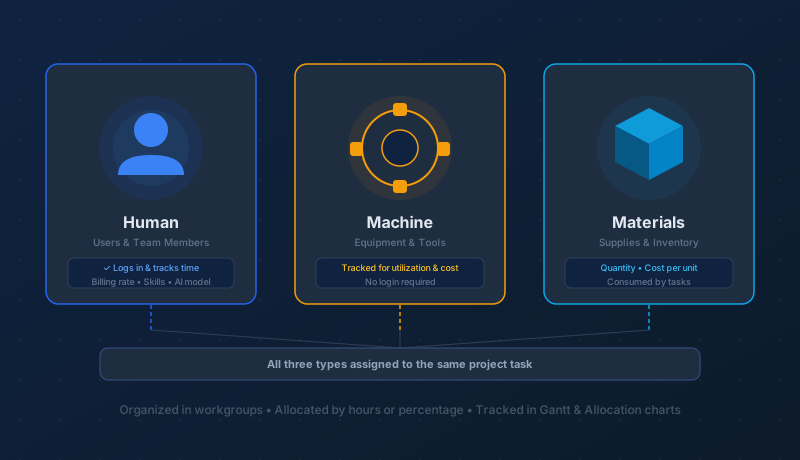
Before assigning anyone to a task, it helps to understand the three categories of resources Maverick tracks — because they behave differently in the scheduler and mean different things when assigned.
Human Resources (Users)

Human resources are the people on your team — employees, contractors, freelancers, and any other individual who performs work on a project. In Maverick they are often called users because they typically have login credentials and interact with the system directly: viewing tasks, logging actual hours, and querying the AI chat with their own configured model.
Each human resource carries a rich set of properties: a salary rate, a client billing rate, a weekly availability schedule, a list of skills the AI uses during auto-assignment, access permissions that control which projects they can see, and a preferred AI provider and API key. Assigning a human resource to a task tells the scheduler two things simultaneously — this person is responsible for completing the work, and their available hours are committed for the task's duration.
Machine Resources

Machine resources represent physical assets that perform work or incur a cost per hour: CNC mills, 3D printers, laser cutters, cranes, vehicles, servers — anything with a utilization rate and a price. Unlike human resources, machines have no login account, no timesheet, and no AI configuration. What they do have is an hourly cost, a daily availability schedule, and a place in the workgroup hierarchy.
Maverick tracks machine utilization with the same precision it uses for humans. Assign a machine to a task and that asset is reserved: its hours appear in the allocation bar chart, and any other task that tries to book the same machine during the same window will surface a scheduling conflict. When a machine can only operate while a human is present — because it requires a trained operator — you can mirror the operator's schedule so both resources are booked in unison.
Material Resources

Materials are consumables: steel bar stock, concrete mix, circuit boards, resins, packaging materials, software licenses, chemical reagents. Unlike human and machine resources, materials have no availability window — they have quantities and a cost per unit. Assigning a material to a task records how many units that task will consume and at what cost, so the scheduler can roll accurate material expenses into the project's total cost picture alongside labor.
Running out of a critical material mid-project is every bit as disruptive as an over-allocated engineer. Tracking materials as first-class resources keeps that risk visible in the same system where you manage your team and equipment — no separate spreadsheet required.
Organizing Resources with Workgroups

Resources in Maverick don't float in a flat list. They live inside workgroups — a hierarchical structure you build to reflect how your organization actually operates. A top-level "Engineering" workgroup might contain "Mechanical Design" and "Software Development" sub-groups; "Mechanical Design" might hold two engineers, a CNC mill, and a supply of aluminum bar stock. The hierarchy can span a single department, an entire company, or an enterprise with multiple sites and divisions.
The workgroup tree serves several practical purposes beyond keeping things organized:
- Fast browsing — when assigning resources to a task, you navigate this same hierarchy, making it easy to find the right person or machine without scrolling an alphabetical list of hundreds of records across all types.
- Filtered views — the Gantt chart, allocation bar chart, and project calendar can all be filtered by workgroup, letting a department manager focus on their team's schedule without noise from other groups.
- Rollup reporting — utilization and cost data aggregate to the workgroup level, so department heads get a capacity picture for their whole group without manually summing individual resources.
- Access control — permissions can be set at the workgroup level, restricting what each team member can see to the projects and resources that belong to their group.
Every Resource Has a Schedule
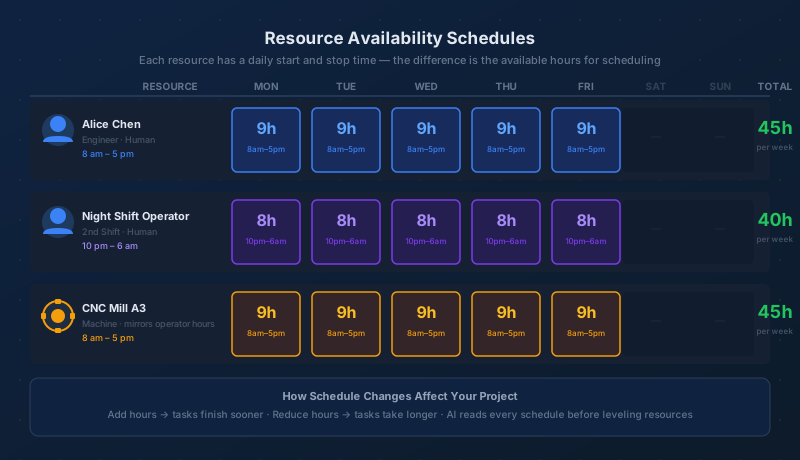
Before Maverick can determine whether a resource is over-committed, it needs to know how many hours that resource is actually available. Every resource carries a daily availability schedule: for each day of the week you set a start time and a stop time, and the difference between them is the number of hours available that day.
Common schedules look like this:
- A software developer works 8 am to 5 pm Monday through Friday — 9 hours per day, 45 hours per week.
- A night shift operator runs 10 pm to 6 am — the same 8 hours of availability but offset from the day crew, so they can work in parallel on different tasks without conflict.
- A CNC mill is only operated when a machinist is present, so it mirrors the machinist's schedule rather than running around the clock.
- A contractor retained for weekend work carries availability only on Saturday and Sunday — zero during the week.
The Resource Allocation bar chart uses these schedules as the floor. If 12 hours of work are assigned to a resource on a day when they are only available for 8, that bar turns red immediately. The schedule has been exceeded — something needs to move.
Schedule adjustments ripple through the project automatically:
- Increase a resource's daily hours and any task assigned to them finishes sooner. Maverick recalculates start and finish dates across all dependent tasks without manual intervention.
- Reduce their hours and tasks stretch longer. If the change is significant, dependent deadlines will slip and the full cascade will be visible in the schedule.
- The AI reads every schedule. When you ask it to level resources or find slack in the timeline, it factors in each resource's availability window before making any suggestion — and it will not recommend a window where the math doesn't work.
How to Assign Resources to a Task
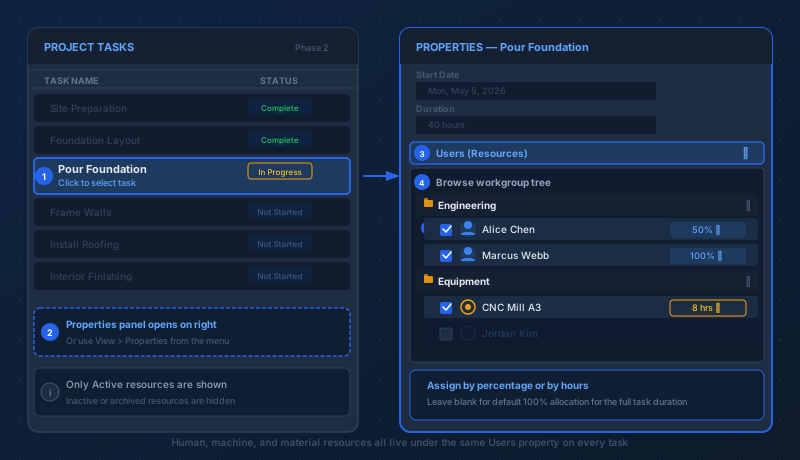
The assignment workflow lives in Maverick's Properties panel — a sidebar that displays every field on the currently selected task. The steps are straightforward:
- Click any task in the project tasks grid to select it. The Properties panel opens automatically on the right side of the screen.
- If the panel is not visible, open it by choosing View > Properties from the menu.
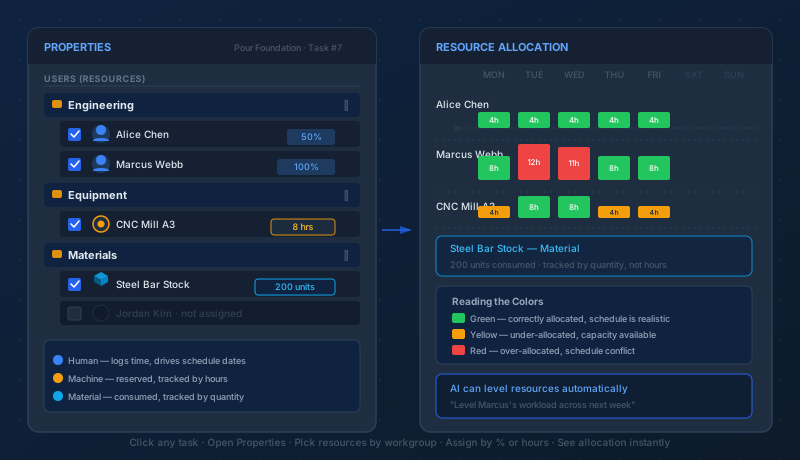
- In the Properties panel, find the Users property. Despite referring to users, this field is where all resource assignments live — human, machine, and material resources are all managed here.
- Click Users to expand the resource picker. A workgroup tree appears, mirroring the hierarchy you've built for your organization.
- Open any workgroup folder to reveal the resources inside. Only Active resources are displayed — inactive or archived resources are hidden to keep the picker clean.
- Click a resource to assign it to the task. Check as many as the work requires — a machinist, a lathe, and a supply of bar stock can all be assigned to the same task simultaneously. Each type contributes to the project's cost and utilization data in the way appropriate to its type.
For a full reference of every field available on the task beyond resource assignments, see Every Project Task Property, Explained.
Assigning by Percentage or Hours
After selecting which resources will work on a task, you specify how much of their capacity this task consumes. Maverick offers two methods, and choosing the right one is the difference between a schedule that holds up and one that quietly accumulates errors.
Percentage allocation expresses commitment as a share of the resource's available time. "Alice is assigned at 50%" means she is spending half her working hours on this task. If her schedule gives her 8 hours per day, she is contributing 4 hours per day to this task and the remaining 4 hours are available for other work. Maverick uses the percentage and her daily availability schedule to compute exactly how many hours she contributes each day — and therefore how many calendar days the task will require to complete.
Percentage allocation is the right choice when team members are splitting time across multiple concurrent tasks, which is the norm on most projects. A 100% assignment signals full dedication; anything less acknowledges parallel commitments.
Hours allocation pins the assignment to an absolute quantity rather than a proportion of availability. "This task requires 40 machine-hours from the CNC mill" is precise and independent of the machine's schedule percentage. Use hours when a resource has a hard cap — a contractor retained for exactly 20 hours, a rented machine with a predetermined window, or any situation where the quantity is the constraint rather than the proportion.
If you make no selection, Maverick defaults to a 100% allocation for the full planned duration of the task. For many straightforward assignments — one person, fully dedicated, for the whole task — this default is exactly right and requires no adjustment.
What Resource Assignment Actually Means
The word "assignment" carries a specific meaning for each resource type. Getting those meanings clear prevents scheduling surprises:
Human resources are expected to perform the work and drive the schedule. Once assigned, the task appears in the resource's timesheet view and they can log actual hours against it. Their assignment directly controls how long the task takes: if Alice is 50% on a 40-hour task, the task requires twice as many calendar days as it would if she were fully dedicated. As actual hours accumulate, the task's percent complete rises, remaining hours fall, and the schedule adjusts automatically.
Machines perform the work and are reserved by the assignment. Assigning a lathe to a turning operation means that asset is physically in use from the task's start to its finish. It cannot be booked for another concurrent task without creating an allocation conflict the bar chart will flag immediately. Machine hours do not appear in timesheets — they are tracked in the allocation view and rolled into project costs through the machine's configured hourly rate.
Materials are consumed by the task. A material assignment records the quantity that will be used — and at what cost per unit. Lumber for a framing phase, resin for a 3D-print run, reagents for a process step: once consumed, they are gone. Maverick records the quantity on the task record, rolls the unit cost into the project total, and treats material shortfalls with the same visibility as human over-allocation. You see the exposure before it becomes a stoppage.
Reading the Resource Allocation Bar Chart
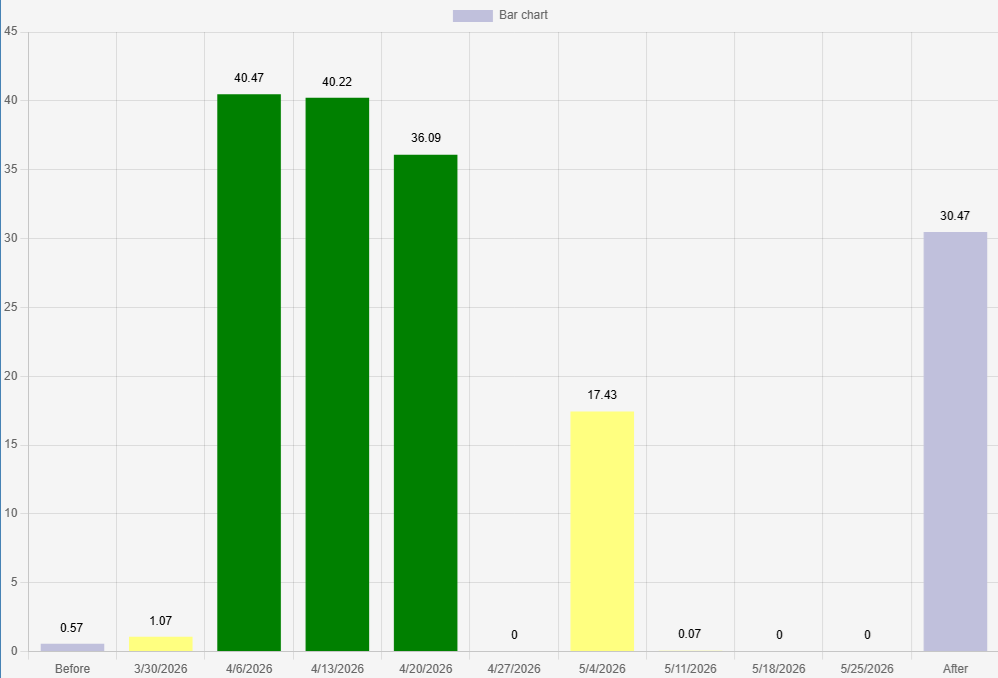
The Resource Allocation view is where every assignment becomes visible. Each resource gets a row of horizontal bars, one per time period, where the height of each bar represents the hours allocated in that window. The colors tell the story immediately:
- Green — correctly allocated. Assigned hours match available hours. The schedule is physically achievable.
- Yellow — under-allocated. The resource has capacity going unused. They may be available for additional work, or a gap in the task plan means some days are unscheduled.
- Red — over-allocated. More hours have been assigned than the resource can deliver. Either a task will be late or an assignment needs to change.
When a red bar appears, you have several paths forward:
- Reschedule one of the conflicting tasks to a window when the resource has capacity.
- Reduce the allocation percentage on one task so the combined load fits within the resource's daily hours.
- Add a second qualified resource to share the load and bring both into the green.
- Ask the AI to level the resource across the project and propose a balanced arrangement that keeps the end date intact.
The time scale in the allocation view is adjustable. Zoom into a single week to investigate a specific crunch, or pull back to a quarterly view to see the full arc of the project's resource demands. Filter by workgroup, resource type, or individual resource to focus on exactly the subset that needs attention — a single engineer's workload for the next month, or everything booked to a particular machine.
AI-Powered Resource Awareness and Leveling
Maverick's AI has read access to your entire resource pool — every resource's availability schedule, their current allocation across all projects and tasks, and the dependency chain linking everything together. That combination enables a new category of request that manual scheduling cannot match:
- "Who on the engineering team has capacity next week?"
- "Shift the testing phase to begin the day after the lead developer finishes design review."
- "Level Marcus's workload across the next three weeks without pushing the project end date."
- "Find a machinist with CNC experience who is available to take the turning operation from Alice."
- "Which tasks are at risk of delay because their assigned resources are over-committed?"
When the AI levels a resource, it reads the schedule, the allocation, the task dependencies, and the project constraints before proposing any change. It will not silently create a new conflict while resolving an old one. It will not recommend assigning a resource who is already at 100%. And it will tell you when the constraint is impossible — when there are simply not enough available hours to deliver what the schedule requires, and a real conversation about scope or deadline needs to happen.
This is also why the daily availability schedule matters so much as the foundation of the system. The AI is only as accurate as the data underneath it. Resources with realistic, current schedules produce leveling suggestions that actually hold up when the team starts executing. Resources with default or placeholder schedules produce suggestions that look correct on screen but fail in practice.
For a complete reference of every field available on a resource record — billing rates, AI provider settings, access rights, skills, and more — see:
Every Resource Property, Explained
Put Your Resources to Work on Real Projects
Start a free cloud trial, build your workgroup hierarchy, configure availability schedules, and make your first task assignments. The allocation bar chart will show you instantly whether the schedule is realistic — and the AI will help you fix it if it isn't.
Access the Free Cloud Trial