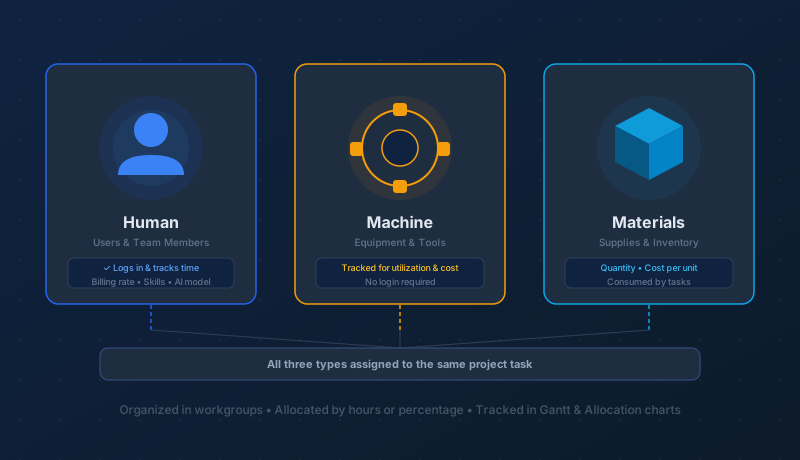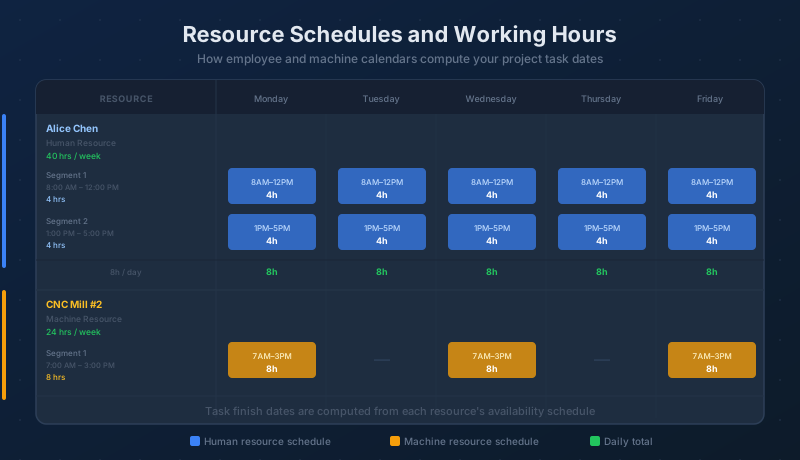
Every resource in Maverick — employees, machines, and equipment — has an individual availability schedule that defines when it can work and how many hours per day it provides. These schedules are not a shared project calendar; they belong to the individual resource. When a resource is assigned to a project task, Maverick uses that resource's schedule to compute when the task will finish. Understanding how schedules work explains why task dates are what they are, and why changing a task's duration or resource immediately moves the finish date.
What Is a Resource Availability Schedule?
A resource availability schedule defines a resource's working time for each day of the week. The schedule lives on the resource itself — not on the project — so every resource carries its own independent schedule. An employee who works Monday through Friday from 8 AM to 5 PM has a different schedule from a machine that runs only on certain days, and Maverick handles both accurately when computing task dates.
Days without any schedule entries are non-working days for that resource. Maverick automatically skips non-working days when counting hours forward to compute task finish dates — so weekends, maintenance days, and part-time off-days are all handled without any manual adjustment.
Time Segments: Start Time, End Time, and Hours
Each working day in a resource schedule is defined by one or more time segments. A segment records three values:
- Start time — when the segment begins (for example, 8:00 AM)
- End time — when the segment ends (for example, 12:00 PM)
- Hours — the number of productive hours the segment provides (for example, 4 hours)
Multiple segments per day allow any real-world schedule to be represented: a morning block and an afternoon block cover a standard workday with a lunch break; two production runs with a maintenance window between them cover a shift-based machine operation. Each day stands alone — Wednesday's segments have no effect on Thursday's availability.
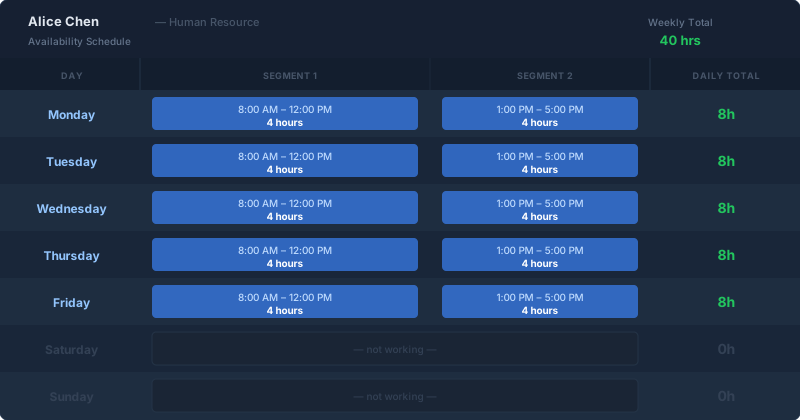
The schedule above is the standard configuration for a full-time employee: two segments per weekday, four hours each, totaling eight hours per day and 40 hours across five working days. Saturday and Sunday have no segments, so Maverick treats those as non-working days for this resource.
Employee Schedules — Work Hours
For human resources — employees, contractors, and any user who performs project work — the availability schedule captures their work hours. The 40-hour week is the most common configuration: eight hours per day across Monday through Friday, with Saturday and Sunday left undefined.
Part-time and flexible schedules work the same way: define segments only on the days and times the person works. An employee available only Monday, Wednesday, and Friday mornings provides 12 hours per week. An employee who works four 10-hour days provides 40 hours spread across four days rather than five. Maverick uses whichever schedule is configured — it does not assume a 40-hour week unless you define it that way.
Days without segments are automatically treated as non-working. Maverick skips them when counting hours forward to find a task's finish date, so a task ending on a Friday will not "spill" into Saturday just because Saturday follows Friday on the calendar.
Machine Schedules — Hours Available for Use
For machine resources — equipment, tools, and physical assets — the availability schedule defines how many hours per day the machine can be used for project work. A machine running a single eight-hour production shift contributes eight hours of project availability per day. A machine running two shifts contributes 16 hours and finishes assigned tasks in half the calendar time of a single-shift machine.
Machine schedules can also reflect planned downtime. A machine scheduled for maintenance on Wednesdays carries no Wednesday segments and appears as unavailable that day. Tasks assigned to that machine will not be scheduled into non-working days — their durations simply span across those gaps, just as employee tasks span across weekends.
This means the machine's schedule directly affects when tasks assigned to it will finish: the more hours per day the schedule provides, the sooner a given task completes. Two machines with identical tasks but different shift configurations will produce different finish dates — and Maverick reflects that difference precisely.
How Resource Schedules Drive Task Finish Dates
When a resource is assigned to a project task, Maverick computes the task's finish date by counting that resource's scheduled hours forward from the start date until the task's required duration in hours is exhausted. The date on which the final hour is consumed becomes the task's finish date.
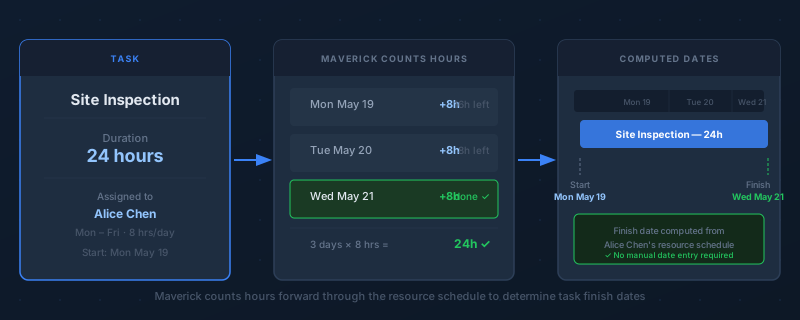
For example: a 24-hour task assigned to Alice Chen, who works 8 hours per day Monday through Friday starting May 19:
- Monday May 19: 8 hours counted — 16 hours remaining
- Tuesday May 20: 8 hours counted — 8 hours remaining
- Wednesday May 21: 8 hours counted — 0 hours remaining, task finishes
Finish date: Wednesday May 21. Maverick arrived at this date entirely from the resource schedule and the task's duration — not from a calendar count of days.
Now assign that same 24-hour task to a machine running 12 hours per day, also starting May 19:
- Monday May 19: 12 hours counted — 12 hours remaining
- Tuesday May 20: 12 hours counted — 0 hours remaining, task finishes
Finish date: Tuesday May 20. Same task duration. Different resource schedule. Different finish date. This is why assigning the right resource matters for scheduling accuracy, not just for capacity planning — the schedule of the assigned resource determines when the task will complete.
Changing Task Duration Recomputes Dates
When you edit a task's duration, Maverick immediately recalculates its finish date by counting the new duration forward through the assigned resource's schedule from the task's start date. The finish date updates to reflect exactly what the resource's schedule allows.
If the task has successors — other tasks that depend on it completing before they can begin — their start dates also move to accommodate the new finish date. The entire downstream schedule adjusts automatically, calculated from resource schedules rather than from fixed calendar dates.
This makes task duration a real planning control: adding hours to a task moves its finish date and shifts everything that follows it. Reducing hours pulls the finish date in and compresses the downstream schedule. Every adjustment is immediate and always based on the resource's actual availability — no manual date editing required.
The Allocation Bar Chart and Resource Schedules
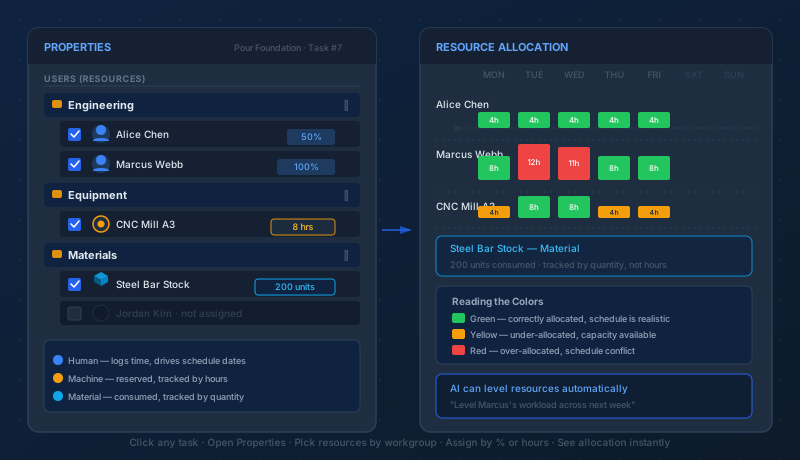
The Resource Allocation Bar Chart shows whether each resource is correctly allocated, under-allocated, or over-allocated. Those assessments are made relative to the resource's schedule — and the task dates that the bar chart reflects were already computed from that same schedule.
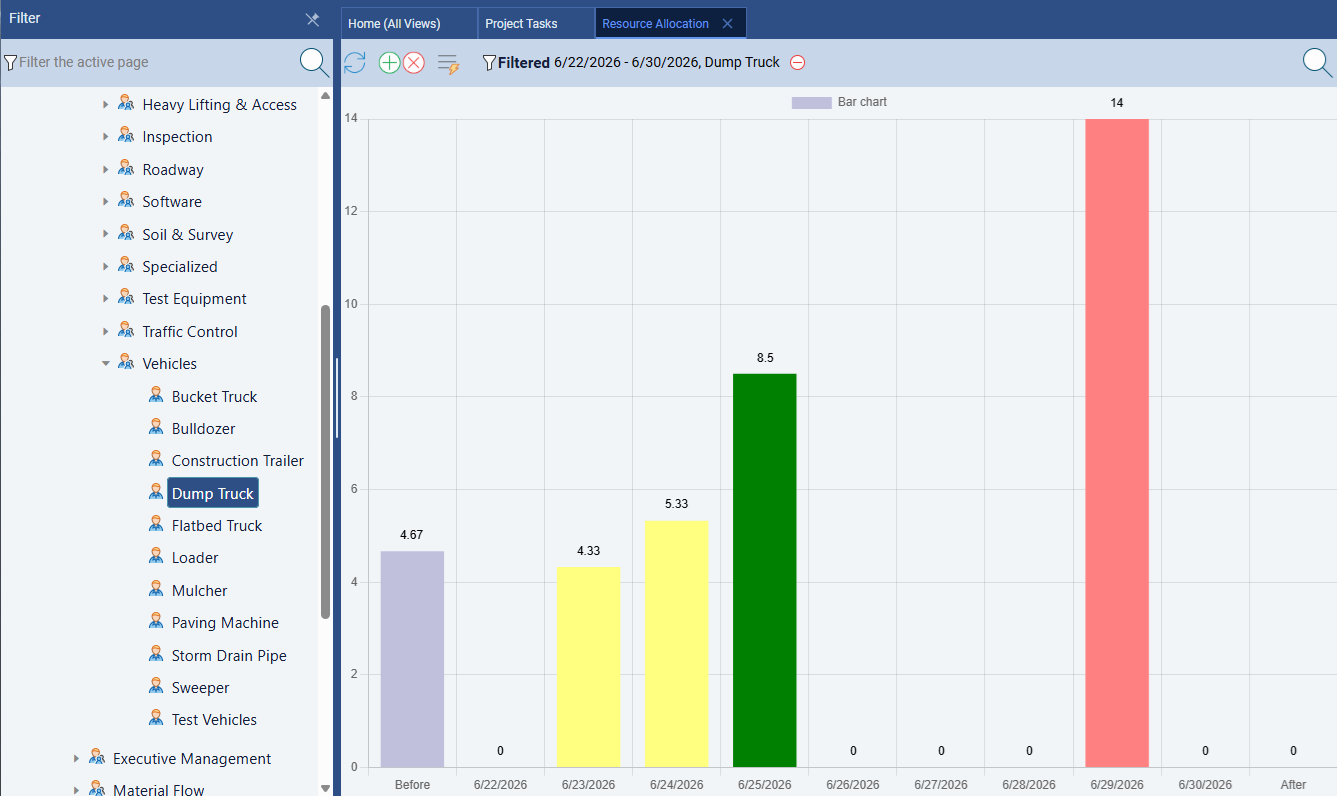
- Green (correct): The hours assigned across all tasks in a time period match the resource's scheduled availability. A resource scheduled for 40 hours per week is correctly allocated when task assignments total exactly 40 hours for that week.
- Yellow (under-allocated): Fewer hours than the schedule provides are assigned. The resource has available capacity that isn't spoken for — unused time that could absorb more work or accelerate a task.
- Red (over-allocated): More hours are assigned than the schedule allows. The resource cannot complete all assignments within their availability — dates will slip, or work must be redistributed to bring the schedule back into balance.
The bar chart reflects the result of date computations Maverick already performed from the resource schedule. Reviewing the chart after building or updating a project shows whether the schedule is feasible — or whether over-allocation means some dates cannot be honored as planned.
For a complete walkthrough of reading and acting on the bar chart, see:
Resource Allocation Bar Chart Guide
Put Your Resource Schedules to Work
Start a free cloud trial and configure availability schedules for your team and equipment. Assign resources to tasks and watch Maverick compute finish dates from each person's and machine's working hours — with the allocation bar chart showing exactly whether your plan is feasible.
Access the Free Cloud Trial