The Expansion
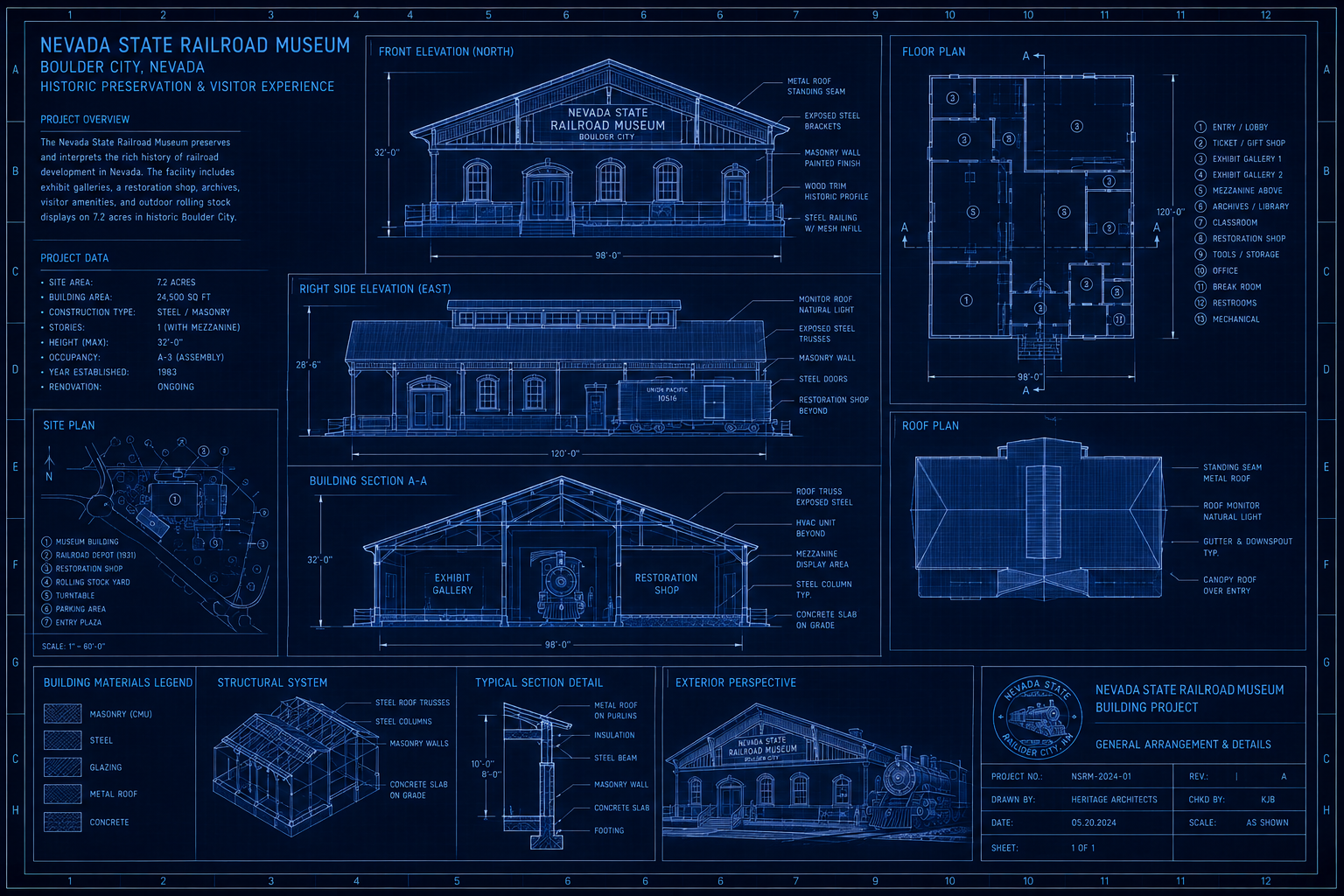
The real Nevada State Railroad Museum is a multi-branch state system — Boulder City and Carson City are both live public museum sites, each preserving a different slice of Nevada rail history. The Boulder City branch runs its excursion trains on the actual 1931 railroad grade built to haul concrete, pipe, and structural steel to the Hoover Dam construction site; the state acquired the tracks and right-of-way from Union Pacific in 1985. In this account, that Boulder City build already exists in Maverick as a finished project: Nevada State Railroad Museum, 50 tasks across 10 subprojects, permitted, built, and open to the public.
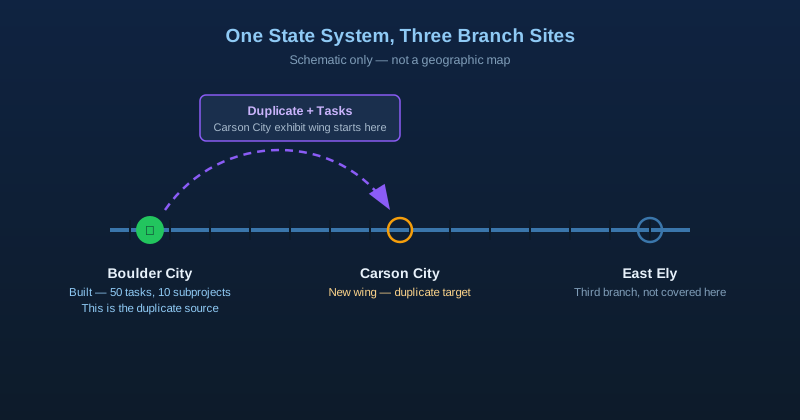
Now the museum system's capital projects office has been told to plan a comparable exhibit wing at the Carson City branch — new building, new turntable spur, same kind of permitting and construction sequence that already worked once. Every other blueprint on this site starts a project from nothing: typed by hand, pasted as a tagged block, imported from a spreadsheet, or built by an AI prompt. This one starts from a project that is already finished, and gets to a working schedule faster by copying it instead.
| What Has To Happen | Build From Scratch | Duplicate + Tasks |
|---|---|---|
| Enter 50 tasks across 10 subprojects | An hour or more of typing, or a paste block to prepare first | One right-click, one typed name — done in seconds |
| Wire the dependency links between tasks | Rebuilt one predecessor/successor pair at a time | Copied and automatically re-pointed at the new tasks |
| Resource assignments | Picked from the resource list task by task | Copied as-is — still point at the original site's crew |
| Percent complete, actual work, costs | Not applicable — the project is brand new | Reset to zero automatically on every copied task |
| Baseline | Not set until the plan is approved | Copied unchanged from the original — must be cleared and reset |
Stop 1: Duplicate the Whole Project
Find the finished Nevada State Railroad Museum project in the project list and right-click its row. Admins get a cascading Project: Nevada State Railroad Museum menu with Duplicate + Tasks alongside Properties, Rename, and Delete — it is a project-level command, not something buried in an import dialog or a wizard.
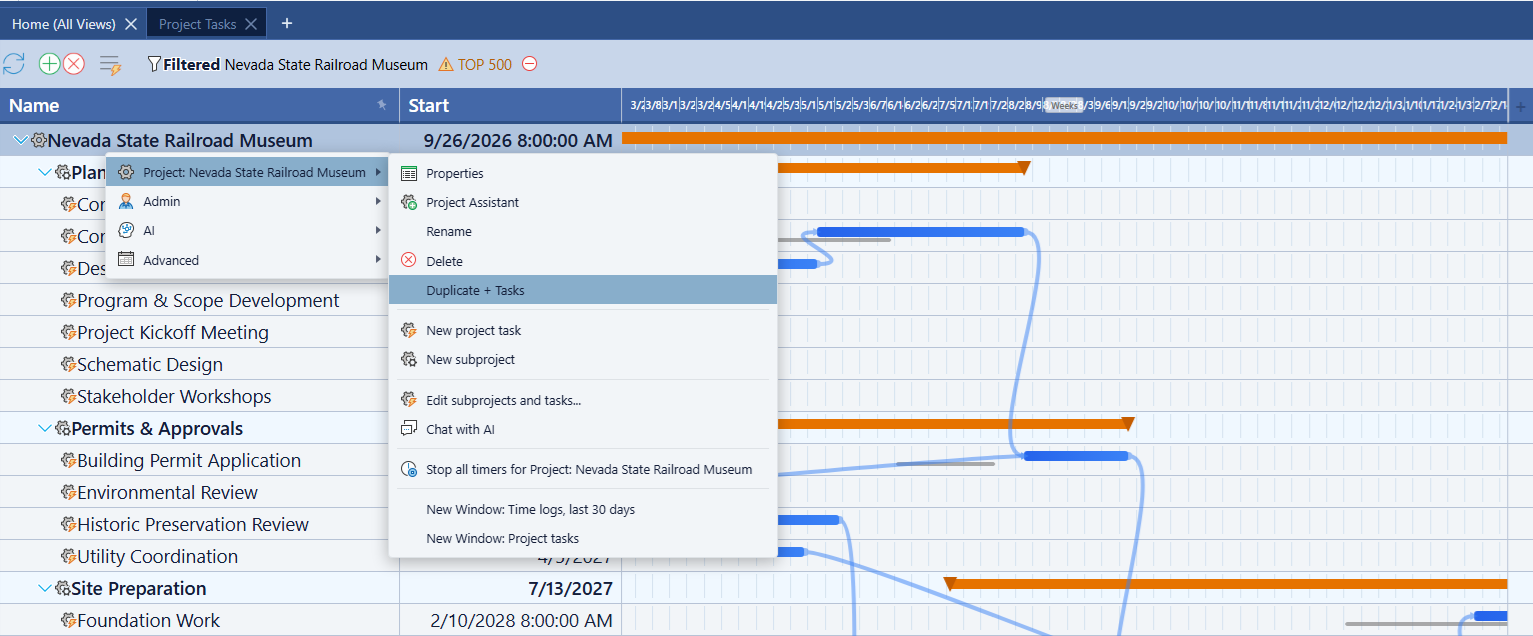
Choosing it opens a small prompt asking for a new name. Type Nevada State Railroad Museum — Carson City and click OK. Maverick creates the new project immediately, with every one of the original's 10 subprojects — Planning & Design, Permits & Approvals, Site Preparation, and the rest — and all 50 tasks already inside it, in the same hierarchy, with the same durations and the same dependency links.
What to look for: open the new Carson City project and expand a couple of subprojects. Every task from the Boulder City build should already be there — nothing to re-type, nothing missing. If a subproject looks empty, you duplicated a single subproject instead of the top-level project; right-click the project row itself, not a row underneath it.
What Actually Copied (and What Didn't)
Duplicate + Tasks is a full copy of the schedule, not a full copy of the project's history. Some fields carry over exactly as they were on Boulder City; others are deliberately zeroed out so the Carson City copy starts clean. Knowing which is which up front saves a surprise later.
| Field or Data | On the Carson City Copy |
|---|---|
| Task names, hierarchy, and durations | Copied exactly |
| Start and finish dates | Copied exactly — still Boulder City's original calendar |
| Dependency links (predecessors/successors) | Copied and automatically re-pointed at the new tasks |
| Resource assignments | Copied exactly — still Boulder City's crew and superintendent |
| Percent complete and actual work | Reset to 0% |
| Quoted cost, actual cost, client cost | Reset to $0 |
| Baseline (the ghost bars) | Copied unchanged — not cleared |
| Attachments and discussion history | Cleared |
Two of those rows are the whole reason the next three stops exist: dates and resource assignments come along for the ride exactly as Boulder City had them, and the baseline isn't touched at all. Progress and cost reset cleanly because there is genuinely nothing to carry — Carson City hasn't started yet.
Stop 2: Push the Schedule to the New Site's Start Date
The Carson City copy's tasks still carry Boulder City's original dates. Rather than opening all 50 tasks and editing each Start date by hand, click just the very first task — Project Kickoff Meeting under Planning & Design — and change its Start date to the Carson City groundbreaking date. Because every task downstream is wired with Finish-to-Start links, Maverick cascades that single change through the rest of the chain automatically: Program & Scope Development, Schematic Design, and everything after it shift forward by the same number of days.
Process tip: edit the start date on the first task only, then check the Gantt. If the whole schedule shifted together, the dependency chain is intact and you're done. If only a handful of tasks moved, some task further down the list has no inbound link back to the chain — go find it and wire it before moving on, or it will silently keep Boulder City's original date.
Stop 3: Reassign Resources to the New Site's Crew
Resource assignments are not project-specific data — a task's Users property just points at existing resource records, and those records didn't change when the project was duplicated. Every task in the Carson City copy is still assigned to whichever Boulder City superintendent, historic preservation consultant, or trade crew worked the original build. Click through the tasks — or select a batch at a time — and swap in the Carson City site's own people and subcontractors.
Warning: this is the step it's easiest to skip, and the one with the most real-world consequence. If the Carson City project keeps Boulder City's crew assignments, every timesheet entry logged against Carson City tasks during construction gets attributed to the wrong site's people — corrupting utilization and payroll reporting for both projects at once, not just Carson City's.
Fun Fact: Two Branches, Two Very Different Reasons to Exist
Boulder City and Carson City tell almost opposite stories about why a railroad gets preserved. Boulder City's line was never built for passengers — it existed purely to haul construction material to one of the largest civil engineering projects in American history, and the museum now runs excursions on the actual grade the material trains used. Carson City's collection descends from the Virginia & Truckee Railroad, chartered in 1869 to move silver ore out of the Comstock Lode — a commercial railroad that became famous enough to be bought piece by piece by Hollywood studios for use in films and television before the state began reassembling the collection.
| Branch | Boulder City | Carson City |
|---|---|---|
| Original purpose | Hoover Dam construction hauling | Comstock Lode silver ore & commerce |
| Railroad | Boulder Branch Line (Union Pacific) | Virginia & Truckee Railroad |
| Chartered / built | 1931 | 1869 |
| State acquired | 1985 (track & right-of-way) | Collection built over decades |
| Claim to fame | Still runs on the original construction grade | Equipment appeared in Hollywood films |
Different histories, same modern problem: a state agency operating more than one heritage rail site still has to permit, build, and staff each one on its own schedule. You can read more about the museum system on its Wikipedia entry.
Stop 4: Reset the Baseline
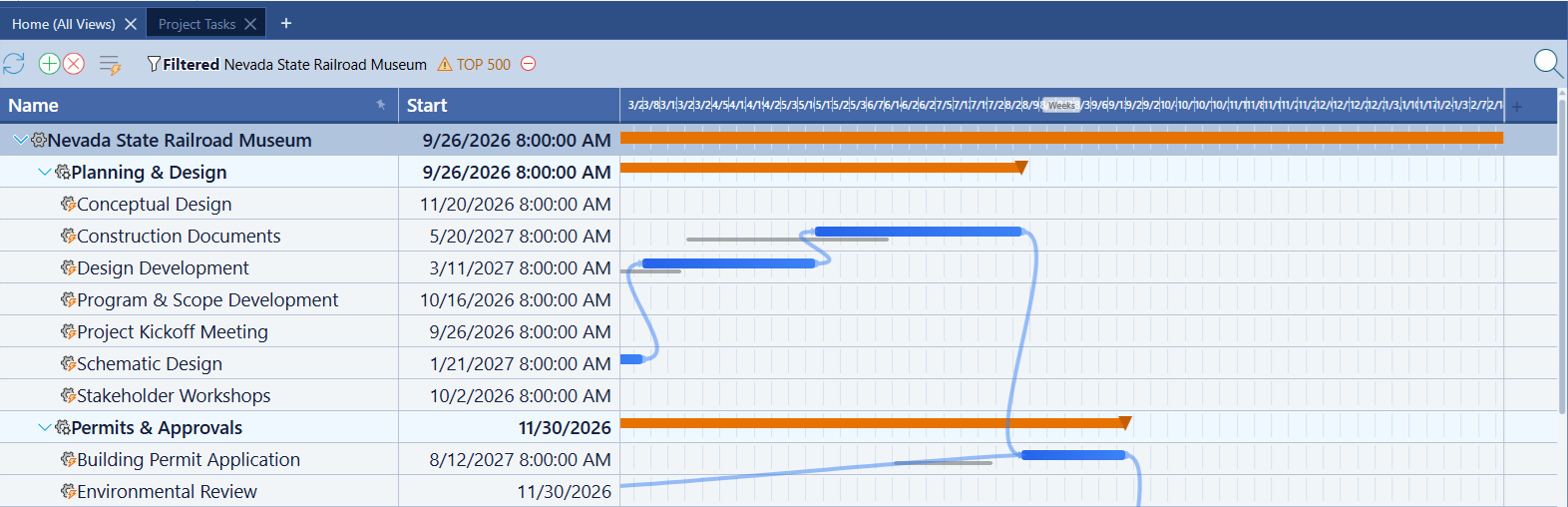
Open the Carson City project's Gantt chart before touching the baseline and you'll likely still see gray ghost bars — Boulder City's original baseline, copied unchanged. The reference screenshot below is Boulder City's own task grid, complete with its baseline ghost bars still visible against the live schedule; that exact baseline data is what silently rides along onto any duplicate unless it's dealt with.
Right-click the Carson City project row and choose Advanced → Clear baseline for all tasks. Once the Stop 2 dates and Stop 3 resource assignments are locked in and the Carson City plan is approved, right-click again and choose Advanced → Set baseline for all tasks to lock in a baseline that actually belongs to this project.
Audit note: Duplicate + Tasks explicitly zeroes out percent complete, actual work, and every cost field on each copied task — but it does not touch baseline dates. That's a deliberate gap, not a bug: the product has no way to know whether you want a fresh baseline or intend to keep comparing against the original plan. For a new site, always clear and reset it.
Stop 5: Recalculate the Critical Path
Right-click the Carson City project and choose Advanced → Recalculate critical path. Because the whole-project duplicate collects every task ID across all 10 subprojects before rewiring links, dependencies that cross subproject boundaries — a Permits & Approvals task feeding a Site Preparation task, for instance — are remapped correctly along with everything else. The critical path should form the same connected chain of red bars it did on Boulder City, just running against Carson City's new dates.
What to look for: the red critical-path chain should run unbroken from the first task to the last, exactly like it did on the original. If you see a gap — a task that looks like it should be critical but isn't highlighted — check whether Stop 2's date cascade actually reached it before assuming the critical path calculation is wrong.
Stop 6: Duplicate Just One Subproject
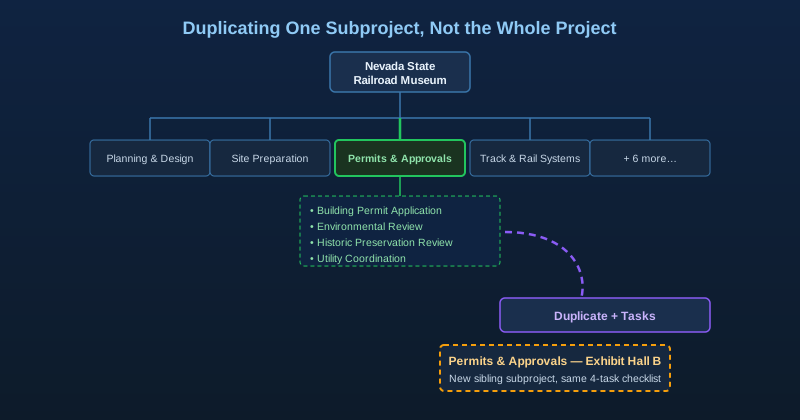
Whole-project duplication isn't the only option. Later in the Carson City build, suppose a second, smaller addition — a maintenance shed on the same lot — needs its own permitting pass. Rather than re-typing the same four-task checklist, right-click the Permits & Approvals subproject itself. Subprojects get their own cascading menu with the same Duplicate + Tasks command.
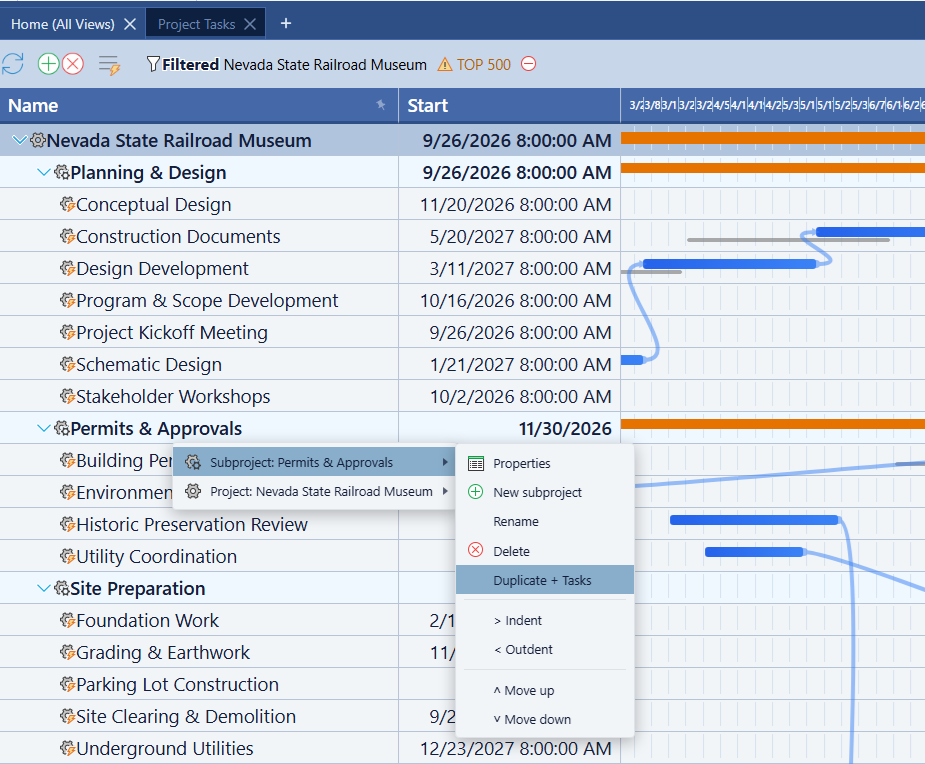
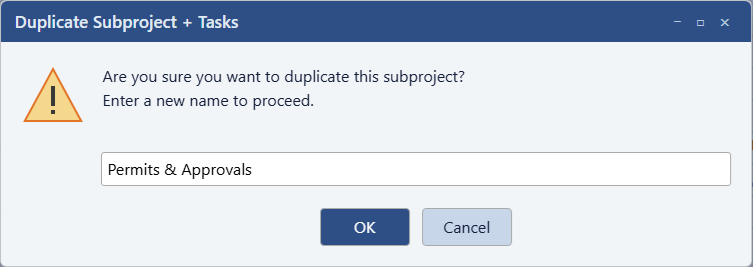
Confirm the prompt and give the copy a name that identifies the new phase, such as Permits & Approvals — Maintenance Shed.
Maverick creates a sibling subproject with its own copies of Building Permit Application, Environmental Review, Historic Preservation Review, and Utility Coordination — reset to 0% complete, ready to be re-dated for the maintenance shed's timeline.
Warning: subproject-level duplication only remaps links between tasks that were copied together. If any task inside Permits & Approvals happens to be linked to a task in a different subproject — Building Permit Application waiting on Program & Scope Development to finish, for example — that link can't be safely re-pointed by a subproject-only duplicate, because the task on the other end was never part of the copy. Check the new subproject's links for anything that still points back at the original project before trusting the schedule.
Related Topics
The scheduling mechanics this blueprint builds on are covered in depth elsewhere in the Learn Center. For how Finish-to-Start links cascade a date change through a whole schedule, see Gantt Charts in Project Management. For how the critical path calculation identifies the tasks with zero float, see Critical Path Method. For a full walkthrough of setting, clearing, and restoring a baseline, see Project Baselines: Set, Clear, and Restore.