What Is the OpenAI Client?
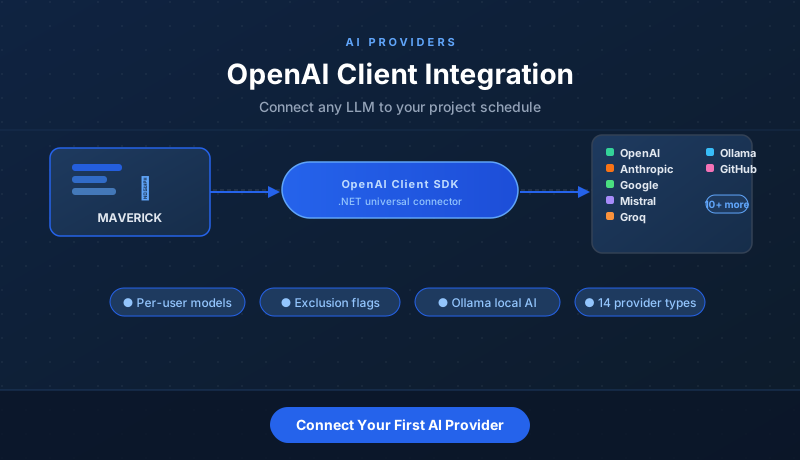
Maverick uses the OpenAI .NET SDK as its universal AI connector. The OpenAI-compatible chat completion API has become a de-facto standard across the AI industry — most major providers implement it. That means Maverick can reach any of them by simply pointing the client at a different base URL and supplying the right API key.
The result is a single integration layer that covers OpenAI, Anthropic, Google Gemini, Azure OpenAI, Mistral, Groq, GitHub Models, Cerebras, OpenRouter, and more. Local providers like Ollama run entirely on your own machine — no API key required and no external data transfer of any kind.
From a configuration standpoint, every provider is a record in Maverick with a small number of fields: a display name, a provider type, a base URL, and an API key. The provider record is then linked to one or more model records, each of which adds model-specific settings like temperature, system prompt, and max output tokens. You can configure as many providers and models as your team needs and assign them to individual employees or workgroups.
Supported AI Providers
Maverick ships with 14 built-in provider types. The application pre-seeds default provider and model records for the most popular choices so you can be up and running within minutes of your first login.
Cloud Providers (Paid)
These providers offer the most capable models and are suitable for production scheduling workloads. Each requires an API key from the provider's developer portal.
- OpenAI — GPT-4.1, GPT-4.1 mini, GPT-4o, GPT-4o mini, o3, and o4-mini. No base URL configuration needed; Maverick connects to OpenAI's default endpoint automatically.
- Anthropic — Claude Opus 4, Claude Sonnet 4, and Claude Haiku 4.5. Base URL:
https://api.anthropic.com. Claude models are particularly strong at structured JSON output, which aligns well with Maverick's update pipeline. - Google Gemini — Gemini 2.5 Pro, Gemini 2.5 Flash, and Gemini 2.0 Flash. Base URL:
https://generativelanguage.googleapis.com. Requires API versionv1beta. - Azure OpenAI — Your Azure-hosted deployment of OpenAI models. Uses a deployment name instead of a model name, and a custom base URL from your Azure resource.
- Mistral — Mistral's family of European-hosted models. Useful for organizations with data-residency requirements outside the US.
Free-Tier Cloud
These providers offer free API access, subject to rate limits. They are a practical way to explore AI scheduling before committing to a paid plan. Note that free tiers are typically rate-limited — you may encounter slower responses or temporary throttling during high-usage periods. The AI rate limits guide explains how to handle this in Maverick.
- OpenRouter — Routes requests to a variety of models, including Gemini 2.0 Flash (free), Llama 3.1 8B (free), and DeepSeek R1 (free). Base URL:
https://openrouter.ai/api/v1. - Groq — Extremely fast inference for open-source models including Llama, Mistral, and Whisper variants. Base URL:
https://api.groq.com/openai/v1. - GitHub Models — Free model access for GitHub users, including GPT-4o, Phi-4, and Llama 3.1 70B. Base URL:
https://models.inference.ai.azure.com. - Cerebras — High-speed inference using wafer-scale AI chips. Base URL:
https://api.cerebras.ai/v1. - Google Gemini (free tier) — Gemini Flash is available at no cost through the standard Google API key with generous daily limits.
Local (No API Key)
Ollama lets you run open-source models entirely on your own hardware — Llama, Mistral, Phi-4, Qwen, Gemma, and any other model available in the Ollama library. Because everything stays on-premise, there is no API key, no external data transfer, and no per-token cost. The base URL points to your local Ollama server, typically http://localhost:11434/v1. This option is especially attractive for organizations with strict data-security policies or air-gapped environments.
Setting Up an AI Provider
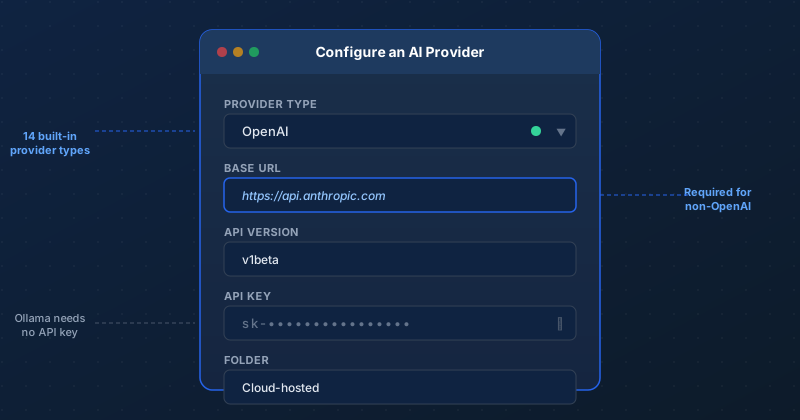
Provider records live in the Maverick admin area. Creating one takes about a minute. Here is what each field does:
- Name — Your display label for this provider record. Use something descriptive like "Anthropic (Claude)" or "Google Gemini Free" so team members can identify it easily in the model picker.
- Provider Type — Select from the 14 built-in provider types. This tells Maverick which authentication style and API quirks to use when constructing requests.
- Base URL — Required for all providers except native OpenAI. This is the root endpoint the OpenAI client will send requests to. Leave it blank for OpenAI — the SDK uses its default endpoint automatically.
- API Version — Only needed for Google's API, which requires
v1beta. Most other providers leave this field empty. - API Key — Your cloud provider secret key. Ollama does not require one; set this field only for cloud-hosted providers. Keys are stored encrypted and never displayed after initial entry.
- API Secret — A second credential for providers that use two-part authentication. When present, Maverick sends it as an
X-Api-Secretheader alongside the standard Bearer token. - Folder — Groups provider records in the model picker. Useful when you have many providers configured — for example, "Cloud-hosted", "Free tier", and "Local" folders keep the list organized.
The table below shows the Base URL for each major non-OpenAI provider:
| Provider | Base URL |
|---|---|
| Anthropic | https://api.anthropic.com |
| Google Gemini | https://generativelanguage.googleapis.com |
| OpenRouter | https://openrouter.ai/api/v1 |
| Groq | https://api.groq.com/openai/v1 |
| GitHub Models | https://models.inference.ai.azure.com |
| Cerebras | https://api.cerebras.ai/v1 |
| Ollama (local) | http://localhost:11434/v1 |
Configuring an AI Model
Each provider record can have multiple model records attached to it. A model record adds the model-specific settings that shape how the AI responds. Here is what each field controls:
- Name — Your display label for this model. Something like "GPT-4.1 (fast)" or "Claude Sonnet (scheduling)" helps team members choose the right model from the picker.
- Model Name — The exact API model identifier that the provider expects in the request body. For example:
gpt-4.1,claude-sonnet-4-6,gemini-2.5-flash,llama3.1:8b. Get the correct identifier from your provider's documentation — a typo here will cause every chat request to fail. - System Prompt — Custom instructions that are prepended to every chat session with this model. Use it to tune the AI's focus — for example, "You are a project scheduling assistant. Always respond with valid JSON. Focus on minimizing the critical path." A well-crafted system prompt significantly improves the quality and consistency of AI responses.
- Temperature — Controls how deterministic or creative the responses are. A value of 0.0 produces consistent, repeatable output. A value of 1.0 produces more varied and sometimes surprising responses. For scheduling tasks where accuracy matters, a value between 0.2 and 0.4 tends to produce reliable JSON with fewer hallucinations.
- Top P — Nucleus sampling parameter that limits which tokens the model considers at each step. Leave this at the provider's default unless you have a specific reason to adjust it. Changing both temperature and top-p at the same time is generally not recommended.
- Max Output Token Count — Caps the length of the AI's response. For large projects with hundreds of tasks, the JSON response can be long. Setting an appropriate cap prevents runaway responses and keeps costs predictable. If the AI truncates a response mid-JSON, increasing this value is usually the fix.
- Deployment Name — Azure OpenAI only. Your Azure deployment name replaces the Model Name in the API request. Azure routes requests to the underlying OpenAI model based on your deployment configuration, not the model name directly.
- Override API Key / Base URL — Model-level overrides for the linked provider's API key and base URL. This is useful when a single provider account serves multiple teams with different billing keys, or when you need to point a specific model at a different endpoint.
Reducing Token Usage with Exclusion Flags
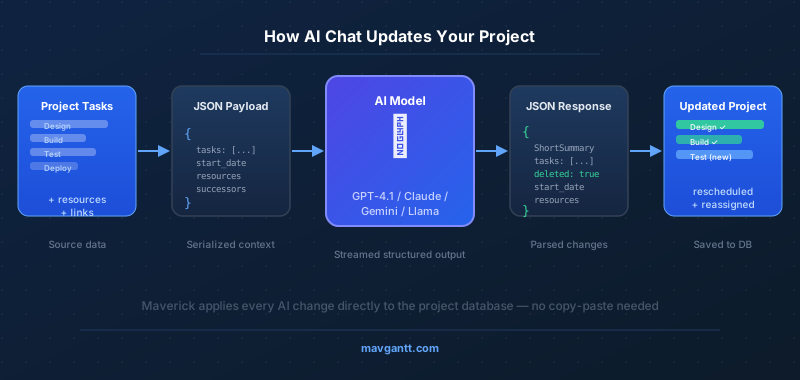
Before every AI chat session, Maverick serializes your project to JSON and sends it as context. This snapshot includes task names, dates, durations, resource assignments, dependency links, subproject structure, descriptions, progress, and status fields. On a complex project with hundreds of tasks and rich descriptions, that snapshot can reach several thousand tokens per request — which translates directly to cost and latency.
Exclusion flags let you trim the fields that are not relevant to the question you are asking. Each flag is a toggle on the model record. You can configure different exclusion profiles for different models — for example, a "scheduling only" model that strips resources and descriptions, and a "staffing review" model that includes resources but excludes dates.
1. Exclude Resource Assignments
Omits the user and resource names from each task's context. This is the biggest per-task token saving on a staffed project. Use it when your question is about the schedule structure, not about who is doing the work.
2. Exclude Successor Links
Omits the FS/SS/FF/SF dependency relationships between tasks. On a complex CPM network with hundreds of predecessor-successor pairs, this flag can cut the payload size substantially. Use it when you are asking about task content or resources rather than the dependency structure.
3. Exclude Subproject List
Omits the phase and subproject hierarchy from the context. Helpful for flat projects where the hierarchy adds noise rather than useful structure. Enables the AI to focus on the task list without navigating the parent-child tree.
4. Exclude Descriptions
Omits project and task description text. Description fields are often the largest contributor to token count after task names — a project manager who writes detailed scope notes can add thousands of tokens per request. Use this flag when the AI does not need the narrative to answer your question.
5. Exclude Progress Fields
Omits percent complete and completed status from each task. Not needed for forward-looking scheduling prompts where you are planning what comes next, not reviewing what has happened.
6. Exclude Task Schedule Dates
Omits start date, finish date, and duration from each task. Use this when you only want to discuss task names, assignments, or dependencies — not the actual schedule. This flag produces the smallest possible payload for name-only or assignment-only questions.
7. Exclude Task Status
Omits the per-task status field (a categorization separate from percent complete). Rarely needed for AI chat, but available for models where every token counts.
Start with no exclusions. If you get rate-limit errors or slow responses on large projects, enable the flags for data the AI does not need for your current question. You can always reconfigure the model record between sessions.
AI Chat in Practice
The AI chat window opens as a floating popup (500 pixels wide, 800 pixels tall) from the AI toolbar button. You can open it in two modes depending on what you want to analyze or update.
When you right-click a project record and choose Chat with AI, Maverick serializes the entire project — every task, resource assignment, dependency link, and subproject — and sends it as the context for your session. This gives the AI a complete picture of the project and allows it to make changes anywhere in the schedule.
When you select specific task records in the resource allocation chart or project tasks grid and then open AI chat, only those selected records are sent. This is useful for large projects where you want to focus the AI's attention on a particular phase or workstream without paying for a full-project context window.
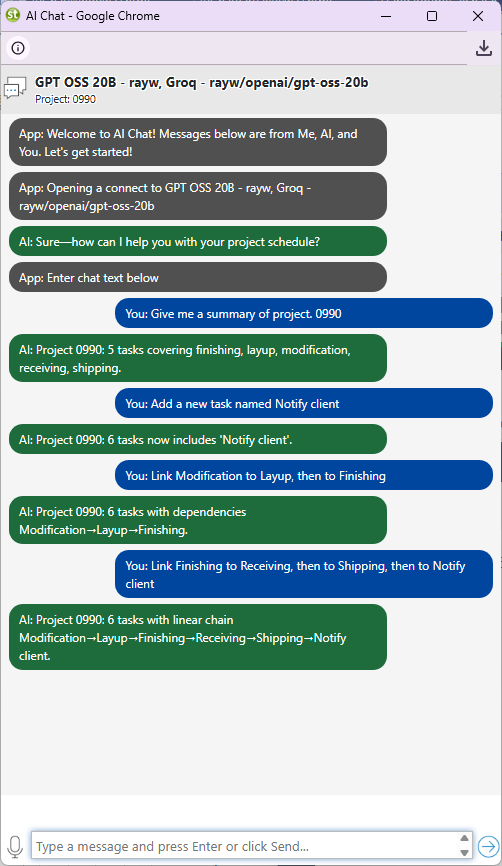
The AI responds in two stages. First, it streams a plain-text greeting — you see words appearing as the model processes your request. This confirms the session is active and gives you a quick summary of what the AI received. Second, all follow-up instructions trigger a structured JSON response that Maverick parses and applies directly to the project database.
The JSON schema the AI follows includes a ShortSummary, a DetailedSummary, and a full task array. Every task in the project is present in the response — tasks not mentioned by the AI keep their current values unchanged. A task marked with deleted: true is removed from the project. This all-or-nothing task list approach prevents partial updates from leaving the project in an inconsistent state.
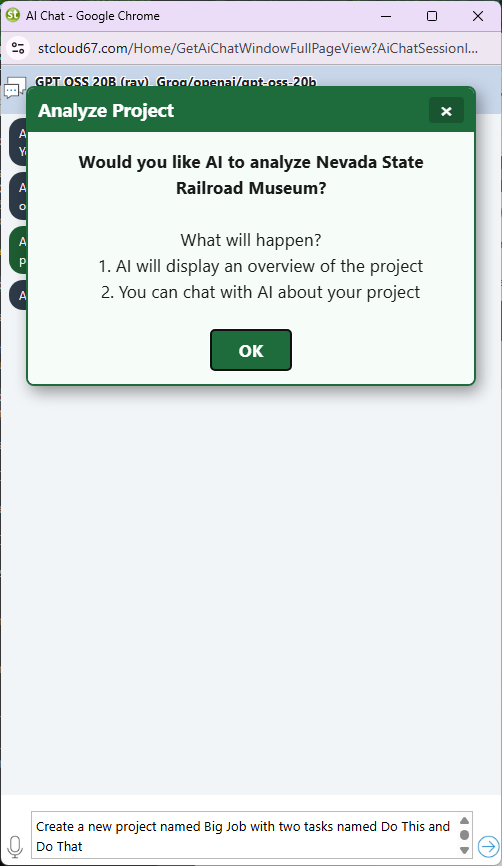
Here are examples of what you can ask the AI to do in a chat session:
- Move or reschedule tasks: "Move all tasks to start next Monday" or "Push the testing phase back by one week."
- Add new tasks or phases: "Add a user acceptance testing phase with four tasks after the development phase."
- Assign resources: "Assign Alice to all design tasks and Bob to all development tasks."
- Analyze the schedule: "Which tasks are on the critical path?" or "Which tasks have the most float?"
- Compress the timeline: "How can I finish two weeks earlier without adding headcount?"
- Set or adjust dependencies: "Make task 5 start after task 3 finishes with a 2-day lag."
- Remove tasks: "Delete all placeholder tasks that have no assigned resources."
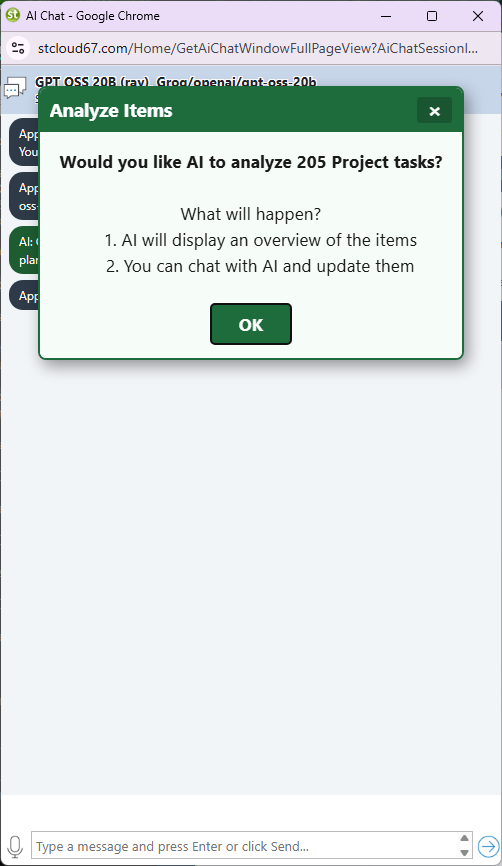
Each response arrives as a complete project update. Maverick applies it to the database immediately — no copy-paste, no manual editing. If the AI makes a change you did not intend, you can ask it to revert in the same session or use the undo action in the project grid.
Per-Employee AI Assignment
One of the more practical aspects of Maverick's AI integration is that model assignment is per resource, not per account. Each employee record can specify a preferred AI provider and model. This gives organizations fine-grained control over cost, capability, and access:
- Right-size the model for the role. Power users like senior project managers can be assigned GPT-4.1 or Claude Opus for complex scheduling tasks, while others are assigned GPT-4.1 mini or Gemini Flash. You pay for capability where it matters and save where it does not.
- Per-employee API keys mean transparent billing. Each employee uses their own API key, so usage costs are tracked at the individual level rather than pooled in a single account. This is especially useful for client-billing scenarios.
- Clean offboarding. Deactivating a resource record in Maverick automatically removes their AI access. There is no separate AI admin console to update — the resource record is the single source of truth.
- Workgroup defaults with individual overrides. A workgroup record can specify a shared default provider and model that all members of the group inherit. Individual members can override the group default with their own preference.
For a full walkthrough of how to configure AI providers and models on resource records, see the AI providers and models assigned to resources guide.