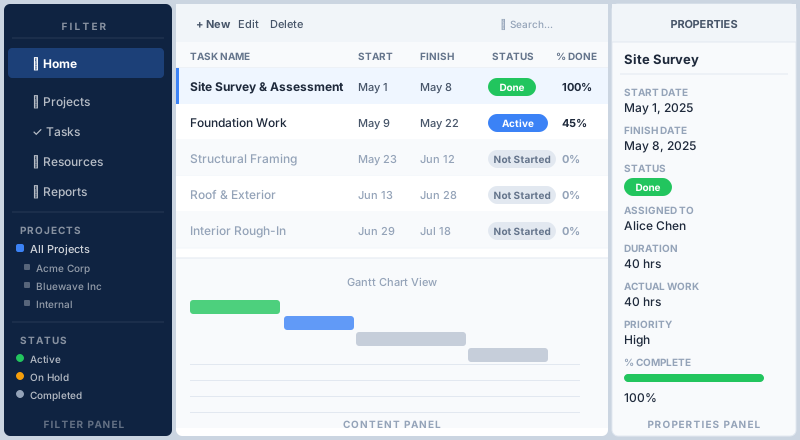
Getting Started
What to Expect When You Sign Up
Here's everything that happens from the moment you click "sign up" to the moment you're running your first project — billing, provisioning, your welcome email, and the first steps to take once you're in.
Sign Up NowWe're Here for You — Don't Be a Stranger
Before anything else: we want to hear from you. Questions, confusion, a request for a walkthrough — reach out anytime. Our U.S.-based team picks up the phone and answers email.
Call Us
Our team is available by phone during business hours. If you're the kind of person who'd rather talk through a question than type it out, we are absolutely that kind of team too. Call us before you sign up, after you sign up, or any time you're unsure what to do next.
Email Us
Prefer writing? Send us a note at any hour. Whether it's a quick question about licensing, a request for a live web meeting walkthrough, or feedback on something that could work better — we read every message and get back to you promptly.
Billing & Licensing — The Straight Story
No surprises. Here is exactly how billing works from day one.
Charged at Signup
Your credit card is charged the moment you complete sign-up, and then on the same date each month thereafter. There is no free trial period on the paid plan — billing starts immediately. If you want to explore the product before committing, use the free cloud trial first.
Monthly Email Receipts
You will receive an email receipt every month when your card is charged. Keep these for your records or your accounting team — they itemize the number of user licenses and the charge per user for that billing period.
Cancel Anytime
There is no annual contract and no cancellation fee. You can cancel your subscription at any time, and your access continues until the end of the period you've already paid for. No calls required — cancel from the account settings or contact us and we'll handle it for you.
Licenses Are Per User
Your monthly bill depends on the number of human resource (user) licenses you have active. Each person who logs in to Maverick needs one license. You can increase or decrease your license count at any time — the adjustment takes effect on your next billing cycle. Add a new team member mid-month and we'll prorate accordingly.
Machines & Materials Are Free
Only human resources consume licenses. Machine resources (equipment, vehicles, tools) and material resources (supplies, consumables) do not require a license and can be added in unlimited quantities. You pay only for the people on your team — not for the assets they work with.
AI Fees Are Separate
Maverick's AI chat feature connects to third-party AI providers — OpenAI, Anthropic, Google, and others. Those providers charge based on usage (tokens consumed), and those fees go directly to them under your own API account. Maverick does not mark up, resell, or include AI provider fees in your monthly subscription. You control which provider you use and how much you spend on AI.
Your Cloud Site Is Being Set Up
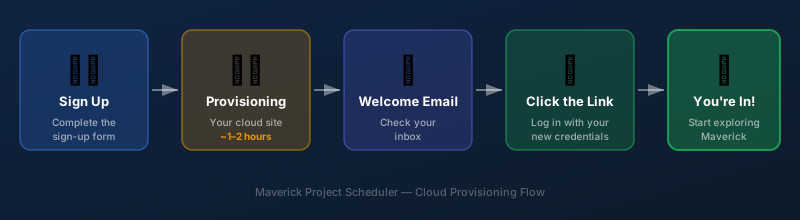
After you sign up, your dedicated cloud environment is provisioned by our team. Here's the timeline — and what to expect at each step.
About 1–2 Hours
Once your payment is processed, our provisioning department creates your dedicated cloud site and unique URL, sets up your database, and configures your first administrator account. This is done by our team — not automatically — so it takes a little time. Most new accounts are live within one to two hours. If it's a weekend or a holiday, it may take a bit longer, and we appreciate your patience.
Hold tight. Your site is coming, and it'll be worth the wait.
Your Welcome Email
When your site is ready, you'll receive a welcome email with your cloud site URL, your initial username, and a temporary password. Click the link in that email to log in for the first time. You'll be prompted to change your password on first login.
If you haven't received the welcome email within two hours, check your spam folder first — then give us a call at 719-488-8697 and we'll sort it out immediately.
Setting Up Your Three-Panel Environment
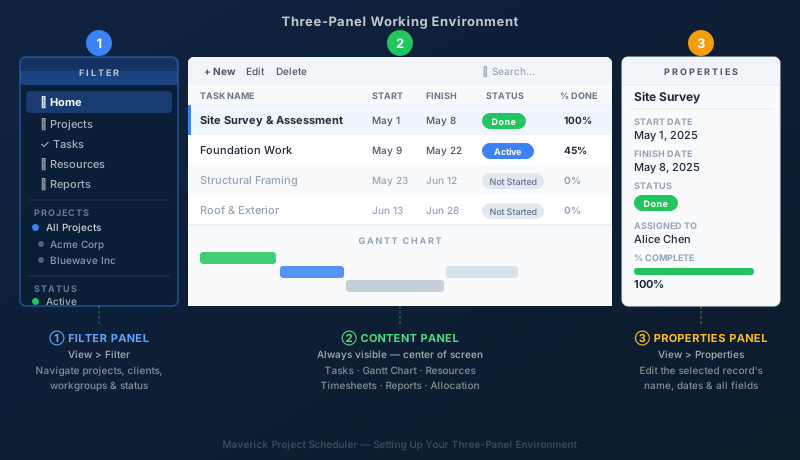
When you first log in, the interface may look sparse. The first thing to do is open all three panels — this is the working layout you'll use every day.
Open the Filter Panel
Choose View > Filter from the menu. The Filter panel opens on the left side of the screen. Use it to navigate and filter the content in the middle panel — browse by project, client, workgroup, status, date range, or any other dimension. The Filter panel is your navigation hub: whatever you select here determines what appears in the Content panel.
The Content Panel
The Content panel occupies the center of the screen and displays your data — tasks, projects, resources, timesheets, Gantt charts — based on what's selected in the Filter panel. This is where you do most of your work: adding tasks, updating status, viewing Gantt timelines, and reviewing allocation charts. The Content panel changes view based on what menu item you selected.
Open the Properties Panel
Choose View > Properties from the menu. The Properties panel opens on the right side of the screen. When you click on any item in the Content panel — a task, a project, a resource — its full set of properties appears here. This is where you edit names, dates, assignments, costs, and every other field on the selected record without leaving the main view.
With all three panels open you have a complete working environment: navigate in the left, work in the center, edit details in the right. If you'd like a walkthrough of the layout, contact us and we'll set up a screen-share session.
Your First Steps in Maverick
Once you're logged in and the three panels are open, here's the recommended order to get your environment set up and your first project running.
Step 1 — Add Your Users

Choose Home > Users from the navigation. Click the green + button to add a new human resource. Fill in the person's name, email address, and any other details in the Properties panel on the right. Repeat for each team member you want in the system.
Each person you add here will eventually get login credentials and their own user account. Human resources are the foundation — tasks get assigned to them, timesheets are logged against them, and AI models are configured for them.
Step 2 — Create Your First Project
Go back to the Home page and click Project Assistant. The Project Assistant walks you through creating a new project record — name, client, start date, and initial settings. Once the project is created, you can start adding tasks directly in the Content panel.
If you have an existing Microsoft Project file (.mpp), Maverick can import it. Contact us and we'll walk you through the import process.
Step 3 — Set Up AI Providers and Models
Choose Tools > AI Providers from the menu. Click the menu item to Add Default Models — this creates pre-configured records for the most popular AI providers (OpenAI, Anthropic, Google) so you don't have to build them from scratch. Then add your API key to each provider you want to use.
Not sure which AI provider to choose or how API keys work? Start here:
Step 4 — Assign AI to Your Resources
Go back to each user you created and find the AI section in their Properties panel. Assign an AI provider and model to that user — this is the model that will respond when that user opens the AI chat. Different users can have different providers, different models, and different system prompts, depending on their role and budget.
Step 5 — Chat with AI
Choose View > Chat with AI to open the AI chat panel. Type a request in plain language — "Add three tasks to the foundation phase starting next Monday" or "Show me which resources are over-allocated this month" — and the AI will respond, analyze your project data, and update the schedule directly.
Want a Guided Walkthrough?
If you'd rather have someone walk you through setup live, we offer web meeting walkthroughs at no charge. A member of our team will share their screen, show you the interface, and answer any questions as you go. Most walkthroughs take 30–60 minutes and cover everything from environment setup to your first AI chat.
Call us at 719-488-8697 or send an email to schedule one.