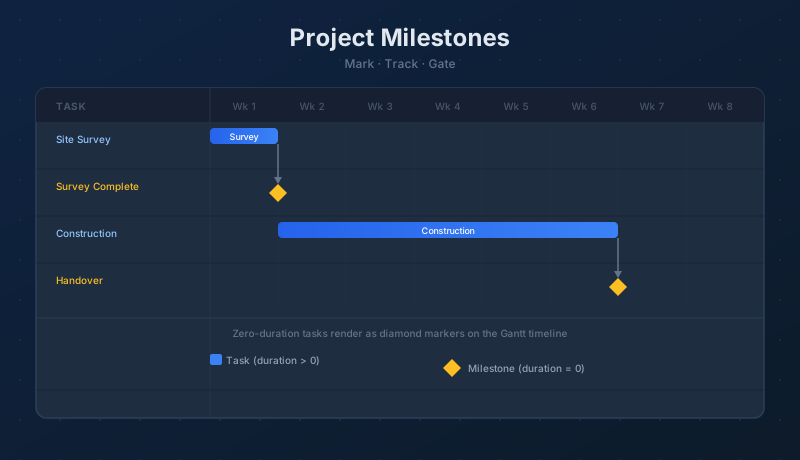
Milestones mark the moments that matter: the end of a phase, a deliverable approved, a handoff completed, a contractual deadline reached. Unlike regular tasks, a milestone has no duration — it represents a point in time rather than a span of work. In Maverick, creating a milestone takes one step: set a task's duration to zero. The Gantt chart immediately renders it as a diamond, and you can link tasks into it to gate the start of the next project phase.
What Is a Project Milestone?
A milestone is a task with a duration of zero. That is not a convention or a category label — it is how Maverick defines one. When the Duration field on a task record equals zero hours, the task is a milestone. No separate toggle, no special milestone type to select.
Because a milestone has no duration, it does not occupy a span of time on the Gantt. It represents a single date: the task's start date. On the chart, the standard task bar disappears and a diamond marker appears at that date. Milestone diamonds serve as visual anchors on an otherwise bar-heavy schedule, making key dates immediately obvious when scanning the timeline.
Common uses for milestones:
- Phase boundaries — "Design Complete", "Testing Approved", "Construction Handover"
- Client deliverables — dates by which specific outputs must be delivered
- Contractual deadlines — dates with legal or financial significance
- AI-generated checkpoints — when AI chat builds a schedule, it often places milestones at phase transitions automatically
Setting a Milestone
To create a milestone in Maverick, open the task properties and set the Duration field to zero — or type 0 directly in the Duration column in the task grid. As soon as the value is saved, the task becomes a milestone and the Gantt bar changes to a diamond.
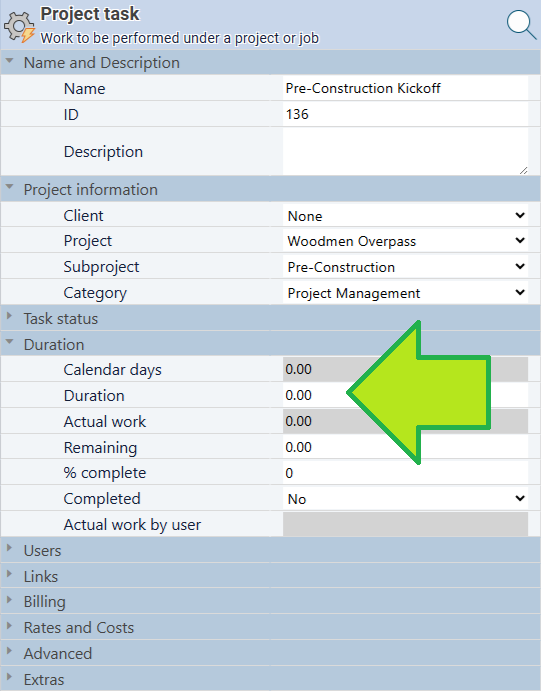
Any task can be converted to a milestone at any time by setting its duration to zero. Conversely, a milestone becomes a regular task again the moment you enter a non-zero duration. There is no permanent milestone state — duration is the only distinction.
Milestone Diamonds on the Gantt Chart
When a task's duration is zero, Maverick replaces the standard task bar with a diamond marker positioned at the milestone date. The diamond sits at the task's start date on the timeline scale and is visually distinct from every other element in the Gantt — it cannot be mistaken for a task bar or a dependency arrow.
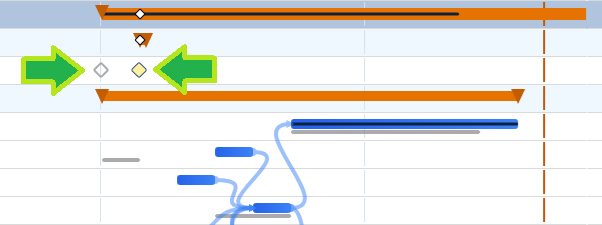
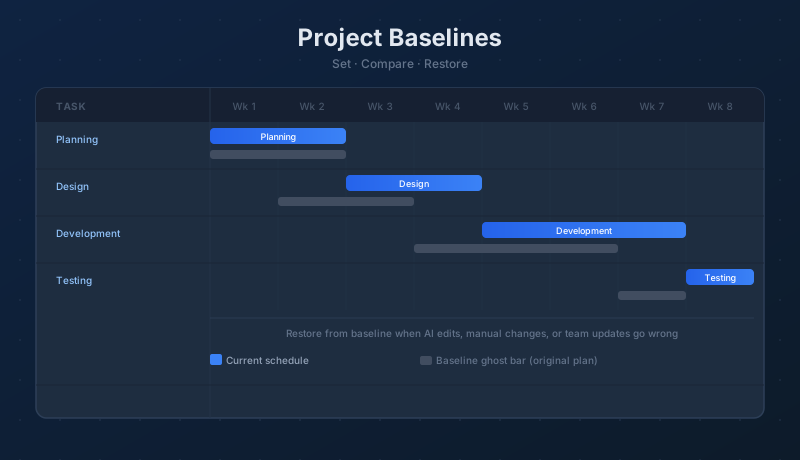
If the project has a baseline set, milestone rows display a ghost diamond alongside the live diamond — the same ghost bar behavior that regular tasks show, but applied to the diamond shape. The gray ghost diamond marks where the milestone fell when the baseline was captured. When the milestone date has not moved, the two diamonds overlap. When the milestone has been rescheduled, the gap between the ghost and the live diamond shows exactly how far it has shifted. See Project Baselines: Set, Clear, and Restore for how to set and read baselines across a full project.
Milestones as Phase Gates
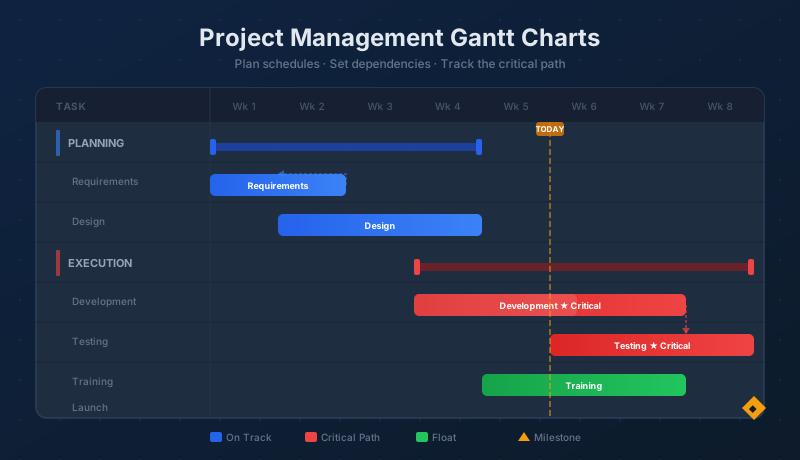
The most common use for a milestone is as a gate between project phases. Tasks in the first phase have Finish-to-Start links into the milestone. The milestone in turn has a Finish-to-Start link into the first task of the next phase. Nothing in the next phase can begin until the milestone date is reached and all predecessor tasks are complete.
Lag days can be added to the dependency that leads into a milestone. A two-day lag between a deliverable task and an "Approval" milestone means the milestone date falls two business days after the deliverable finishes — representing a review window before approval is formally recorded. The milestone date shifts automatically when the predecessor task date changes.
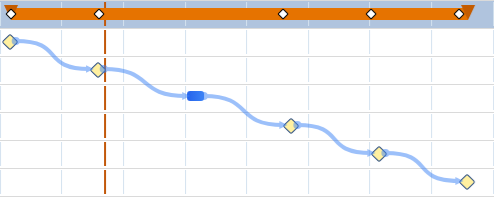
Tip: Milestone diamonds are displayed on the summary bars directly above each milestone row — look up from the milestone's date to see its diamond marker on the parent summary bar.
Dependencies into and out of milestones follow the same four link types — FS, SS, FF, SF — and support the same lag and lead values as any other task link. See Task Link Relationships for the full reference on dependency types and lag.
Milestones on the Project Overview Gantt
The project overview Gantt — accessed from the Projects page — shows one row per project rather than individual tasks. Milestone dates from each project are rendered as diamond markers overlaid on the project's summary bar. Diamonds from multiple projects appear on the same timeline, giving a portfolio-level view of critical dates across all active work without opening each project individually.
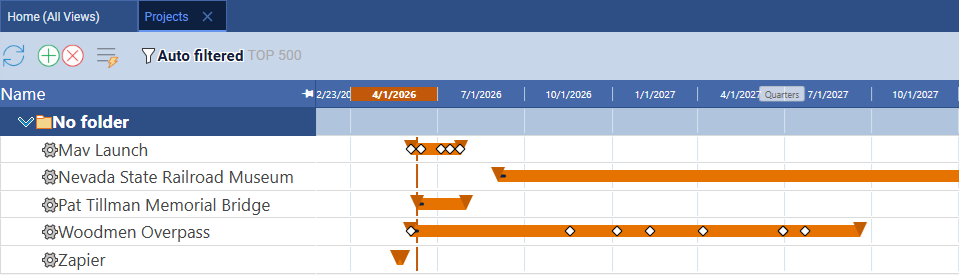
Tip: Notice the diamond markers sitting directly on each project's summary bar. This is the same behavior as the task list — milestone diamonds are cast up onto the summary bar above them, so their dates are visible without expanding the project row.
This view is particularly useful when coordinating handoffs between projects — a milestone on the supplying project and a start date on the receiving project can be compared on the same timeline. See Secondary Gantt Charts for a full walkthrough of the project overview Gantt and what it shows.
Milestone diamonds scattered across a year-long portfolio are easy to lose track of when you're scrolled into one narrow slice of the timeline. Turn on the Gantt mini-map and every diamond appears in the compressed overview strip, so you can drag straight to a cluster of upcoming milestones instead of scrolling past everything in between. It can also be pinned alongside a second frozen row for team workload — see Stacking Frozen Rows.
Set Milestones Before the First Task Starts
Place milestones at phase boundaries while the schedule is still being built — they anchor the key dates and make drift immediately visible in the Gantt. Start a free cloud trial and mark your first milestone today.
Access the Free Cloud Trial