The Mission
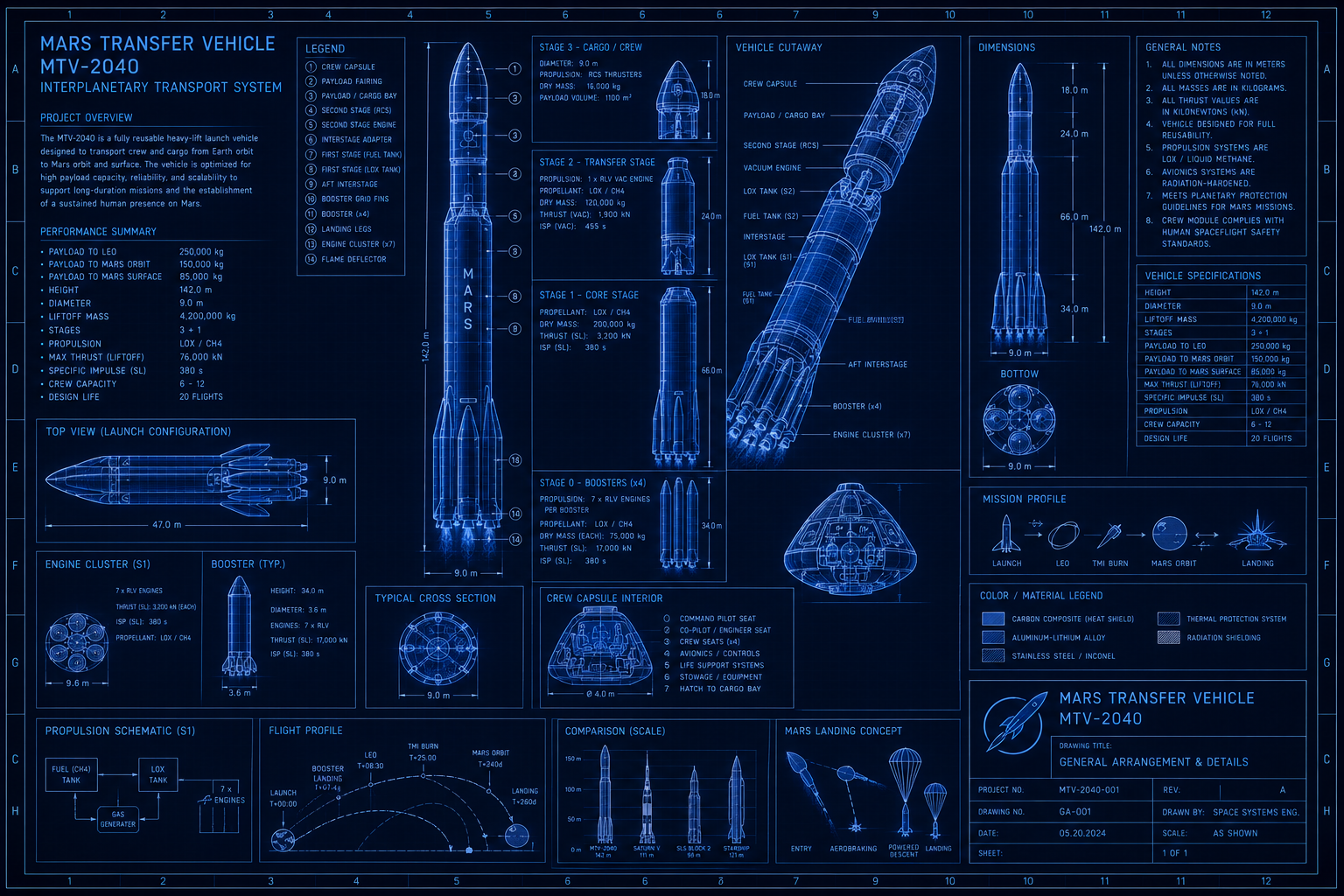
A Mars Transfer Vehicle is a spacecraft designed to carry crew and cargo from low Earth orbit to Mars — a one-way transit of approximately seven months using a conventional chemical propulsion system. Unlike cargo missions, a crewed Mars vehicle cannot be scheduled around engineering convenience alone. Safety review boards, design certification gates, launch window constraints, and regulatory sign-offs are non-negotiable. Missing one gate does not slip a deadline by days. It slips the entire mission by 26 months.
This blueprint builds the MTV construction schedule entirely by hand — no AI, no shortcuts. You will create the project, open Maverick's project task text editor, paste in six mission phases and fifteen milestone names, then set each milestone's duration to zero so it renders as a diamond in the Gantt chart. After the structure is in place, you will wire the diamonds together with Finish-to-Start links and lag values representing real time gaps between gates: design review cycles, procurement lead times, and the physics of transit. The result is an executive-level milestone chart showing the critical chain from mission approval to mission success in a single view.
Why Build This Schedule by Hand?
The honest answer: for most real projects, you should not. Maverick's AI chat can build a milestone schedule like this one in under 30 minutes from a single prompt. The Battery Energy Storage System blueprint and the Offshore Drilling Rig blueprint demonstrate the full AI workflow — project creation, task generation, resource assignment, dependency wiring, and baseline — all driven by prompts. If you are building a real schedule under deadline pressure, those are the right starting points. Manual creation is the slow and hard path.
This blueprint exists because understanding the manual process makes you a better reader of AI-generated schedules. When you know how the text editor builds the task hierarchy, why zero duration produces a diamond instead of a bar, and how lag propagates through a dependency chain, you can spot the mistakes an AI makes and fix them without starting over. Every step you perform manually here is a step the AI performs invisibly — and the only way to catch an AI error is to know what the correct result looks like.
Fun Fact: The 26-Month Launch Window
Mars and Earth return to the same relative orbital positions approximately every 26 months — the orbital synodic period. During each cycle, an optimal Hohmann transfer window opens for a few weeks. Outside that window, the delta-v required to reach Mars climbs steeply and a direct trajectory becomes impractical for a crewed vehicle. Miss the window and the mission does not slip by weeks. It moves to the next opportunity: 26 months later. On a seven-year development program, every phase of this schedule must land in the right calendar half to protect the target window.
Not all windows are equal. Perihelion-favorable windows — when Mars is near its closest orbital point — require significantly less propellant and offer a wider launch period. The 2033 window is the best crewed opportunity of the coming decade.
| Launch Opportunity | Window Opens | Transit Time | Earth Departure Delta-V | Window Width |
|---|---|---|---|---|
| 2026 | November 2026 | 7.1 months | ~3.65 km/s | ~30 days |
| 2028–29 | January 2029 | 7.5 months | ~3.90 km/s | ~21 days |
| 2031 | March 2031 | 6.9 months | ~3.55 km/s | ~35 days |
| 2033 (target) | July 2033 | 6.8 months | ~3.30 km/s | ~45 days |
| 2035 | September 2035 | 7.2 months | ~3.60 km/s | ~28 days |
Working backward from a July 2033 launch authorization, the mission approval milestone must occur no later than mid-2026 to allow enough time for design reviews, manufacturing, and qualification testing. A slip of even six months in the early phases risks missing 2033 entirely and pushing the crew launch to 2035. For current Earth-Mars trajectory data, see the NASA Mars Exploration missions page.
Skills you will build in this blueprint:
- Task text editor — paste a full project hierarchy without using the Project Assistant's individual task-entry step
- Milestone configuration — set zero duration to render any task as a diamond instead of a bar
- Lag-based dependencies — wire FS links with calendar-day offsets that spread milestones across the real project timeline
- Critical chain identification — read CPM output on a milestone-only schedule where float determines gate criticality
- Baseline variance on milestones — compare ghost diamond positions to current diamond positions as dates change
Create the Project
Open Maverick and go to Home → Projects. Click the green + button to create a new project. The Project Assistant opens.
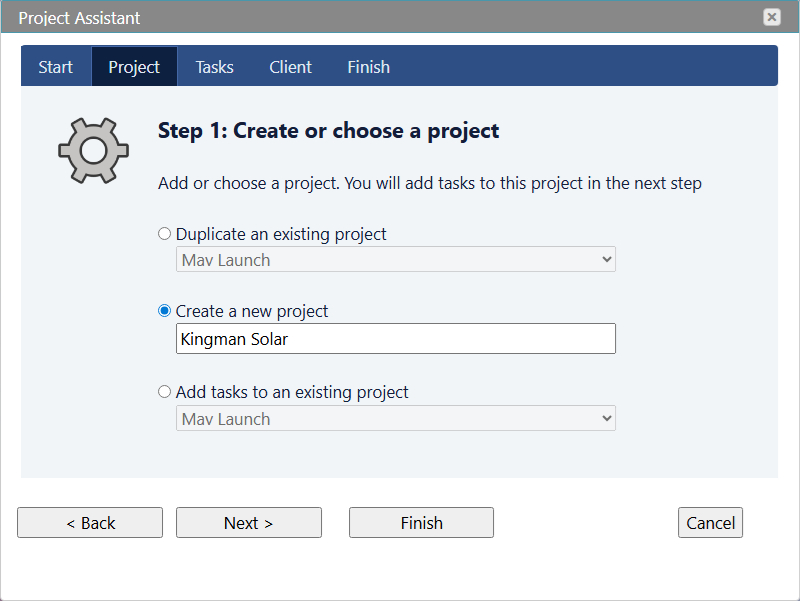
Select Create a new project, enter Mars Transfer Vehicle as the project name, and set a start date of January 1, 2026 — this gives enough runway to reach the 2033 launch window. Click through the remaining wizard tabs without entering tasks. You will add the full task structure using the text editor instead. Click Finish to dismiss the wizard.
Orientation: what to expect when the project first opens. With no tasks entered yet, the Gantt chart shows a single summary bar spanning the project start date with nothing beneath it. This is correct — the hierarchy you are about to paste will fill it. If the Project Assistant prompted you to enter tasks and you added any, go to Home → Project Tasks, select all tasks, and delete them before continuing. The AI would have generated the full task list from a single prompt at this stage; instead, you are about to type it yourself.
Enter the Mission Structure
Click on the Mars Transfer Vehicle project row. The Properties panel opens on the right side of the screen. Find the Tasks property in the panel and click it. The standalone task text editor opens in its own dialog.
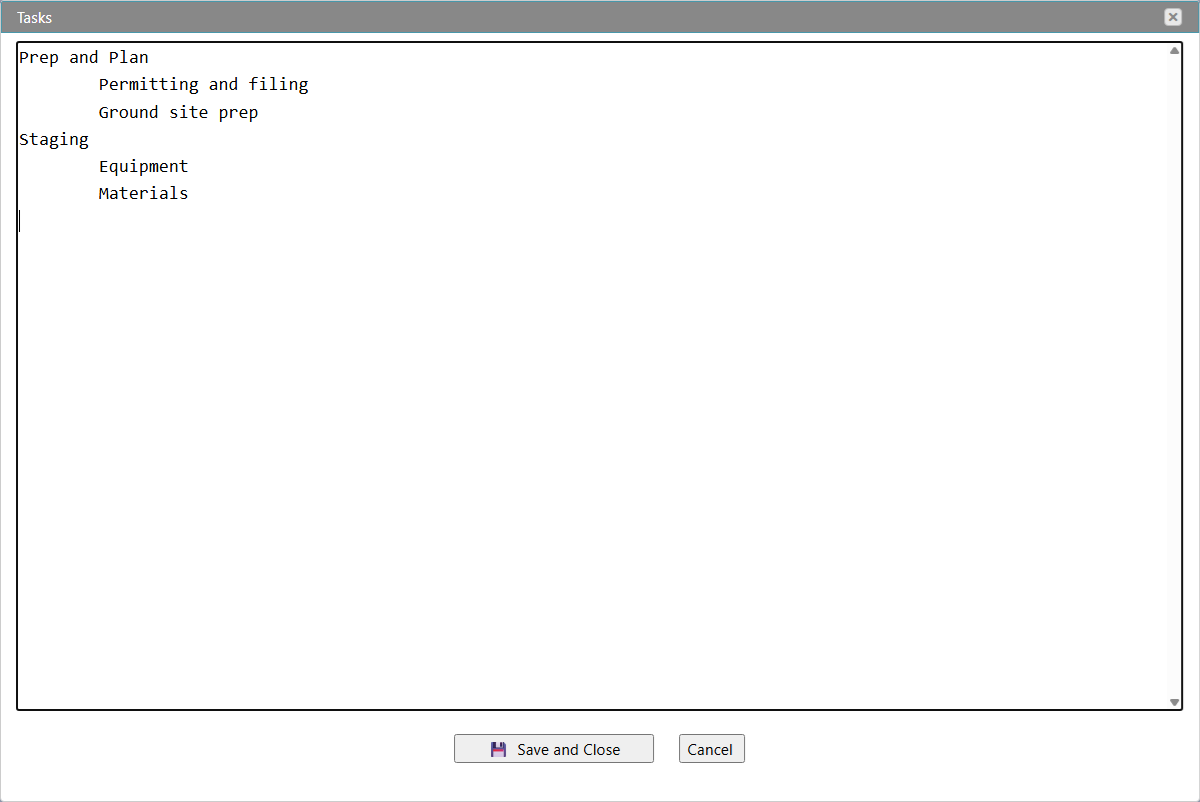
The text editor builds the task hierarchy from indentation: summary tasks sit at the left margin, and items indented one tab level beneath them become child tasks of the summary above. Copy the mission structure below and paste it into the empty editor. The Tab key adds one level of indentation; Shift+Tab removes one. Each indented milestone name ends with {duration:0.0h} — that tag tells the text editor to set the task's duration to zero on import, making it a milestone automatically.
Copy The Text Below
Mission Definition & Approval Mission Requirements Document Approved{duration:0.0h}{start:-136d} Safety Review Board Sign-off{duration:0.0h}{start:-15w} Mission Architecture Finalized{duration:0.0h}{start:-76d} Vehicle Design & Engineering Preliminary Design Review (PDR) Complete{duration:0.0h}{start:+15d} Critical Design Review (CDR) Complete{duration:0.0h}{start:+135} Engineering Drawing Package Released{duration:0.0h}{start:+165d} Manufacturing & Fabrication Propulsion System Delivery{duration:0.0h}{start:+58w} Primary Structure Fabrication Complete{duration:0.0h}{start:+344d} Avionics Integration Package Delivered{duration:0.0h}{start:+45w} Systems Integration & Testing Propulsion Integration Complete{duration:0.0h}{start:+14m} Vehicle Assembly Complete{duration:0.0h}{start:+13m} Environmental Qualification Testing Complete{duration:0.0h}{start:+394d} Launch Readiness & Certification Flight Readiness Review (FRR) Passed{duration:0.0h}{start:+424d} Launch Authorization Received{duration:0.0h}{start:+431d} Mission Execution Trans-Mars Injection Burn Complete{duration:0.0h}{start:+15m} Mars Orbit Insertion Confirmed{duration:0.0h}{start:+22m} Mission Success Declared{duration:0.0h}{start:+28m}
What {duration:0.0h} does. Maverick's task text editor recognizes inline property tags in the format {propertyname:value}. Appending {duration:0.0h} to any task name sets its duration to zero when the outline is imported. A zero-duration task has no time span and renders as a diamond shape in the Gantt chart — which is the standard visual representation of a milestone. The tag is stripped from the task display name after import, so the milestone reads normally in the Gantt without the curly-brace suffix. You can use this tag on any task in any text-editor paste, not just this blueprint.
What {start:...} does. Appending a {start:...} tag positions a task on the calendar relative to today when the outline is imported. The value is a signed number with an optional unit suffix:
+30d— 30 days from today+4w— 4 weeks from today+2m— 2 months from today+30— 30 days from today (no suffix defaults to days)-7d— 7 days before today (for milestones already passed)
In the paste block above, Phase 1 milestones use negative values because those early program gates fall before today. Phase 2 onward uses positive values. Combined with {duration:0.0h}, the two-tag sequence on each milestone sets both calendar position and diamond rendering in a single paste. Once you wire the lag-based dependencies, Maverick recalculates all dates from the dependency chain — the start tags serve as initial anchors that spread the diamonds across the timeline before any links are in place.
Click Save and Close. Maverick loads the six phases as bold summary rows and fifteen milestone items beneath them. Because each milestone name carries the {duration:0.0h} tag, every indented item already renders as a diamond in the Gantt — no manual property editing needed.
If you had used the AI instead of this text editor, a single prompt — something like "Create a Mars Transfer Vehicle project with six mission phases and milestone gates for each phase" — would have generated this entire structure, suggested realistic milestone names, and applied zero durations automatically in under two minutes. The manual process here teaches you exactly what that prompt produces under the hood.
Verify the indentation before saving. If the paste operation strips the tab characters, all 21 lines will appear at the same indent level — all tasks treated as top-level summaries with no parent-child relationships. Check that the six phase names sit at the left margin and the fifteen milestone names are each indented exactly one level. If indentation is lost, use the Tab key to re-indent each milestone line manually. A correctly structured outline produces six bold summary rows in the Gantt with children visible underneath when expanded.
Verify the Milestone Diamonds
The {duration:0.0h} tags in the paste block already handled the zero-duration conversion during import. Go to Home → Project Tasks and look at the Gantt column — all fifteen indented items should appear as diamond shapes rather than bars. The six summary rows retain their bar shape, spanning the date range of their children.
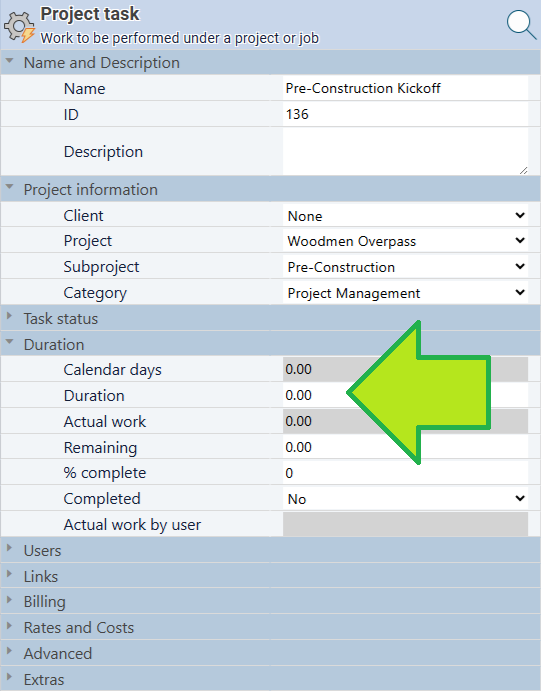
Click any milestone to confirm in the Properties panel: Duration and Calendar Days should both read 0. This is what the {duration:0.0h} tag did automatically. If you ever need to promote a task to a milestone manually — for example, when fixing an AI-generated schedule that created a task with duration where a diamond was intended — these are the same two fields to set.
With all fifteen milestones converted, the Gantt looks something like this — six summary bars spanning their phase date ranges, with diamond markers at each gate along the timeline:
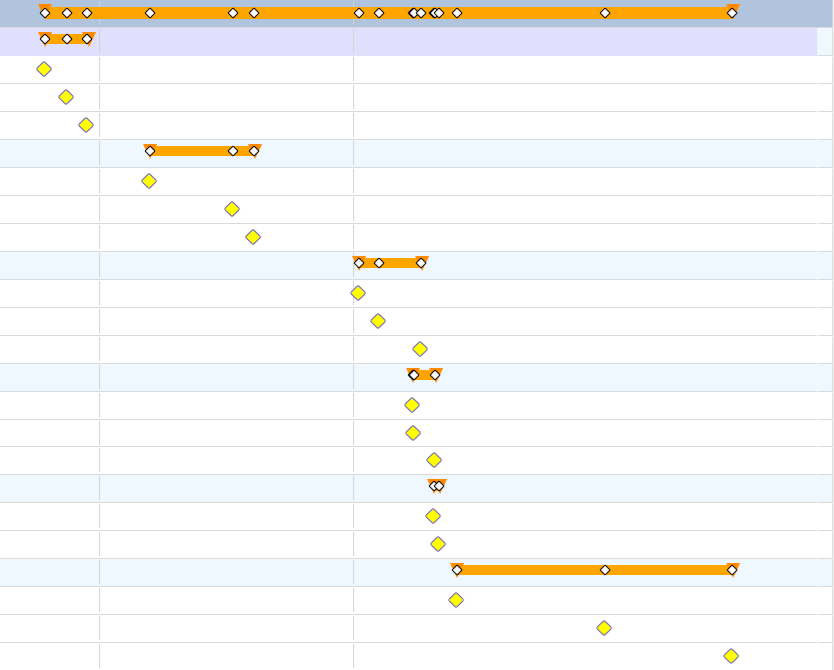
What to look for: if any indented item still shows as a bar, the tag was not recognized. This most often happens when the curly braces are converted to typographic “smart quotes” during a paste from a rich-text source, or if the tag text was partially truncated. Click the affected task and inspect the Name field in Properties — if the raw tag text is still visible in the name, the import did not parse it. Set Duration and Calendar Days to 0 manually in the Properties panel, then remove the tag fragment from the Name field and save.
Wire the Gates with Lag
The {start:...} tags already placed each milestone on the calendar, so the Gantt is no longer empty — you could stop here and have a readable milestone chart. Without dependency links, however, Maverick cannot calculate float, trace a critical path, or cascade a date change forward through the chain. If the PDR slips by 30 days, the CDR date will not move automatically; every downstream milestone stays where its {start:...} tag anchored it. Wiring Finish-to-Start links with lag is what transforms a collection of dated milestones into a functioning schedule where one slip propagates to everything downstream.
To add a link, right-click any milestone in the task grid and choose Links…. The dependency dialog opens. Under Outbound tasks (successors), click the + button and select the successor milestone from the dropdown. Set Link type to FS (Finish-to-Start) and enter the Lag in calendar days. Click OK.
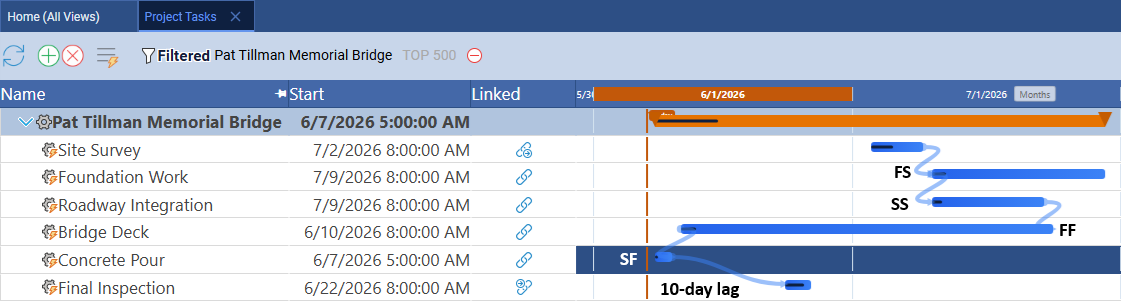
Use the table below to wire all fifteen links. Two milestones — Primary Structure Fabrication Complete and Avionics Integration Package Delivered — are both predecessors of Vehicle Assembly Complete. Add each as a separate outbound link from its respective milestone; the assembly gate does not open until both arrive.
| Predecessor Milestone | Successor Milestone | Type | Lag | Scheduling Rationale |
|---|---|---|---|---|
| Mission Requirements Document Approved | Preliminary Design Review (PDR) Complete | FS | +90 days | Engineering team stands up; preliminary design cycle |
| PDR Complete | Critical Design Review (CDR) Complete | FS | +120 days | Full detailed design cycle across all subsystems |
| CDR Complete | Engineering Drawing Package Released | FS | +30 days | Drawing compilation, peer review, and release |
| Engineering Drawing Package Released | Propulsion System Delivery | FS | +240 days | Long-lead engine manufacturing and acceptance test |
| Engineering Drawing Package Released | Primary Structure Fabrication Complete | FS | +180 days | Structural manufacturing at external supplier |
| Engineering Drawing Package Released | Avionics Integration Package Delivered | FS | +150 days | Avionics procurement and box-level integration |
| Propulsion System Delivery | Propulsion Integration Complete | FS | +30 days | Engine installation and plumbing connections |
| Primary Structure Fabrication Complete | Vehicle Assembly Complete | FS | +45 days | Structure mate, stacking, and checkout |
| Avionics Integration Package Delivered | Vehicle Assembly Complete | FS | +0 days | Both deliveries must arrive before assembly begins |
| Vehicle Assembly Complete | Environmental Qualification Testing Complete | FS | +5 days | Test article transport and facility mobilization |
| Environmental Qualification Testing Complete | Flight Readiness Review (FRR) Passed | FS | +30 days | Test data review, anomaly resolution, board preparation |
| FRR Passed | Launch Authorization Received | FS | +7 days | Authorization documentation and signature cycle |
| Launch Authorization Received | Trans-Mars Injection Burn Complete | FS | +21 days | Launch countdown and burn, including window margin |
| Trans-Mars Injection Burn Complete | Mars Orbit Insertion Confirmed | FS | +210 days | 7-month chemical propulsion transit to Mars |
| Mars Orbit Insertion Confirmed | Mission Success Declared | FS | +180 days | Surface or orbital operations period |
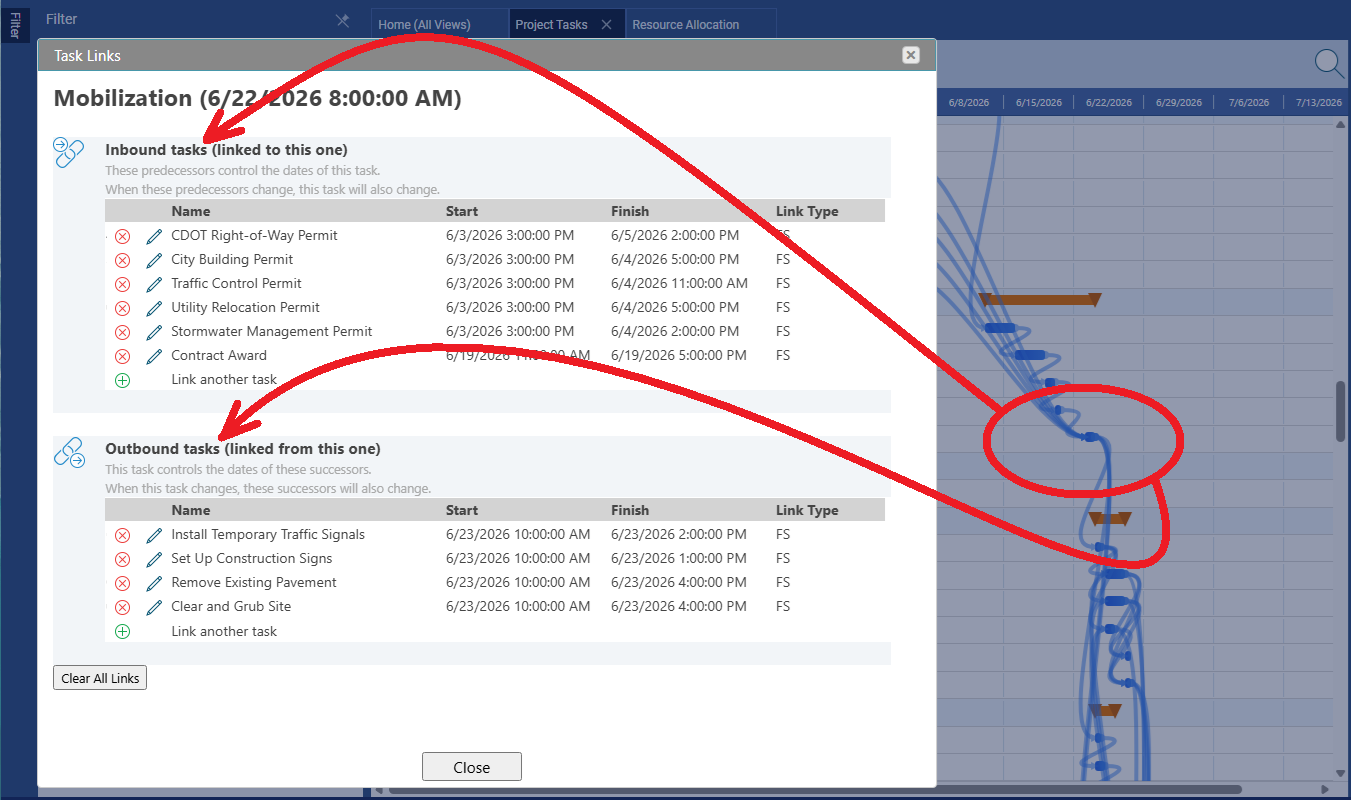
Entering these fifteen links manually takes 20–30 minutes. The AI can add all dependencies in a single prompt, including lag values derived from real-world aerospace lead times: "Wire the milestones in this project with Finish-to-Start links. Use realistic lag values for a crewed Mars program — include procurement lead times for long-lead hardware and regulatory cycle times for review boards." The manual approach here is intentional; you are building the same dependency table the AI would generate, which means you will recognize immediately when an AI-generated schedule has a lag that is too short or a link that is missing entirely.
Definition: lag in project scheduling. Lag is a positive time offset on a dependency link. An FS + 90-day lag means the successor cannot start until the predecessor finishes and 90 more calendar days have elapsed. On this schedule, the 90-day lag between Mission Requirements Document Approved and PDR Complete represents the time needed to stand up the engineering team, issue subcontracts, and run the preliminary design cycle before the PDR board convenes. Without lag, an FS link would place PDR on the same calendar day as requirements approval — physically impossible, and a schedule no review board will accept. As you enter each lag value from the table, notice that the total project duration is not the sum of all lags — the three parallel manufacturing tracks (propulsion, structure, avionics) run concurrently after drawing release, so only the longest one (propulsion at 240 days) controls that stretch of the critical path.
Lock the Mission Baseline
Before any real work begins, lock the current schedule as the reference plan. Right-click the Mars Transfer Vehicle project row and choose Advanced → Set baseline for all tasks.
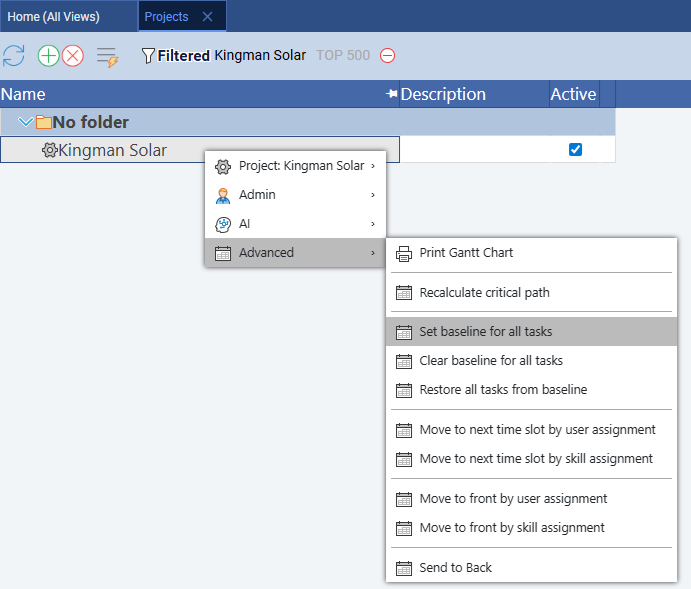
After the baseline is set, ghost markers appear alongside each milestone diamond in the Gantt. The ghost records where the milestone was scheduled when you locked the plan. As the project progresses and dates change, the gap between the current diamond and its ghost shows the slip — or the gain — against the original plan.
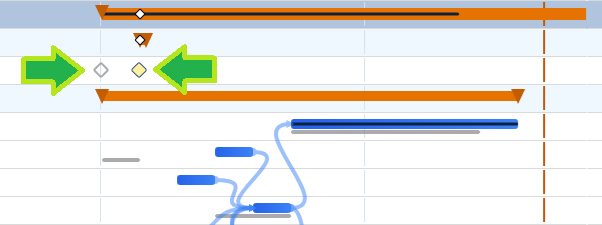
Look for: the ghost diamond is always smaller and lighter than the current diamond. When both align vertically, the milestone is on plan. When the current diamond has moved right of the ghost, the gate has slipped. A current diamond left of its ghost means the gate was achieved ahead of schedule. A milestone-only Gantt with ghost markers is one of the clearest schedule health views available — no bar lengths to interpret, just diamond positions relative to their planned dates. If you had used AI to build this schedule, the baseline would be set the same way: no AI involvement in the baseline step. The right-click menu is always manual.
Identify the Critical Chain
Right-click the project row and choose Advanced → Recalculate critical path. Maverick evaluates the float on every task. Milestone diamonds with zero float — those whose dates, if slipped by even one day, extend the project end date — appear in red. These red diamonds form the gate-to-gate critical chain of the mission.
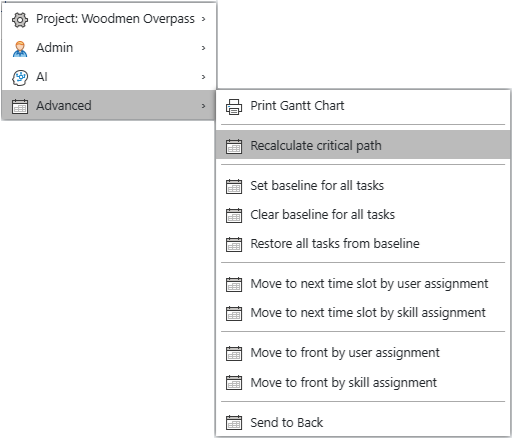
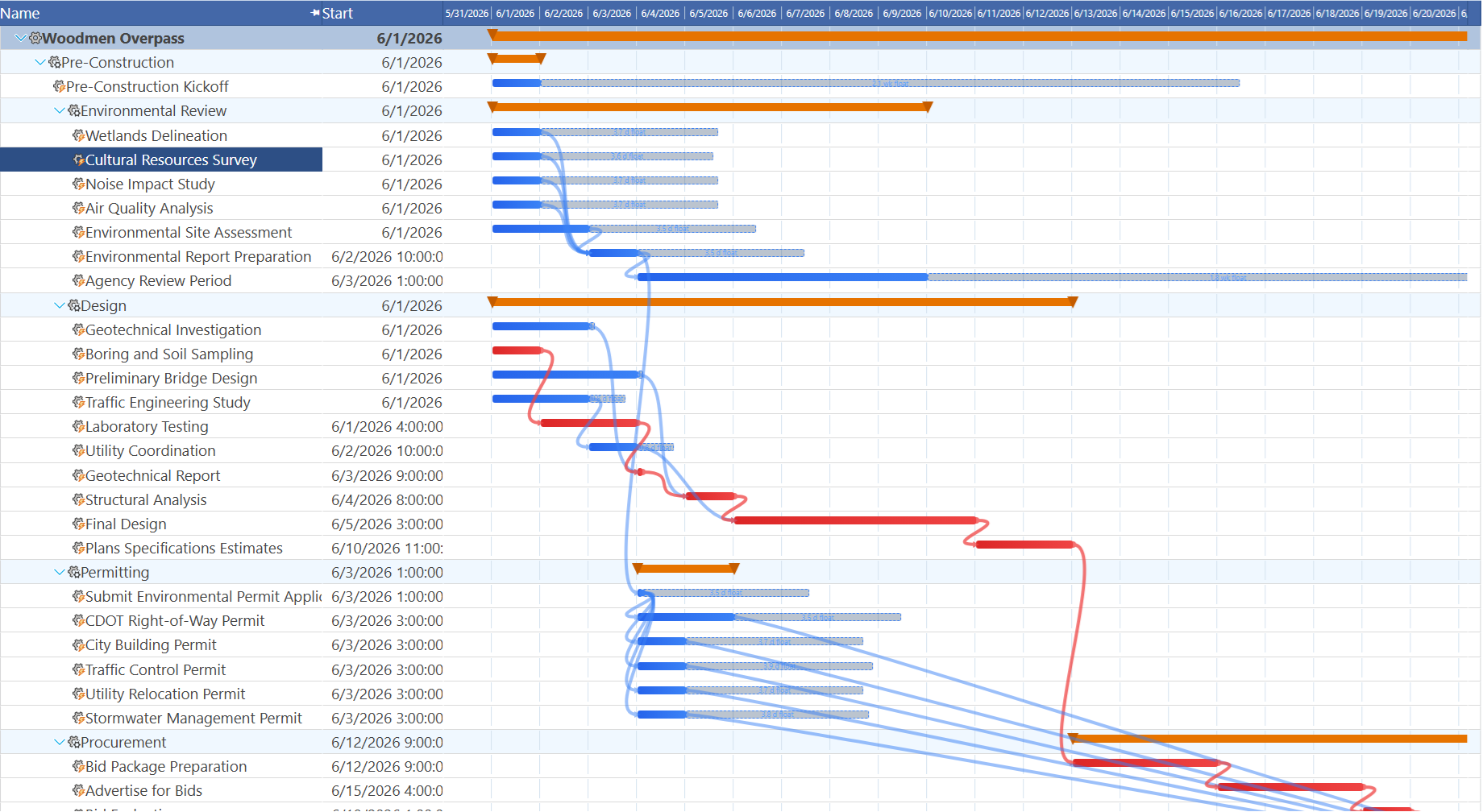
On the Mars Transfer Vehicle schedule, the critical chain runs through the design reviews, drawing release, and the longest manufacturing lead time — propulsion system delivery at 240 days. The FRR, launch authorization, and injection burn all depend on a working engine, and the engine depends on drawings that cannot be released until CDR is complete. Any slip in the design review sequence ripples forward through propulsion manufacturing and pushes the launch date. The avionics and structure tracks (150 and 180 days respectively) have float: they could slip without moving the project end date, because propulsion takes longer.
Industry insight: on early-phase aerospace programs, approval gates control the critical path more often than physical work does. On a construction project, the critical path typically runs through the longest physical activity — concrete cure time, structural steel delivery. On an aerospace program during design and manufacturing, the critical path runs through review board scheduling, regulatory comment periods, and certification documentation. The PDR-to-CDR lag in this schedule is controlled by board availability and subcontractor design cycles, not by how fast engineers can draw. Identifying this early is one of the primary reasons to build the schedule before detailed work begins. An AI scheduling the same project would likely surface this observation as part of a "Review this schedule and identify which milestones are controlling the critical path" prompt — here, you can see it directly in the red diamond chain.
What the Milestone Gantt Tells You
Open Home → Projects to see the project overview Gantt. With the Mars Transfer Vehicle in the list, milestone diamonds appear overlaid on the project's summary bar across the full timeline. A well-structured milestone schedule produces a Gantt that tells the mission story at a glance: sparse diamonds in the early definition phase, a burst of diamonds during integration and test, and a final decisive diamond when mission success is declared.
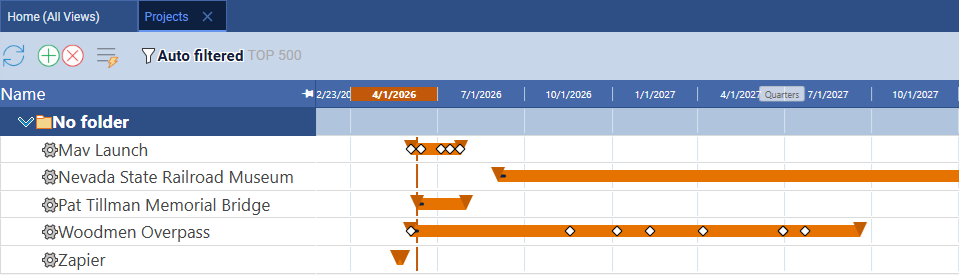
The milestone view also reveals whether the 2033 launch window is achievable. Count the calendar days from the Mission Architecture Finalized milestone — the last gate of Phase 1 — forward to the Launch Authorization Received date. If the design, manufacturing, and testing chain exceeds the available runway before the window closes in August 2033, the schedule is already infeasible before a single drawing is made. This is the value of a milestone-only schedule at program inception: it surfaces go/no-go timing before resources are committed.
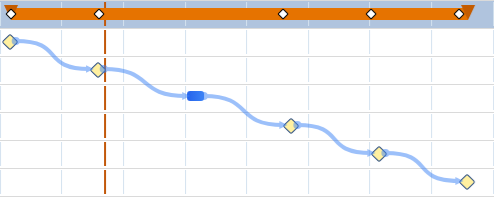
Audit tip: three milestone distribution patterns that should prompt a schedule review.
- All milestones in the last 20% of the timeline. A back-loaded plan where every gate is deferred to near completion. Risk accumulates invisibly until the final phase because no intermediate gates can catch schedule drift early.
- A phase longer than 60 days with no milestone. An unmonitored stretch. If the six-month propulsion manufacturing phase had no interim delivery checkpoint, a problem present at week two might not surface until month five — with no time to recover.
- Two critical-chain milestones with less than 7 days of lag between them. A risk disguised as a dependency. A two-day gap between the FRR and launch authorization assumes the board issues its authorization in 48 hours with no rework cycle — an assumption that one unresolved anomaly will disprove.
Extra Credit: Add the Real Tasks
The milestone structure you built is a valid executive schedule — stakeholders can read it directly. But a milestone-only schedule has no work content beneath the gates: it shows when things must be done, not what work produces each gate. The next level of detail is adding the actual tasks that fill each phase and drive the milestones forward.
Return to the text editor (click the project row, open Properties, click Tasks) and add work tasks between the milestones in each phase. The updated Vehicle Design phase might look like this:
Copy The Text Below
Vehicle Design & Engineering Subsystem Requirements Decomposition Thermal Analysis Structural Analysis Preliminary Design Review (PDR) Complete{duration:0.0h}{start:+15d} Interface Control Document Development Detailed Subsystem Design Model-Based Systems Engineering Updates Critical Design Review (CDR) Complete{duration:0.0h}{start:+135} Drawing Release Package Preparation Engineering Drawing Package Released{duration:0.0h}{start:+165d}
Once work tasks have durations assigned, the summary bar for each phase spans the actual work content and the milestone diamonds appear at the ends of the tasks that produce them. The critical path calculation also becomes more meaningful: it can now identify which specific work task, not just which review gate, is the longest-duration bottleneck in each phase.
If you want the AI to fill in the real tasks, here are prompts to try:
- Add 4–8 engineering work tasks under the Vehicle Design & Engineering phase that lead up to the PDR and CDR milestones, with realistic durations for a crewed spacecraft program.
- Add manufacturing and integration tasks under the Manufacturing & Fabrication phase. Include tasks for each of the three parallel tracks: propulsion, primary structure, and avionics.
- Identify any missing procurement milestones for long-lead items not already in the Mars Transfer Vehicle schedule.
- Add a pre-launch operations section between Launch Authorization Received and Trans-Mars Injection Burn Complete with countdown, systems checkout, crew boarding, and scrub-day buffer milestones.
- Review all milestones in this project. Which ones are missing a work-task predecessor that provides the duration context for the gate? Suggest what those tasks should be.
Related Topics
For a full explanation of how Maverick calculates dependency cascades, lag propagation, and what happens when lag exceeds available float, see Gantt Charts in Project Management. For the mechanics of zero-float identification on a milestone-only schedule and how the critical path algorithm handles diamond-shaped tasks with no inherent duration, see Critical Path Method. For the full workflow of setting, clearing, and restoring the baseline after milestone dates change, see Project Baselines: Set, Clear, and Restore. For the definition and scheduling role of a project milestone, see Project Milestone in the Maverick glossary. To build a similar large-scale schedule using AI instead of manual entry — the faster path for any real project — follow the Battery Energy Storage System blueprint or the Offshore Drilling Rig blueprint, either of which produces a complete dependency-wired schedule in a fraction of the time this blueprint required.