The Project
A deepwater semi-submersible drilling rig rents for $250,000 to $500,000 per day. That number is not a budget footnote — it is the defining constraint of every schedule decision made on an offshore campaign. An idle hour waiting for a missing drill bit, a deferred BOP test, or a permit that was not ordered early enough does not just delay the project. At $300,000 per day, a 72-hour schedule slippage erases nearly a million dollars before the first barrel of oil is produced.
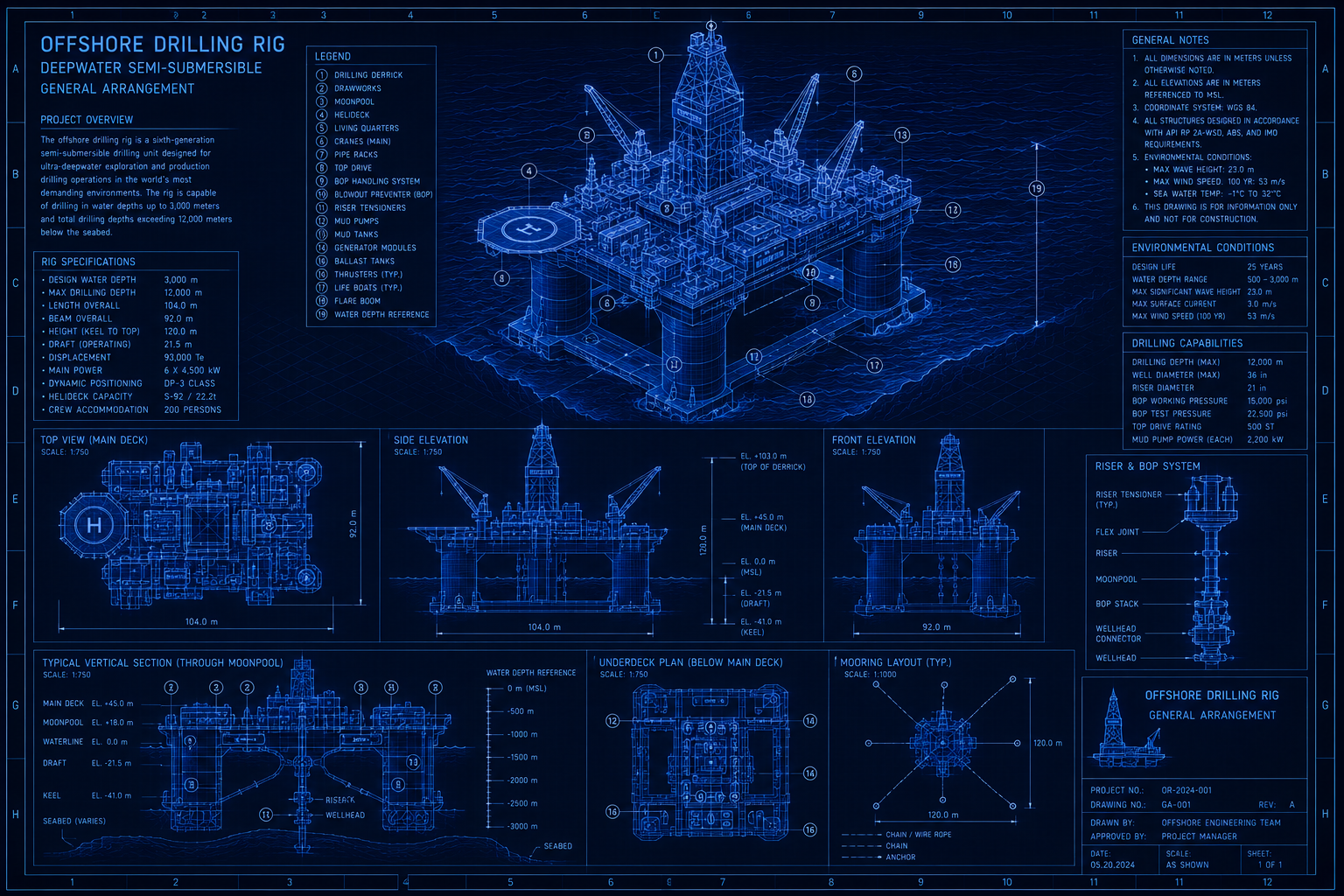
This blueprint builds a complete deepwater drilling campaign schedule using Maverick's AI from start to finish. The fictional project is Block 42 Well GC-785, a deepwater exploration well in the Gulf of America drilled to a measured depth of 14,200 feet in 5,200 feet of water depth from a fourth-generation semi-submersible. Seven project phases cover rig mobilization through demobilization. The resource pool includes three resource types: drilling consumables, rig and third-party equipment, and the hitch-rotation crew roles that run the operation around the clock.
Like the BESS blueprint, the AI builds this schedule entirely from prompts — you will not enter a single task by hand. Your job is to design the prompts, verify the output at each step, add the resource records the AI cannot create on its own, and make the structural decisions the AI flags for review. The AI is the driller; you are the company man.
Skills you will practice in this blueprint:
- AI Project Creation — prompt the AI to build a full phase structure for a deepwater drilling campaign from a single message
- Three Resource Types — AI identifies drilling fluids and casing (materials), BOP and rig equipment (machines), and hitch-rotation crew roles (human)
- AI Task Generation — AI adds 4–7 tasks per phase with deepwater-realistic durations and long-lead procurement flags
- AI Resource Assignment — AI matches crew roles and consumables to tasks by exact name from the pool you created
- FS, SS, and FF Dependencies — sequential wellbore handoffs, parallel rig floor operations, and a pressure-test tie-in
- Critical Path — identify whether procurement lead times or wellbore drilling time controls the project finish date
- Baseline — lock the AI-built plan before any work begins
- AI Self-Review — ask the AI to stress-test its own schedule against deepwater norms
Before You Prompt
Offshore drilling schedules have two properties that make AI-assisted building both more powerful and more error-prone than other project types. First, the wellbore sequence is physically constrained — you cannot drill the intermediate hole before setting the surface casing, and the AI will usually respect this. Second, the crew structure runs on a hitch rotation where multiple people fill each role over the life of the project — the AI may try to treat each crew member as a named individual rather than a role, which creates dozens of redundant resources. Read this section before opening the chat.
| AI handles this correctly | Watch for this AI behavior and correct it |
|---|---|
| Phase order follows physical drilling sequence | Listing individual crew names instead of hitch roles (e.g., "John Smith" instead of "Driller (Hitch Rotation)") |
| Wellbore section durations scale with water depth | Creating separate material resources for each wellbore section instead of one per material type |
| Long-lead BOP and riser delivery flagged | Assigning the same single-person specialist (e.g., BSEE Inspector) to multiple overlapping tasks |
| FS links between casing and drilling tasks | Missing the procurement-to-installation dependency for BOP stack and riser system |
| Identifies commissioning tie-in for pressure tests | Placing rig demobilization tasks before well testing is complete |
Token budget note. Including the full resource pool in AI context adds every resource record to each message. An offshore project with 20 resources and 55 tasks can use 2,500–4,500 tokens per exchange. Start this blueprint at the beginning of a token renewal period or on an unlimited plan. If you hit a rate limit during resource assignment, break the prompt into one phase at a time rather than retrying the full-project prompt — the AI's partial assignments are correct, and a second full pass will attempt duplicates.
Configure the AI Model
Maverick omits the resource pool from AI context by default to reduce token usage. For this blueprint, the AI needs to see the full resource pool so it can assign named crew roles and materials to specific tasks. Go to Tools → AI Providers.
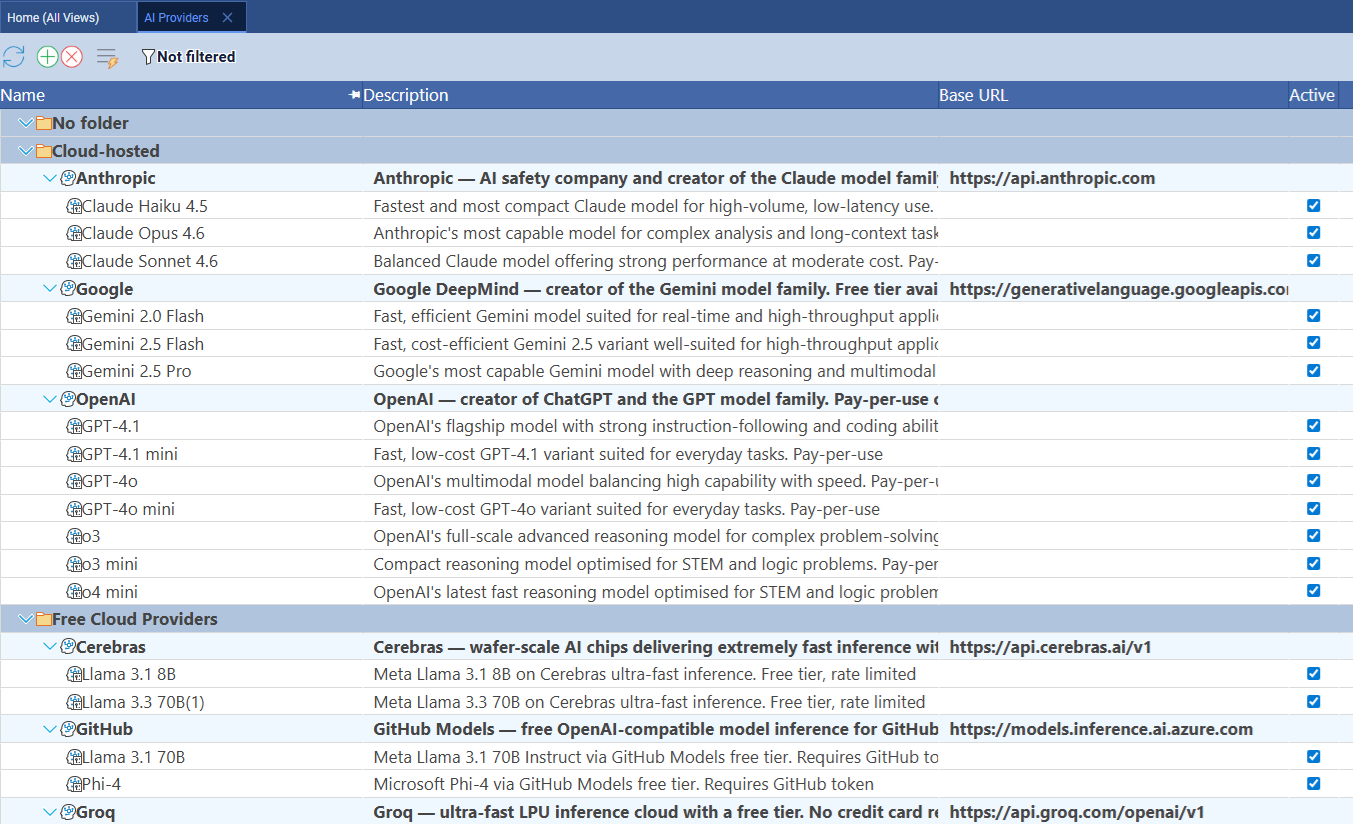
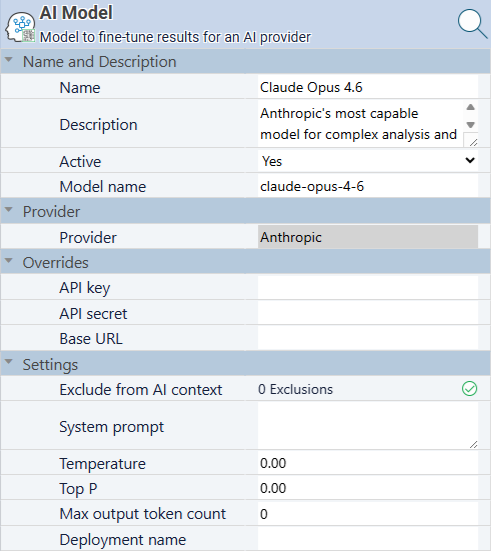
Click the model row you want to use. The Properties panel opens on the right. Find the Exclude from AI context property and click it to open the checkbox list.
Uncheck Exclude full resource pool and Exclude resource assignments. Leave all other exclusions at their defaults. Save and close.
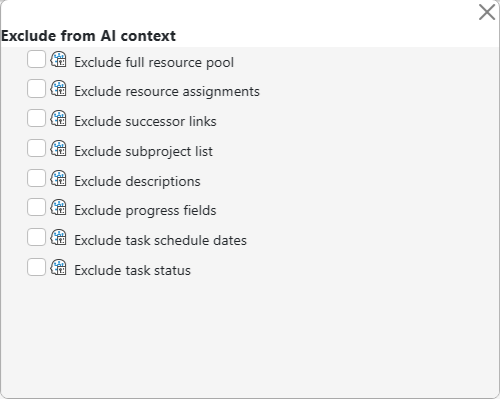
You can re-enable these exclusions when this blueprint is complete. The resource pool inclusion is needed here because the AI must match exact resource names to task assignments. For projects where you enter assignments manually, the exclusions reduce token cost with no capability loss. When this blueprint is finished, return to Tools → AI Providers, recheck both exclusions, and the AI returns to its default lower-token operating mode for your other projects.
Open a Fresh AI Session
The Block 42 project does not exist yet. Before opening any project, go to View → Chat With AI. The chat window opens with no project loaded. This is the correct starting state — do not navigate to an existing project first.
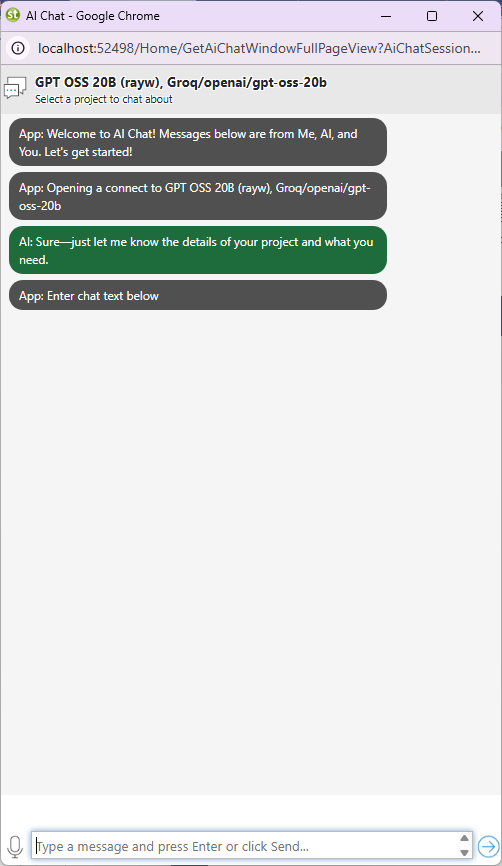
If you open a project before starting the chat, the AI will modify it instead of creating a new one. When a project is in context, the AI interprets all creation prompts as additions to that project. A prompt asking to "create a drilling campaign with seven phases" will add seven subprojects to whatever project is currently open. Close all projects and reopen the chat before sending the first prompt in this blueprint.
Build the Rig's Phase Structure
With the blank chat open, send the project creation prompt. Ask for summary phases only — not individual tasks. Getting the phase structure confirmed before adding tasks means you can fix phase order or naming without reorganizing 50-plus tasks underneath them.
Copy The Text Below
Create a new project named 'Deepwater Drilling Campaign -- Block 42 Well GC-785'. Add only the top-level summary phases -- do not add individual tasks yet. Use these phases: Rig Mobilization, Pre-Drill Surveys and Permits, Marine Systems Installation, Drilling and Hole Sections, Wellbore Completion, Well Testing, Rig Demobilization.
The AI will confirm the project and list the seven phases it created. Verify the response before proceeding.
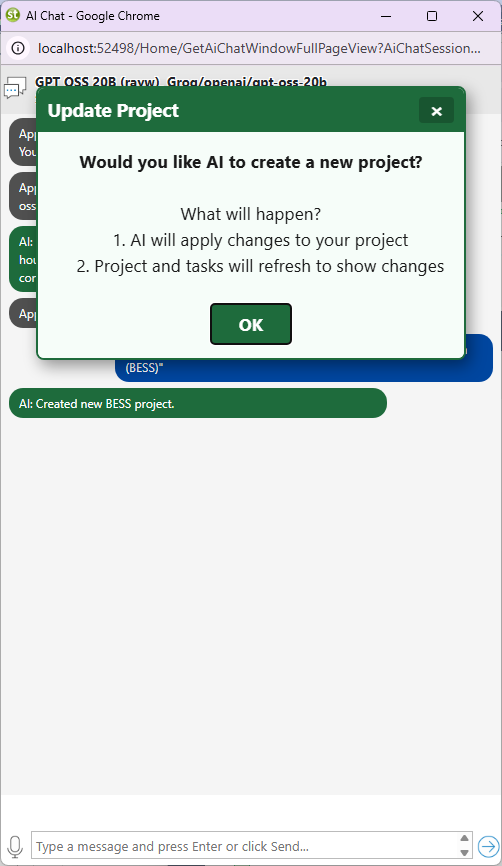
To verify the structure in Maverick, go to Home → Projects, right-click the Block 42 project row, and choose Admin → Subprojects. All seven phases should appear as subproject entries in the correct drilling sequence.
Wellbore sequence matters more here than in most project types. In a construction project, you could debate whether foundation work or utility trenching starts first. In a drilling campaign, the sequence is physically determined: you cannot run casing before you drill the hole, and you cannot drill the next section before the previous casing is cemented and the cement has cured. If the AI creates the phases in the wrong order, correct them now in Admin → Subprojects. Reordering is one drag operation in that popup; fixing it after 55 tasks are assigned is significantly more work.
Add Rig Equipment and Drilling Materials
Send two resource prompts — one for materials consumed during the well, one for equipment deployed to the site. Keeping them separate produces cleaner resource lists that are easier to review and add to Maverick.
For materials, send this prompt while the Block 42 project is in context:
Copy The Text Below
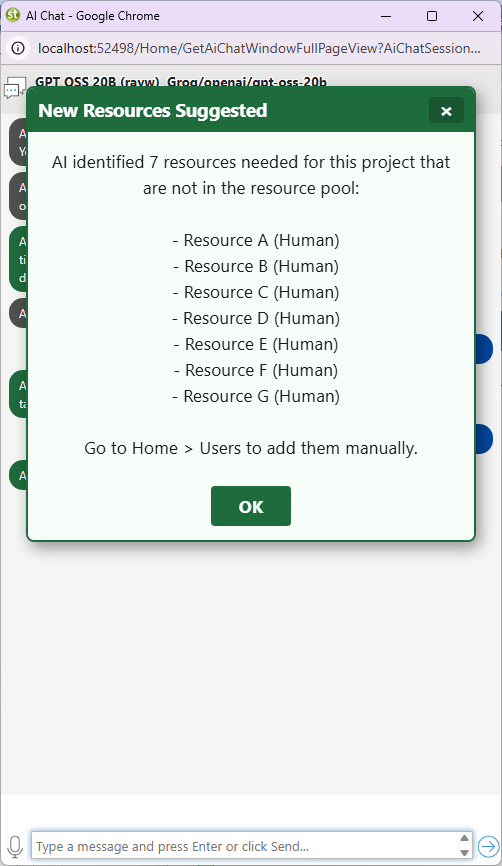
For the Block 42 drilling campaign, identify the material resources consumed during drilling operations. Include drilling fluids, cement slurries, casing strings, and wellbore expendables. List each material with the phase where it is primarily consumed and a typical unit of measure for a single deepwater well in 5,200 feet of water depth.
For equipment, send a second prompt:
Copy The Text Below
List the heavy equipment and specialized rig machinery required for a deepwater semi-submersible drilling campaign in the Gulf of America. For each piece of equipment, specify which phases it is active in and whether it is rig-resident equipment or third-party equipment mobilized specifically for this campaign.
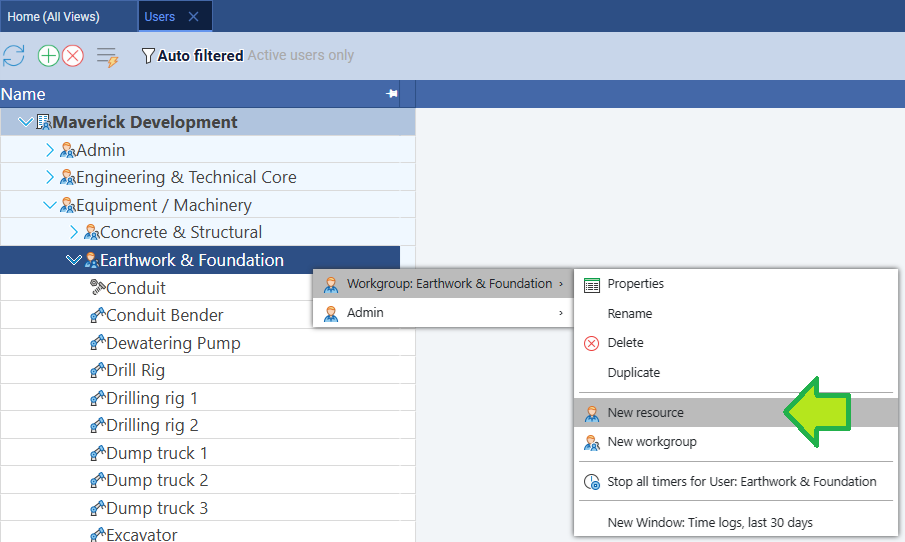
Add both material and equipment resources to Maverick. Go to Home → Users, click a workgroup, then click the green + button. Enter the resource name exactly as the AI listed it. Set the Resource type to Material for fluids and casings, and Machine for rig and vendor equipment.
 Material resource type
 Machine resource type
Industry insight: the BOP stack is the most schedule-critical piece of equipment on this list. Blowout preventer stacks have lead times of 16–52 weeks depending on configuration, manufacturer backlog, and post-incident regulatory inspection requirements. If the BOP stack delivery date is not locked before Rig Mobilization begins, the entire drilling phase will float on an unknown date rather than a firm predecessor. Add “BOP Stack Delivery [20-week lead time]” as a procurement task in the Rig Mobilization phase and confirm that the AI wires it as a predecessor to the Marine Systems Installation phase before the campaign spuds.
Add the Drilling Crew
Offshore rigs run on a hitch rotation — typically 14 days on, 14 days off or 28/28. Each role represents a position filled by rotating individuals over the life of the project, not a single named person. The AI must understand this before it suggests a crew list, or it will generate individual names and create dozens of redundant resource records.
Copy The Text Below
List the human resources required for a deepwater drilling campaign on a semi-submersible rig using a standard hitch rotation system. For each crew role, specify which phases they are active in. Treat each role as a crew position, not an individual -- a 'Driller' represents the full driller hitch rotation, not a single person.
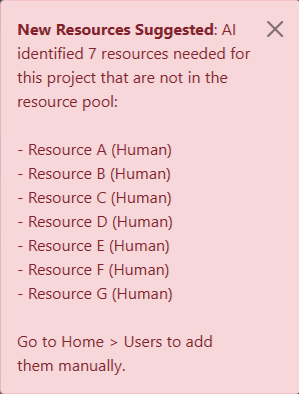
Add each crew role to Maverick with Resource type set to Human. Typical roles the AI will suggest: Toolpusher (Hitch Rotation), Driller (Hitch Rotation), Mudlogger, Directional Driller, Wellsite Geologist, Completion Engineer, BSEE Well Inspector, and Company Man.
 Human resource type
What to look for after adding the crew: the BSEE Well Inspector is a single-visit constraint, not a resident resource. The Bureau of Safety and Environmental Enforcement inspector arrives for specific regulatory milestones — conductor casing cement verification, BOP pressure test sign-off, and final well integrity certification — and is not on-site continuously. If the AI assigns the BSEE Inspector to every task in the Drilling and Hole Sections phase at 100% allocation, correct it before proceeding. That inspector will show a severe red overallocation bar in the resource allocation chart and will incorrectly control the critical path through tasks that do not actually require regulatory presence.
Fun Fact: Why Rig Day Rates Make Every Scheduling Decision a Financial One
The daily cost of a drilling rig is unlike any other line item in a capital project. On a land well, a day of weather delay is an inconvenience. On a deepwater semi-submersible, that same day costs more than most project managers earn in a year — and the meter runs whether the rig is drilling, waiting on weather, waiting on a part, or waiting on a signature. This is why the phrase "rig time is money" is not a figure of speech in the upstream oil and gas industry; it is the central equation of every scheduling decision made on an offshore campaign.
| Rig Type | Typical Water Depth | Day Rate Range | Primary Schedule Risk | Cost of 1-Week Slip |
|---|---|---|---|---|
| Jackup | 0–400 ft | $40K–$120K/day | Wind/wave limits during mat setting | $280K–$840K |
| Semi-Submersible (mid-water) | 400–1,500 ft | $150K–$280K/day | BOP maintenance windows | $1.1M–$2.0M |
| Semi-Submersible (deepwater) | 1,500–10,000 ft | $250K–$500K/day | Procurement lead times; weather downtime | $1.75M–$3.5M |
| Drillship (ultra-deepwater) | 3,000–12,000+ ft | $300K–$600K/day | Station-keeping; riser fatigue management | $2.1M–$4.2M |
| Platform Rig (comparison) | Fixed depth | $15K–$60K/day | Slot availability; existing production interference | $105K–$420K |
The Block 42 campaign in this blueprint uses a fourth-generation deepwater semi-submersible at a nominal day rate of $320,000. At that rate, every task on the critical path carries a financial cost that makes the scheduling work here more than an exercise — it is a simulation of the exact calculation that operating companies perform before approving a well program. For current rig market day rate data, see the International Association of Drilling Contractors industry data portal.
Generate the Task List
With all resources in Maverick and the phase structure confirmed, send the task-generation prompt. This produces the bulk of the schedule — 35 to 50 tasks across seven phases. Errors here (wrong durations, missing procurement tasks, misindented tasks) propagate forward into resource assignment and dependency wiring, so verify the output carefully before moving on.
Copy The Text Below
Add individual tasks under each summary phase of the Block 42 drilling project. Each phase should have 4 to 7 tasks with realistic durations in working days for a deepwater well in 5,200 feet of water depth. Include at least one long-lead procurement task with the lead time noted in the task name. Note any tasks that require third-party vendor presence or BSEE regulatory sign-off before they can begin. Do not assign resources yet.
The table below shows one example of what the AI might produce for three of the seven phases. Your AI session will generate different names, durations, and groupings — use this as a reference for the level of detail to expect, not as a checklist to match exactly.
| Phase | Task | Duration | Rig Constraint |
|---|---|---|---|
| 1 — Rig Mobilization | Tow-out permit and route survey | 3 days | Regulatory |
| 1 — Rig Mobilization | BOP stack delivery & staging [20-week lead time] | 1 day | Long-lead procurement |
| 1 — Rig Mobilization | Rig tow to location | 5 days | Weather window |
| 1 — Rig Mobilization | Anchor pattern deployment | 3 days | Marine crew |
| 1 — Rig Mobilization | Riser system inspection and makeup | 4 days | Third-party vendor |
| 3 — Marine Systems Installation | Subsea wellhead installation | 3 days | ROV crew |
| 3 — Marine Systems Installation | BOP landing and function test | 5 days | BSEE sign-off required |
| 3 — Marine Systems Installation | Riser running and pressure test | 4 days | Third-party vendor |
| 3 — Marine Systems Installation | Marine riser tensioner setup | 2 days | Rig-resident |
| 4 — Drilling & Hole Sections | Spud and drill 36" conductor hole | 3 days | Driller |
| 4 — Drilling & Hole Sections | Run and cement 30" conductor casing | 4 days | Cement pump unit |
| 4 — Drilling & Hole Sections | Drill 17.5" surface hole | 8 days | Driller; mud logging |
| 4 — Drilling & Hole Sections | Run and cement 13-3/8" surface casing | 5 days | Cement pump unit; BSEE |
| 4 — Drilling & Hole Sections | Drill 12.25" intermediate hole | 12 days | Directional driller |
| 4 — Drilling & Hole Sections | Run and cement 9-5/8" intermediate casing | 6 days | Cement pump unit |
| 4 — Drilling & Hole Sections | Drill 8.5" production hole to TD | 15 days | Directional driller; mudlogger |
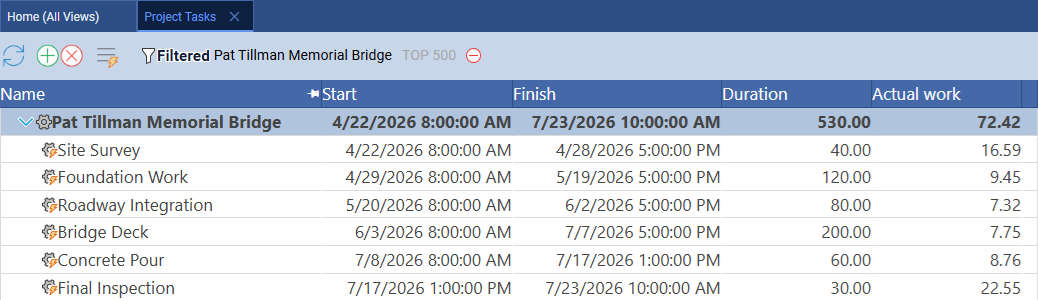
Audit the hierarchy before moving on. After the AI adds tasks, open Home → Project Tasks and check that every task is indented under the correct phase. A task that appears at the summary level instead of under its phase will roll up its duration to the project level and distort the critical path calculation. A phase accidentally buried as a child task will not appear in the Subprojects list and will not behave as a rollup row in the Gantt. Fix any mis-indented tasks in the Properties panel now — correcting structure after 20 resources have been assigned to those tasks is significantly harder.
Assign Resources to Drilling Tasks
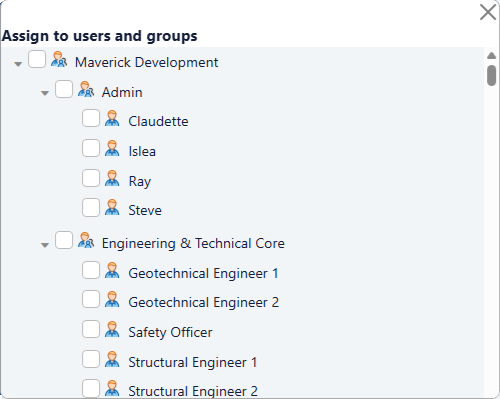
With the full resource pool in Maverick and tasks under each phase, ask the AI to assign resources by exact name. The AI will match its assignments against the names you created in the previous sections.
Copy The Text Below
Assign the resources from the resource pool to each task in the Block 42 project. Use the exact resource names from the resource pool. Set the drilling crew roles that are active continuously during their phases to 100% allocation. Assign drilling fluids and cement to the specific wellbore section tasks where they are consumed, not to the procurement tasks.
If the AI session times out mid-assignment, do not retry the full-project prompt. The partial assignments already applied are correct. Prompt by phase instead:
Copy The Text Below
Assign resources to the Drilling and Hole Sections phase tasks only. Use the exact resource names from the resource pool.
After all phases are assigned, open the resource allocation bar chart to check for red overallocation bars.
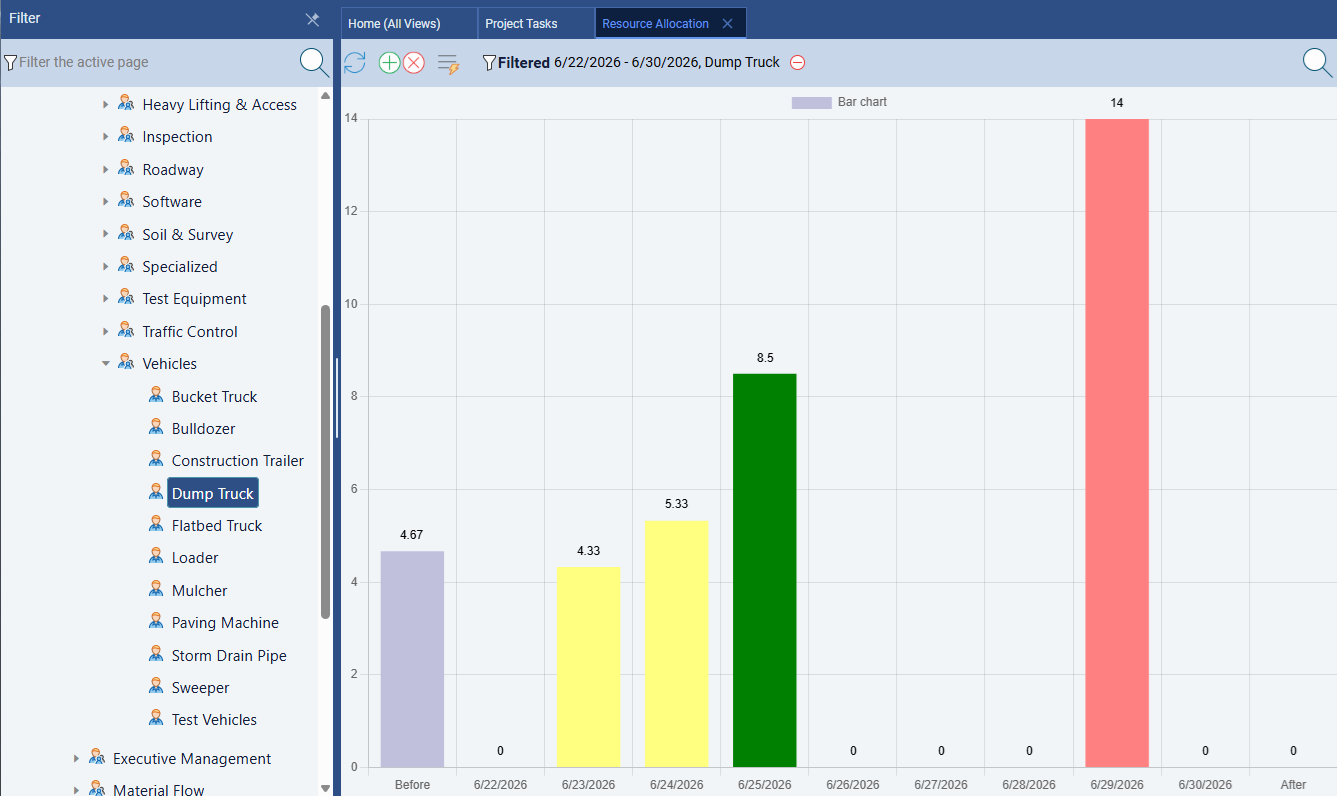
The Directional Driller is the most likely double-booking candidate. Directional drillers are specialists who are present for deviation surveys and directional corrections during specific hole sections, then demobilized. If the AI assigns the Directional Driller to every task in the Drilling and Hole Sections phase at 100%, the allocation chart will show a red overallocation bar across 40-plus days. The correct assignment is 100% during the directional hole sections (12.25" intermediate and 8.5" production) only. Ask the AI: "The Directional Driller is over-allocated. List every task assigned to this resource and their start and finish dates. Remove the assignment from tasks where directional guidance is not required."
Wire the Drilling Sequence
A task list with no dependency links produces a Gantt where every task starts on the project start date. For an offshore well, that would imply you could drill all seven hole sections simultaneously — which is physically impossible. The dependency-wiring prompt establishes the wellbore sequence and the parallel operations that the AI can safely overlap.
Copy The Text Below
Add dependencies between the Block 42 project tasks to reflect the physical drilling sequence. Each wellbore section must be drilled and cased before the next hole section can begin -- use Finish-to-Start links for these handoffs. Within phases, use Start-to-Start links where parallel rig floor operations can safely overlap without a resource conflict. Identify any Finish-to-Finish relationships where two systems must both confirm readiness before a well test or pressure integrity milestone can begin.
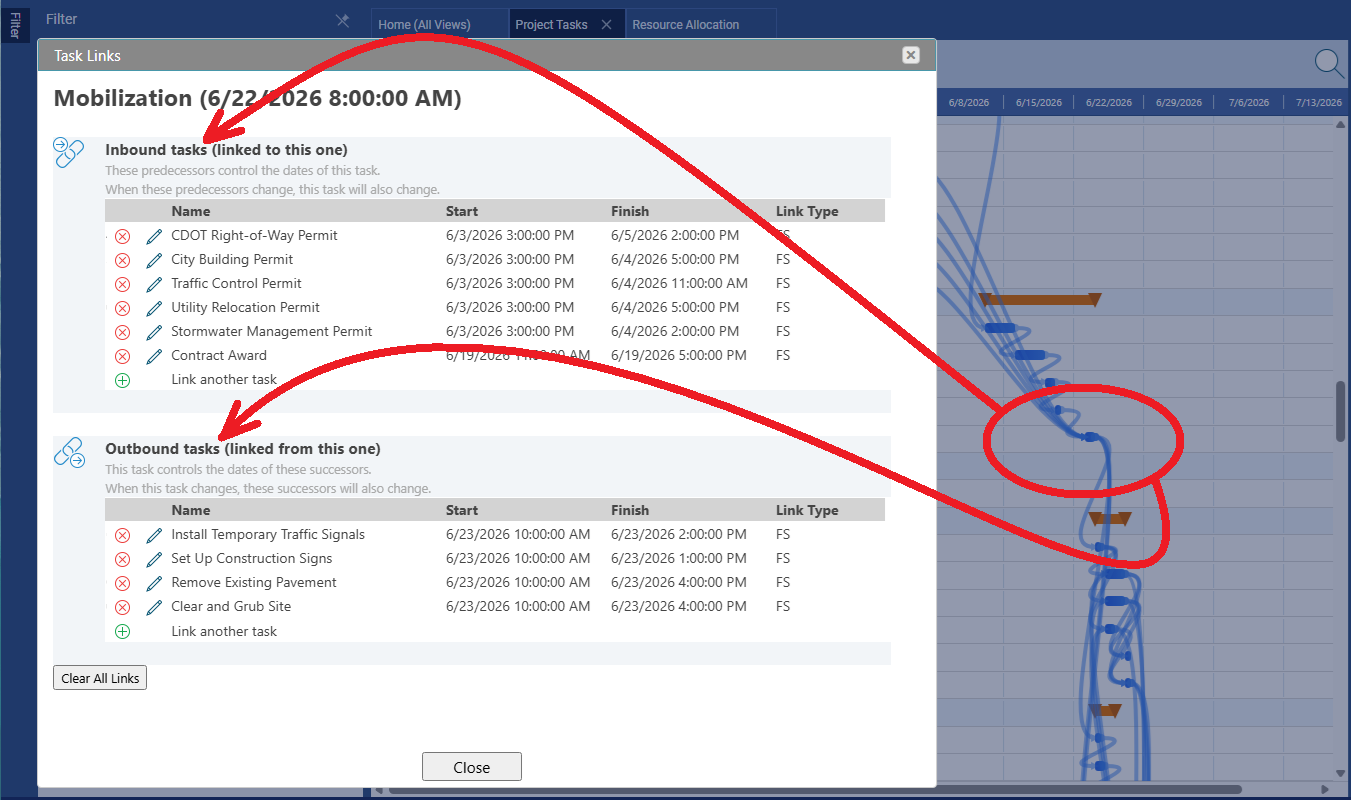
The Finish-to-Finish relationship that matters most in a deepwater campaign is between the BOP pressure test and the riser pressure test. Both must pass independently before the well can be spudded — the drilling crew cannot begin conductor operations until both systems have confirmed pressure integrity. If the AI wires these as sequential Finish-to-Start links, the schedule is artificially extended because the two tests can run in parallel as long as they both complete before spud. Ask the AI to correct this if needed:
Copy The Text Below
Are there any Finish-to-Finish relationships in the Marine Systems Installation phase? Specifically, should the BOP pressure test and the riser pressure test be linked with a Finish-to-Finish dependency so both must complete before the Drilling and Hole Sections phase can begin?
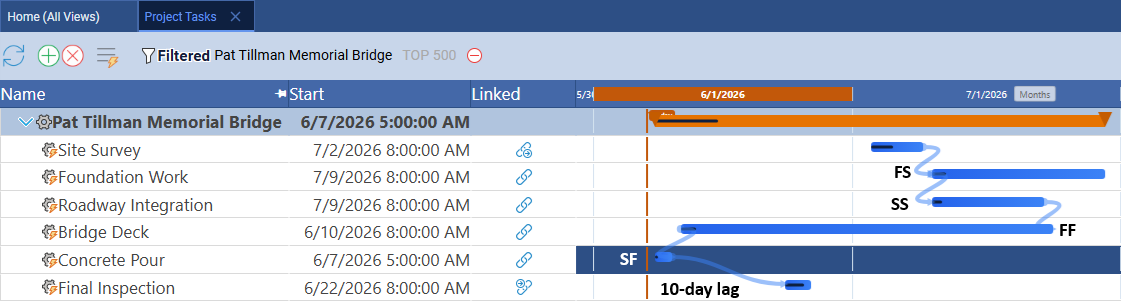
Why SS links appear in the Drilling and Hole Sections phase. On a semi-submersible, the mud logging unit begins analyzing drill cuttings as soon as the drill bit penetrates formation — it does not wait for the hole section to finish. This is a Start-to-Start relationship: mud logging starts when drilling starts, not when drilling ends. Similarly, the directional driller begins deviation surveys concurrent with drilling, not after the bit reaches total depth for that section. These overlapping operations are why the Drilling and Hole Sections phase duration is not simply the sum of all task durations — SS links allow the tasks to run in parallel, compressing the phase and making the actual elapsed drilling time shorter than the task list total would suggest.
Confirm the Gantt Cascade
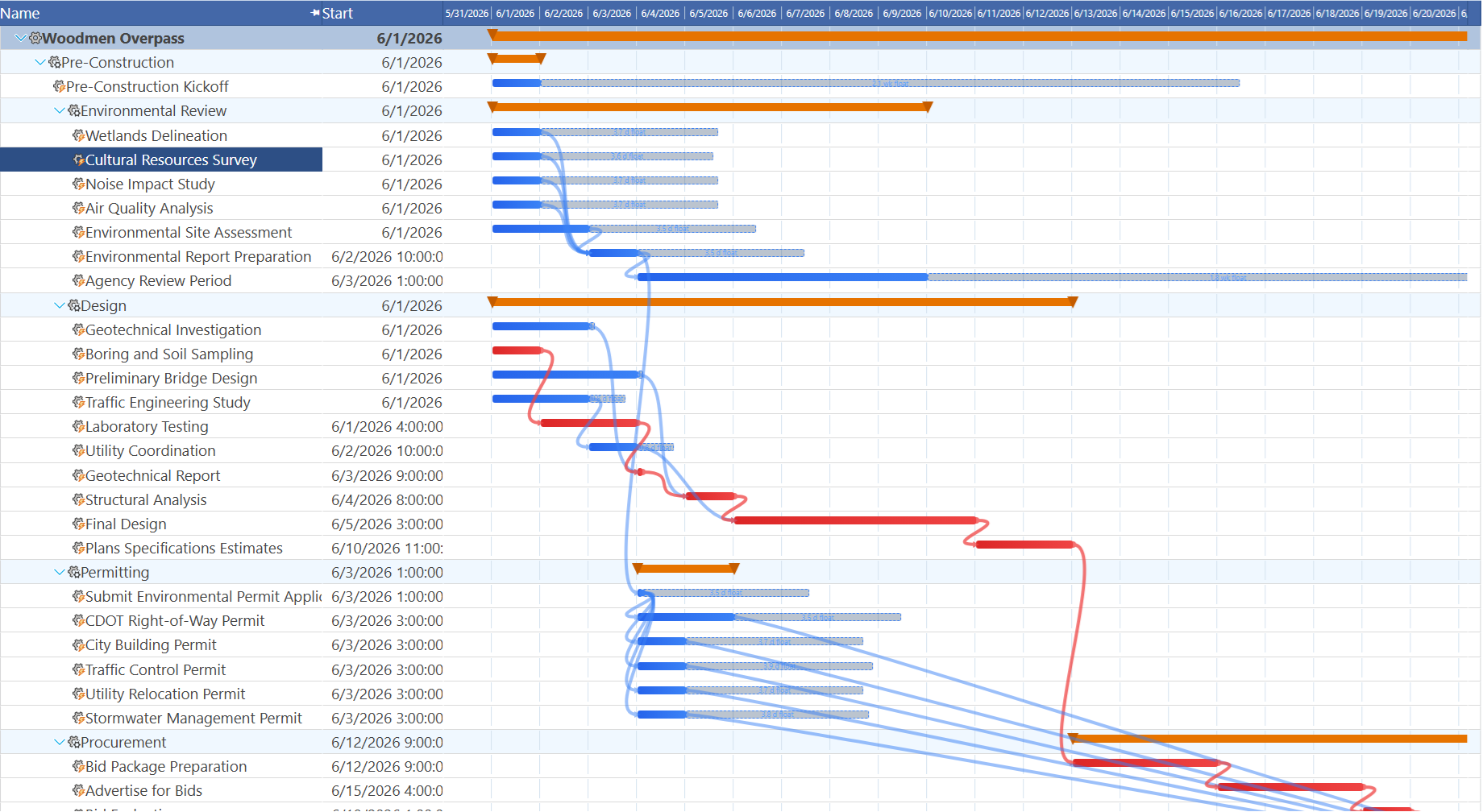
Go to Home → Project Tasks and look at the Gantt bars. With seven phases, 40-plus tasks, and dependencies wired, the schedule should fan out left to right across the timeline. Phase 1 (Rig Mobilization) anchors the left edge. The Wellbore Completion and Well Testing phases should appear late in the timeline, after the long drilling section. Rig Demobilization should be the final bar on the right.
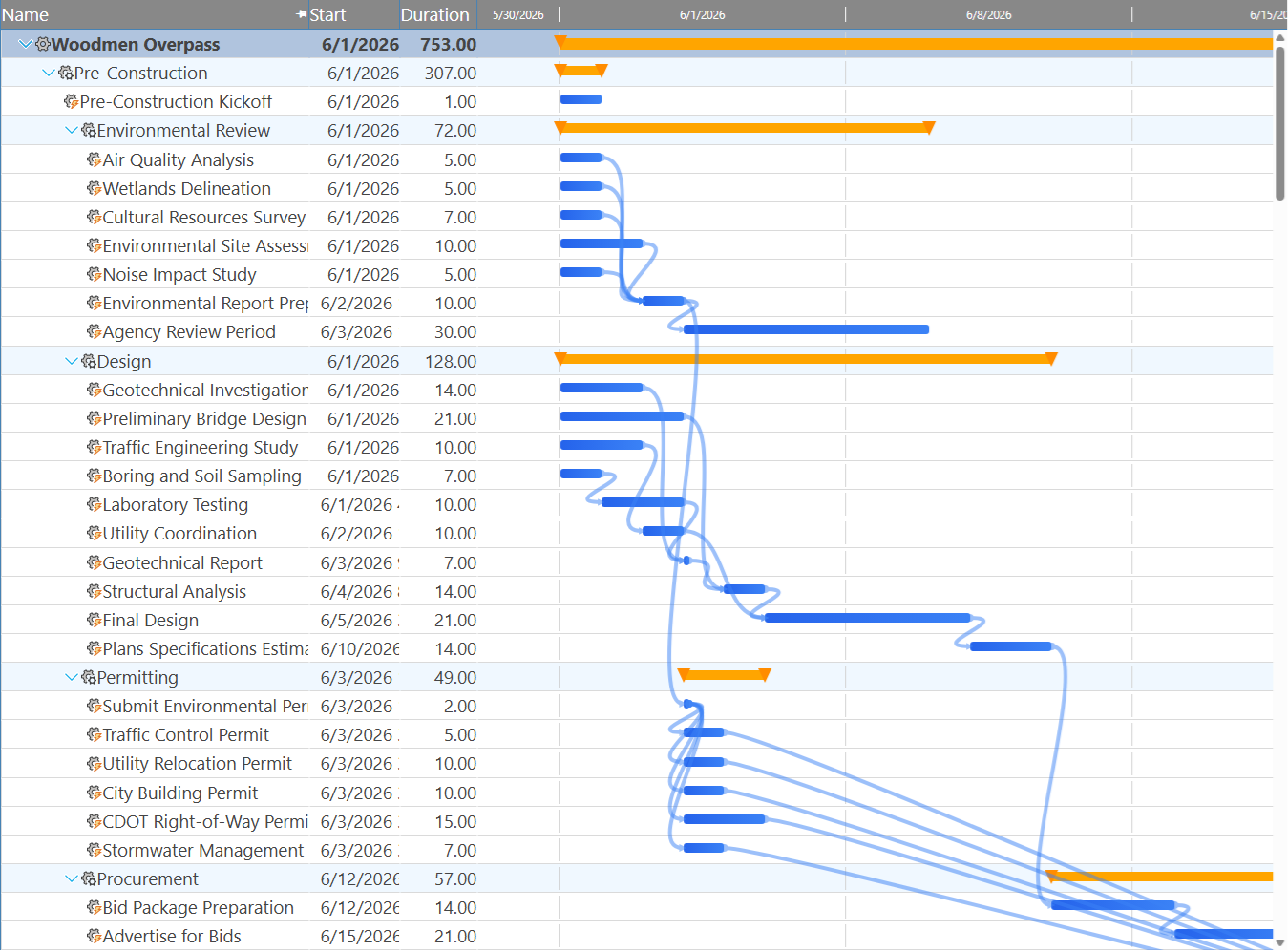
A stacked bar-code pattern means no dependencies were saved. If all tasks appear as vertical bars aligned at the project start date instead of cascading left to right, the dependency prompt did not apply correctly. Before retrying, check whether the AI confirmed the links in its response — some sessions acknowledge the dependency prompt but do not write the links. If the confirmation text is missing, prompt again: "List all tasks in the Block 42 project that have no predecessors and no successors. Which of these should have at least one dependency link?" That output identifies the floating tasks to focus on first rather than rewiring the entire schedule.
Set the Baseline
Right-click any project row and choose Advanced → Set baseline for all tasks. Maverick locks the current start and finish date of every task as the reference plan. Ghost bars appear below each task bar in the Gantt — the small gray bars that track where each task was scheduled when you locked the plan.
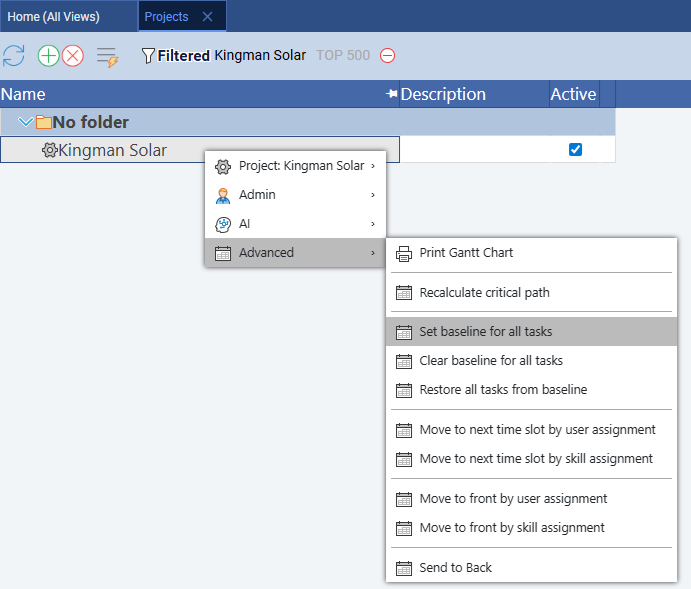
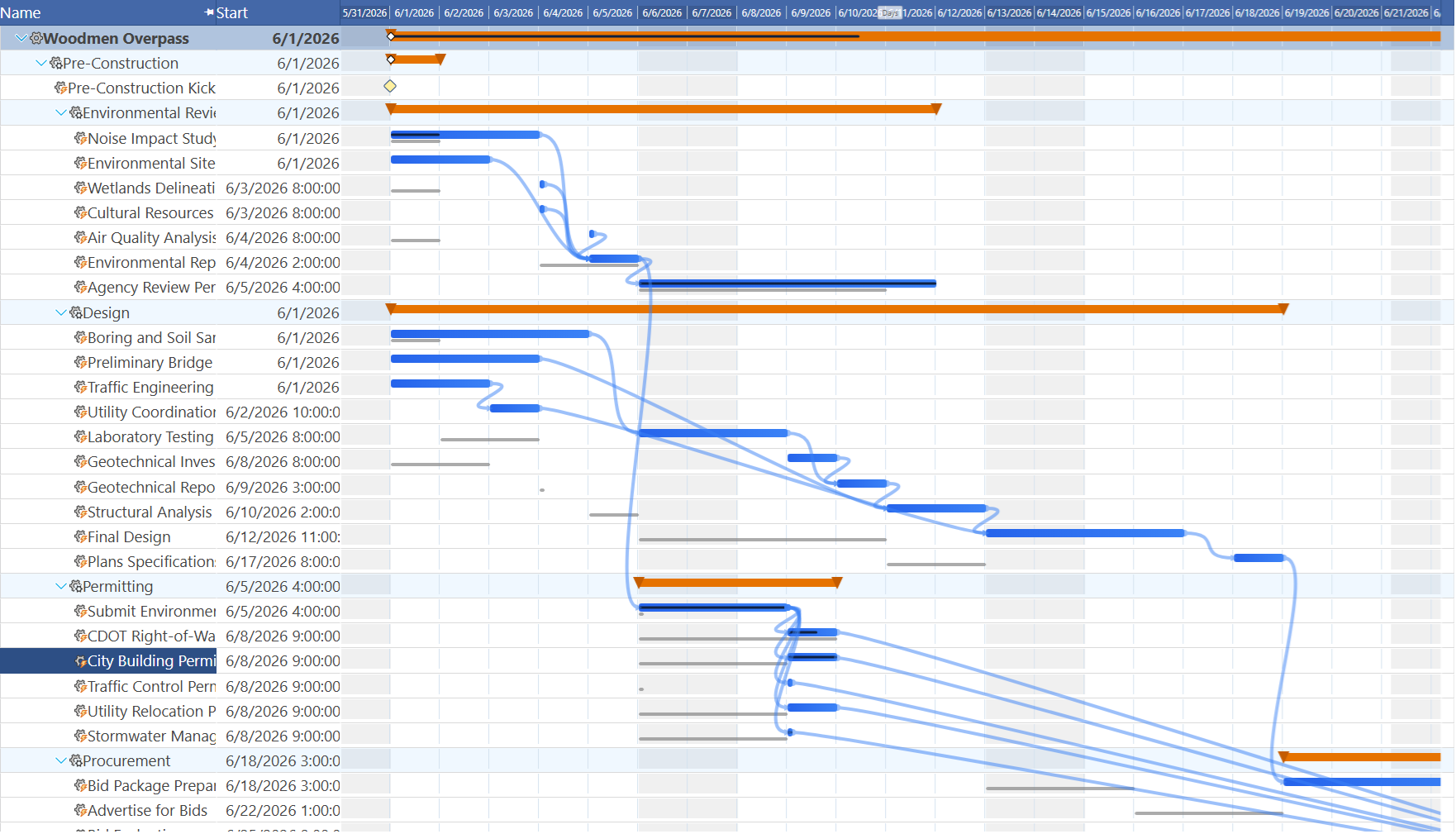
What to look for after setting the baseline: confirm ghost bars are visible on every task, including the procurement tasks. The BOP stack procurement task should have a ghost bar that extends 20 weeks before the Marine Systems Installation phase — that is the visible proof that the long-lead item is in the baseline plan. If procurement tasks appear without ghost bars, they were excluded from the baseline operation (this can happen if those tasks were added after a partial baseline was first applied). Clear and reset the baseline using Advanced → Clear baseline for all tasks, then re-run Set baseline for all tasks to cover the full task list before any work begins.
Run the Critical Path
Right-click any project row and choose Advanced → Recalculate critical path. Critical tasks appear in red. On a deepwater drilling campaign, the critical path typically runs through BOP procurement, marine systems installation, and the drilling and hole sections — specifically the longest hole section, which is usually the production interval. The utility interconnect equivalent in a drilling project is the final well integrity certification: the BSEE inspector must sign off before the well can produce.
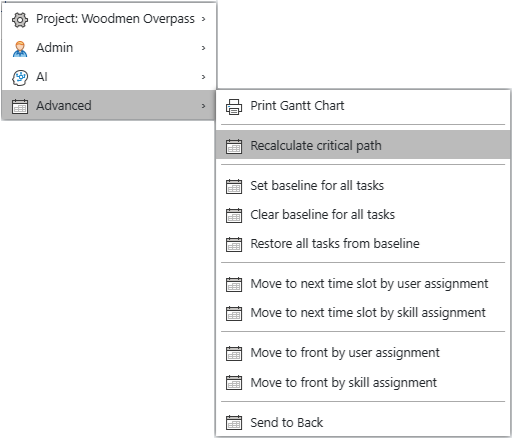
Industry insight: on deepwater campaigns, the critical path often runs through a desk, not a drill. The BSEE well permit for a deepwater exploration well can take 30–90 days from submission to approval, and the BOP stack procurement can run 20–52 weeks. Both of these are administrative and supply chain constraints, not physical drilling constraints. If either appears on your critical path with less than 5 days of float, the schedule is controlled by a permit application or a purchase order — and the only interventions are filing earlier, expediting, or accepting the delay. No amount of crew overtime or rig efficiency changes can shorten a regulatory review cycle. Identifying these constraints early, before the rig contract is signed, is one of the highest-value outputs of this entire exercise.
Stress-Test the Schedule with AI
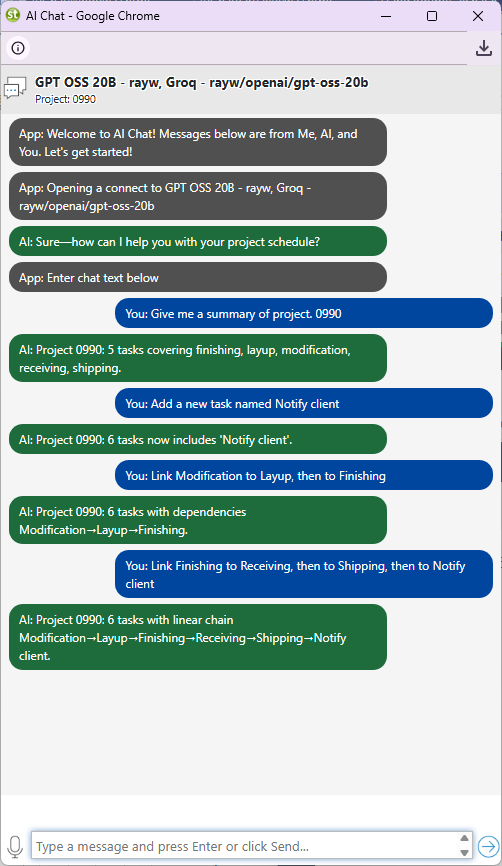
Open the AI chat for the Block 42 project (right-click the project row and choose AI → Chat with AI) and ask it to evaluate the schedule it built. This is the step where the AI functions as a second reviewer of its own output — looking for sequencing problems, resource conflicts, and duration estimates that seem out of range for a deepwater well.
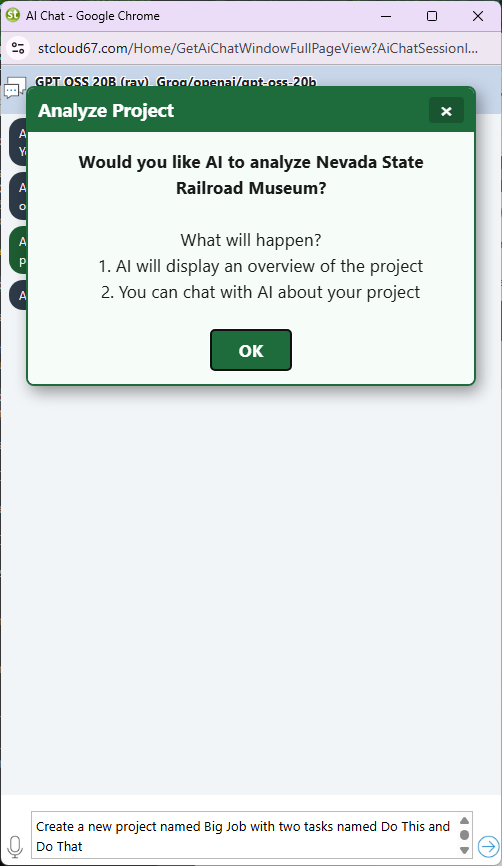
Copy The Text Below
Review the complete Block 42 drilling schedule. Identify any tasks in the wrong wellbore sequence, any rig crew roles that are over-allocated, and any phase where the duration seems too short or too long for a deepwater well in 5,200 feet of water depth. Flag any procurement tasks that are on or near the critical path. Suggest specific changes and explain the scheduling risk each one addresses.
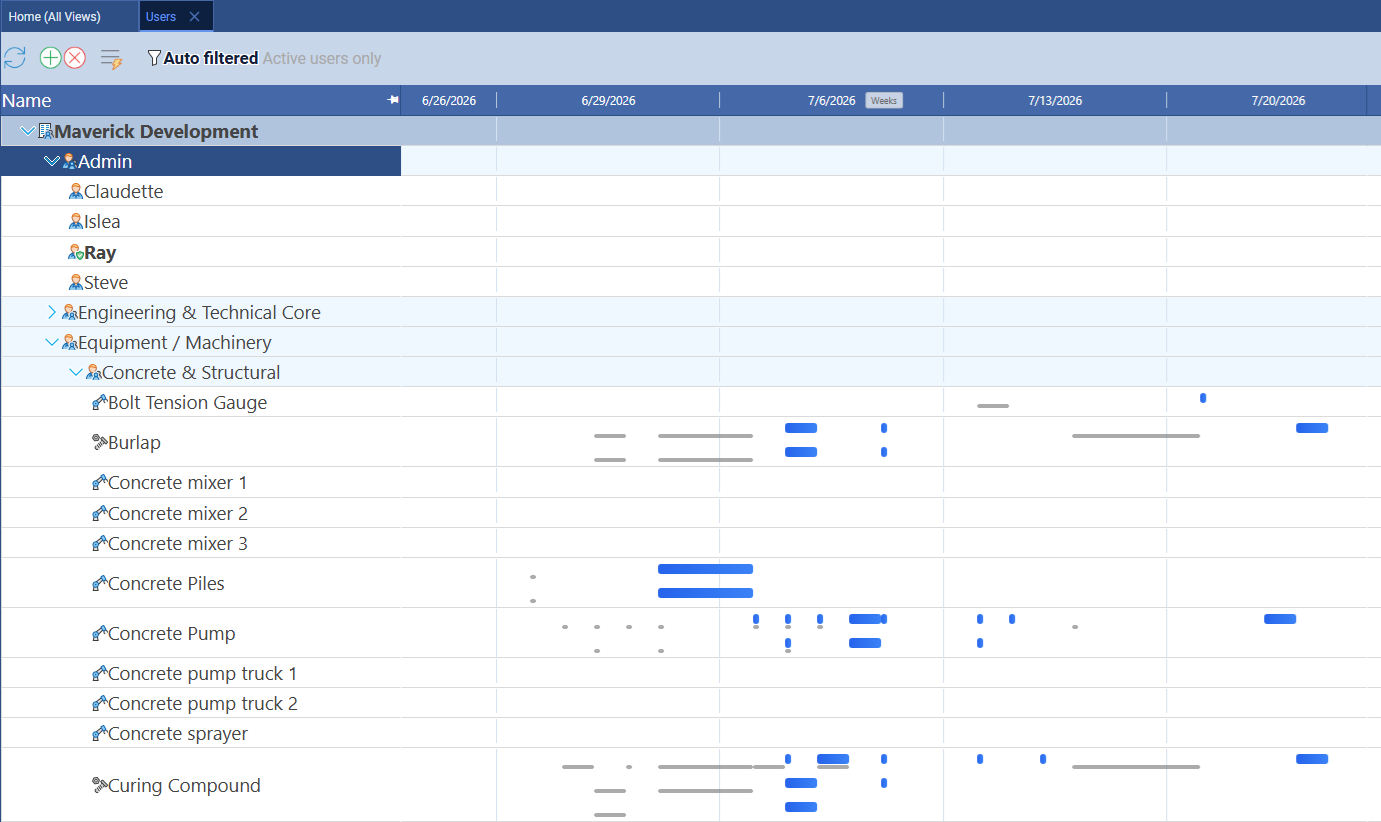
After the review, switch to the resource-centric Gantt to confirm that all three resource types are distributed correctly across the drilling campaign. The Driller and Toolpusher rows should be dense across the Drilling and Hole Sections phase. The Directional Driller row should show task bars only during the directional intervals. The Cement Pump Unit should appear in short bursts at each casing run. The BSEE Well Inspector should appear on exactly three or four regulatory milestone tasks with no overlap.
Quick prompts to try on the Block 42 schedule:
- Which procurement tasks are on or near the critical path, and what is the total float on each?
- The BSEE well permit has a fixed expiry date. Working backward from that date, what is the latest start date for drilling the conductor hole?
- The BOP stack delivery is delayed two weeks. Show the full cascade impact on the project finish date.
- The Directional Driller is over-allocated. List every task assigned to this resource and their dates, then suggest which assignments to remove.
- Which wellbore section has the most tasks with less than three days of float?
- At $320,000 per day, what is the total cost exposure if the critical path slips by five days?
- Are there any phases with no dependency connections to the rest of the project? List any orphaned task chains.
- Draft a one-paragraph well status summary I can share with the operating company before spud.
Related Topics
For a full explanation of Gantt chart task bars, link lines, and the baseline ghost bars used in the final stages of this blueprint, see Gantt Charts in Project Management. For how Maverick calculates zero-float tasks and what it means when a procurement lead time controls the critical path instead of field work, see Critical Path Method. For the full workflow of setting, clearing, and re-locking baselines when the AI suggests structural changes after the first baseline is set, see Project Baselines: Set, Clear, and Restore. For an explanation of the resource-centric Gantt used in the final review step, see Secondary Gantt Charts in Maverick. For how to read the resource allocation bar chart and resolve the red overallocation bars that offshore crew double-booking produces, see Resource Allocation Bar Chart. To build a similar AI-prompted schedule for a land-based energy project, follow the Battery Energy Storage System blueprint.