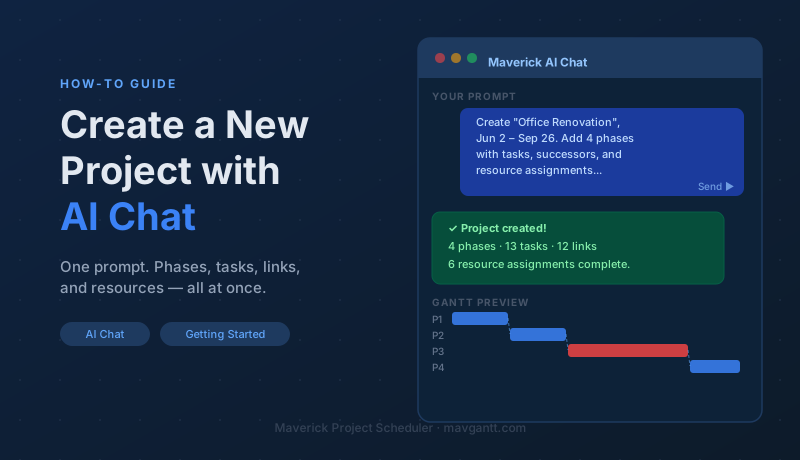
Building a project from scratch — creating each phase, typing every task, wiring up dependencies, and assigning resources — takes an hour in most project management tools. In Maverick, you can do it in one AI chat prompt. Describe your project in plain language and Maverick builds the subprojects, tasks, start and finish dates, successor links, and resource assignments in seconds. This guide shows you exactly how to write that prompt.
Before You Start
Two things need to be in place before the AI can create a complete project structure:
- An AI provider must be connected. AI chat requires a configured provider and model. If you haven't done this yet, see What Are AI Providers and Models?
- Resources must already exist in Maverick. The AI assigns resources by name. If you refer to "Sarah Mitchell" in your prompt, that person must exist as a resource in the system. See Human, Machine, and Material Resources if you need to add your team first.
You don't need an existing project open to use AI chat — Maverick's AI can create a new project and its entire structure from scratch.
Step 1: Open the AI Chat Panel
Locate the AI Chat panel in Maverick's interface. It is accessible from the main navigation toolbar. The panel opens as a sidebar or floating window — you type your request in the input field at the bottom and press Enter or click Send.
If you are already working inside a project, the AI will default to modifying that project. To create a new project instead, simply include the project name and "create a new project" in your prompt. The AI recognizes this as a creation request and does not modify your existing project.
Step 2: Write a Clear Project Description
The AI interprets plain language, but precision matters. A well-structured prompt produces a complete project on the first attempt. A vague prompt produces clarifying questions. The sections below explain each component of a good project-creation prompt.
Project name and dates
Start every project-creation prompt with the project name (in quotes) and the overall start and finish dates. These establish the container before tasks and phases are added. Use absolute dates — "June 2, 2026" — not relative terms like "next Monday." Absolute dates are unambiguous regardless of when you submit the prompt.
Subprojects as named phases
Maverick supports nested subprojects within a project — typically used to group related tasks into phases such as Planning, Design, Construction, and Closeout. Name each phase explicitly in your prompt, and list its tasks indented beneath it. The AI maps phase names to subproject containers automatically.
Tasks with start and finish dates
For each task, provide the name (in quotes), the start date, the finish date (or duration in days), and any resource assignments. All three date fields help the AI create the task correctly, especially when phases overlap or tasks have specific calendar constraints.
Successor relationships
Successor links control the order in which tasks must occur. The most common link type is Finish-to-Start (FS) — Task B cannot start until Task A finishes. Specify successors by referring to the predecessor task name: "Successor: Kickoff Meeting (FS)." The AI creates the dependency link between the two tasks. If a task has multiple predecessors, list each one: "Successors: Interior Design Concepts (FS) and Permit Applications (FS)."
You can also specify Finish-to-Finish (FF), Start-to-Start (SS), or Start-to-Finish (SF) links. If you don't specify a link type, the AI defaults to FS. For more on link types, see Task Link Relationships.
Resource assignments with allocations
Name each resource exactly as it appears in Maverick — "Sarah Mitchell," not "Sarah" or "the project manager." State the allocation as a percentage: "at 100%" or "at 50%." If multiple resources share a task, list each with its own percentage. The AI creates one assignment record per resource per task with the specified allocation.
The Complete Prompt
Below is a full example prompt for a 17-week office renovation project. It includes four subprojects, 13 tasks, 12 successor links, and 6 resource assignments. Copy it, substitute your own project name, dates, task names, and resource names, and paste it into the Maverick AI Chat panel.
This prompt covers every key scheduling concept: nested phases, overlapping parallel tasks (Interior Design Concepts and Permit Applications run concurrently), a convergence point (Design Approval waits for both), a divergence point (Drywall and Flooring both follow Electrical and Plumbing), and a re-convergence at Final Inspection.
Step 3: Submit and Review the Result
After submitting the prompt, Maverick's AI parses your description and presents a preview of the changes — the new project structure with all its tasks, links, and assignments listed. Review this preview before confirming. Check that:
- The project name and dates match what you described.
- All four phases appear as subprojects.
- Each task shows the correct start and finish dates.
- Successor links are present on every task that listed one.
- Resource names and allocation percentages are correct.
Once you confirm, Maverick commits all changes simultaneously. Switch to the Gantt chart view to see the full schedule laid out visually — task bars, dependency arrows, the critical path highlighted in red, and phase containers grouping related work. See Project Management Gantt Charts for a guide to reading the Gantt view.
Switch to the Resource Allocation bar chart to verify that no resource is over-allocated. For this example, Tom Chen works at 50% on Scope and Requirements and Permit Applications simultaneously — acceptable. If Crew A were assigned at 100% on two overlapping tasks, the bar chart would flag the conflict in red. See Resource Allocation Bar Chart for details.
Step 4: Refine with Follow-Up Prompts
The initial prompt rarely needs to be perfect. Treat the creation step as a starting point and use follow-up prompts to adjust. Maverick's AI retains the context of the current project, so you don't need to repeat the full description each time. Examples:
- "Move the Flooring Installation task to start on September 2 instead."
- "Add Alex Kim to the Punch List Completion task at 25%."
- "Change the link between Drywall and Painting and Flooring Installation to Start-to-Start with a 10-day lag."
- "Show me all tasks where Tom Chen is assigned and their current dates."
- "Add a milestone called 'Construction Complete' at the end of Phase 3."
Each follow-up prompt builds on the project's current state. You can reshape the entire schedule through conversation without reopening a dialog or rebuilding the task grid from scratch.
Tips for Large or Complex Projects
For very large projects — more than 40 or 50 tasks — consider breaking the creation prompt into multiple phases submitted sequentially. Create the project and Phase 1 first, confirm it, then add Phase 2, and so on. This makes each AI response easier to review and reduces the chance of a single long prompt producing errors in a middle task.
Always use the exact resource names that appear in Maverick's resource list. If the system has "Sarah Mitchell" and your prompt says "S. Mitchell" or "Sarah," the AI may not find the match and will skip the assignment or flag an error. Exact names are the single most common source of assignment failures in AI-generated project structures.
If a task spans a weekend or holiday and Maverick's calendar excludes those days, the AI adjusts the finish date to the next working day automatically. Review the Gantt chart dates after creation to confirm the schedule aligns with your working calendar settings.