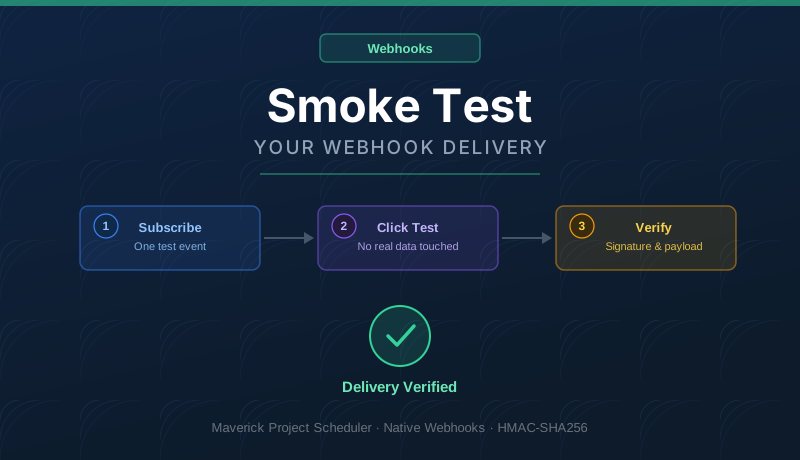
What Is a Smoke Test, and Why Run One First?
A smoke test is the shortest possible check that something basic works before you invest time building on top of it. Before you write a single line of receiver code to handle real project data, spend five minutes confirming that Maverick can actually reach your endpoint, sign the payload correctly, and that you can verify that signature on the receiving end.
This guide is deliberately narrow. It does not cover all 33 event types, retry timing, or subscription management in depth — for that, see the full Webhooks Integration guide once your smoke test passes. Best of all, the smoke test below never touches a real project, task, or client record — it uses Maverick's built-in Test button, which sends a synthetic sample payload signed with your real subscription secret. Nothing in your account changes.
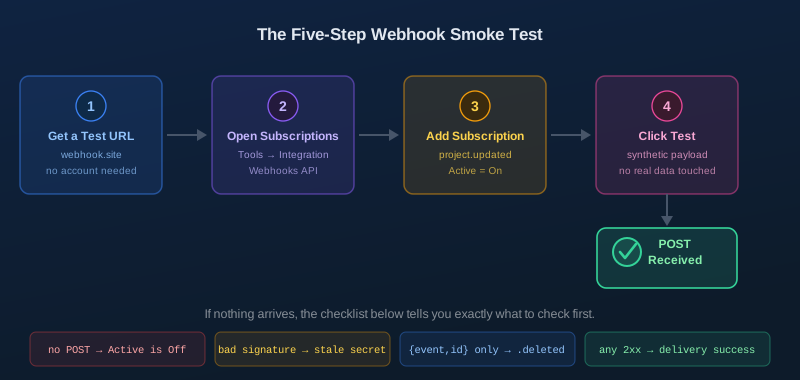
Step 1 — Get a Disposable Test URL
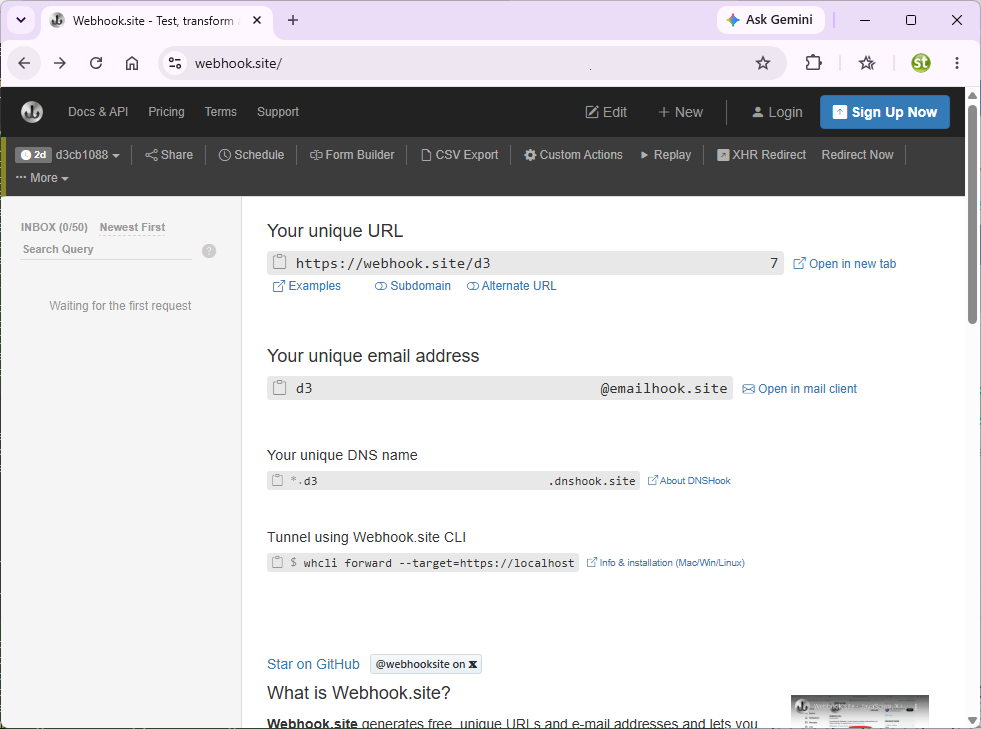
You need somewhere for Maverick to deliver to. Webhook.site is a free tool that generates a unique, temporary URL and shows you every request that arrives at it — no account, no code, and nothing to install.
- Open webhook.site in a browser tab.
- It immediately generates a unique URL under Your unique URL. Copy it.
- Leave this tab open — you will come back to it in Step 4.
Step 2 — Open the Webhook Subscriptions Dialog
- Open Maverick and log in with your account.
- Click the Tools tab in the ribbon.
- Click the Integration dropdown button.
- Select Webhooks API from the menu.
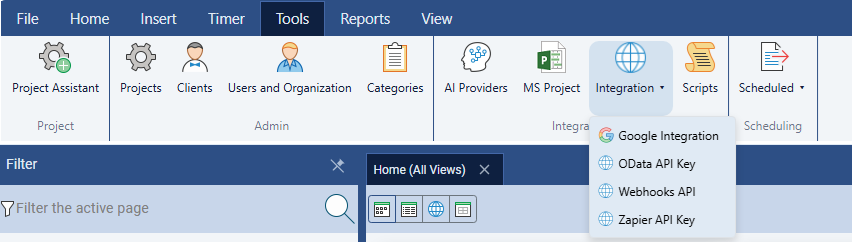
The Webhook Subscriptions dialog opens with a form at the top and a list of any subscriptions you have already created below it.
Step 3 — Create One Test Subscription
Fill in three fields:
- Event type — choose
project.updated. It returns a full sample record, which makes it easier to confirm everything looks right in Step 5. - Target URL — paste the webhook.site URL you copied in Step 1.
- Secret — leave Auto-generate checked.
Click Add Subscription. Your secret is displayed once in a reveal panel — copy it now if you plan to verify signatures yourself later, since Maverick only shows it back to you masked as *** after this point.
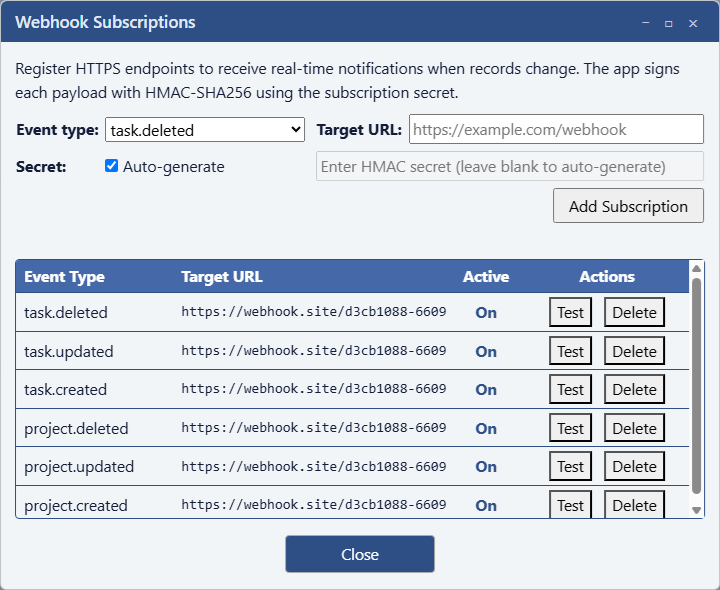
Check the Active column. New subscriptions default to On, but if you are reusing an older subscription for this test, confirm it still says On. An inactive subscription is skipped completely and silently — no error, no log entry anywhere in Maverick — which makes it the single most common reason a smoke test appears to fail for no reason.
Step 4 — Click Test (No Real Data Touched)
Find your new subscription in the list and click the Test button next to it. This does not require — or touch — any real project in your account. It sends a hard-coded synthetic sample record (for project.updated, a fictional project literally named "Sample Project"), signed with the subscription's real secret exactly the way a live event would be.
Maverick makes exactly one delivery attempt and reports the result back immediately — the HTTP status code your endpoint returned, or a connection failure if it could not reach the URL at all. This is different from a real event, which queues on a background task and retries up to three times (immediately, then after 5 seconds, then after 30 seconds) if the first attempts fail.
Step 5 — Read the Result
Switch back to your webhook.site tab. A new entry should appear in the inbox on the left within a second or two.
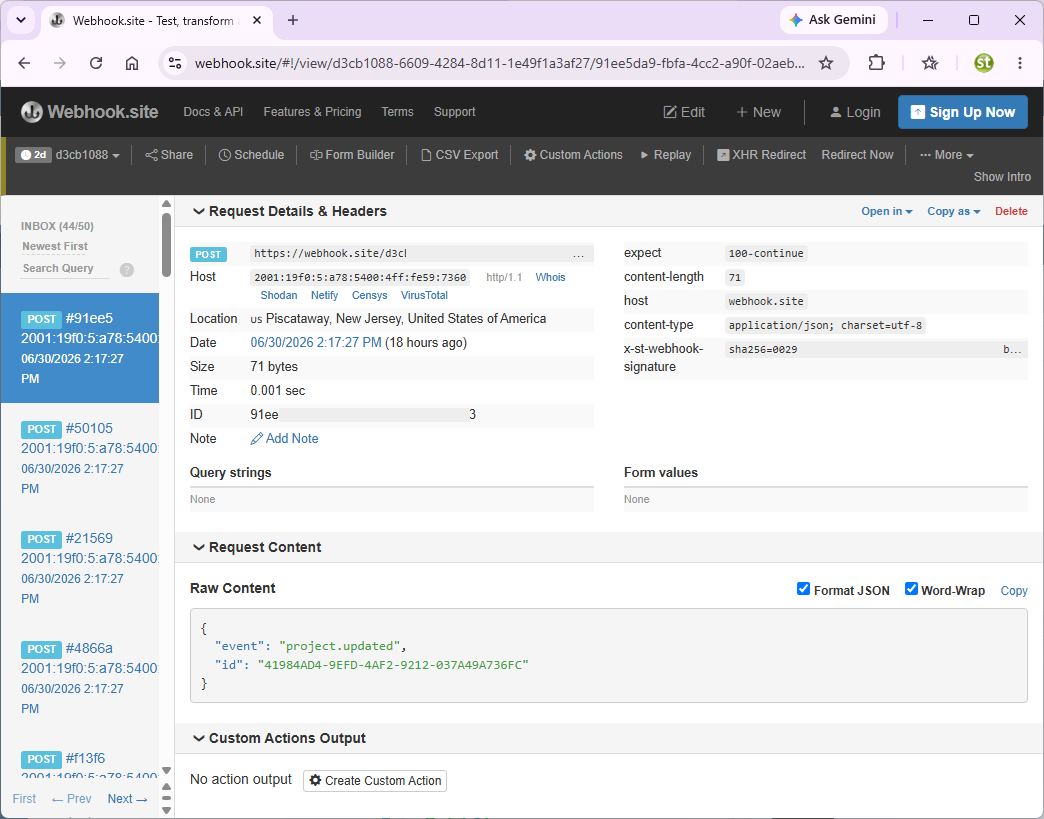
Click that entry and confirm three things:
- A POST request arrived at all. Method is
POST, content type isapplication/json. - The JSON body contains your sample data. For
project.updated, look for"ProjectName": "Sample Project"alongside a full set of project fields. - The signature header is present. Look for
X-ST-Webhook-Signaturein the headers list, formatted assha256=<a long hex string>.
If all three are true, your webhook connection is fully verified — Maverick can reach your endpoint, sign the payload, and deliver it correctly. Any problems you hit afterward while building your real receiver are receiver-logic problems, not connection problems.
If Nothing Arrives: Common Failure Modes
No Request Arrives at All
By far the most common cause is a subscription that is Active: Off — it is skipped with no error and nothing written anywhere, so there is no clue to find inside Maverick itself. Go back to the subscription list and check the Active column first. If it is already On, double-check the Target URL for a typo, and confirm you copied the full webhook.site URL including https://.
A Request Arrives, but the Signature Does Not Match
This means you computed the signature yourself and it did not equal the X-ST-Webhook-Signature header. The two usual causes: you copied the wrong secret (each subscription has its own, and it is only ever shown once), or your code hashed a re-serialized or pretty-printed copy of the body instead of the exact raw bytes Maverick sent. Hash the raw request body, not a parsed-and-reformatted version of it.
The Payload Only Shows { event, id }
This is expected behavior for any .deleted event, sample or real — by the time a delete notification is sent, the record no longer exists in the database, so there is nothing left to include beyond its ID. If you chose project.updated in Step 3 as recommended, you should see the full sample record, not the minimal shape.
A Note on HTTPS
Unlike Maverick's OData feed, the webhook Target URL is not required to use HTTPS — any valid http:// or https:// address is accepted. Webhook.site always uses HTTPS, so this will not come up during the smoke test itself, but any production receiver handling real project or client data should use HTTPS regardless.
Optional: Verify the Signature Yourself
Webhook.site confirms Maverick sent a correctly signed request, but it does not check the signature for you. To prove your own server can validate it, compute an HMAC-SHA256 over the raw request body using your subscription's secret and compare it to the header — a short Node.js example, along with why raw-body hashing and constant-time comparison both matter, is in the full Webhooks Integration guide.
Maverick keeps no customer-facing delivery log of its own — webhook.site (or your own endpoint's logs, once you have a real one) is the only place to see what was actually sent.
You Passed the Smoke Test — What's Next?
With delivery and signing confirmed, here is where to go depending on what you are building:
- Webhooks Integration — all 33 event types, full retry behavior, the Active toggle, and complete signature-verification code.
- Webhook Event Reference — every field in every one of the 33 event payloads, with JSON types and the minimal deleted-event shape.
- Zapier Automation Integration — if you want to connect to Slack, Google Sheets, or thousands of other apps without writing any receiver code at all.
- Power BI OData Integration — if what you actually need is a reporting dashboard rather than real-time push notifications, pull the same 11 objects on demand instead.
- Smoke-Test Your Power BI Connection — the companion guide for verifying an OData connection before building a report.