What Is the Maverick Zapier Integration?
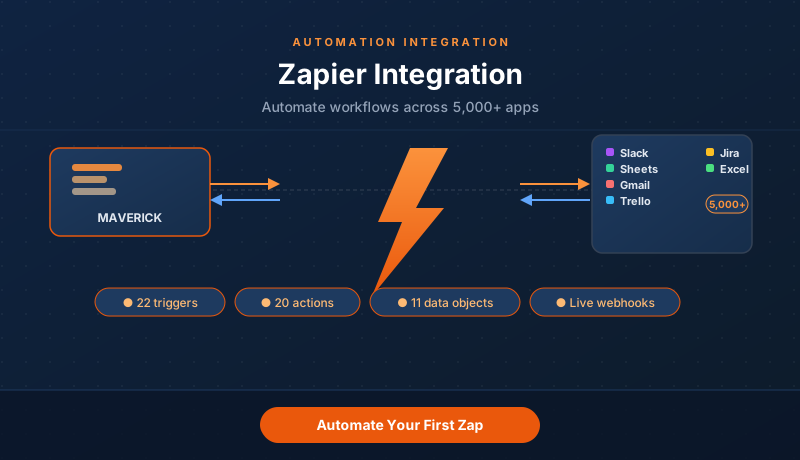
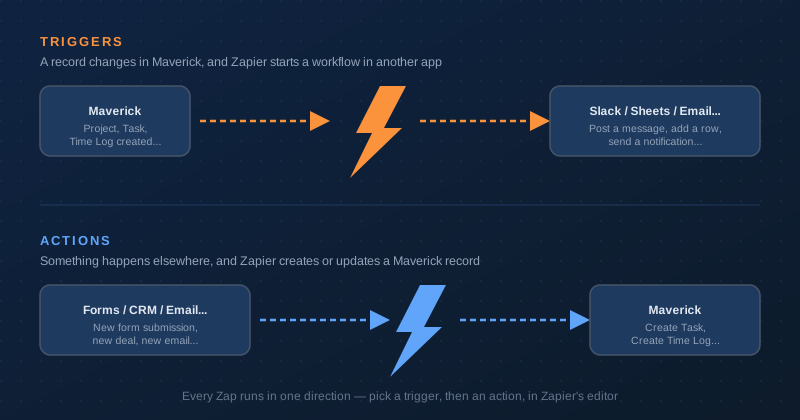
Zapier connects Maverick to more than 5,000 other apps without writing any code. A "Zap" is a small automation with two halves: a trigger that watches for something to happen, and one or more actions that respond to it. Maverick can sit on either side — a new project in Maverick can post a Slack message, or a new row in a Google Form can create a Maverick task.
Under the hood, Maverick's Zapier app is published on Zapier's platform under the name Standard Time — the underlying product name this integration was originally built for. When you search Zapier's App Directory while building a Zap, look for Standard Time; it connects to your Maverick account the same way regardless of which name appears in the search results.
Zaps fire in near real time: the moment a record is created or updated in Maverick, the server pushes the event straight to Zapier so your workflow starts within seconds — no polling delay. New to Zapier, or just want to confirm your API key, CID, and Site URL are correct before mapping any fields? Run the five-minute Zapier connection smoke test first. For a full field-by-field reference of the same entities described below, see the OData Schema Reference. If you want to receive the same kind of real-time notifications on your own server instead of through a Zapier account — including delete events, which Zapier does not support — see the native Webhooks integration, or run its five-minute webhook connection smoke test first to confirm delivery before building anything.
Generate Your Zapier API Key
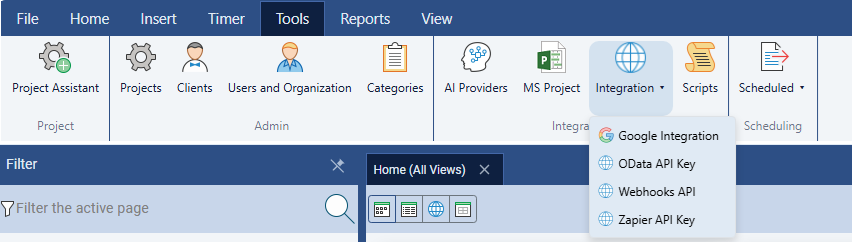
Zapier connects to Maverick using an API key generated from inside the application — separate from the API key used for the OData feed. Here is where to find it:
- Open Maverick and click the Tools tab in the ribbon.
- Click the Integration dropdown button.
- Select Zapier API Key from the menu.
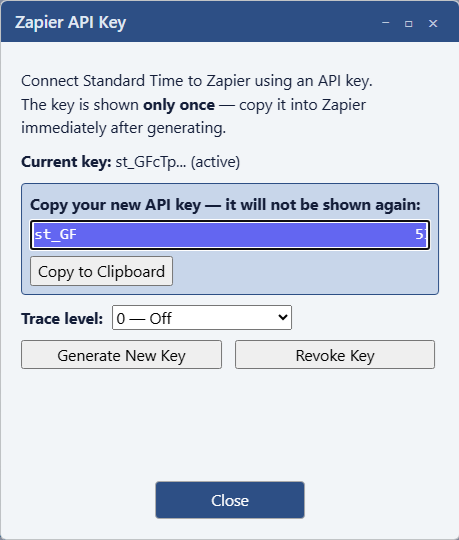
The Zapier API Key dialog opens. If you have never generated a key before, click Generate New Key. Your new key is displayed once, in full — copy it immediately and paste it somewhere safe, because it will not be shown in full again.
Every time you click Generate New Key, Maverick automatically revokes the previous key first, so only one Zapier key is ever active per user. If you close the dialog and reopen it later, you will see only a masked prefix of the current key — a reminder that it exists, not a way to retrieve it again.
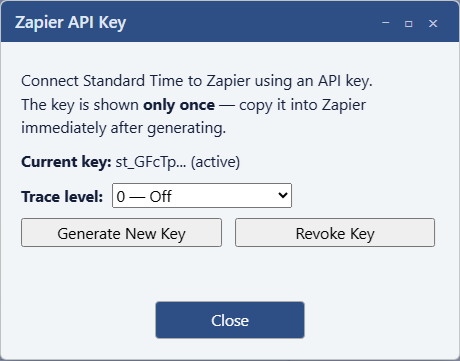
The Trace level dropdown controls how much detail Maverick logs about Zapier requests — leave it at 0 — Off for normal use, and raise it temporarily if you need to troubleshoot a Zap that is not firing as expected. Click Revoke Key at any time to disable Zapier access immediately; every Zap using that key will start failing until you generate a replacement and update your Zapier connection.
Connect Zapier to Maverick
With your API key copied, switch to Zapier to create the connection:
- Sign in to your Zapier account and click Create Zap.
- In the trigger app search box, type Standard Time and select it.
- Choose any trigger event, then click Sign in to connect an account (or choose an existing connection if you have one already).
- In the connection form, fill in three fields:
- Site URL — your Maverick cloud address, for example
https://stcloud67.com, or your on-premise server address. - Customer ID — your account's CID, the same identifier used to connect Power BI to the OData feed. Find it in your Maverick account settings.
- API Key — the key you generated in the previous step.
- Site URL — your Maverick cloud address, for example
- Click Continue. Zapier calls Maverick to verify the connection — a successful test confirms your account is linked.
Once connected, the same account works for every trigger and action you add across all your Zaps — you only need to authenticate once.
Available Triggers
A trigger starts a Zap when something happens in Maverick. Every one of the 11 core objects in Maverick's data model has a matching pair of triggers — one for new records, one for updates — for 22 triggers in total.
| Object | Trigger Events | Fires On |
|---|---|---|
| Projects | New Project, Updated Project | project.created, project.updated |
| Tasks | New Task, Updated Task | task.created, task.updated |
| Time Logs | New Time Log, Updated Time Log | timelog.created, timelog.updated |
| Expenses | New Expense, Updated Expense | expense.created, expense.updated |
| Users | New User, Updated User | user.created, user.updated |
| Clients | New Client, Updated Client | client.created, client.updated |
| Subprojects | New Subproject, Updated Subproject | subproject.created, subproject.updated |
| Inventory Items | New Inventory Item, Updated Inventory Item | inventory.created, inventory.updated |
| Categories | New Category, Updated Category | category.created, category.updated |
| Invoices | New Invoice, Updated Invoice | invoice.created, invoice.updated |
| Billing Rates | New Billing Rate, Updated Billing Rate | billingrate.created, billingrate.updated |
When you add a trigger step and click Test trigger, Zapier fetches a realistic sample record so you can map its fields into your action — even before a real event has fired. A trimmed sample of the New Project trigger's output looks like this:
{ "id": "d290f1ee-6c54-4b01-90e6-d701748f0851", "name": "Website Redesign", "description": "Redesign the company website for Q1", "clientId": "f47ac10b-58cc-4372-a567-0e02b2c3d479", "status": "Active", "active": true, "startDate": "2025-01-06", "finishDate": "2025-03-28", "created": "2025-01-06T08:00:00Z", "modified": "2025-01-06T08:00:00Z" }
Available Actions
An action lets a Zap create or update a record in Maverick. Ten of the eleven objects support actions — Users are trigger-only, since employee accounts are provisioned inside Maverick rather than through Zapier. That leaves 20 actions in total.
| Object | Actions |
|---|---|
| Projects | Create Project, Update Project |
| Tasks | Create Task, Update Task |
| Time Logs | Create Time Log, Update Time Log |
| Expenses | Create Expense, Update Expense |
| Clients | Create Client, Update Client |
| Subprojects | Create Subproject, Update Subproject |
| Inventory Items | Create Inventory Item, Update Inventory Item |
| Categories | Create Category, Update Category |
| Invoices | Create Invoice, Update Invoice |
| Billing Rates | Create Billing Rate, Update Billing Rate |
Action steps use two kinds of input fields. Live dropdowns pull current records straight from your Maverick account — Client, Subproject, and Category fields work this way, so you pick "Acme Corp" or "Design" by name instead of pasting an ID. Reference fields like Project and Assigned User expect an ID — the easiest source is the output of an earlier trigger step in the same Zap (for example, mapping the Project ID from a "New Project" trigger into a "Create Time Log" action).
How Triggers and Actions Move Data
Every Zap runs in one direction: a trigger step watches one app, and one or more action steps respond in another app (or the same app). Maverick can be the source of the trigger or the target of the action — often both, in different Zaps.
Build Your First Zap
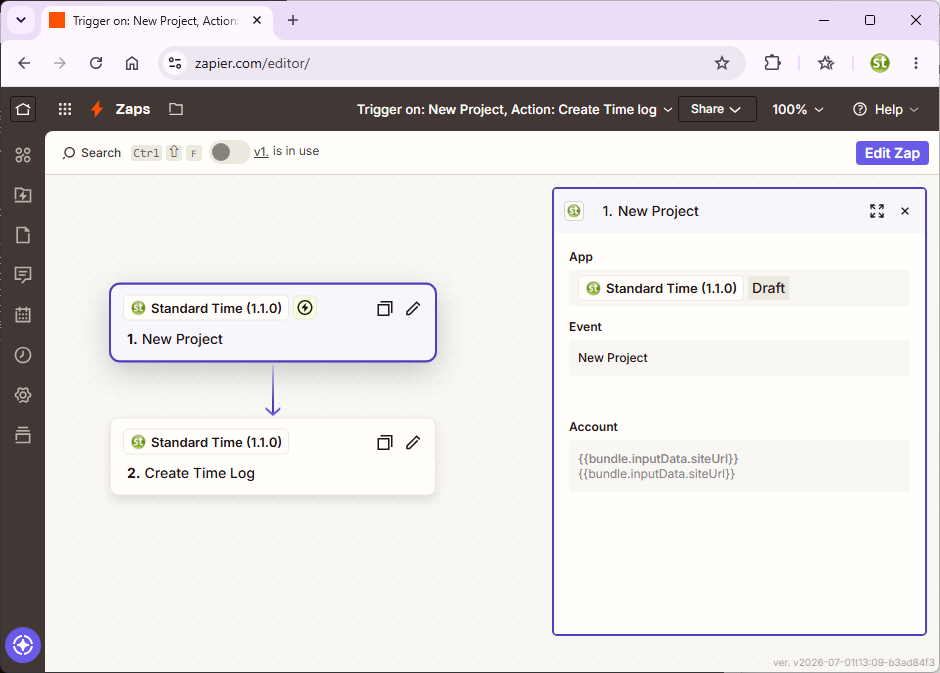
Here is a complete walkthrough that logs an initial planning time entry every time a new project is created in Maverick — the same Zap shown in the screenshot below.
Step 1 — Choose the Trigger
- Click Create Zap in Zapier.
- Search for Standard Time as the trigger app.
- Choose the New Project event and connect your Maverick account.
- Click Test trigger to pull a sample project record.
Step 2 — Add the Action
- Click the + button to add a second step.
- Search for Standard Time again, this time as the action app.
- Choose the Create Time Log event.
Step 3 — Map the Fields
- Set Project to the Project ID field from the Step 1 trigger output.
- Fill in Description — for example, "Initial planning session."
- Set Duration (hours) to your default planning estimate.
- Leave optional fields like Subproject and Category blank, or map them from the trigger.
This is exactly the Zap shown below — a "New Project" trigger feeding a "Create Time Log" action, edited in Zapier's visual editor:
Step 4 — Test and Publish
- Click Test action to create a real time log entry in Maverick and confirm the mapping worked.
- Open Maverick and verify the new time log appears against the test project.
- Name your Zap, then toggle it On to publish it.
From this point on, every new project created in Maverick automatically logs that planning entry — no manual data entry required.
Built on the Same Data Model as the OData Feed
Zapier's 11 triggerable objects are the same 11 entity sets exposed by Maverick's OData feed for Power BI and Excel: Projects, Tasks, Time Logs, Subprojects, Expenses, Users, Clients, Categories, Inventory Items, Invoices, and Billing Rates. If you already know the OData schema from building a Power BI dashboard, the field names in Zapier's trigger output will look familiar.
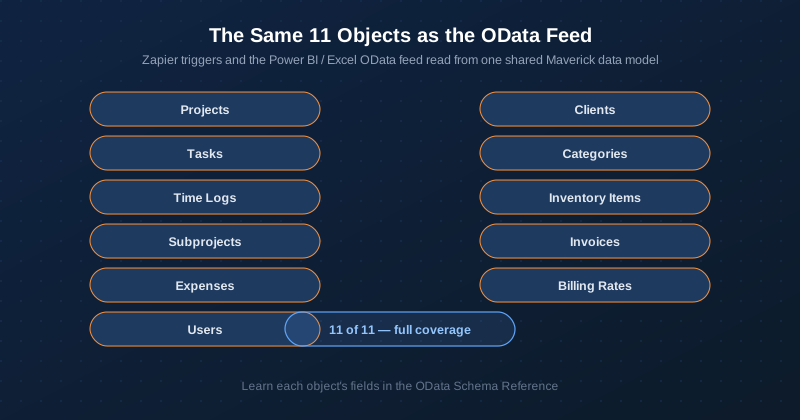
The two integrations solve different problems: OData is built for pulling large volumes of historical data into a reporting tool on a schedule you control, while Zapier is built for reacting to individual events the moment they happen. Many teams use both — OData for dashboards and trend analysis, Zapier for real-time notifications and cross-app automation.
Example Zap Ideas
- Task notifications: New Task in Maverick → post a message to a Slack channel.
- Time log export: New Time Log in Maverick → append a row to a Google Sheet for payroll review.
- Invoice alerts: New Invoice in Maverick → send an email to your billing team.
- Lead intake: New row in a Google Form or Typeform → Create Client in Maverick.
- Expense approvals: New Expense in Maverick → create a Trello card for manager review.
- CRM sync: New deal in your CRM → Create Project in Maverick to kick off delivery.
- Client onboarding: Updated Client in Maverick → update the matching contact in your email marketing tool.
Any of the 22 triggers can pair with any of the 20 actions — including actions in other apps entirely, since Zapier is not limited to Maverick-to-Maverick workflows.