MCP Server
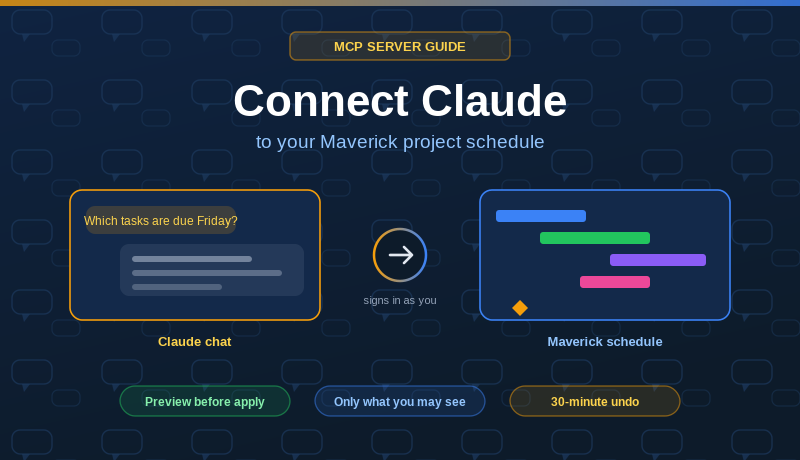
Connect Claude to Maverick Project Scheduler™
Ask Claude about your projects and tasks in plain English, from wherever you already use it. It signs in as you, sees only what you may see, and shows a preview before it changes anything.
Jump to the Setup StepsWhat Changes When Claude Can See Your Schedule
The MCP Server is a secure doorway built on the Model Context Protocol, an open standard that lets an AI assistant reach outside tools. Connect Claude to it and your live project data is one question away.
Look Things Up
Ask the way you would ask a coworker. Claude finds the records and Maverick does the arithmetic, so totals are calculated rather than guessed.
Chart and Summarize
Have Claude turn what it found into a bar chart, a table, or a short status summary for your next meeting, right in the chat.
Change Tasks, With Approval
Claude can propose edits to progress, dates, planned hours, links between tasks, assignments, and descriptions. It can also propose new tasks and projects, up to 25 new tasks per proposal, when you allow it.
What It Will Not Do
It never deletes or merges records, never edits time logs, expenses, or invoices, and cannot change an existing project's own settings. It does not export files or send email on its own.
Questions people actually ask once it is connected:
Which tasks on the pump housing order are due this week?
Compare planned hours with hours worked on each task in this project.
Add a project called Demo with three tasks. Show me the preview, but do not apply anything yet.
How the Connection Works
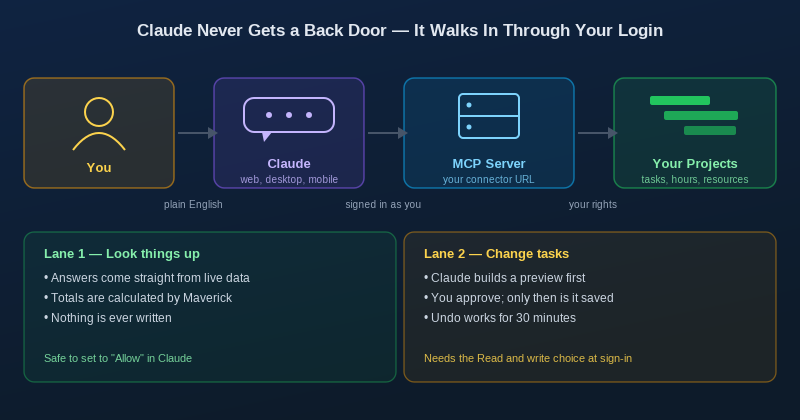
There is no separate permission system. Claude walks in through your own Maverick login, so it can never reach more than you can.
What You Need Before You Start
| You need | Details |
|---|---|
| A Maverick cloud account | The MCP Server is part of the cloud service. On-premise installs are not supported. |
| The Access to AI right | The person who connects needs the same Access to AI right that AI Chat uses. An administrator sets rights in Users and Organization. |
| An administrator login | By default only an administrator can approve a Claude sign-in. If you are not one, ask an administrator to connect for you, or to issue you a key (see the key section). |
| A Claude account that can add custom connectors | Custom connectors are a Claude feature. On team and enterprise plans an organization owner may need to allow them first. Check Anthropic's Help Center for current plan details. |
| Your connector address | The MCP Server dialog shows a Connector URL that contains your own Customer ID. Always copy it from your dialog. |
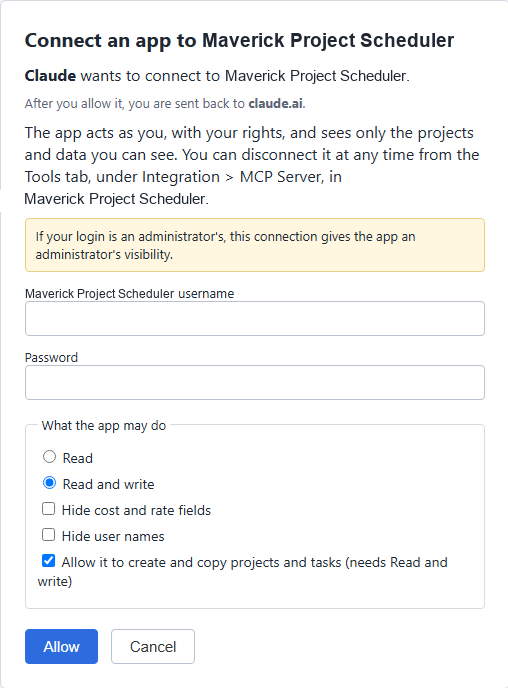
Connecting as an administrator? Claude acts as whoever signs in, so an administrator sign-in gives it an administrator's visibility. Maverick warns you on the sign-in page. If that is more than you want, hide cost fields and user names when you connect, or connect with a more limited account.
Connect Claude in Six Moves
About ten minutes, no key to copy, and no client ID or secret to type. Claude Desktop and the Claude mobile app pick up the same connection once you are signed in to the same Claude account.
Copy Your Connector Address
In Maverick, open the Tools ribbon, click the Integration dropdown, and choose MCP Server. Click Copy URL beside the Connector URL.
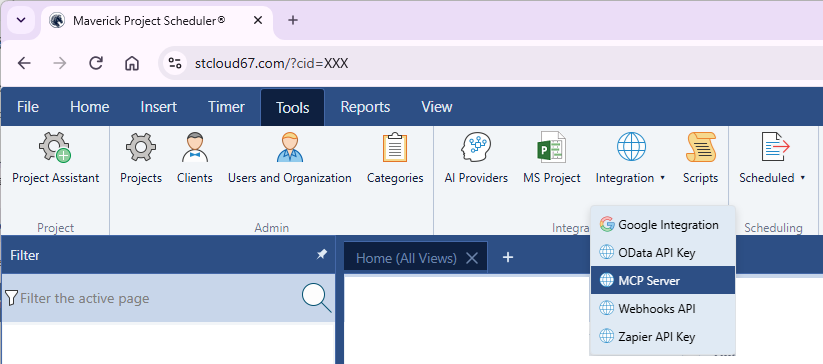
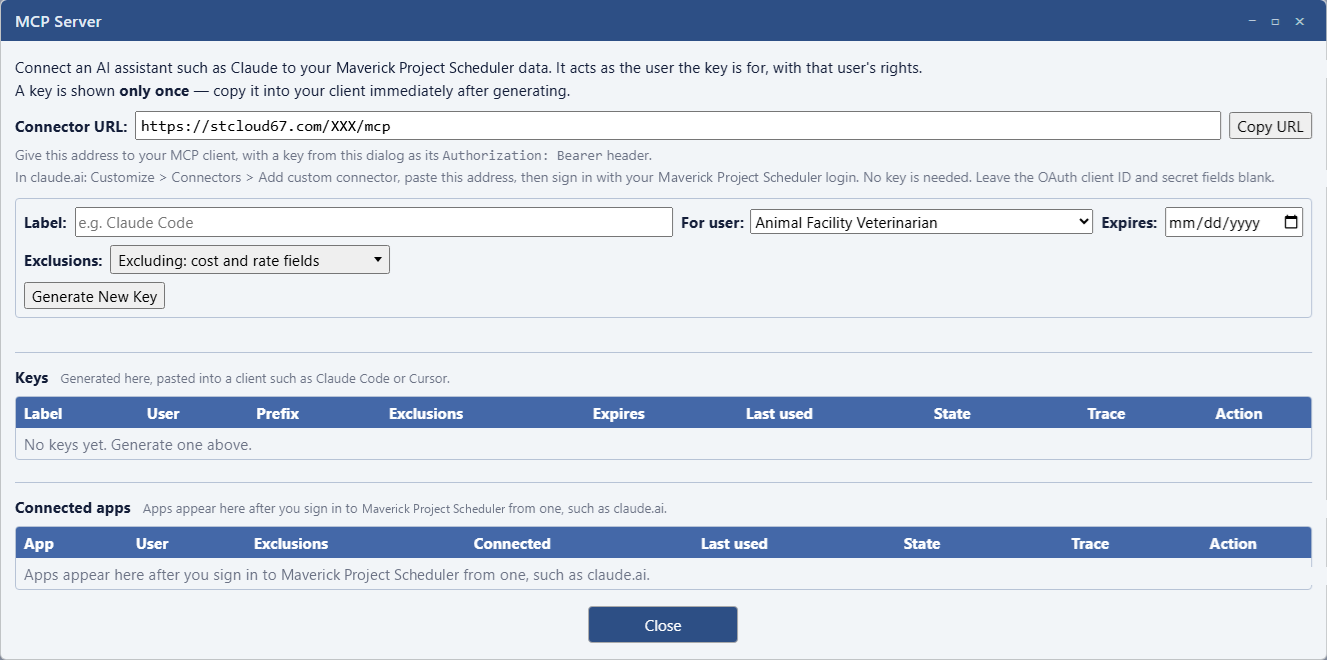
Use your own Customer ID. The address has the form https://stcloud67.com/XXX/mcp, where XXX stands for your Customer ID. Screenshots on this page show XXX on purpose, so copy the address from your own dialog rather than typing one from a picture. Anything Claude connects to appears in this dialog under Connected apps, which is also where you disconnect it later.
Add a Custom Connector in Claude
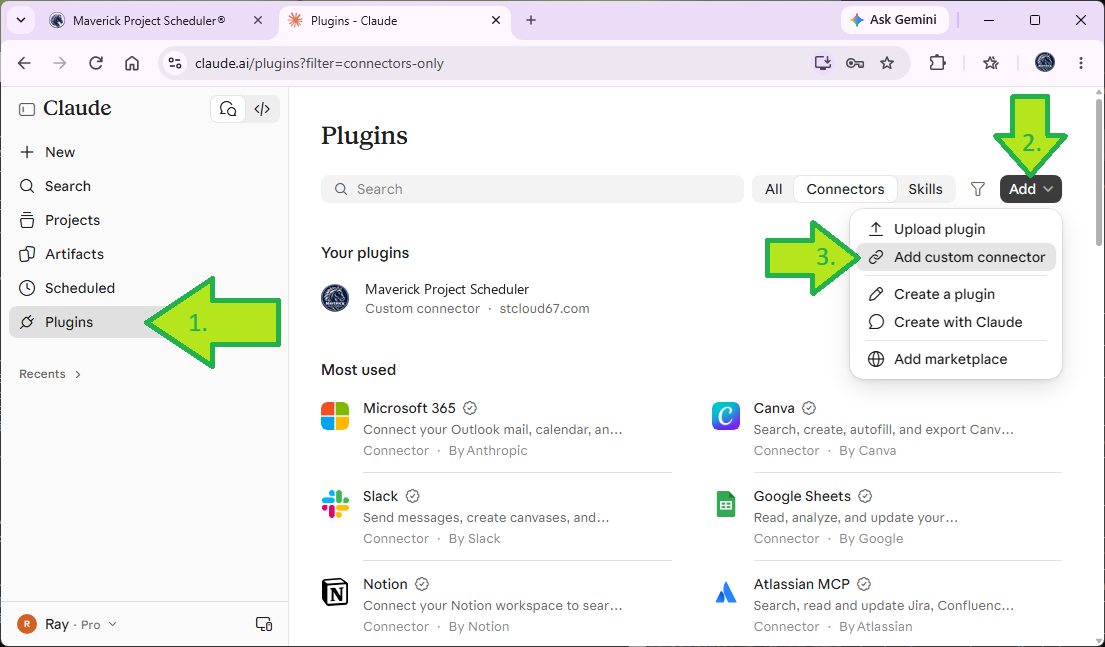
In Claude, click Plugins in the sidebar, then Add, then Add custom connector. Anthropic occasionally renames menus, so if the labels differ, look for wherever Claude lets you add a custom connector.
Name It and Paste the Address
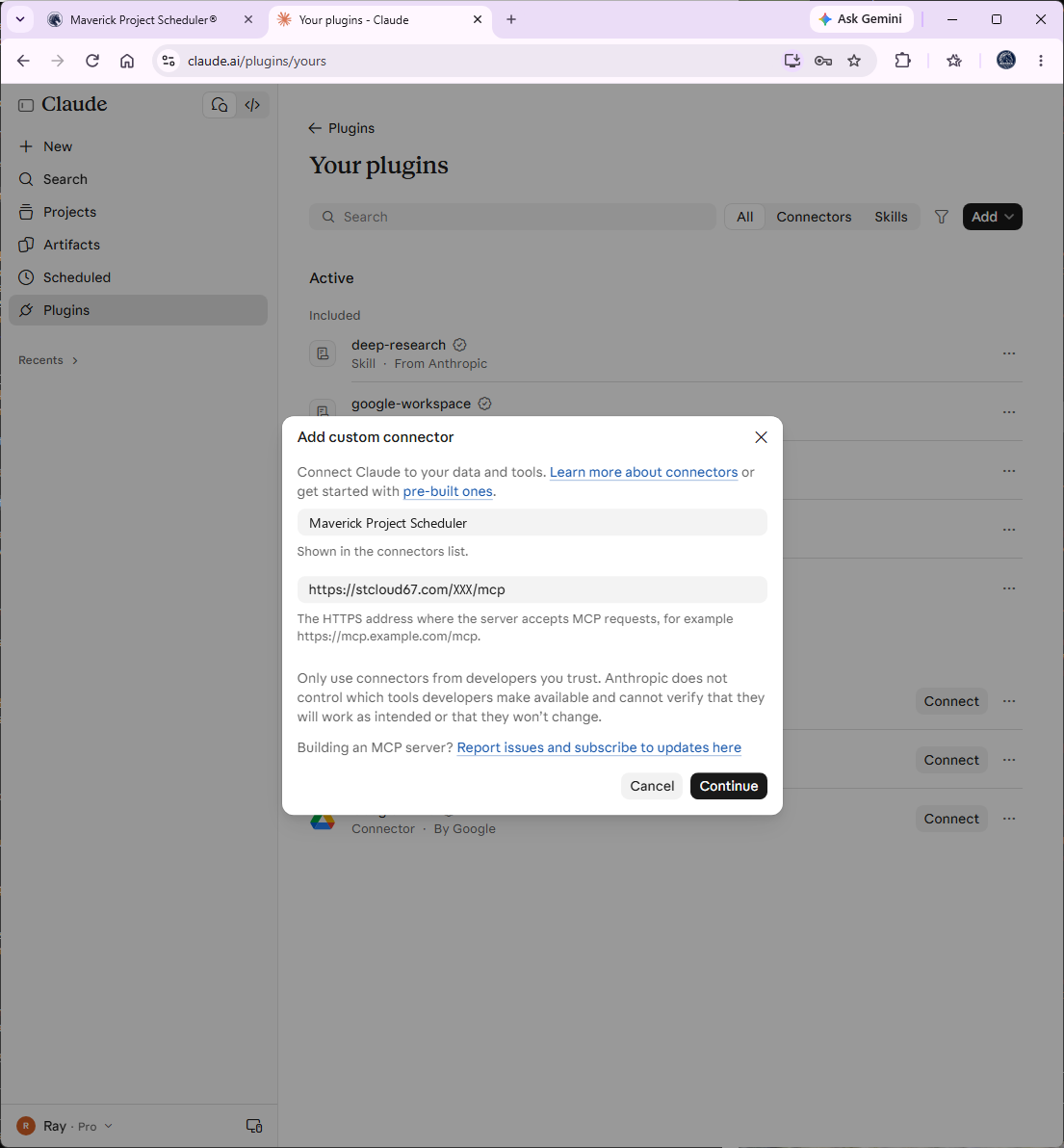
Type a name you will recognize, paste the Connector URL you copied, and click Continue. The name is only a label in your own connector list.
Keep What Claude Detected
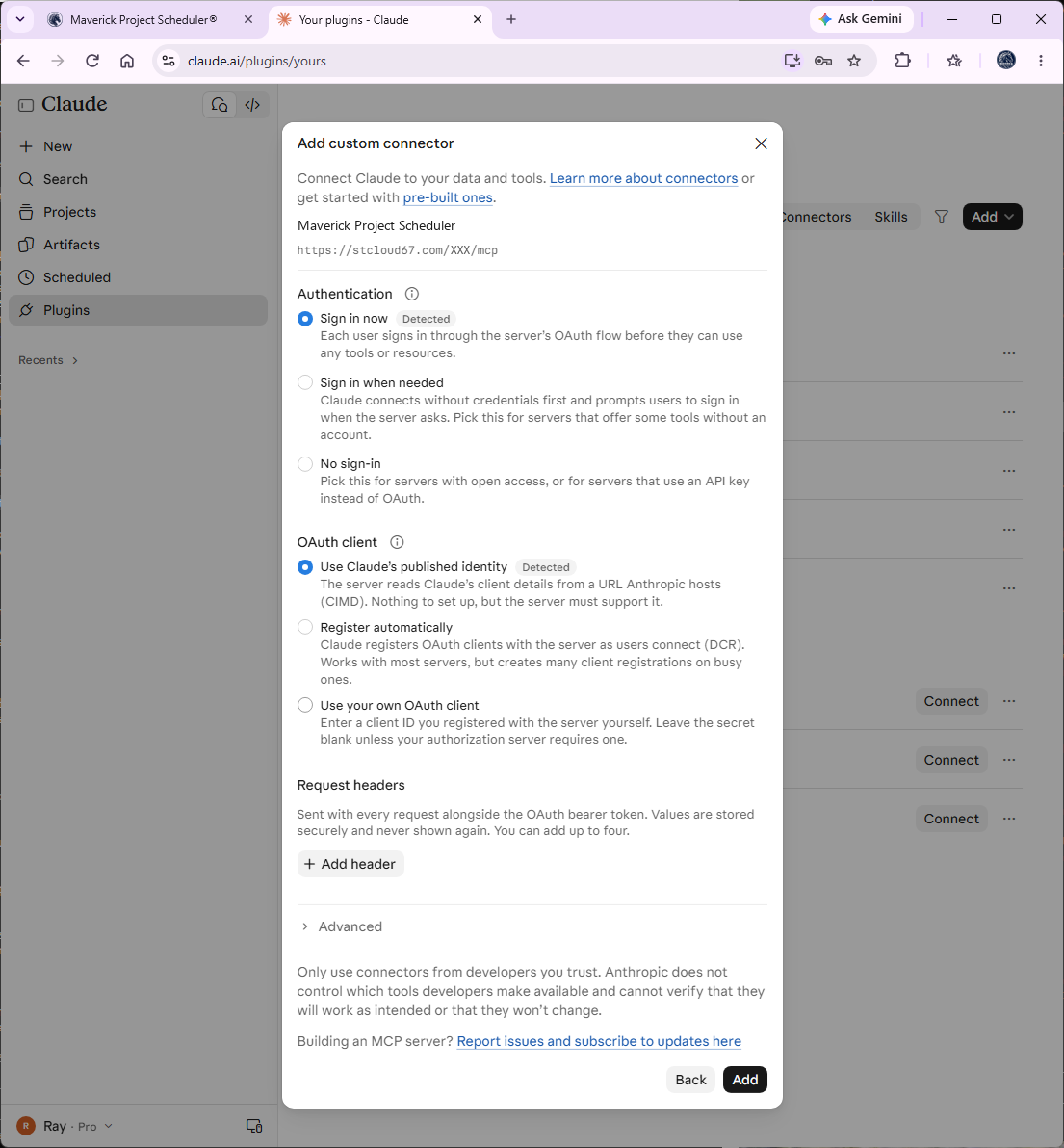
Claude marks the right settings Detected. Leave them alone: Sign in now means each person signs in with their own Maverick login, and Use Claude's published identity means nothing to register. Skip Request headers and Advanced, then click Add.
Connect and Sign In to Maverick
Click Connect on the new connector. Your browser opens a Maverick page titled Connect an app. Enter your Maverick username and password, choose what Claude may do (see the table below), and click Allow. The yellow note appears when you sign in as an administrator.
Confirm It Says Connected
Back in Claude, the connector shows Connected and lists its address. A new row also appears under Connected apps in the Maverick MCP Server dialog, with its state, who connected, and what was excluded.
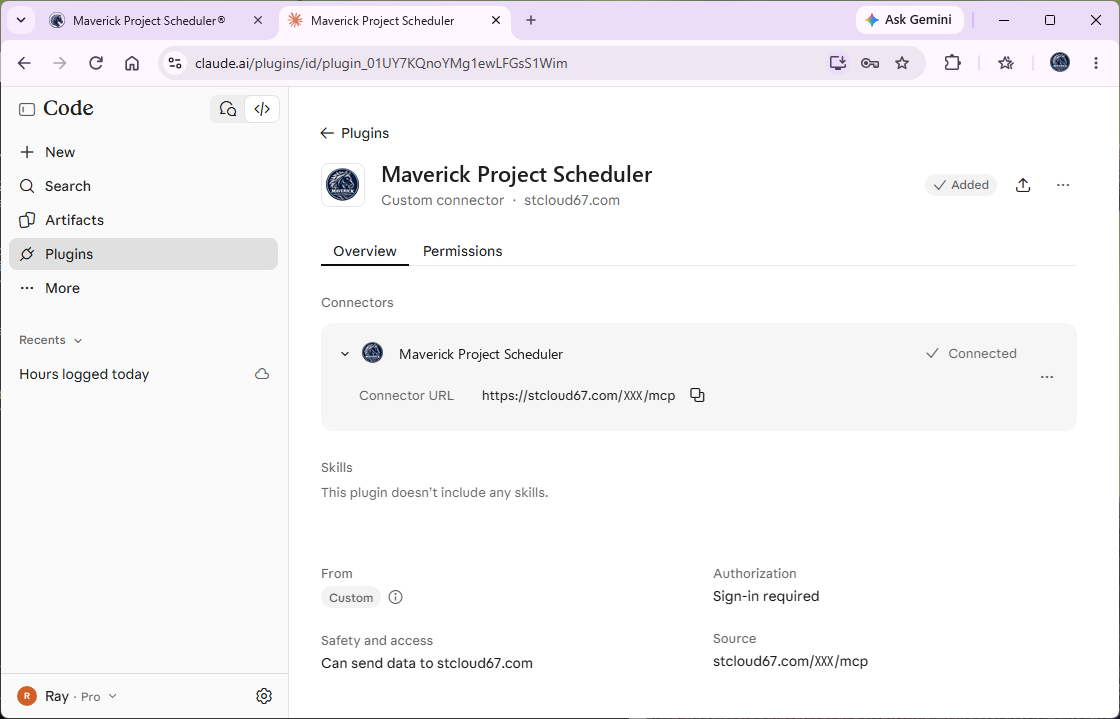
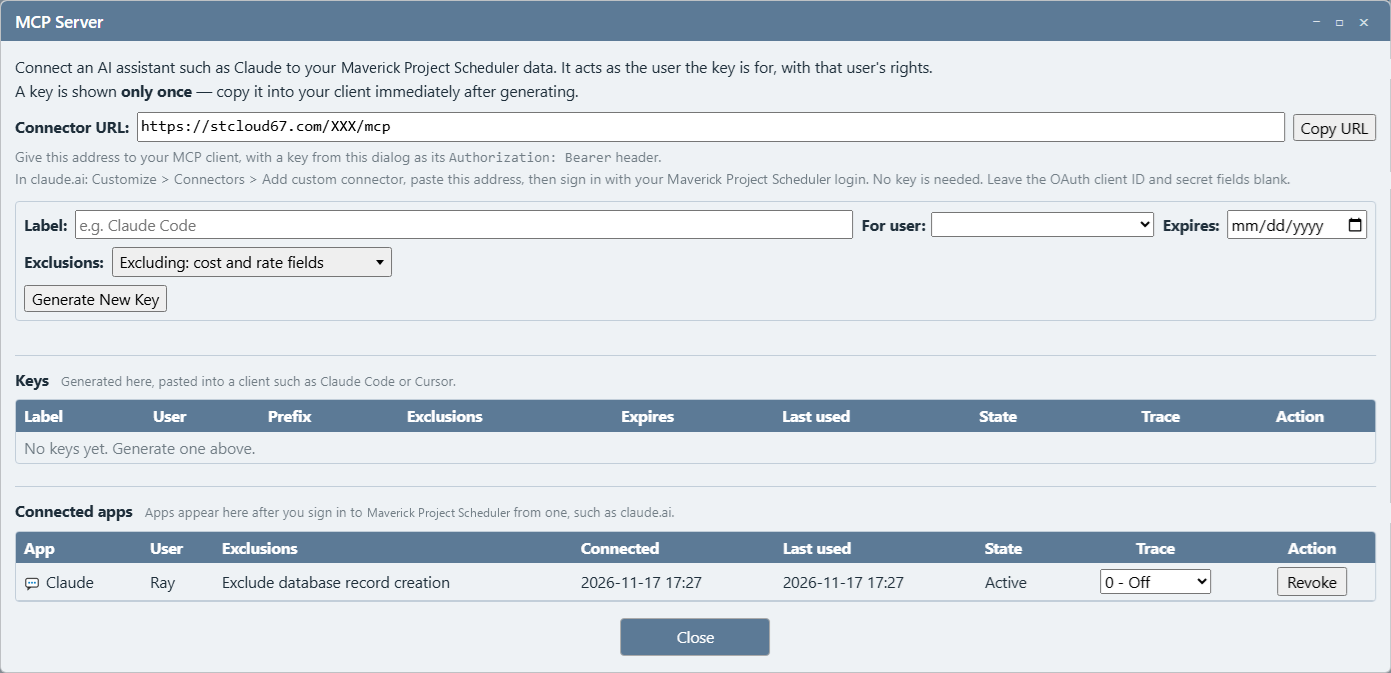
Staying signed in: Claude keeps the connection alive in the background. After about 30 days unused, or roughly six months in all, it asks you to sign in to Maverick again. If you revoke the connection, Claude loses access immediately.
The Five Consent Choices
These are fixed for that connection. To change them later, disconnect and connect again.
| Choice | What it does |
|---|---|
| Read | Claude can look things up but can never propose a change. |
| Read and write | Claude can look things up and propose changes to tasks. Nothing is saved until you approve it. |
| Hide cost and rate fields | Client and salary costs and rates are withheld from Claude, even if your own rights allow you to see them. A good choice unless you want Claude to answer cost questions. |
| Hide user names | Claude sees stand-ins such as User 1 instead of real employee names. |
| Allow it to create and copy projects and tasks | Lets Claude propose brand-new tasks and projects and copies of existing ones. Needs Read and write. You still approve each proposal. |
Ask Your First Question
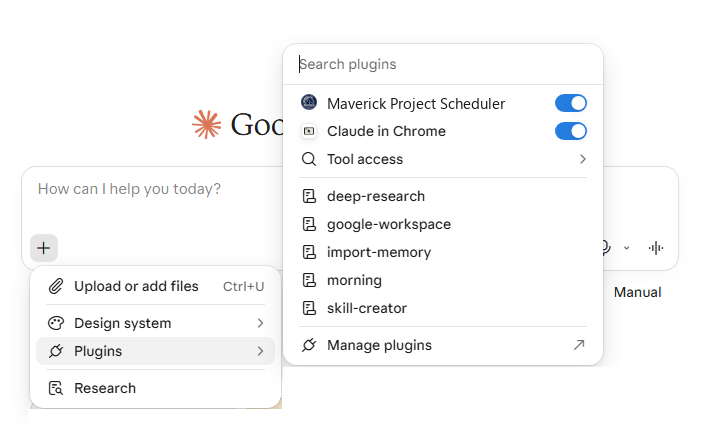
In a new Claude chat, click the + button, choose Plugins, and make sure the Maverick switch is on. If Claude says it cannot see your projects, this switch is almost always the reason.
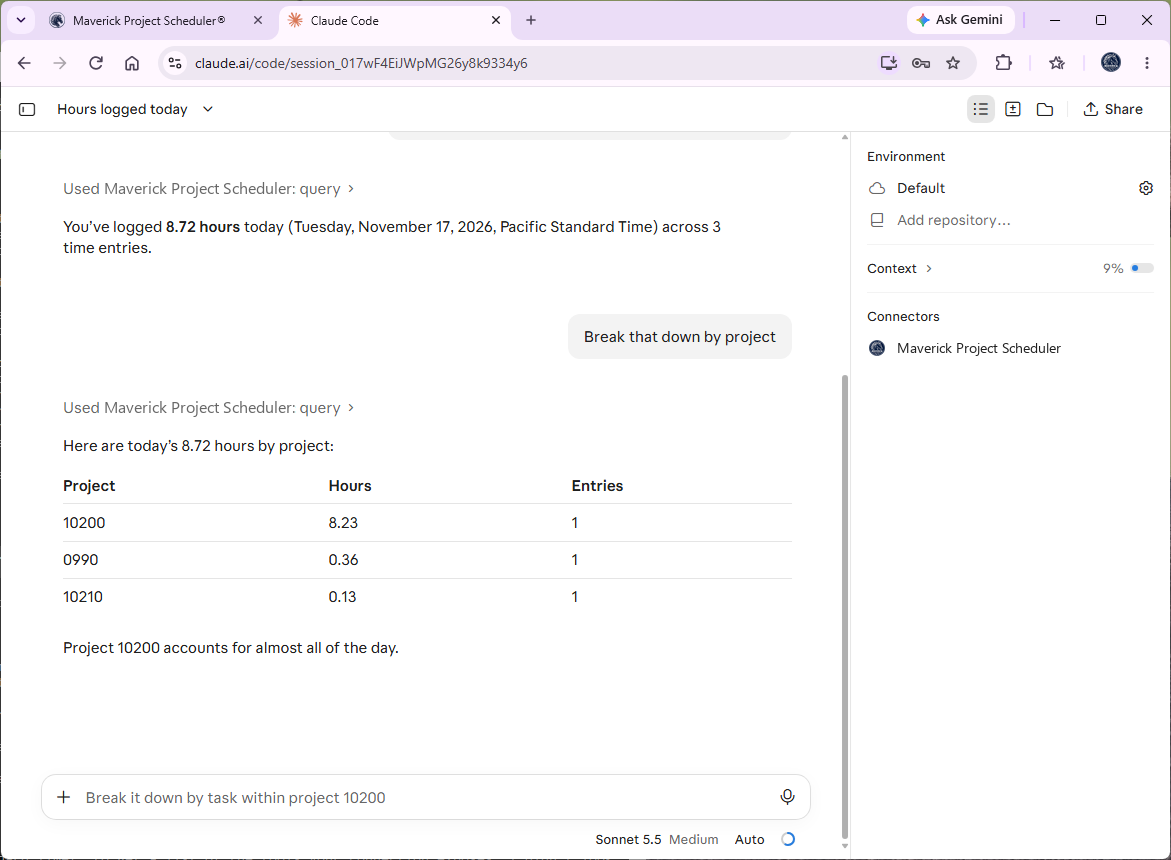
How many hours did I log today? Break that down by project.
The first time Claude uses a Maverick tool in Manual mode it stops and asks permission. Read-only lookups are safe to allow. Claude then answers from your live data and names the tool it used, so you can see where the numbers came from.
Follow-Ups Work Like a Conversation
Try Break it down by task within project 10200 or Draw a bar chart of hours per day this month. This capture is from Claude Code on the web, and a claude.ai chat gives the same kind of answer.
Changing Tasks Safely: Preview, Approve, Apply, Undo
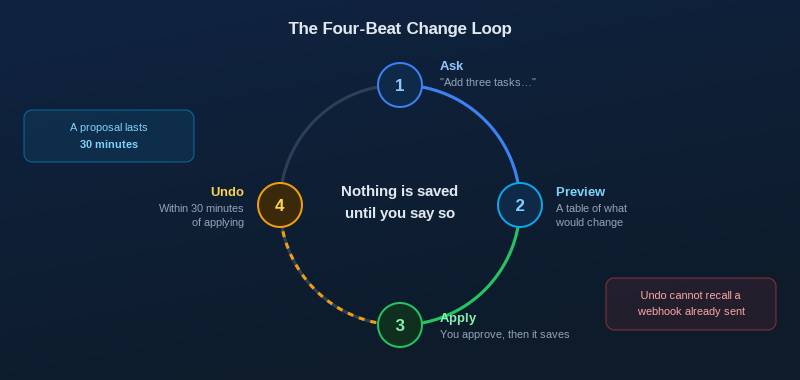
Reading is harmless, but changing your schedule is not. So every change goes through the same loop, and nothing is written until you approve the apply step.
A Worked Example
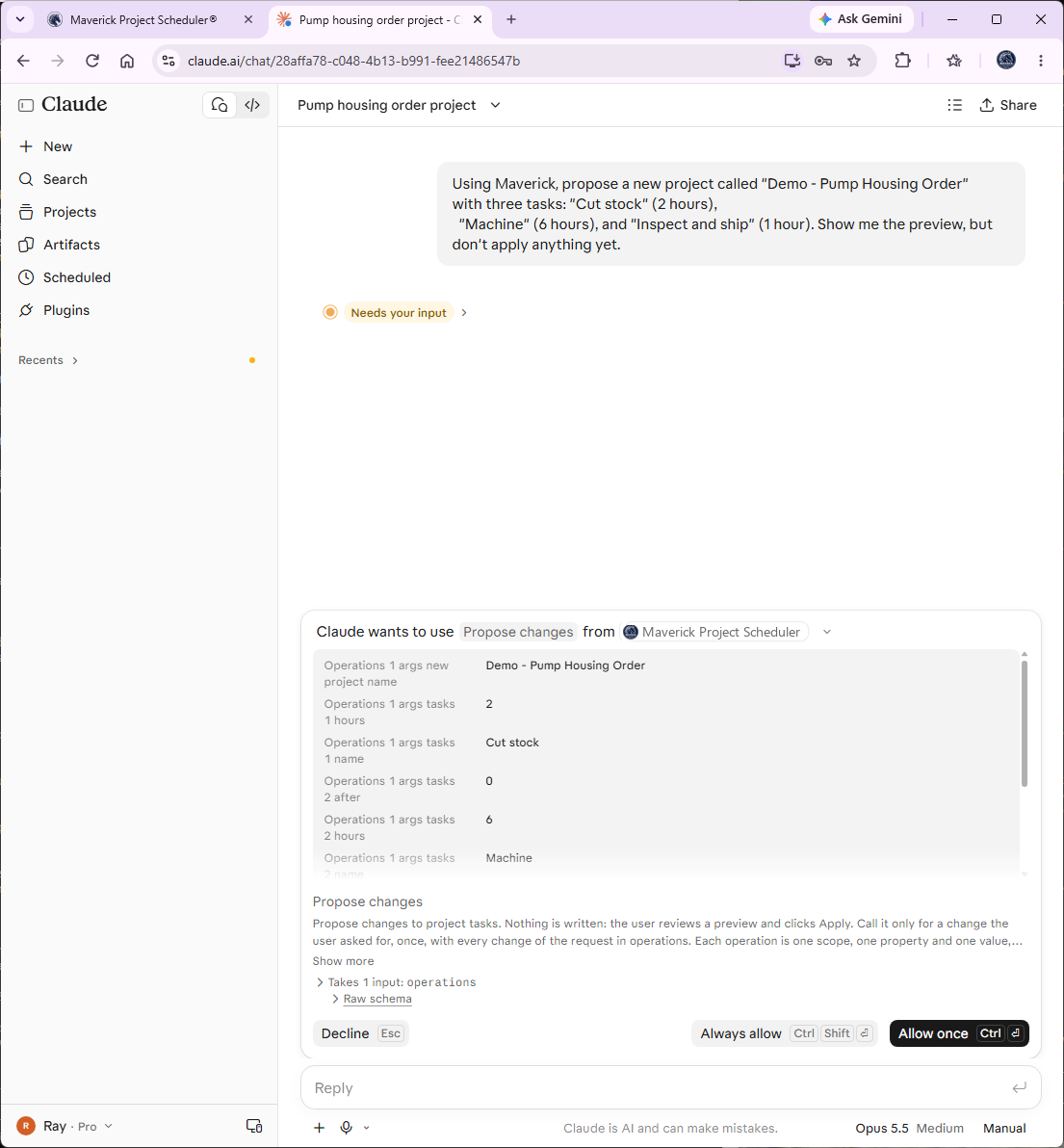
Here Claude is asked: Propose a new project called Demo - Pump Housing Order with three tasks: Cut stock (2 hours), Machine (6 hours), and Inspect and ship (1 hour). Show me the preview, but do not apply anything yet.
1. Claude prepares a proposal
In Manual mode Claude first asks permission to use Propose changes. A proposal writes nothing. It only checks the request and builds a preview.
2. You read the preview
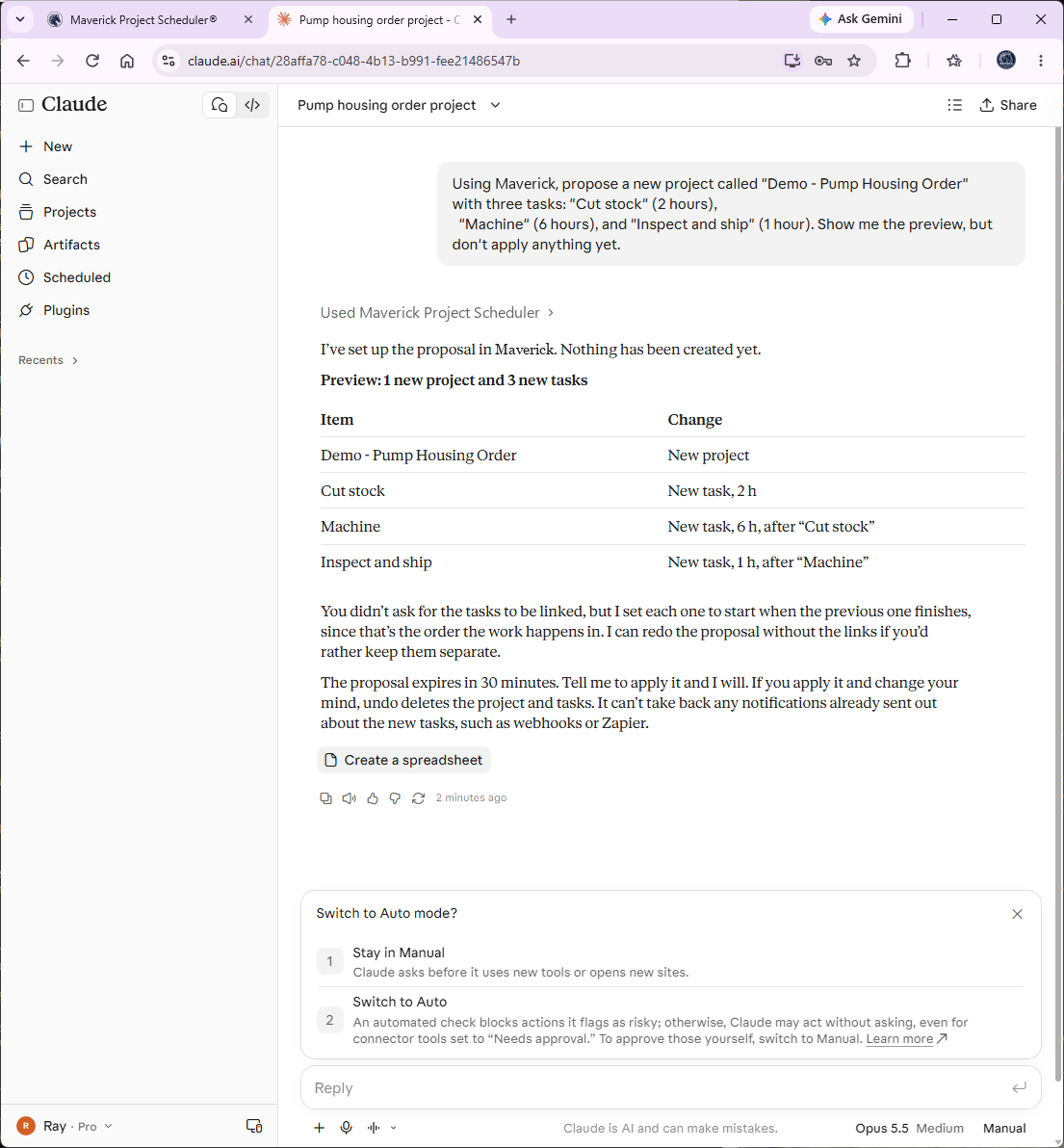
Claude shows what would change in a table and says plainly that nothing has been created yet. Read it carefully, because this is your chance to catch mistakes.
3. You approve, and Claude asks once more
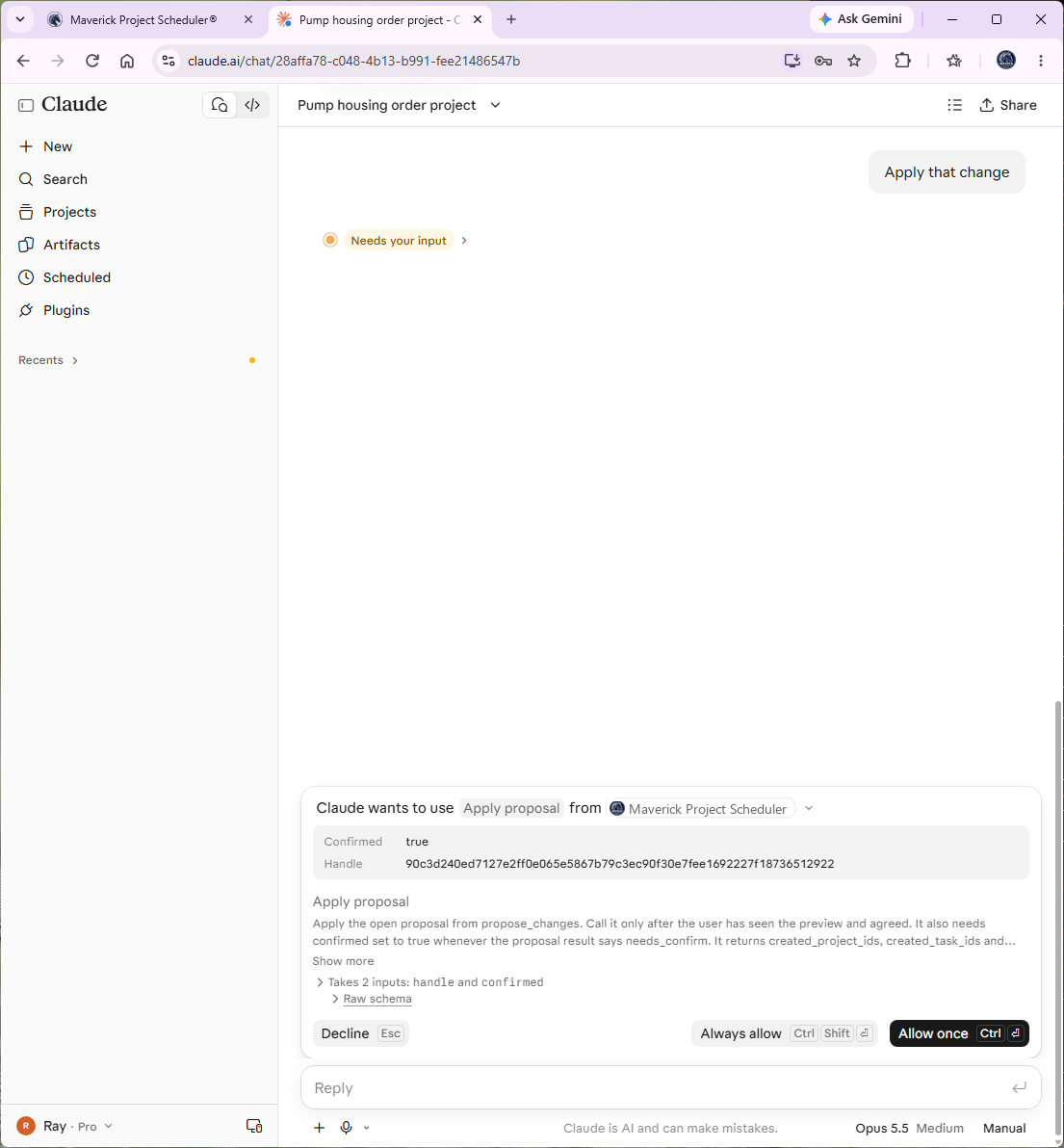
Tell Claude to apply it. In Manual mode it then asks permission to use Apply proposal, the one tool that actually saves changes. Click Allow once.
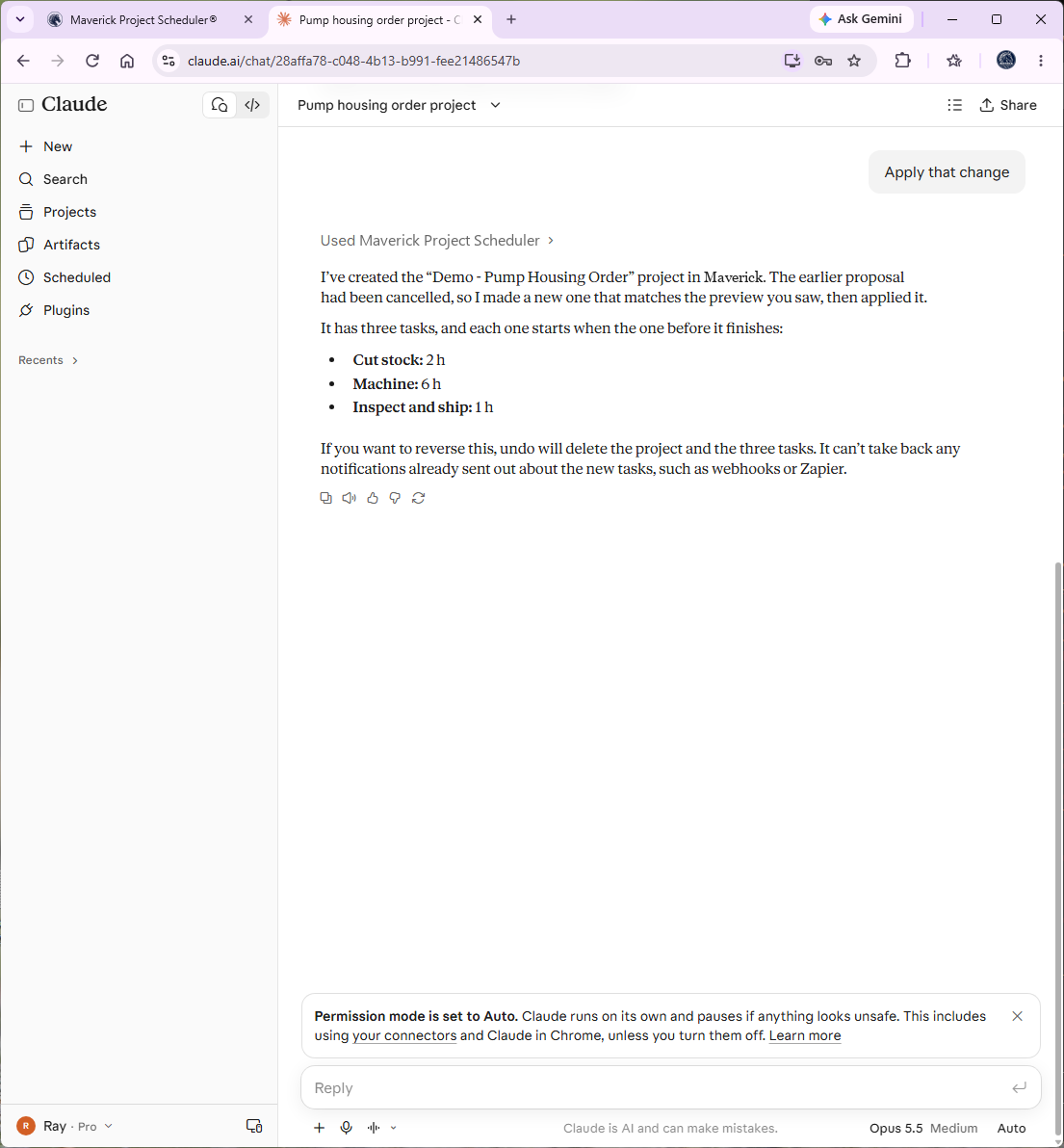
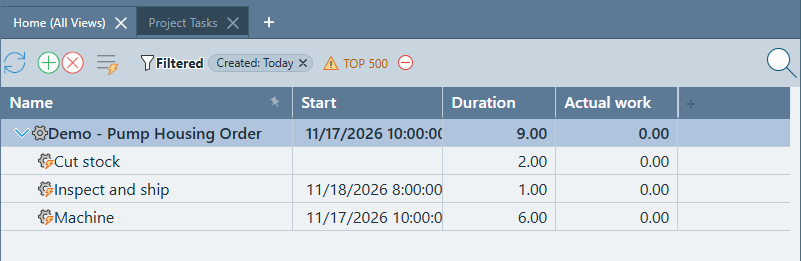
4. The change is applied
The project and its tasks now exist in Maverick, and everyone with access sees them like any other records. Here the new project totals 9 hours (2 + 1 + 6).
5. Undo, if you change your mind
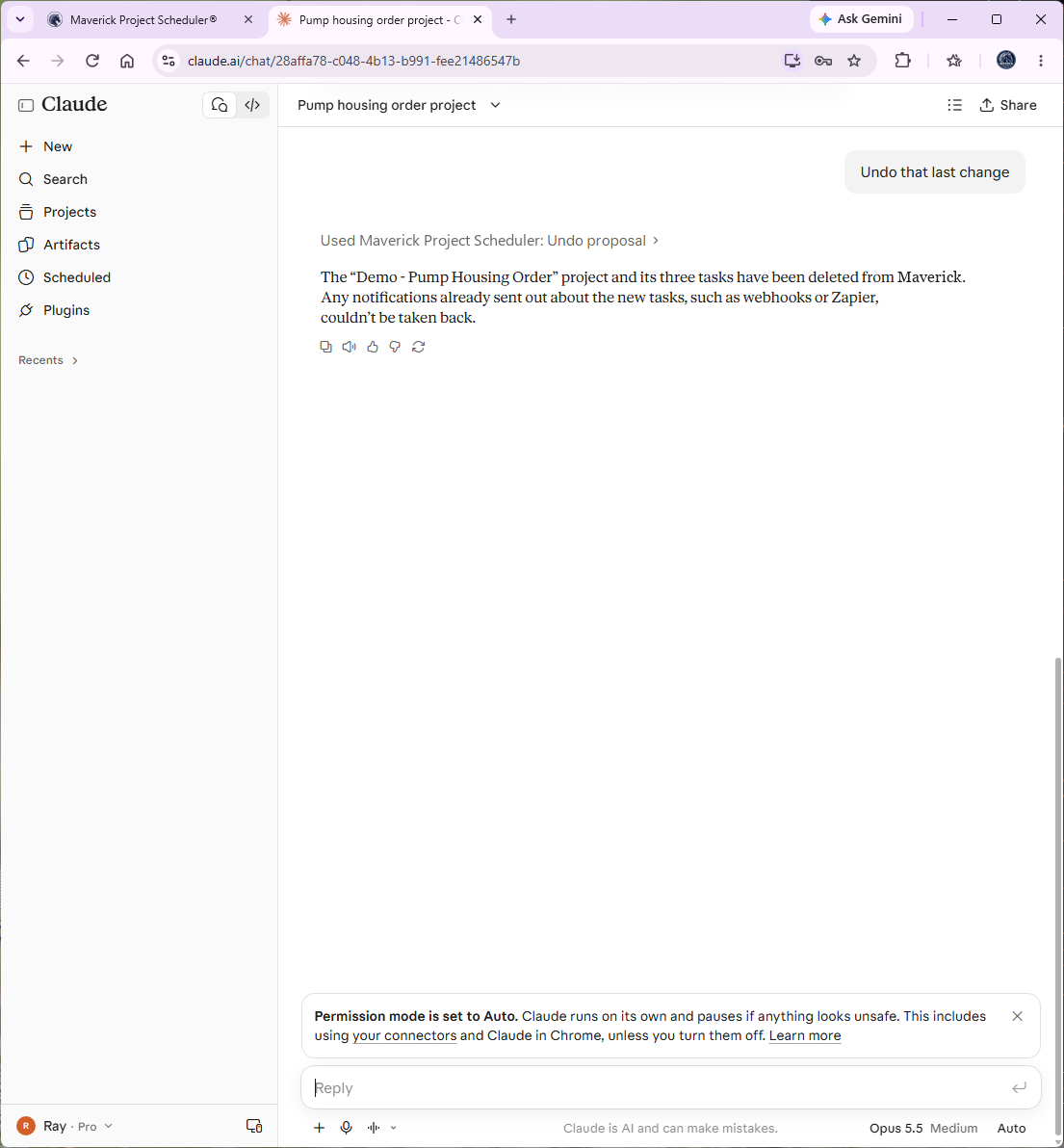
Say Undo that last change. Undo removes anything the proposal created and restores anything it edited. It works for 30 minutes after the change was applied.
Good to know
- One proposal at a time. A new proposal replaces the open one, and it lasts 30 minutes.
- Large schedules take rounds. For 60 tasks, Claude builds the project with the first 25, then attaches the next batches, asking each time.
- Your rights still apply. Adding tasks needs the right to create project tasks. Starting or copying a whole project needs an administrator who can administer projects.
- Projects can opt out. A project whose AI-updates setting is off is skipped, and Claude says which rows it could not change.
- Undo cannot recall notifications. If a change already fired a webhook or a Zapier automation, undo does not take that back. Claude warns you first.
Manual Mode, Auto Mode, and Tool Permissions
Claude shows which mode you are in at the bottom right of the chat box, where it says Manual or Auto.
Stay in Manual mode when Claude is changing your data. In Auto mode Claude can apply a change without the Allow once pause, even for a tool set to Needs approval. The preview-and-apply design is still there, but you lose the extra stop. Auto mode is fine for questions.
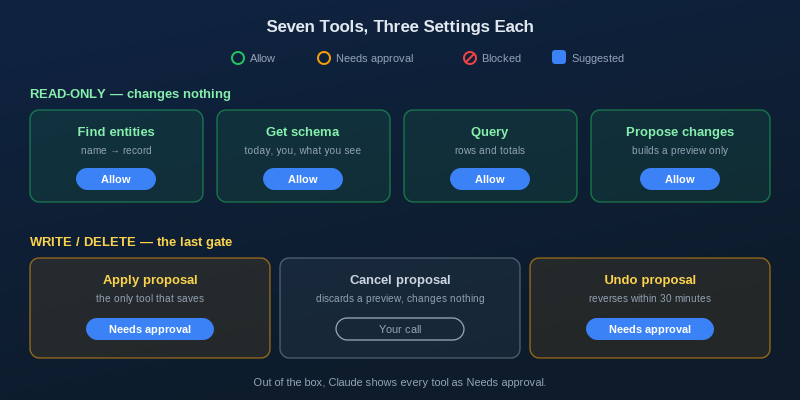
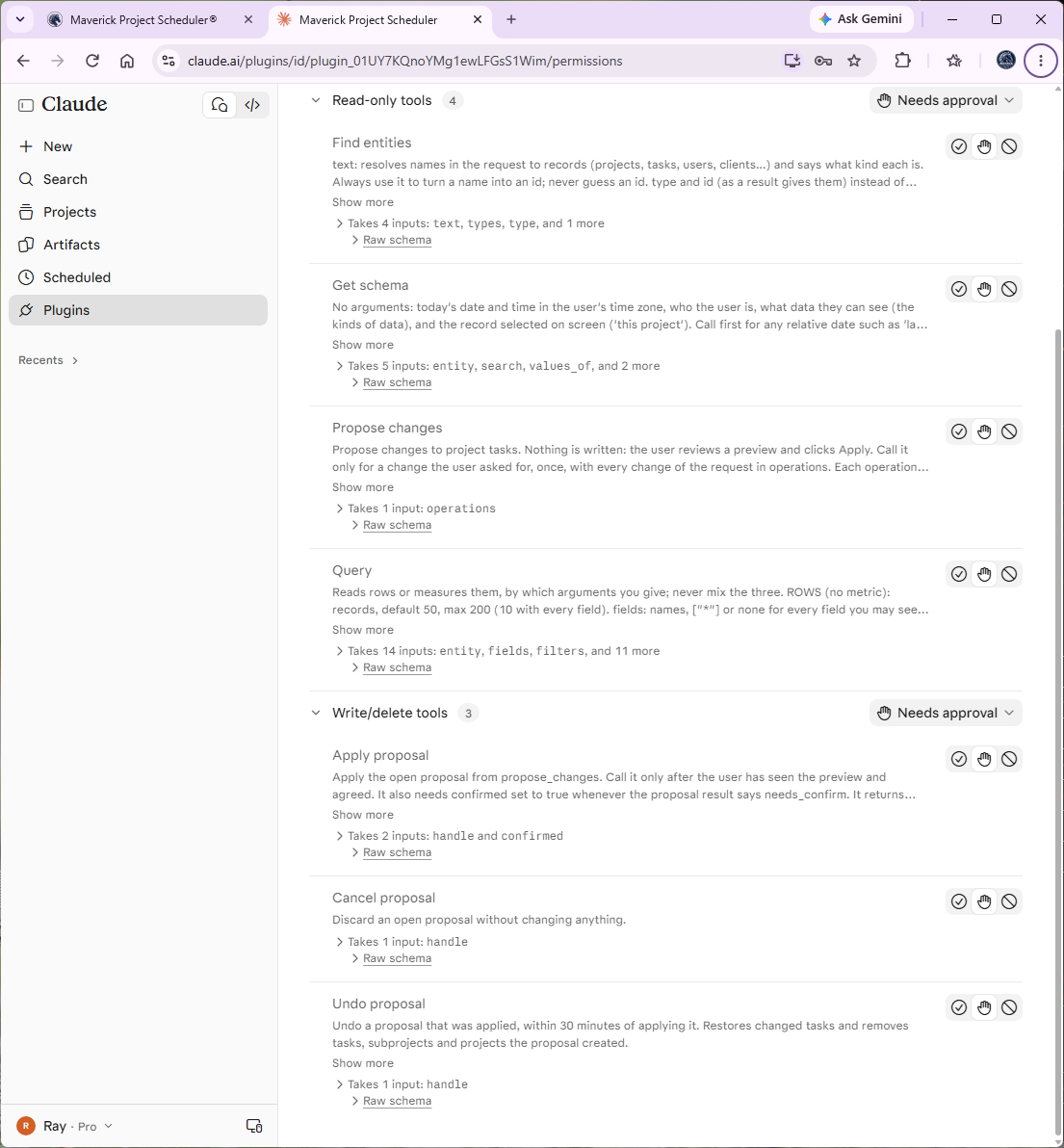
To set these, open Plugins in Claude, click your Maverick connector, and choose the Permissions tab. Each tool can be set to allow, needs approval, or blocked, and all seven start at Needs approval.
| Tool | Changes data? | What it does |
|---|---|---|
| Find entities | No | Turns a name you type, such as a project, task, employee, or client, into the right record. |
| Get schema | No | Tells Claude today's date, who you are, and which kinds of data you can see. |
| Query | No | Reads rows or totals, such as hours by project or tasks due this week. |
| Propose changes | No | Builds a preview of a change. It writes nothing. |
| Apply proposal | Yes | Saves an open proposal after you have seen the preview and agreed. |
| Cancel proposal | No | Throws away an open proposal without changing anything. |
| Undo proposal | Yes | Reverses an applied proposal within 30 minutes of applying it. |
A sensible setup: set the read-only tools to allow so you are not prompted for every lookup, and leave Apply proposal and Undo proposal on Needs approval so every change still stops for you.
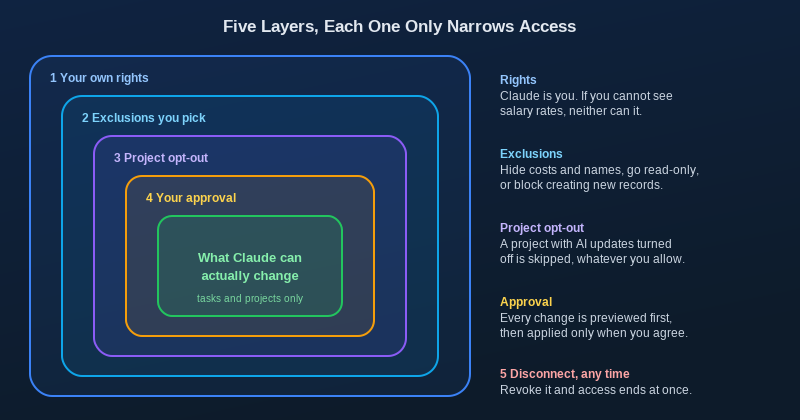
How to Limit What Claude Can See and Do
Several layers keep the assistant inside the lines. Each one can only narrow what it reaches. None of them widens it.
The Exclusions
Exclusions are chosen at connect time. To change them for a Claude connection, revoke it and connect again with different choices.
| Exclusion | Effect |
|---|---|
| Cost and rate fields | Client and salary costs and rates are withheld, even from a user whose rights allow them. This is the default for a new key. |
| User names | The assistant sees stand-ins such as User 1 instead of real names. |
| Database writes (Read only) | No changes of any kind. The assistant is never offered the tools that change data. |
| Database record creation | The assistant may edit existing tasks but not create or copy tasks and projects. Excluding writes also excludes creation. |
Using Claude Code or Cursor? Connect With a Key
Claude on the web signs in with your Maverick login. Tools that run on your own computer, such as Claude Code and Cursor, send a key instead: a long secret code that stands in for you.
Create a Key
- Open Tools, Integration, MCP Server.
- Type a Label that says what it is for, such as Claude Code.
- Choose For user, optionally an Expires date, and the Exclusions.
- Click Generate New Key, then Copy to Clipboard right away.
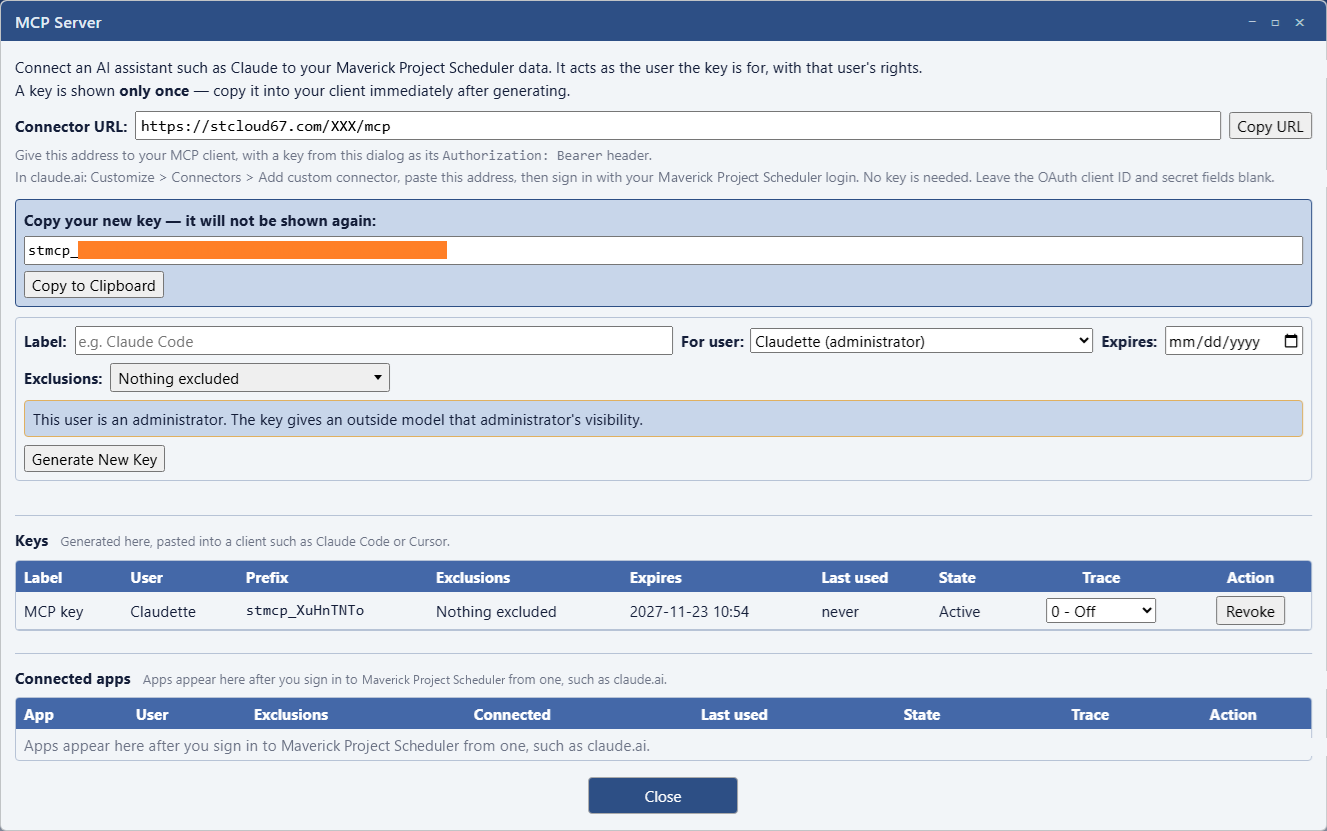
The key is shown only once. Afterward Maverick keeps just the first few characters (the prefix) for identification. Treat it like a password, never paste it into a chat or email, and revoke it if you think it was exposed.
Give your tool the Connector URL and send the key as a bearer token in the Authorization header. In Claude Code, for example, run this in a terminal with your own address and key:
claude mcp add --transport http maverick https://YOUR-CONNECTOR-URL \ --header "Authorization: Bearer YOUR-KEY"
In Cursor, add a remote MCP server with the same address and header. Commands and menus change between versions, so check the tool's own documentation if a step looks different. Each key is limited to 120 requests per minute, far more than a person typing questions will use, and every key appears in the Keys list with its label, user, prefix, exclusions, expiry, last use, and state.
Disconnecting and Revoking Access
You can cut off Claude at any time from Tools, Integration, MCP Server. Under Connected apps, find the connection and click Revoke. For a key, use Revoke in the Keys list.
Confirm the disconnect
Claude loses access at once, and any open, unapplied proposals are forgotten.

A record stays behind
A revoked connection stays in the list, dimmed and marked Revoked. To connect again, repeat the setup steps. You get a fresh consent page, which is your chance to choose different exclusions.
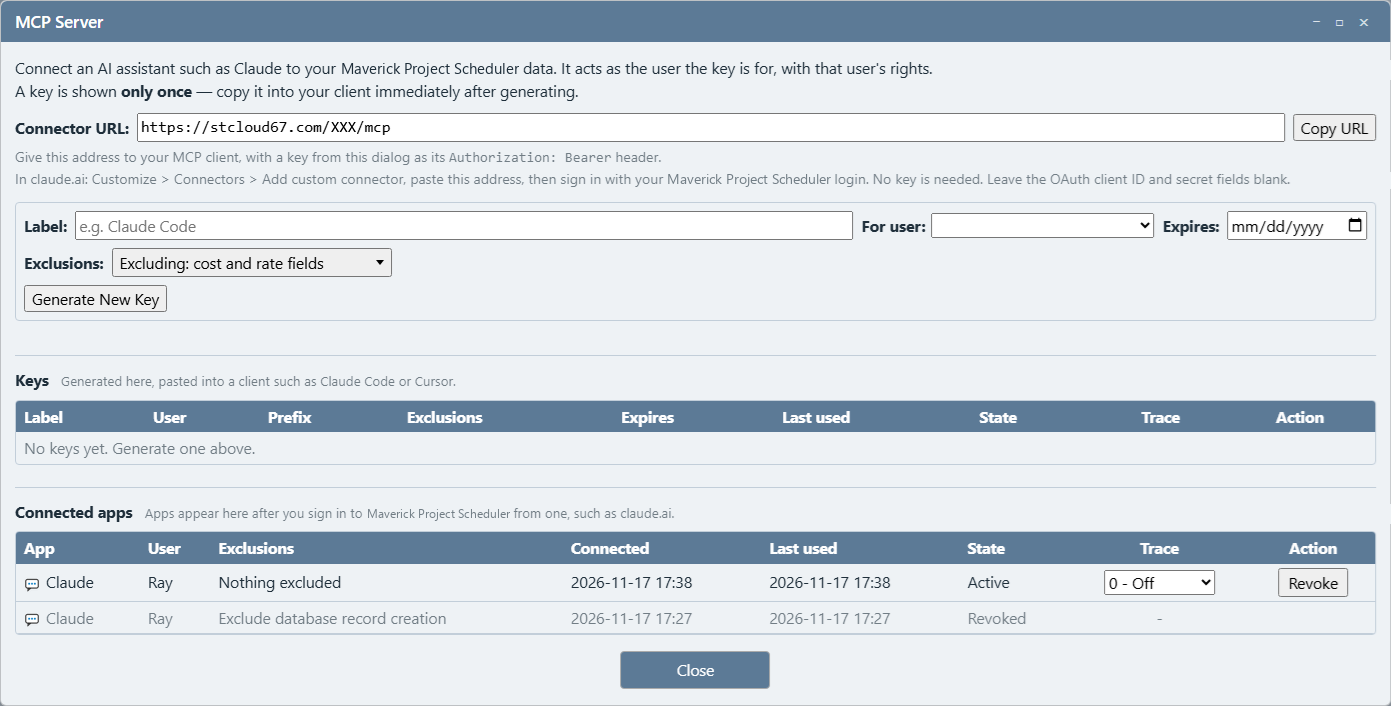
You can also remove the connector inside Claude from the Plugins page, but revoking in Maverick is the one that actually shuts the door, because it ends the connection on Maverick's side immediately.
When Something Does Not Work
| What you see | Likely cause and fix |
|---|---|
| Claude cannot find Maverick or has no tools for it | The connector is off for this chat. Click +, then Plugins, and turn it on. |
| Sign-in says the username or password is wrong | Check both. Several wrong tries in a row lock sign-in for a while, so wait before trying again. |
| Sign-in is refused with the right password | The account may lack the Access to AI right, or may not be an administrator (a requirement by default). Ask an administrator. |
| That proposal is no longer available | It expired after 30 minutes, you were disconnected, or the connection sat idle. Ask Claude to propose the change again and review the new preview. |
| Claude cannot answer a cost or rate question | Cost and rate fields are hidden on this connection, or your own rights do not allow them. Revoke and reconnect without that exclusion. |
| Claude shows User 1 and User 2 instead of names | User names are hidden on this connection. Reconnect without that exclusion. |
| Claude asks you to sign in again | The connection went unused for about 30 days or reached its roughly six-month limit. Sign in again from the connector page. |
| Claude asks permission on every lookup | You are in Manual mode with read-only tools on Needs approval. Set them to allow in the connector's Permissions tab. |
| Claude skipped some rows | The project's AI-updates setting is off, or your rights do not allow that change. Claude lists what it skipped and why. |
| A key stopped working | It may have expired or been revoked, or its user was deactivated or lost the Access to AI right. Check the Keys list and issue a new key if needed. |
Is It Safe? What Protects You, and the Limits
What Protects You
- It acts as you, with your rights, and rights are re-checked on every request.
- Changes are two steps: a preview, then an apply you approve. Even instructions hidden in a task note cannot change anything without that approved apply.
- Everything travels over HTTPS, and keys are stored scrambled and shown only once.
- Repeated wrong passwords lock sign-in for a while. Applying and undoing changes are always logged.
Limits to Know About
- It edits and creates tasks and projects only. Time logs, expenses, invoices, and existing project settings are read-only to it.
- It never deletes or merges anything, so removing records is always done in Maverick itself.
- It works with Claude, ChatGPT, and tools that use a key, such as Claude Code and Cursor. Other assistants may not be able to connect yet.
- An assistant can misunderstand a request. That is why every change shows a preview. Read it before you approve.
Claude is a separate service from Anthropic with its own account, plans, and menus. Those can change; the Maverick side described here stays the same. This is an independent guide from Maverick Development, and Anthropic is not affiliated with Maverick Project Scheduler.
Quick Answers About Connecting Claude
Keep Going
The MCP Server works the other way around from the AI built into Maverick: you work in Claude, and Claude reaches into your projects.
AI Chat Inside Maverick
Analyze and reschedule a project without leaving the application.
Read the AI Chat guideMore Ways to Connect
Power BI, Zapier, and webhooks move data in the background while a person leads this one.
Browse all integrationsThe Tasks Claude Reads
See the Gantt chart and project task grid that the assistant can read and change.
Explore the Gantt chart guide